
Graigar S500-DT
S500-DT Intelligent Temperature and Humidity Monitor Data Logger User Manual
Model: S500-DT | Brand: Graigar
1. Introduction and Overview
The Graigar S500-DT Intelligent Temperature and Humidity Monitor Data Logger is a high-precision device designed for accurate environmental monitoring. It features a large LCD display for simultaneous viewing of temperature, data storage capacity, and time. This series of loggers, developed by HUATO company, incorporates American-made sensors to ensure duality and stability in measurements.
This data logger is widely applied in various fields including agricultural research, electronics, food industry, medical industry, environmental protection, and laboratory settings. It is equipped with a USB interface for easy data download to a PC and includes an automatic record function with a mass storage capacity of 43,000 data points.
Key specifications include a temperature accuracy of ±0.5℃ and a temperature measurement range of -40℃ to +85℃. It utilizes two external sensors and offers a resolution of 0.1°C. The device also features a built-in sound and light alarm system that activates when data exceeds user-defined limits, making it easy to operate and suitable for both desktop placement and wall mounting.
2. Product Features
- Large LCD Display: Shows temperature, number of stored data points, and time simultaneously for clear monitoring.
- USB Interface: Enables convenient data download to a personal computer via the included USB cable.
- Automatic Record Function: Features a mass storage capacity of 43,000 data points for extensive logging.
- Built-in Sound & Light Alarm: Provides immediate alerts when monitored data exceeds user-defined limits.
- Easy Operation: Designed for user-friendliness, suitable for placement on a desk or mounting on a wall.
- MAX/MIN Function Key: Allows users to quickly view the maximum and minimum recorded values.
3. What's in the Box
The standard package for the S500-DT Intelligent Temperature and Humidity Monitor Data Logger includes the following components:
- S500-DT Data Logger Unit
- User Manual
- USB Cable
- Software CD
- Mounting Screws
- External Temperature/Humidity Sensors (2 units)
- Power Adapter

Image: The S500-DT data logger shown with its complete set of accessories, including the external sensors, USB cable, power adapter, software CD, and mounting screws.
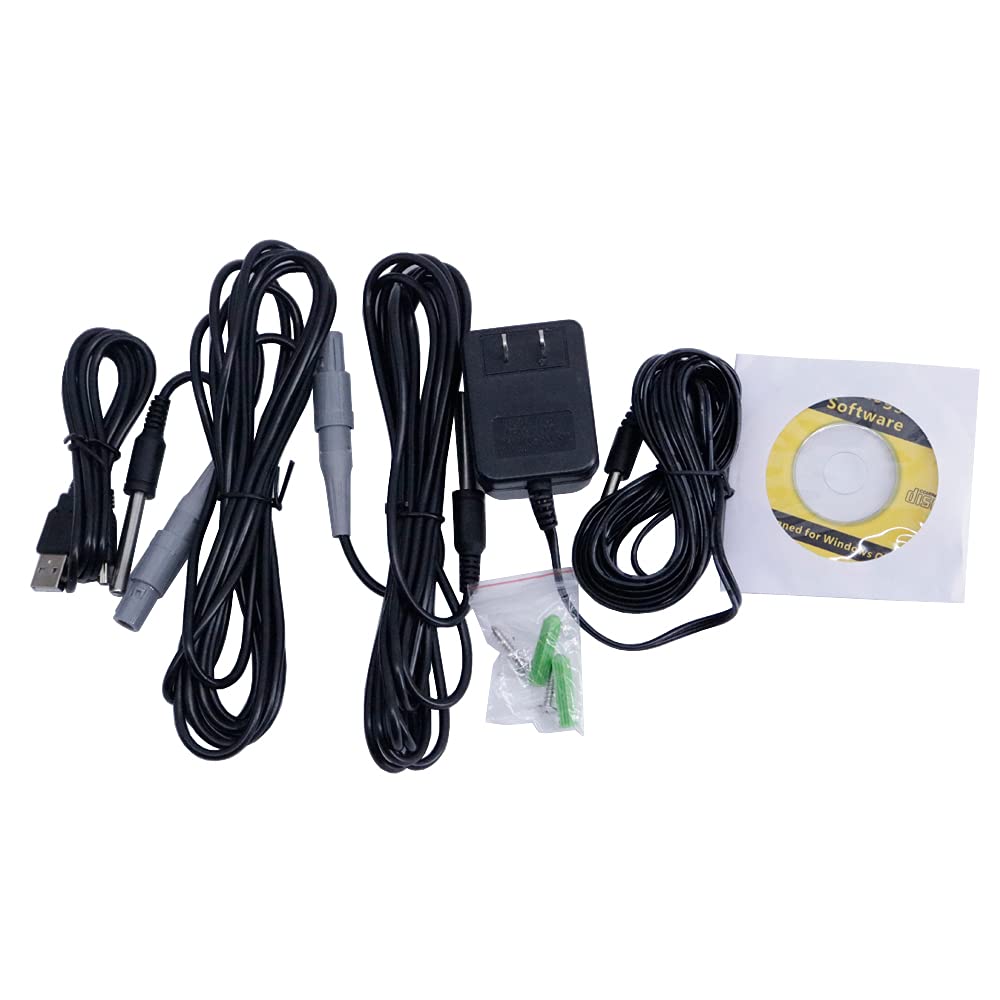
Image: A close-up view of the accessories provided with the S500-DT, including the USB cable, power adapter, external sensors, and software CD.
4. Setup Guide
Follow these steps to set up your S500-DT data logger:
- Power Supply: Insert a 9V block battery (not included) into the battery compartment on the back of the unit, or connect the provided power adapter to the DC input port and a power outlet.
- Sensor Connection: Connect the external temperature and humidity sensors to the designated ports on the side of the data logger. Ensure they are securely plugged in.
- Software Installation: Insert the software CD into your computer's CD-ROM drive and follow the on-screen instructions to install the data logger software. This software is essential for configuring the device, downloading data, and analyzing readings.
- USB Connection: Connect the data logger to your computer using the provided USB cable. This connection is used for initial setup, data transfer, and firmware updates.

Image: The rear view of the S500-DT data logger, highlighting the battery compartment, USB port, and DC power input. This view also shows the wall-mounting bracket.

Image: The bottom view of the S500-DT data logger, showing the two sensor input ports, the reset button, the USB port, and the DC power input port.
Video: An official product video demonstrating the setup and basic testing of the S500-DT data logger, including connecting the external sensors and observing real-time readings on the display.
5. Operating Instructions
Once the S500-DT is set up, you can begin monitoring and logging data:
- Power On/Off: Press the power button (usually marked with a power symbol) to turn the device on or off.
- Real-time Display: The large LCD will immediately show the current temperature and humidity readings from the connected external sensors.
- Logging Data: The device automatically records data at predefined intervals. These intervals can be configured using the PC software.
- MAX/MIN Function: Press the "MAX/MIN" button to cycle through the maximum and minimum recorded temperature and humidity values since the last reset or logging session.
- Alarm Function: If the temperature or humidity exceeds the high or low limits set in the software, the built-in sound and light alarm will activate.
- Data Download: To download recorded data, connect the device to your PC via the USB cable and use the installed software. The software allows for data analysis, export, and report generation.

Image: The front view of the S500-DT data logger, showing its large LCD display which presents temperature and humidity readings, along with the control buttons for logging, MAX/MIN, and power.
6. Maintenance
Proper maintenance ensures the longevity and accuracy of your S500-DT data logger:
- Cleaning: Use a soft, dry cloth to clean the device's exterior. Do not use abrasive cleaners or solvents.
- Battery Replacement: If using battery power, replace the 9V block battery when the low battery indicator appears on the LCD. Ensure the device is powered off before replacing the battery.
- Sensor Care: Keep the external sensors clean and free from dust or debris. Avoid exposing them to extreme physical shock or corrosive environments.
- Storage: When not in use for extended periods, store the data logger in a cool, dry place, away from direct sunlight and extreme temperatures. Remove the battery if storing for a very long time to prevent leakage.
7. Troubleshooting
If you encounter issues with your S500-DT data logger, consider the following common troubleshooting steps:
- Device Not Powering On:
- Check if the 9V battery is correctly installed and has sufficient charge.
- Ensure the power adapter is securely connected and the power outlet is functional.
- No Readings on Display:
- Verify that the external sensors are properly connected to their respective ports.
- Ensure the device is powered on.
- Data Transfer Issues:
- Confirm the USB cable is securely connected to both the data logger and the computer.
- Ensure the data logger software is correctly installed and running on your PC.
- Try a different USB port on your computer.
- Inaccurate Readings:
- Ensure sensors are placed in an environment representative of the area being monitored and are not obstructed.
- Check for any physical damage to the sensors or cables.
- Alarm Not Functioning:
- Verify that alarm limits are correctly set within the PC software.
- Ensure the current readings are actually outside the set limits.
If problems persist after attempting these steps, please refer to the comprehensive troubleshooting section in the full user manual or contact Graigar customer support.
8. Technical Specifications
| Specification | Value |
|---|---|
| Model | S500-DT |
| Temperature Measurement Range | -40℃ to +85℃ |
| Temperature Accuracy | ±0.5℃ |
| Resolution | 0.1°C |
| Sensor Type | External (2 sensors) |
| Automatic Recording Capacity | 43,000 data points |
| Battery | 9V Block Battery (not included) |
| Weight | 380g |
| Product Dimensions | 5.31 x 4.88 x 1.37 inches |
| Manufacturer | Graigar |
| Color | White |
| UPC | 761272052417 |
9. Warranty and Support
For detailed information regarding the product warranty, terms, and conditions, please refer to the official warranty card included with your purchase or visit the Graigar official website. The warranty typically covers manufacturing defects and material faults under normal use.
For technical support, product inquiries, or assistance with troubleshooting beyond the scope of this manual, please contact Graigar customer service. Contact information can usually be found on the manufacturer's website or in the full user manual provided with the product.
Ask a question about this manual
Ask about setup, troubleshooting, compatibility, parts, safety, or missing instructions. Manuals+ will review the question and use this page’s manual context to help answer it.