
HUAWEI 53060274
HUAWEI MateView 28.2-inch Monitor User Manual
Model: 53060274
1. Introduction
Thank you for choosing the HUAWEI MateView 28.2-inch Monitor. This monitor is designed to provide an exceptional visual experience with its 4K+ Ultra-HD display, vibrant color reproduction, and sleek, minimalist design. Featuring a 3:2 aspect ratio, 98% DCI-P3 cinema-level color gamut, and VESA DisplayHDR 400 certification, it is ideal for both professional and personal use. The integrated Smart Bar offers intuitive touch controls for easy interaction, and its versatile connectivity options, including multi-purpose USB-C, enhance productivity.

Figure 1.1: Front view of the HUAWEI MateView Monitor.
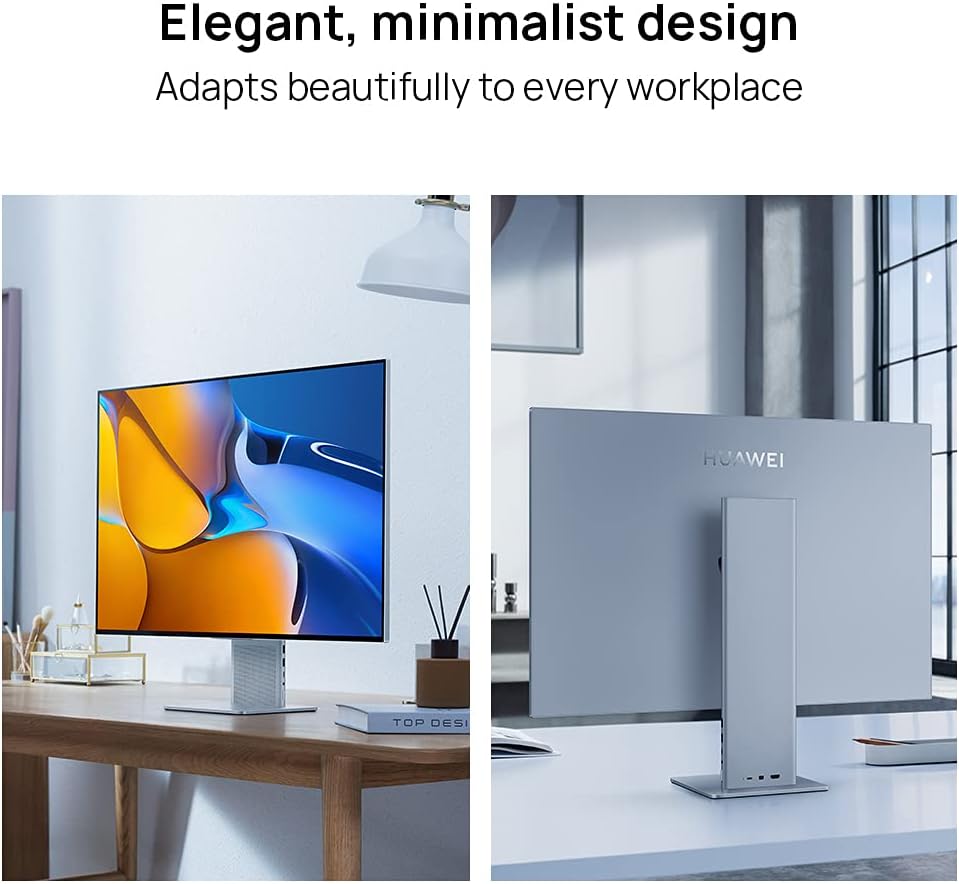
Figure 1.2: The elegant and minimalist design of the HUAWEI MateView Monitor, shown from front and back.
2. Safety Information
Please read all safety instructions before using the monitor. Keep this manual for future reference.
- Do not expose the monitor to rain or moisture.
- Do not block ventilation openings.
- Use only attachments/accessories specified by the manufacturer.
- Unplug this apparatus during lightning storms or when unused for long periods of time.
- Refer all servicing to qualified service personnel.
3. Package Contents
Ensure all items are present and in good condition upon unboxing:
- HUAWEI MateView 28.2-inch Monitor
- Monitor Stand
- Power Adapter and Cable
- USB-C to USB-C Cable
- USB-C to USB-A Cable
- MiniDP Cable (if included with your model)
- HDMI Cable (if included with your model)
- Quick Start Guide
- Warranty Card
4. Setup
4.1 Monitor Assembly
- Carefully remove the monitor and stand from the packaging.
- Attach the monitor panel to the stand base. Ensure it clicks securely into place.
- Place the assembled monitor on a stable, flat surface.
4.2 Connecting Cables
The HUAWEI MateView monitor offers versatile connectivity. Connect your devices using the appropriate ports located on the stand.
Video 4.1: This video demonstrates the various features and connectivity options of the HUAWEI MateView Monitor, including how to connect cables.

Figure 4.1: Side view of the monitor stand showing the various input and output ports.
- Power Connection: Connect the power adapter to the monitor's USB-C power port and then to a power outlet.
- USB-C Connection: For a single-cable solution that provides display, data transfer, and charging (up to 65W) for compatible laptops, connect a USB-C to USB-C cable from your device to the monitor's USB-C port.
- HDMI Connection: Connect an HDMI cable from your device to the monitor's HDMI port.
- MiniDP Connection: Connect a MiniDP cable from your device to the monitor's MiniDP port.
- USB-A Ports: Use the two USB-A 3.0 ports on the stand to connect peripherals like keyboards, mice, or external storage devices.
- 3.5mm Audio Jack: Connect headphones or external speakers to this port.
4.3 Adjusting the Monitor
The monitor stand allows for ergonomic adjustments to suit your viewing preferences.

Figure 4.2: A hand demonstrating the height adjustment feature of the HUAWEI MateView Monitor.
- Height Adjustment: Gently push or pull the monitor up or down to adjust its height. The elevation range is approximately 110 mm.
- Tilt Adjustment: Tilt the monitor screen forward or backward to find the optimal viewing angle. The tilt angle ranges from -5° to 18°.
5. Operating
5.1 Power On/Off
The monitor will automatically power on when connected to a power source and a signal is detected. To manually power on/off, use the Smart Bar.
5.2 Using the Smart Bar
The Smart Bar, located at the bottom edge of the monitor, provides intuitive touch controls for various settings.

Figure 5.1: The Smart Bar interface on the HUAWEI MateView Monitor, showing touch controls for settings.
- Single Tap: Select an option or confirm a setting.
- Swipe Left/Right: Navigate through menus or adjust values (e.g., brightness, volume).
- Swipe Up/Down: Access quick settings or switch between display inputs.
- Press and Hold: Access the main menu or power off the monitor.
5.3 Wireless Projection
Wirelessly project your compatible laptop or smartphone screen onto the HUAWEI MateView for enhanced productivity and entertainment. Refer to your device's manual for specific wireless projection instructions.

Figure 5.2: The monitor displaying content wirelessly projected from a laptop, showcasing enhanced efficiency.
5.4 Audio Features
The monitor features built-in dual speakers and four microphones for clear audio and voice pickup.
- Speakers: Provide integrated audio output. Volume can be controlled via the Smart Bar or your connected device.
- Microphones: Designed for 4-meter far-field voice pickup, ideal for video calls and voice commands.
6. Maintenance
To ensure the longevity and optimal performance of your HUAWEI MateView monitor, follow these maintenance guidelines:
- Cleaning the Screen: Gently wipe the screen with a soft, lint-free cloth. For stubborn marks, slightly dampen the cloth with water or a non-abrasive screen cleaner. Avoid spraying liquid directly onto the screen.
- Cleaning the Casing: Use a soft, dry cloth to wipe the monitor casing. Do not use strong detergents or solvents.
- Ventilation: Ensure the ventilation openings are clear and not obstructed to prevent overheating.
- Storage: When not in use for extended periods, store the monitor in a cool, dry place, away from direct sunlight and extreme temperatures.
7. Troubleshooting
If you encounter issues with your monitor, refer to the following common troubleshooting steps:
| Problem | Possible Cause | Solution |
|---|---|---|
| No display/Black screen | No power; Incorrect input source; Loose cable connection. | Check power cable connection; Select correct input source via Smart Bar; Reconnect display cables securely. |
| No sound | Volume too low/muted; Incorrect audio output selected on device; Loose audio cable. | Increase volume via Smart Bar or device; Select monitor as audio output on your device; Ensure audio cables are connected properly. |
| Image flickering/distorted | Cable issue; Graphics card driver issue; Resolution/refresh rate mismatch. | Try a different cable; Update graphics drivers; Adjust display resolution and refresh rate to recommended settings. |
| Smart Bar unresponsive | Temporary software glitch. | Restart the monitor by unplugging and re-plugging the power cable. |
If the problem persists after trying these solutions, please contact HUAWEI customer support.
8. Specifications
| Feature | Specification |
|---|---|
| Model Number | 53060274 |
| Screen Size | 28.2 Inches |
| Resolution | 3840 x 2560 Pixels (4K+ UHD) |
| Aspect Ratio | 3:2 |
| Refresh Rate | 60 Hz |
| Color Gamut | 98% DCI-P3 |
| Brightness | 500 nits (max) |
| HDR Support | VESA DisplayHDR 400 |
| Ports | 1x MiniDP, 1x HDMI, 2x USB-C (1 for power, 1 for data/display), 2x USB 3.0, 1x 3.5mm Audio Jack |
| Dimensions (W x D x H) | 60.83 x 18.21 x 59.11 cm |
| Weight | 6.2 kg |

Figure 8.1: Visual representation of the 4K+ Ultra-HD Display.

Figure 8.2: Details on the monitor's color reproduction capabilities, including 1.07 billion colors and 98% DCI-P3.

Figure 8.3: Certification for VESA DisplayHDR 400, ensuring high dynamic range content display.

Figure 8.4: Illustration of the 3:2 aspect ratio compared to traditional 16:9, highlighting more vertical screen space.
9. Warranty and Support
Your HUAWEI MateView Monitor comes with a standard manufacturer's warranty. For detailed warranty terms and conditions, please refer to the warranty card included in your package or visit the official HUAWEI support website.
For technical support, troubleshooting assistance, or service requests, please contact HUAWEI customer service through their official channels. Keep your purchase receipt and product serial number handy for faster service.
HUAWEI Official Support: consumer.huawei.com/en/support/