
1. Introduction
This manual provides detailed instructions for the Kenuo 10-inch WiFi Digital Photo Frame, Model KEEU-DC0015. Please read this manual thoroughly before using the device to ensure proper operation and to maximize your user experience. This digital photo frame allows you to display photos and videos, share memories with family and friends, and utilize various integrated functions.
2. Safety Information
- Do not expose the device to moisture, rain, or extreme temperatures.
- Use only the provided power adapter.
- Avoid placing the device near heat sources or in direct sunlight.
- Do not attempt to disassemble or repair the device yourself. Contact qualified service personnel for assistance.
- Keep the device out of reach of children.
3. Package Contents
Please check the box for the following items:
- Kenuo 10-inch WiFi Digital Photo Frame
- Support Stand (Stent)
- DC Power Adapter
- User Manual

Image 3.1: Contents of the Kenuo Digital Photo Frame package, including the frame, user manual, stent, and DC adapter.
4. Product Overview
The Kenuo Digital Photo Frame features a sleek design with a 10-inch IPS touchscreen display. Key components include:
- Front: 10-inch Full HD IPS Touch Screen.
- Back: Power input, USB port, SD card slot, and mounting holes.
- Stand: Detachable support stand for desktop placement.
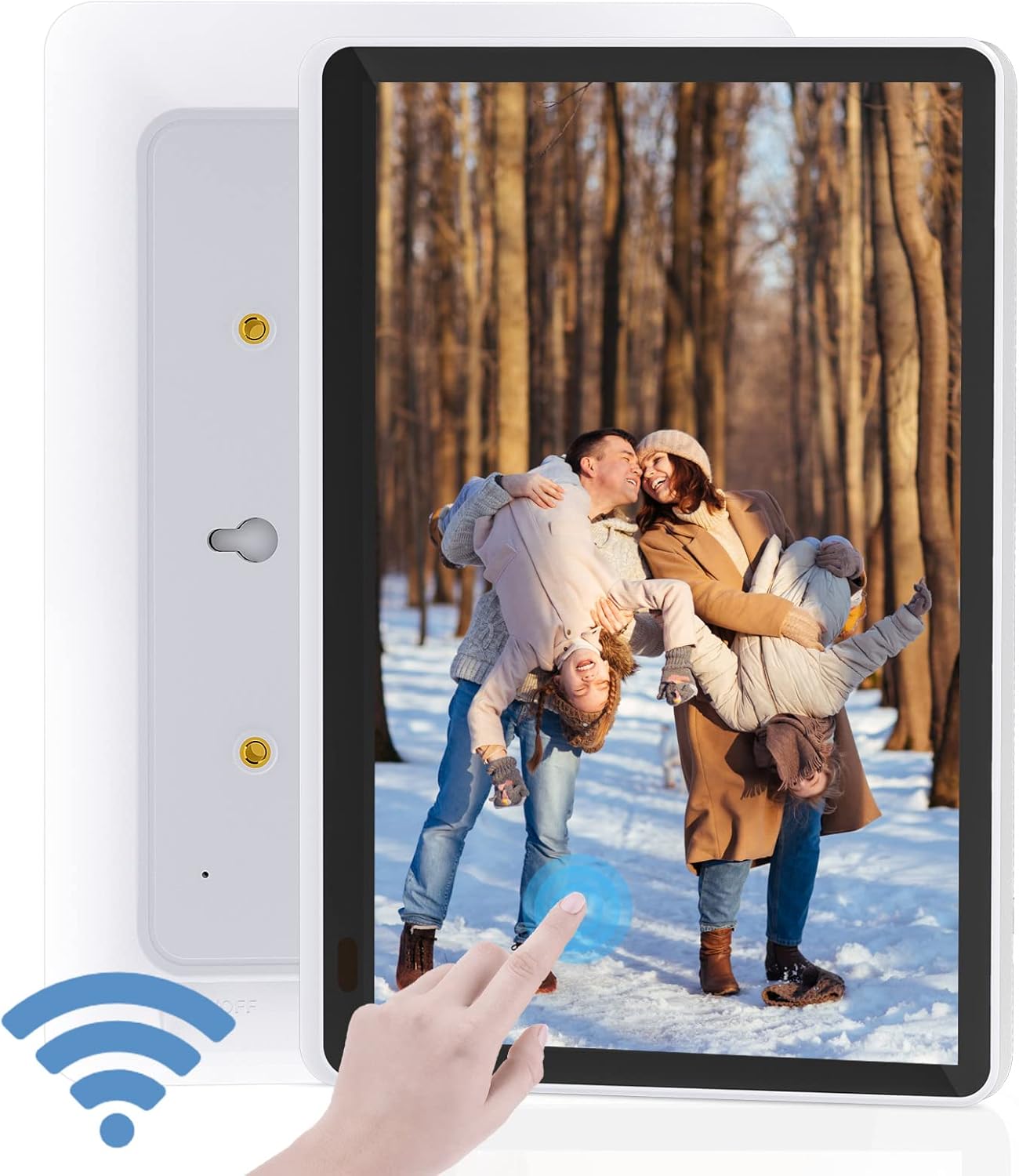
Image 4.1: Front view of the Kenuo Digital Photo Frame, showing the touchscreen display and a finger interacting with it. A Wi-Fi signal icon is also visible.

Image 4.2: Close-up of the 10-inch HD Touch Screen IPS Display, showcasing a clear image of a child with a puppy and a finger interacting with the screen.
5. Setup
5.1 Initial Power-On
- Attach the support stand to the back of the frame.
- Connect the DC power adapter to the frame's power input and then plug it into a wall outlet.
- The frame will power on automatically. Follow the on-screen prompts to select your preferred language and time zone.
5.2 Wi-Fi Connection
The frame requires a 2.4GHz Wi-Fi network for full functionality. 5GHz networks are not supported.
- From the main menu, navigate to Settings.
- Select Wi-Fi and turn it on.
- Choose your 2.4GHz Wi-Fi network from the list and enter the password.
- Once connected, a Wi-Fi icon will appear on the screen.
5.3 OurPhoto App Installation and Pairing
The free "OurPhoto" app is essential for sharing photos and videos to your frame.
- Download the "OurPhoto" app from the iOS App Store or Google Play Store on your smartphone or tablet.
- Open the app and create an account. No mobile phone number is required for registration.
- On your Kenuo frame, go to Settings > Bound Account to find your unique frame code.
- In the "OurPhoto" app, add your frame by entering the frame code.
- Once paired, you can begin sending media to your frame.
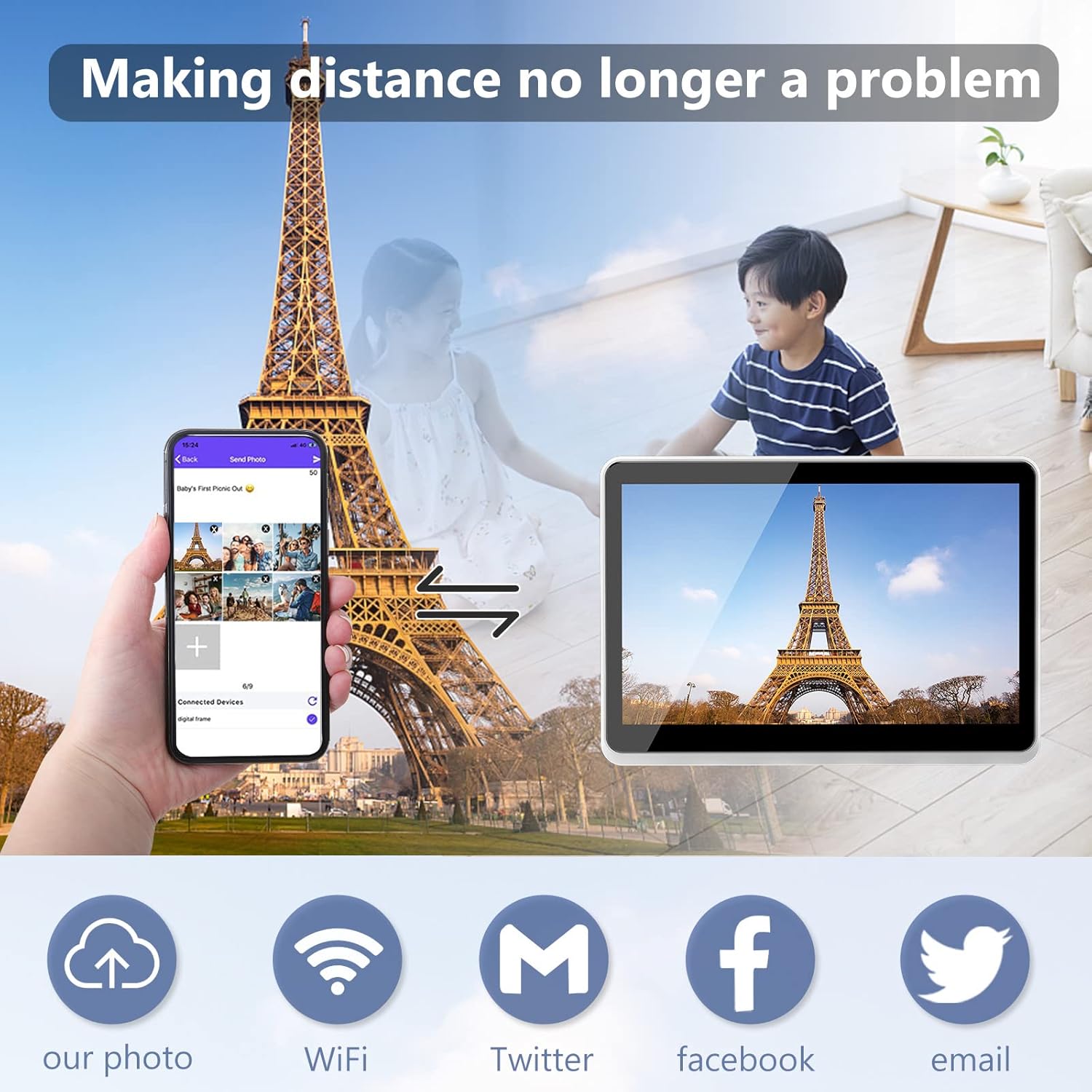
Image 5.1: Illustration of sharing photos from a smartphone via the OurPhoto app to the Kenuo Digital Photo Frame, with options for Wi-Fi, Twitter, Facebook, and Email sharing.
6. Operating Instructions
6.1 Sending Photos and Videos
You can send media to your frame using several methods:
- OurPhoto App: Select photos or videos from your device's gallery within the app and send them directly to the paired frame.
- Email: Send photos or videos as attachments to the unique email address associated with your frame (found in app settings).
- Social Media: The app may offer integration with platforms like Facebook and Twitter for sharing.
- External Storage: Insert an SD card (up to 32GB) or a USB drive into the frame's respective slots to display media directly.
6.2 User Management
The OurPhoto app allows you to manage who can send photos to your frame:
- Share your frame code with family and friends. They can add it to their OurPhoto app to send you pictures.
- You can add or remove users from your frame's settings within the app, maintaining control over who shares content.
6.3 Touchscreen Navigation
The 10-inch IPS touchscreen allows for intuitive control:
- Swipe: Swipe left or right to navigate through photos and menus.
- Tap: Tap on icons or images to select them or access options.
- Pinch-to-Zoom: Use two fingers to zoom in or out on images.
6.4 Automatic Rotation
The frame supports automatic photo reorientation. You can place the frame in either portrait or landscape mode, and the display will adjust accordingly for optimal viewing.

Image 6.1: Demonstration of the auto-rotate function, showing the frame displaying an image correctly in both portrait and landscape orientations.
6.5 Slideshow Settings
Customize your photo display experience:
- Navigate to Slideshow Settings in the menu.
- Choose from various slide intervals: 5 seconds, 10 seconds, 15 seconds, 30 seconds, 1 minute, 5 minutes, 10 minutes, 15 minutes, 20 minutes, 30 minutes, 1 hour, or 'Never'.
- Select transition effects (if available).
6.6 Additional Functions
The Kenuo Digital Photo Frame includes several utility features:
- Alarm: Set alarms for reminders.
- Clock: Display the current time in 12 or 24-hour format.
- Calendar: View the calendar.
- Time Switch: Schedule automatic power on/off times for the frame.
- Image Zoom & 360-degree Rotation: Zoom into photos and rotate them manually.

Image 6.2: The Kenuo Digital Photo Frame on a table, displaying a family photo, with icons representing its features: Wi-Fi, Photo, Video, Weather, Touch, and OurPhoto App.

Image 6.3: Various applications of the Kenuo Digital Photo Frame, including displaying photos on a wall, playing music, showing calendar and alarm functions, and use in a retail environment.
7. Maintenance
7.1 Cleaning the Screen
To clean the touchscreen, gently wipe it with a soft, lint-free cloth. For stubborn smudges, slightly dampen the cloth with water or a screen-cleaning solution. Avoid using harsh chemicals or abrasive materials.
7.2 Storage
When not in use for extended periods, store the frame in a cool, dry place away from direct sunlight and extreme temperatures. Ensure it is powered off and unplugged.
8. Troubleshooting
If you encounter issues with your Kenuo Digital Photo Frame, please refer to the following common solutions:
| Problem | Possible Cause | Solution |
|---|---|---|
| Frame does not power on | Power adapter not connected or faulty. | Ensure the power adapter is securely connected to the frame and a working power outlet. Try a different outlet. |
| Cannot connect to Wi-Fi | Incorrect password; 5GHz network selected; router issues. | Verify Wi-Fi password. Ensure you are connecting to a 2.4GHz network. Restart your router. |
| Photos/Videos not appearing | Frame not paired with app; incorrect frame code; network issue; unsupported file format. | Confirm frame is paired with the OurPhoto app. Check network connection. Ensure media is in a supported format (JPEG, MP4, etc.). |
| Screen freezes or is unresponsive | Temporary software glitch. | Restart the frame by unplugging and re-plugging the power adapter. |
| External storage (SD/USB) not recognized | Unsupported format; card/drive not inserted correctly; faulty card/drive. | Ensure card/drive is formatted to FAT32. Reinsert the card/drive. Try a different card/drive. Max 32GB supported. |
If the problem persists, please contact Kenuo customer support for further assistance.
9. Specifications
- Model: KEEU-DC0015
- Display: 10-inch Full HD IPS Touch Screen
- Resolution: 1920 x 1080 pixels
- Aspect Ratio: 16:10
- Viewing Angle: 170° IPS
- Internal Storage: 16GB
- External Storage: Supports SD, MMC, MS, U disk up to 32GB (not included)
- Wi-Fi: 2.4GHz (5GHz not supported)
- Image Formats: JPEG, BMP, GIF, PNG
- Audio Formats: MP3, WMA, OGG, FLAC, AMR, WAV, AAC
- Video Formats: MP4, MOV, FLV, MPG, VOB, 3GP, M4V (Max 1920x1080 @ 30FPS)
- Input Interface: USB, SD Card Slot
- Power Input: DC 5V/2A
- Functions: Alarm, Clock, Calendar, Time Switch, Image Zoom, 360-degree Rotation
- Languages: Multilingual support
- Dimensions: 15.8 x 28 x 2.5 cm (6.2 x 11 x 1 inches)
- Weight: 1.03 kg (2.27 lbs)
10. Warranty and Support
Kenuo products are designed for reliability and performance. For warranty information, please refer to the documentation included with your purchase or visit the official Kenuo website.
If you require technical assistance or have questions regarding your Kenuo Digital Photo Frame, please contact our customer support team. Contact details can typically be found on the Kenuo official website or within the OurPhoto application.
Online Resources:
- For app-related queries, refer to the OurPhoto app's help section.
- Visit the Kenuo official website for FAQs and support contact information.
