
Introduction
This manual provides detailed instructions for the safe and effective use of your Accutime FRCA1001 Unicorn Interactive Children's Camera. Please read this manual thoroughly before operating the device and retain it for future reference.
Safety Information
WARNING:
- Not suitable for children under 36 months due to small parts. Choking hazard.
- Long string: Risk of strangulation.
- Packaging components such as tape, plastic film, wire ties, stickers, and labels are not part of the product. Dispose of them safely for your child's protection.
- The packaging contains important information and should be kept for later reading.
- The appearance and color of the product may differ from the images shown.
What's in the Box
Upon opening the package, verify that all the following items are included:
- Accutime FRCA1001 Unicorn Interactive Children's Camera
- Micro SD Card
- USB Cable
- Instruction Manual
Product Overview
Familiarize yourself with the camera's components and controls.
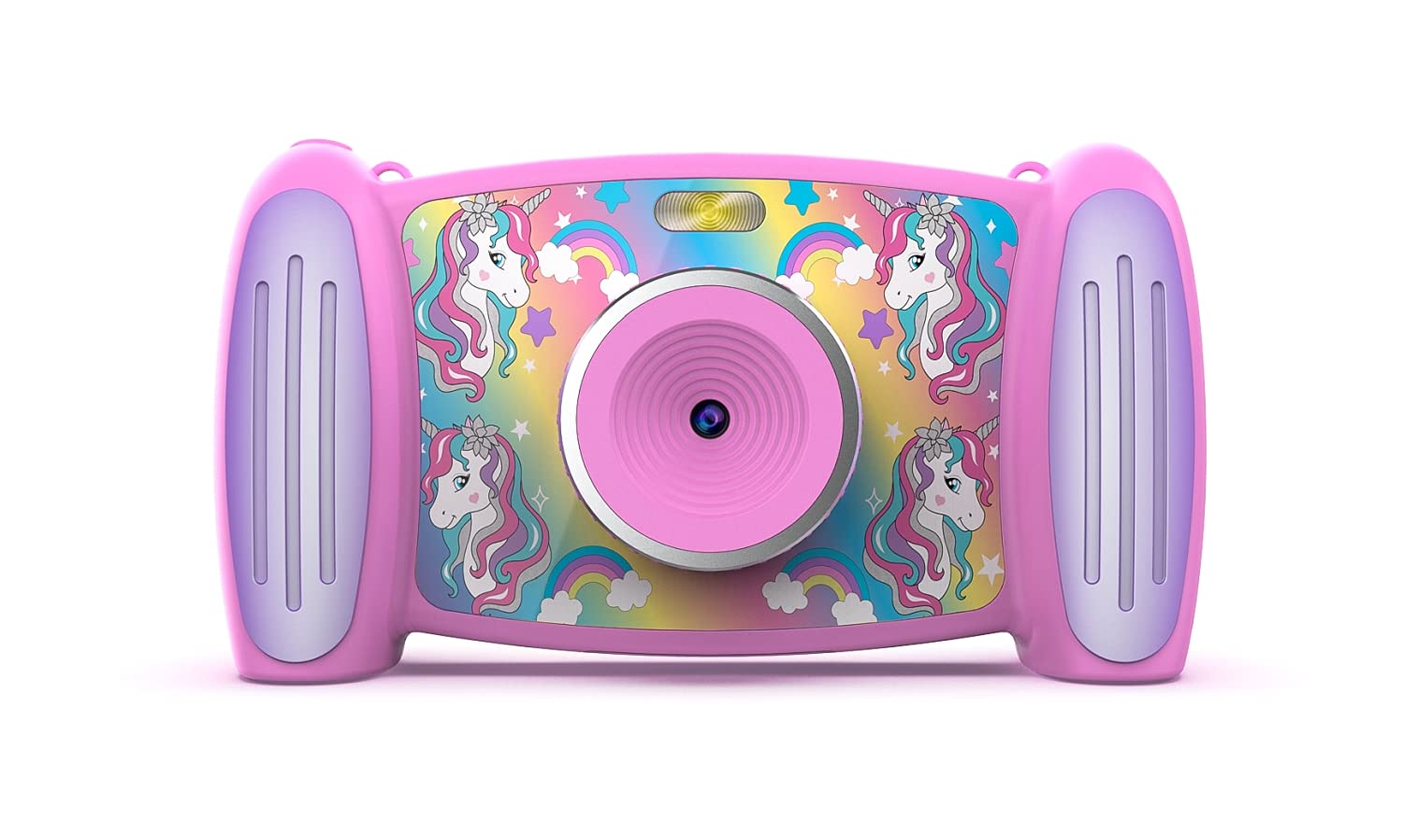
Image 1: Front view of the Accutime FRCA1001 Unicorn Interactive Children's Camera, displaying the main menu with icons for photo, video, games, and settings.
The camera features a vibrant screen, intuitive buttons for navigation, and a built-in speaker. Key controls include:
- Power Button: Located on the side/bottom, used to turn the camera on and off.
- Directional Buttons (Up, Down, Left, Right): For navigating menus and selecting options.
- OK Button: Confirms selections.
- Photo/Video Button: Initiates photo capture or video recording.
- Zoom Buttons (+/-): Adjusts digital zoom.
- Microphone: For audio recording during videos.
- Speaker: For audio playback.
- Micro SD Card Slot: For memory expansion.
- USB Port: For charging and data transfer.
Setup
1. Battery Installation and Charging
The camera includes a built-in Lithium Ion battery. Before first use, ensure the camera is fully charged.
- Connect the provided USB cable to the camera's USB port and the other end to a compatible USB power adapter (not included) or a computer's USB port.
- The charging indicator light will illuminate.
- Once fully charged, the indicator light will change or turn off. Disconnect the cable.
2. Micro SD Card Installation
A Micro SD card is required to save photos and videos. A card is included with your camera.
- Locate the Micro SD card slot on the camera.
- Gently insert the Micro SD card into the slot with the gold contacts facing down, until it clicks into place.
- To remove, gently push the card in again until it springs out.
Operating Instructions
1. Powering On/Off
- To turn on: Press and hold the Power button until the screen illuminates.
- To turn off: Press and hold the Power button until the screen shuts down.
2. Navigating the Menu
Use the directional buttons to move between icons on the screen. Press the OK button to select an option.

Image 2: Two children engaged in an activity, with one child holding and looking at the Accutime FRCA1001 camera, demonstrating its intended use.
3. Taking Photos
- From the main menu, select the camera icon.
- Frame your shot using the screen.
- Press the Photo/Video button to capture a picture.
- The camera supports 5-megapixel image resolution.
4. Recording Videos
- From the main menu, select the video camera icon.
- Press the Photo/Video button to start recording.
- Press the Photo/Video button again to stop recording.
- Videos are recorded in 1080p resolution.
5. Using Filters and Special Effects
Enhance your photos and videos with built-in filters and effects.
- While in photo or video mode, navigate to the filter/effects option (refer to on-screen icons).
- Select from 5 fun filters and 5 special effects.
6. Changing Photo Frames and Backgrounds
Personalize your photos with various frames and customize the camera's display with different backgrounds.

Image 3: A collage showing five distinct colorful backgrounds or photo frames available for selection on the camera, featuring unicorn and rainbow themes.

Image 4: An illustration displaying the camera's default start screen featuring a unicorn and rainbow, along with a sample wallpaper option.
- Access the settings menu to find options for changing photo frames or display backgrounds.
- Choose from the available designs to customize your camera experience.
7. Playing Games
The camera includes 4 pre-installed educational and exciting games.
- From the main menu, select the games icon.
- Choose a game from the list and follow the on-screen instructions to play.
8. Using the MP3 Player
The camera features an MP3 player with a built-in speaker.
- Transfer MP3 audio files to the Micro SD card via the USB connection.
- From the main menu, select the music icon.
- Browse and play your stored MP3 files.
9. Digital Zoom
The camera features 4x digital zoom.
- While in photo or video mode, use the '+' and '-' buttons to zoom in or out.
Maintenance
Cleaning
- Use a soft, dry cloth to clean the camera body.
- For the lens, use a specialized lens cleaning cloth.
- Do not use liquid cleaners or abrasive materials.
Storage
- Store the camera in a cool, dry place away from direct sunlight.
- Ensure the camera is turned off before storing.
- If storing for extended periods, charge the battery periodically to maintain its health.
Troubleshooting
If you encounter issues with your camera, refer to the following common solutions:
- Camera does not turn on: Ensure the battery is fully charged. Press and hold the power button for a few seconds.
- Cannot save photos/videos: Check if the Micro SD card is correctly inserted and has sufficient free space. The card may need to be formatted (refer to camera settings).
- Poor image quality: Ensure the lens is clean and free from smudges. Check lighting conditions.
- Camera freezes: Try restarting the camera by holding the power button until it turns off, then turn it back on.
- No sound from speaker: Check volume settings in the camera menu. Ensure MP3 files are correctly formatted.
If problems persist, contact customer support for further assistance.
Specifications
| Feature | Detail |
|---|---|
| Model Number | FRCA1001 |
| Image Resolution | 5 Megapixels (MP) |
| Video Resolution | 1080p |
| Digital Zoom | 4x |
| Screen Type | 2-in-1 Screen |
| Storage | Micro SD Card (included) |
| Battery Type | 1 Lithium Ion (included) |
| Dimensions | 5.71 x 1.69 x 3.5 inches |
| Item Weight | 4.9 ounces |
| Features | 5 Fun Filters, 5 Special Effects, 4 Games, MP3 Player with Speaker |
Warranty and Support
For warranty information or technical support, please refer to the contact details provided on the product packaging or visit the official Accutime website. Keep your purchase receipt as proof of purchase.
