
1. Introduction
The Corsair Virtuoso RGB Wireless XT is a multiplatform gaming headset designed to deliver a high-fidelity audio experience. It offers versatile connectivity options and features a broadcast-quality microphone for clear communication.
Key Features:
- Simultaneous Dual-Wireless Connections: Features hyper-fast, ultra-long range SLIPSTREAM CORSAIR WIRELESS TECHNOLOGY and Bluetooth with Qualcomm aptX HD.
- Uncompromising Sound Quality: Equipped with precisely tuned 50mm high-density neodymium speaker drivers, offering a frequency range of 20Hz-40,000Hz.
- Lightweight Comfort: Constructed with machined aluminum and premium memory foam earpads and headband for extended wear.
- Broadcast-Grade Detachable Microphone: A 9.5mm omnidirectional, high-bandwidth microphone provides wide dynamic range and superb vocal clarity.
- Multiplatform Compatibility: Compatible with PC, Mac, PS5, PS4, Nintendo Switch, and mobile devices.
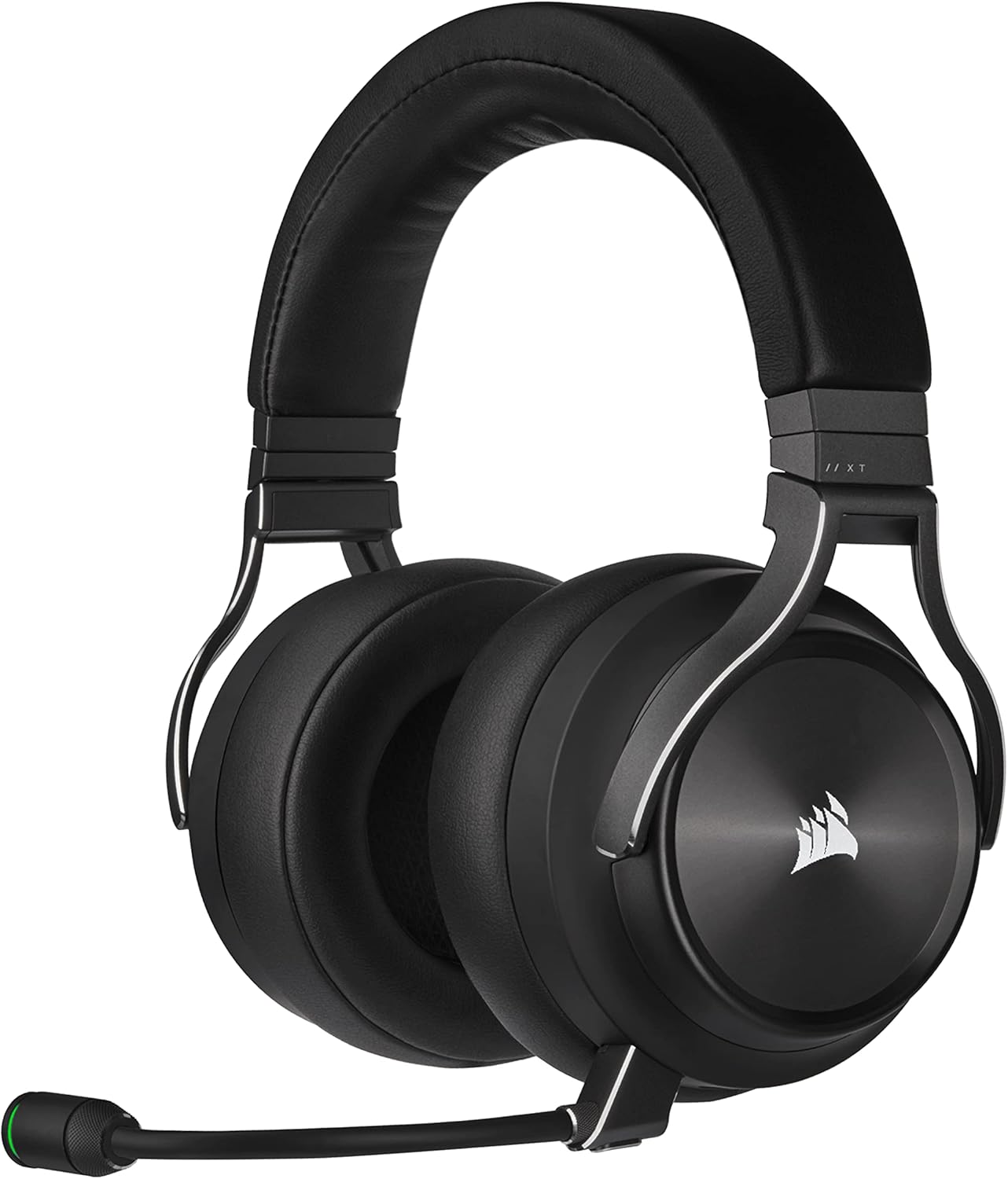
Image 1.1: The Corsair Virtuoso RGB Wireless XT headset in black slate color.
Video 1.1: Official trailer for the Corsair Virtuoso RGB Wireless XT, showcasing its features and design.
2. What's in the Box
Verify that all components are present in the packaging:
- Corsair Virtuoso RGB Wireless XT Headset
- Wireless Receiver (USB dongle)
- USB Type-A to Type-C Cable
- 3.5mm Cable with In-line Controller
- Detachable Omnidirectional Microphone
- Storage Pouch
- Quick Start Guide (not included in this digital manual)

Image 2.1: All included accessories with the Corsair Virtuoso RGB Wireless XT headset, including cables, receiver, and storage pouch.
3. Setup
3.1. Charging the Headset
Before initial use, fully charge the headset using the provided USB Type-A to Type-C cable. Connect the USB-C end to the headset and the USB-A end to a powered USB port on your computer or a wall adapter. A full charge takes approximately 15 hours and provides up to 15 hours of battery life.
3.2. Connecting to Devices

Image 3.1: Visual representation of the four primary connection methods: SLIPSTREAM Wireless, Bluetooth, USB Wired, and 3.5mm Wired.
3.2.1. SLIPSTREAM Wireless (2.4GHz)
- Plug the Wireless Receiver (USB dongle) into an available USB port on your PC, Mac, PS5, or PS4.
- Power on the headset. The headset will automatically connect to the receiver.
- Ensure the headset is selected as the audio output and input device in your system settings.
3.2.2. Bluetooth
- Power on the headset.
- Activate Bluetooth pairing mode on the headset (refer to the headset controls section for specific button presses).
- On your mobile device, PC, or Mac, search for and select "CORSAIR VIRTUOSO XT" in the Bluetooth settings to pair.
3.2.3. USB Wired
Connect the USB Type-A to Type-C cable from your PC or Mac directly to the headset for a wired digital audio connection and charging.
3.2.4. 3.5mm Wired
Connect the 3.5mm cable with in-line controller to the headset and to any device with a 3.5mm audio jack, such as Nintendo Switch, mobile devices, or other consoles.
4. Operating the Headset
4.1. Headset Controls
The headset features intuitive controls for easy management of audio and microphone settings:
- Power Button: Located on the headset, press and hold to power on/off.
- Volume Dial: Adjusts the master volume of the headset.
- Microphone Mute: The microphone can be muted by flipping it up. Lowering it unmutes the microphone.
- Bluetooth Button: Used for Bluetooth pairing and switching between wireless modes.
4.2. Microphone Usage
The detachable omnidirectional microphone provides broadcast-grade vocal clarity. Ensure it is securely connected to the headset. The microphone features an LED indicator to show its status (e.g., red for muted).
4.3. Audio Experience

Image 4.1: A user wearing the headset, highlighting the immersive audio experience with Dolby Atmos and the 50mm Neodymium Speaker Drivers.
The Virtuoso RGB Wireless XT supports Dolby Atmos for immersive spatial audio, enhancing your gaming and media consumption. For advanced customization and control over audio settings, including equalizer presets and microphone adjustments, install the iCUE software on your PC or Mac.
5. Comfort and Design
Designed for prolonged use, the headset features premium memory foam earpads and a lightweight aluminum construction. The earcups are designed to fit comfortably around the ears, reducing pressure during long gaming sessions.

Image 5.1: A man comfortably wearing the headset while using a mobile device, illustrating the lightweight design and plush earpads.
6. Maintenance
- Clean the headset regularly with a soft, dry cloth.
- Avoid exposing the headset to extreme temperatures or moisture.
- Store the headset in its provided storage pouch when not in use to protect it from dust and scratches.
7. Troubleshooting
If you encounter issues with your Corsair Virtuoso RGB Wireless XT headset, consider the following:
- No Audio/Microphone: Ensure the headset is powered on and correctly paired/connected to your device. Check system audio settings to confirm the headset is selected as the default input/output.
- Connectivity Issues: For SLIPSTREAM Wireless, try re-pairing the headset with the USB receiver. For Bluetooth, ensure the headset is in pairing mode and within range of your device.
- Battery Life: Ensure the headset is fully charged. Reduce RGB lighting brightness or disable it to extend battery life.
- Software Issues: If using iCUE, ensure it is updated to the latest version. Try restarting the iCUE software or your computer.
8. Specifications
| Feature | Detail |
|---|---|
| Model Name | Virtuoso RGB Wireless XT |
| Model Number | CA-9011188-NA |
| Connectivity Technology | Wired, Wireless (SLIPSTREAM 2.4GHz, Bluetooth) |
| Wireless Communication Technology | Bluetooth |
| Bluetooth Version | 4.0 |
| Audio Driver Type | Dynamic Driver (50mm Neodymium) |
| Frequency Response | 20Hz-40,000Hz |
| Impedance | 32 Ohms |
| Microphone | 9.5mm Omnidirectional, Detachable |
| Battery Life | Up to 15 Hours |
| Charging Time | Approximately 15 Hours |
| Item Weight | 382 Grams (13.5 ounces) |
| Material | Aluminum |
| Compatible Devices | PC, Mac, PS5, PS4, Nintendo Switch, Mobile |
9. Warranty and Support
For warranty information and technical support, please refer to the official Corsair website or contact Corsair customer service directly. Specific warranty terms may vary by region and product. Protection plans may be available for purchase separately.


