
1. Introduction
The PIPO X9S is a versatile device combining the functionalities of a mini PC, a smart box, and a tablet. It features a 9-inch display with a 1920x1200 resolution, powered by an Intel Celeron N4020 processor and running Windows 10. This manual provides instructions for setting up, operating, maintaining, and troubleshooting your PIPO X9S device.

Image 1.1: The PIPO X9S Mini PC, showcasing its compact design with an integrated display and external antenna.
2. What's in the Box
Please verify that all items are present in the package:
- PIPO X9S Mini PC
- Power adapter
- USB cables
3. Setup Guide
Follow these steps to set up your PIPO X9S Mini PC:
- Connect Power: Plug the power adapter into the DC port on the back of the device, then connect it to a power outlet.
- Connect Peripherals (Optional):
- For external display: Connect an HDMI cable from the HDMI output port to your monitor or TV.
- For wired network: Connect an Ethernet cable to the RJ45 port.
- For USB devices: Connect keyboards, mice, or other USB peripherals to the available USB ports.
- Power On: Press the power button located on the side of the device. The device will boot into Windows 10.
- Initial Windows Setup: Follow the on-screen prompts to complete the initial Windows 10 setup, including language, region, and network configuration.
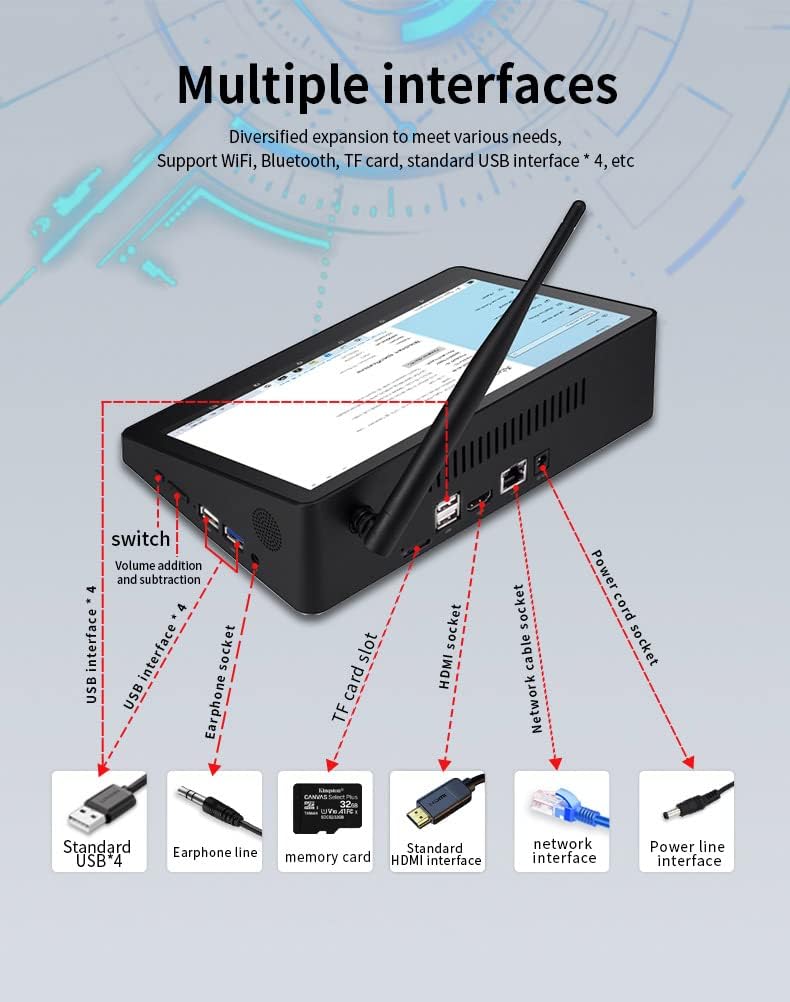
Image 3.1: Diagram illustrating the various ports and interfaces on the PIPO X9S, including USB, HDMI, RJ45, and power input.

Image 3.2: Rear view of the PIPO X9S, highlighting the accessible ports for connectivity.
4. Operating Instructions
4.1 Power On/Off
- To Power On: Press the power button once.
- To Shut Down: Click the Windows Start button, then select Power > Shut down.
- To Restart: Click the Windows Start button, then select Power > Restart.
- To Sleep: Click the Windows Start button, then select Power > Sleep.
4.2 Connecting to Wi-Fi
- Click the Wi-Fi icon in the system tray (bottom right corner of the screen).
- Select your desired Wi-Fi network from the list.
- Click 'Connect' and enter the network password if prompted.
4.3 Using as a Tablet PC
The PIPO X9S features a 9-inch touch screen. You can interact with the Windows 10 interface directly using touch gestures. Windows 10 also offers a 'Tablet Mode' for an optimized touch experience:
- To enable/disable Tablet Mode: Click the Action Center icon (speech bubble) in the system tray, then select 'Tablet mode'.

Image 4.1: The PIPO X9S displaying the initial Windows 10 setup screen, demonstrating its integrated touch display.
5. Maintenance
Proper maintenance ensures the longevity and optimal performance of your PIPO X9S:
- Cleaning: Use a soft, dry, lint-free cloth to clean the screen and exterior. For stubborn marks, slightly dampen the cloth with water or a screen cleaner. Avoid harsh chemicals.
- Ventilation: Ensure the ventilation slots on the device are not blocked to prevent overheating. Do not operate the device on soft surfaces like beds or carpets that can obstruct airflow.
- Software Updates: Regularly update Windows 10 and device drivers to maintain security and performance.
- Storage: Store the device in a cool, dry place away from direct sunlight and extreme temperatures.

Image 5.1: The underside of the PIPO X9S, showing the ventilation slots crucial for heat dissipation.
6. Troubleshooting
If you encounter issues with your PIPO X9S, refer to the following common problems and solutions:
| Problem | Possible Cause | Solution |
|---|---|---|
| Device does not power on | No power, faulty adapter, or power button issue. | Ensure power adapter is securely connected and outlet is functional. Try a different power outlet. |
| No display on external monitor | Incorrect input source, faulty HDMI cable, or driver issue. | Check monitor's input source. Try a different HDMI cable. Ensure the PIPO X9S is powered on. |
| Wi-Fi connection issues | Incorrect password, router issue, or Wi-Fi adapter problem. | Verify Wi-Fi password. Restart your router. Check Wi-Fi settings on the PIPO X9S. |
| Slow performance | Too many applications running, low storage, or outdated software. | Close unnecessary applications. Free up storage space. Update Windows and drivers. |
7. Specifications
Detailed technical specifications for the PIPO X9S Mini PC:

Image 7.1: Physical dimensions of the PIPO X9S, including length, width, and height.
| Feature | Detail |
|---|---|
| Model | PIPO X9S |
| CPU | Intel Celeron N4020 (up to 2.80GHz) |
| Operating System | Windows 10 |
| Display Size | 9.0 inches |
| Resolution | 1920 x 1200 |
| Memory (RAM) | 3 GB DDR3 SDRAM |
| Storage (ROM) | 64 GB |
| Bluetooth | BT4.0 |
| Wi-Fi | 802.11b/g/n (2.4G) |
| Ports | Audio Jack*1, DC port*1, RJ45*1, HDMI output*1, Standard USB*4, TF card slot*1 |
| Color | Black |
8. Warranty Information
The PIPO X9S Mini PC comes with a standard manufacturer's warranty. Please refer to the warranty card included with your product or contact your retailer for specific terms and conditions regarding warranty coverage, duration, and claims procedures. Keep your proof of purchase for warranty validation.
9. Support
For technical assistance, product inquiries, or further support, please contact the retailer where you purchased the PIPO X9S. You may also visit the official Pipo website for additional resources, FAQs, and contact information.
Online Resources:
- Pipo Official Website: Visit the Pipo Store on Amazon


