
1. Introduction
Thank you for choosing the RedThunder K10 Wireless Gaming Keyboard and Mouse Combo. This manual provides detailed instructions for setting up, operating, maintaining, and troubleshooting your new device. Please read this manual carefully before use to ensure optimal performance and longevity of your product.
2. Package Contents
- RedThunder K10 Wireless Gaming Keyboard
- RedThunder Wireless Gaming Mouse
- USB Receiver (located in the bottom of the mouse)
- USB Charging Cable
- User Manual (this document)
3. Product Overview
The RedThunder K10 combo offers a high-performance 2.4G wireless connection, LED backlighting, and a comfortable ergonomic design for both gaming and general use.
3.1 Keyboard Layout
The keyboard features a full-sized layout with dedicated multimedia keys and customizable RGB lighting. Keycaps are made with a two-color injection molding process for durability.
3.2 Mouse Features
The mouse is designed with 7 buttons and adjustable DPI settings up to 3200DPI. It includes a 7-color cyclic gradual lighting effect and an ergonomic, anti-sweat, non-slip surface for enhanced control.
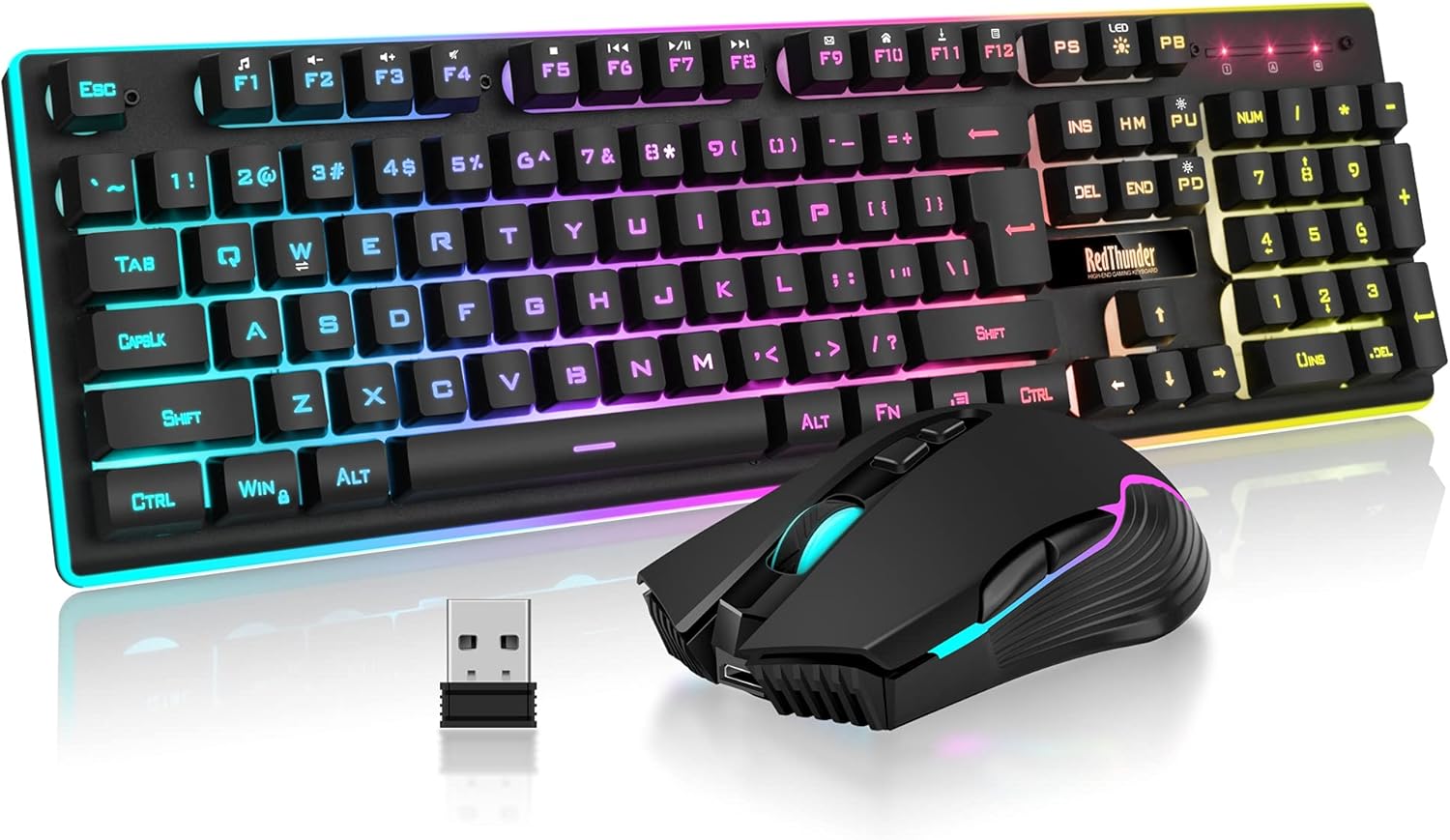
Image: The RedThunder K10 Wireless Gaming Keyboard and Mouse Combo, showcasing the keyboard, mouse, and USB receiver.
4. Setup
4.1 Initial Charging
Before first use, it is recommended to charge both the keyboard and mouse for approximately 8 hours to ensure full battery capacity.
- Connect the provided USB charging cable to the charging port on the keyboard and mouse.
- Plug the other end of the USB cable into a powered USB port (e.g., computer, USB wall adapter).
- The charging indicator lights will show the charging status.
4.2 Connecting the USB Receiver
The keyboard and mouse share a single USB receiver for wireless connectivity.
- Locate the USB receiver in the bottom compartment of the mouse.
- Remove the USB receiver.
- Insert the USB receiver into an available USB port on your computer or gaming console.
- Turn on the power switches for both the keyboard and the mouse. They should automatically connect to the receiver.
If the connection is lost for any reason, you may need to reset the code pairing. Refer to the Troubleshooting section for instructions.

Image: The RedThunder K10 wireless set, illustrating the wireless connection via a USB receiver.

Image: Close-up view of the RedThunder K10 mouse, highlighting the ergonomic design and the location of the USB receiver on its underside.
5. Operating Instructions
5.1 Keyboard Functions
The keyboard offers various functions controlled by key combinations:
- Backlight Control: The keyboard has three groups of rainbow backlight effects.
- Breathing Modes: Press FN + LED to cycle through 2 breathing modes.
- Static Modes: Press FN + LED repeatedly to cycle through 3 static lighting modes.
- Brightness Adjustment: Press FN + PU (Page Up) to increase brightness and FN + PD (Page Down) to decrease brightness (4 levels).
- Multimedia Keys: Use FN + F1-F12 for various multimedia functions (e.g., volume control, media playback).
- WASD/Arrow Key Swap: Press FN + W to swap the functionality of WASD keys with the arrow keys.
- Windows Key Lock: Press FN + WIN to lock the Windows key, preventing accidental presses during gaming.

Image: Illustration of the RedThunder K10 keyboard's lighting controls, showing FN key combinations for modes and brightness.
5.2 Mouse Functions
The mouse features a 7-color cyclic gradual lighting effect and adjustable DPI settings.
- DPI Adjustment: Use the DPI button (usually located behind the scroll wheel) to cycle through different sensitivity levels (up to 3200DPI).
- Lighting: The mouse lighting cycles automatically through 7 colors.

Image: The RedThunder K10 mouse, demonstrating its 7-button layout and dynamic RGB lighting effects.
5.3 Power Management
Both the keyboard and mouse are equipped with smart energy-saving functions to conserve battery life.
- If there is no operation within 2 minutes, the devices will automatically enter sleep mode.
- To wake them up, simply press any key on the keyboard or move/click the mouse.

Image: An illustration showing the battery capacities of the RedThunder K10 keyboard (3000mAh) and mouse (800mAh).
6. Maintenance
To ensure the longevity and optimal performance of your RedThunder K10 combo, follow these maintenance guidelines:
- Cleaning: Use a soft, dry cloth to wipe down the keyboard and mouse. For stubborn dirt, a slightly damp cloth with mild soap can be used, ensuring no liquid enters the device.
- Avoid Extreme Conditions: Do not expose the devices to extreme temperatures, direct sunlight, or high humidity.
- Battery Care: Charge the devices regularly. Avoid completely draining the battery frequently, as this can reduce its overall lifespan.
- Storage: When not in use for extended periods, turn off the devices and store them in a cool, dry place.
7. Troubleshooting
If you encounter issues with your RedThunder K10 Wireless Gaming Keyboard and Mouse Combo, please refer to the following common solutions:
| Problem | Possible Cause | Solution |
|---|---|---|
| Keyboard/Mouse not responding | Low battery; Device is off; USB receiver disconnected; Connection lost. | Charge devices fully. Ensure power switches are ON. Reinsert USB receiver. Reset code pairing (see below). |
| Connection lost / Devices not pairing | Interference; Pairing issue. | To reset code pairing:
|
| Backlight not working or dim | Low battery; Brightness level too low; Lighting mode off. | Charge the keyboard. Adjust brightness using FN + PU/PD. Cycle through lighting modes using FN + LED. |
| Mouse cursor erratic or unresponsive | Dirty sensor; Surface issues; Low battery. | Clean the optical sensor on the mouse. Use on a clean, non-reflective surface. Charge the mouse. |
| Keys not responding or ghosting | Software conflict; Hardware issue. | Restart your computer. Ensure drivers are up to date. If problem persists, contact customer support. |
8. Specifications
| Feature | Detail |
|---|---|
| Model Number | GAME-YX-910 |
| Connectivity | 2.4G Wireless |
| Keyboard Battery Capacity | 3000 mAh Lithium Ion |
| Mouse Battery Capacity | 800 mAh Lithium Ion |
| Keyboard Dimensions (L x W x H) | 439mm x 134mm x 38mm (17.2 x 5.2 x 1.5 inches) |
| Mouse Dimensions (L x W x H) | 127mm x 72mm x 40mm (5 x 2.8 x 1.6 inches) |
| Keyboard Weight | Approx. 2.09 pounds |
| Keystroke Lifetime | 10,000,000 keystrokes |
| Mouse DPI | Up to 3200DPI |
| Compatibility | Windows 11, 10, 8, 7, Vista, XP; Limited Mac OS support (USB-C adapter may be required) |

Image: An overview of the RedThunder K10 combo's compatibility with various operating systems and detailed product dimensions for both the keyboard and mouse.
9. Warranty and Support
RedThunder products are designed for reliability and performance. If you experience any issues with your RedThunder K10 Wireless Gaming Keyboard and Mouse Combo, please contact our customer support team. We are committed to providing assistance and resolving any concerns you may have.
For support, please refer to the contact information provided with your purchase or visit the official RedThunder website.

