1. Introduction
This manual provides instructions for the UGREEN 4K HDMI Switch 3 in 1 Out. This device allows you to connect up to three HDMI source devices to a single HDMI display, such as a TV or monitor, and switch between them easily. It supports 4K resolution at 30Hz, HDR, CEC, and 3D, ensuring high-quality video and audio transmission.
2. Package Contents
- UGREEN 4K HDMI Switch 3 in 1 Out
- IR Remote Control
- IR Receiver Cable
- USB Power Cable
- Right Angle HDMI Cable
3. Product Overview
Familiarize yourself with the components and ports of the HDMI switch.

Image: Front and rear view of the UGREEN HDMI Switch, showing its input and output ports, power input, and IR receiver port.

Image: The UGREEN HDMI Switch alongside its remote control, highlighting both manual and remote switching options.
Components:
- HDMI IN 1-3: Connect up to three HDMI source devices.
- HDMI OUT: Connect to your HDMI display (TV, monitor, projector).
- DC 5V: Power input port.
- IR: Port for connecting the IR receiver cable.
- Switch Button: Manually cycle through HDMI input sources.
- LED Indicators: Show the currently active HDMI input.
4. Setup Instructions
Follow these steps to set up your UGREEN HDMI Switch:
- Connect HDMI Source Devices: Plug your HDMI source devices (e.g., game console, Blu-ray player, laptop) into the HDMI IN 1, 2, or 3 ports on the switch.
- Connect to Display: Connect one end of an HDMI cable to the HDMI OUT port on the switch and the other end to an HDMI input port on your TV, monitor, or projector.
- Connect IR Receiver: Plug the IR receiver cable into the 'IR' port on the switch. Position the IR receiver in a location where it has a clear line of sight to your remote control.
- Connect Power: Connect the USB power cable to the DC 5V port on the switch and then to a USB power adapter (not included) or a USB port on your display device.
- Use Right Angle HDMI Cable: If space is limited behind your display, utilize the included right-angle HDMI cable for a more convenient connection.

Image: A visual representation of the UGREEN HDMI Switch connected between multiple source devices (laptop, game console) and a television display.
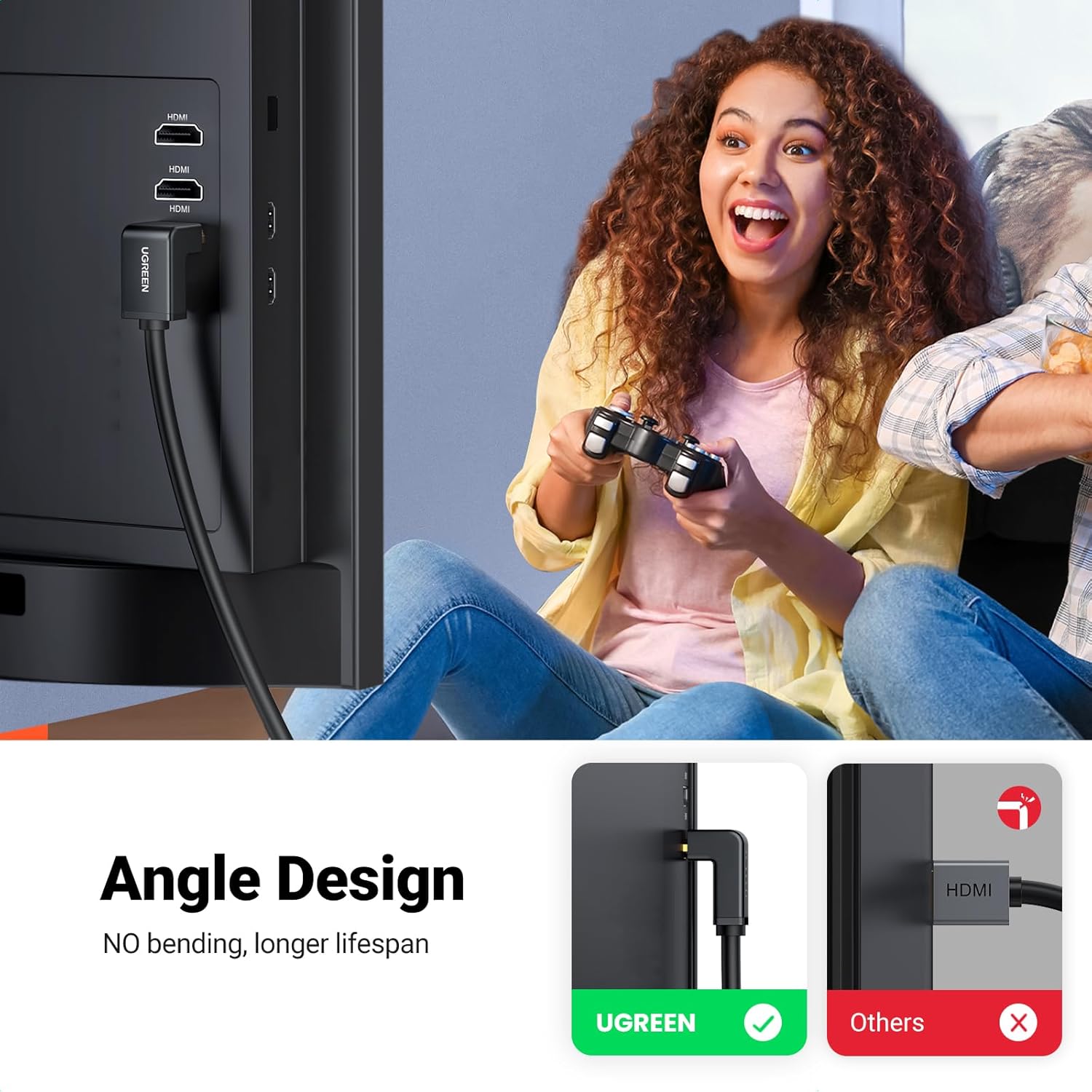
Image: A close-up view demonstrating the use of the right-angle HDMI cable for a neat and space-saving connection to a display.
5. Operating Instructions
Once the switch is set up, you can easily switch between your connected devices:
Switching Methods:
- Manual Switch: Press the 'Switch' button on the front of the HDMI switch to cycle through the connected HDMI input sources (Input 1, Input 2, Input 3). The corresponding LED indicator will light up to show the active input.
- Remote Control: Use the provided IR remote control to select your desired input directly. Point the remote towards the IR receiver connected to the switch.
Image: The UGREEN HDMI Switch and its remote, demonstrating the two methods for switching between connected devices: manual button press or remote control.
Important Notes:
- For optimal performance, ensure your HDMI cables are within 26 feet (8 meters) in length, especially for 4K resolution.
- Set your TV display to HDCP 1.4/1080P resolution if experiencing compatibility issues with 4K content.
- The switch supports Ultra Full HDR resolution up to 4K@30Hz, 3D, and CEC.
6. Maintenance
To ensure the longevity and proper functioning of your HDMI switch:
- Keep the device in a clean, dry environment, away from direct sunlight and extreme temperatures.
- Do not expose the device to water or excessive moisture.
- Clean the exterior with a soft, dry cloth. Avoid using harsh chemicals or abrasive cleaners.
- Do not attempt to disassemble or repair the device yourself. Refer to qualified service personnel.
7. Troubleshooting
If you encounter issues with your UGREEN HDMI Switch, refer to the following common solutions:
- No Signal on Display:
- Ensure all HDMI cables are securely connected to both the source devices, the switch, and the display.
- Verify that the HDMI switch is powered on and the correct input is selected (check LED indicator).
- Try connecting the source device directly to the display to rule out cable or source issues.
- Check your display's input settings to ensure the correct HDMI port is selected.
- Poor Picture Quality or Flickering:
- Ensure you are using high-quality HDMI cables, especially for 4K content.
- Verify that the HDMI cable length does not exceed 26 feet (8 meters) for 4K resolution.
- Check if your display supports 4K@30Hz and HDCP 1.4. Adjust display settings if necessary.
- Try a different HDMI cable.
- Remote Control Not Working:
- Ensure the IR receiver cable is properly connected to the switch.
- Make sure the IR receiver has a clear line of sight to the remote control and is not obstructed.
- Check if the remote control's battery needs replacement (if applicable).
8. Specifications
| Feature | Specification |
|---|---|
| Model | UGREEN 3 in 1 Out 4K HDMI Switch |
| Connector Type | HDMI |
| Number of Ports | 3 HDMI Input, 1 HDMI Output |
| Compatible Devices | Monitor, Television, Projector, Game Consoles, Blu-ray Players, Laptops |
| Resolution Support | Up to 4K@30Hz, 1080P@60Hz, 720P, etc. |
| HDR Support | Yes |
| 3D Support | Yes |
| HDCP Version | 1.4 |
| CEC Support | Yes |
| Switching Methods | Manual Button, IR Remote Control |
| Max HDMI Cable Length | 26 feet (8 meters) for 4K |


