
Introduction
This manual provides essential information for setting up, operating, maintaining, and troubleshooting your HP M27fw 27-inch Full HD (FHD) monitor. Please read these instructions carefully before using your monitor to ensure optimal performance and safety.
Package Contents
Verify that all components are present in the package:
- HP M27fw 27-inch FHD Monitor
- Monitor Stand (Base and Neck)
- Power Adapter and Power Cord
- 1 HDMI 1.4 Cable (with HDCP support)
- 1 VGA Cable
- Documentation (Quick Setup Guide, Warranty Information)
Setup
1. Assembling the Monitor Stand
- Carefully remove the monitor and stand components from the packaging.
- Attach the stand neck to the monitor panel. Ensure it clicks securely into place.
- Attach the stand base to the stand neck. Tighten any screws if provided, ensuring a stable connection.
2. Connecting the Monitor
Before connecting, ensure your computer and monitor are powered off.
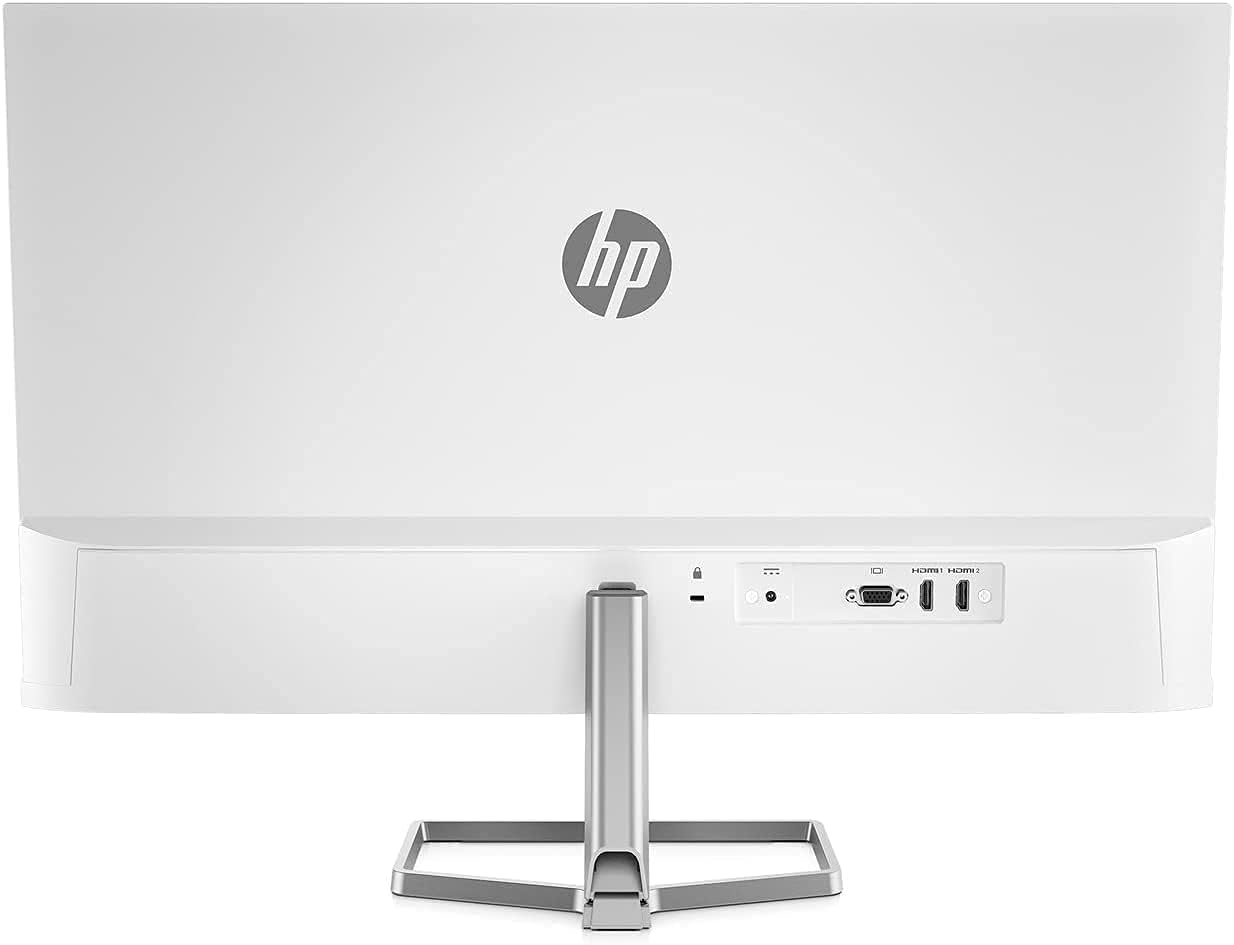
- Connect the Video Cable: Connect one end of the HDMI or VGA cable to the corresponding port on your computer's graphics card. Connect the other end to the HDMI or VGA input port on the back of the HP M27fw monitor.
- Connect the Power Cable: Connect the power adapter to the monitor's power input port, then plug the power cord into a grounded electrical outlet.
- Power On: Power on your computer, then press the power button on the monitor.
Operating the Monitor
Power On/Off
Press the power button located on the bottom right bezel of the monitor to turn it on or off.
On-Screen Display (OSD) Controls
The OSD menu allows you to adjust various display settings. Buttons for OSD navigation are typically located on the bottom right bezel.
- Brightness: Adjusts the display's luminance.
- Exit: Closes the OSD menu.
- Information: Displays monitor information such as resolution and refresh rate.
- Management: Accesses power-saving options and other system settings.
- Power Control: Manages power-related functions.
- Input Control: Selects the active video input source (HDMI or VGA).
- Menu Control: Navigates through OSD options.
- Image: Adjusts image-specific settings like sharpness and aspect ratio.
- Color: Modifies color temperature, contrast, and other color-related settings.
Key Display Features
- Full HD (FHD) Resolution: Enjoy crisp visuals at 1920 x 1080 pixels.
- 75Hz Refresh Rate: Provides smoother motion compared to standard 60Hz displays.
- AMD FreeSync: Synchronizes the monitor's refresh rate with your graphics card's frame rate to reduce screen tearing and stuttering. Ensure your graphics card supports AMD FreeSync for this feature to function.
- Low Blue Light Mode: Reduces blue light emissions to minimize eye strain during extended use without significantly affecting color quality.
- Anti-Glare Screen: Minimizes reflections for better viewing in various lighting conditions.

Adjusting the Monitor
Tilt Adjustment
The HP M27fw monitor allows for tilt adjustment to optimize your viewing angle. Gently hold both sides of the monitor panel and tilt it forwards or backwards to your desired position.

Maintenance
Cleaning the Monitor
- Always power off the monitor and unplug the power cord before cleaning.
- Use a soft, lint-free cloth lightly dampened with water or a non-abrasive screen cleaner to wipe the display surface.
- For the monitor casing, use a soft, dry cloth. Avoid using harsh chemicals or abrasive materials.
General Care
- Avoid placing heavy objects on the monitor or its cables.
- Do not expose the monitor to direct sunlight, excessive heat, or moisture.
- Ensure adequate ventilation around the monitor.
Troubleshooting
If you encounter issues with your monitor, refer to the following common solutions:
- No Power:
- Ensure the power cord is securely connected to both the monitor and a working electrical outlet.
- Verify the power adapter is correctly connected to the monitor.
- Press the monitor's power button to ensure it is turned on.
- No Signal / Blank Screen:
- Check that the video cable (HDMI or VGA) is firmly connected to both the monitor and your computer.
- Ensure your computer is powered on and not in sleep mode.
- Use the monitor's OSD menu (Input Control) to select the correct input source.
- Try a different video cable or port on your computer/monitor if available.
- Image Issues (e.g., Vertical Line, Flickering, Distortion):
- Check all cable connections for looseness or damage.
- Ensure your computer's display resolution and refresh rate are set correctly (e.g., 1920x1080 at 75Hz).
- If using AMD FreeSync, ensure it is enabled in both the monitor's OSD and your graphics card settings.
- If a persistent line or distortion appears, try connecting the monitor to a different computer or using a different video cable to rule out external factors. If the issue persists, the monitor may require service.
- Colors are Incorrect:
- Adjust color settings (Color, Contrast, Brightness) through the OSD menu.
- Ensure your graphics card drivers are up to date.
Specifications
| Feature | Specification |
|---|---|
| Brand | HP |
| Model Number | M27fw |
| Screen Size | 27 Inches |
| Resolution | FHD 1920 x 1080 Pixels |
| Aspect Ratio | 16:9 |
| Refresh Rate | 75 Hz |
| Response Time | 5 Milliseconds |
| Display Type | LED |
| Screen Surface Description | Glossy (Anti-Glare) |
| Brightness | 300 cd/m² |
| Contrast Ratio | 1000:1 |
| Viewing Angle | 170 Degrees |
| Pixel Pitch | 0.311 mm |
| Connectivity Technology | HDMI, VGA |
| Total Number of HDMI Ports | 1 |
| Adaptive Sync | AMD FreeSync |
| Additional Features | Anti Glare Screen, Low Blue Light Mode, On-Screen Controls |
| Color | White |
| Item Dimensions (D x W x H) | 1.35"D x 23.93"W x 14.01"H (without stand) |
| Weight | 7.05 lb (without stand) |
| VESA Mounting | Not VESA mount compatible |
Warranty and Support
Your HP M27fw monitor is covered by a limited warranty. For detailed warranty information, please refer to the documentation included in your package or visit the official HP support website. For technical assistance, troubleshooting, or service inquiries, contact HP customer support.
HP Support Website: www.hp.com/support


