1. Introduction
This manual provides essential information for the safe and efficient use of your Lenovo IdeaPad Flex 5 14-inch 2-in-1 Laptop. Please read this manual thoroughly before operating your device and retain it for future reference. This device combines the functionality of a laptop with the versatility of a tablet, featuring a 14-inch Full HD touchscreen display and powered by an Intel Core i5-1135G7 processor.
2. Product Overview
2.1 Key Features
- 2-in-1 Design: Seamlessly switch between laptop, tablet, tent, and stand modes.
- Display: 14-inch Full HD (1920x1080) IPS Glossy Touchscreen.
- Processor: 11th Gen Intel Core i5-1135G7 (2.40 GHz, up to 4.20 GHz with Turbo Boost, 4 Cores, 8 Threads, 8 MB Cache).
- Graphics: Integrated Intel Iris Xe Graphics.
- Memory: 8GB DDR4-3200 SDRAM.
- Storage: 512GB PCIe NVMe M.2 SSD.
- Operating System: Windows 10 Home.
- Connectivity: Intel Wi-Fi 6 AX 201 (2x2) and Bluetooth 5.
- Security: Physical camera shutter and fingerprint reader.
- Battery Life: Up to 9 hours.
2.2 Components and Ports
Familiarize yourself with the various components and ports of your IdeaPad Flex 5.

Image: Top-down view of the Lenovo IdeaPad Flex 5 in laptop mode, highlighting its sleek design and keyboard layout.

Image: The Lenovo IdeaPad Flex 5 demonstrating its 2-in-1 capability, shown in both traditional laptop and tablet orientations.
- 2 x USB 3.2 Gen 1 ports
- 1 x USB Type-C 3.2 Gen 1 port with Power Delivery
- 1 x HDMI 1.4b port
- 1 x 4-in-1 card reader
- 1 x Headphone/microphone combo jack
3. Setup
3.1 Initial Power On
- Unpack your laptop and all accessories.
- Connect the power adapter to the laptop's power port and then to an electrical outlet.
- Open the laptop lid and press the power button, typically located on the side or top right of the keyboard deck.
- Follow the on-screen instructions to complete the Windows 10 initial setup, including language selection, network connection, and user account creation.

Image: The Lenovo IdeaPad Flex 5 with its screen displaying the Windows 10 operating system desktop, ready for use.
3.2 Connecting to Wi-Fi
During initial setup or anytime thereafter, connect to a wireless network:
- Click the Wi-Fi icon in the taskbar (bottom right of the screen).
- Select your desired network from the list.
- Enter the network security key (password) if prompted.
- Click 'Connect'.
4. Operating Instructions
4.1 Convertible Modes
Your IdeaPad Flex 5 features a 360-degree hinge, allowing it to be used in various modes:
- Laptop Mode: Standard laptop configuration for typing and productivity.
- Tent Mode: Fold the screen back to form an inverted 'V' shape, ideal for watching videos or presentations in confined spaces.
- Stand Mode: Fold the keyboard back to act as a stand, positioning the screen for viewing.
- Tablet Mode: Fold the screen completely back against the base for a full tablet experience. The keyboard and touchpad are automatically disabled in this mode.
4.2 Touchscreen Usage
The 14-inch Full HD touchscreen supports multi-touch gestures for intuitive interaction with Windows 10.

Image: A user's hand performing a touch gesture on the screen of the Lenovo IdeaPad Flex 5, illustrating its responsive touchscreen functionality.
- Tap: Equivalent to a mouse click.
- Tap and Hold: Equivalent to a right-click.
- Pinch to Zoom: Use two fingers to zoom in or out.
- Swipe: Navigate through content or open system menus.
4.3 Keyboard and Touchpad
The integrated keyboard and touchpad provide traditional input methods. The keyboard may feature backlighting for use in low-light conditions.
4.4 Using the Included Pen Drive
Your laptop includes a 64GB TW Pen Drive for portable storage. Insert the pen drive into an available USB port to access its contents or store files.
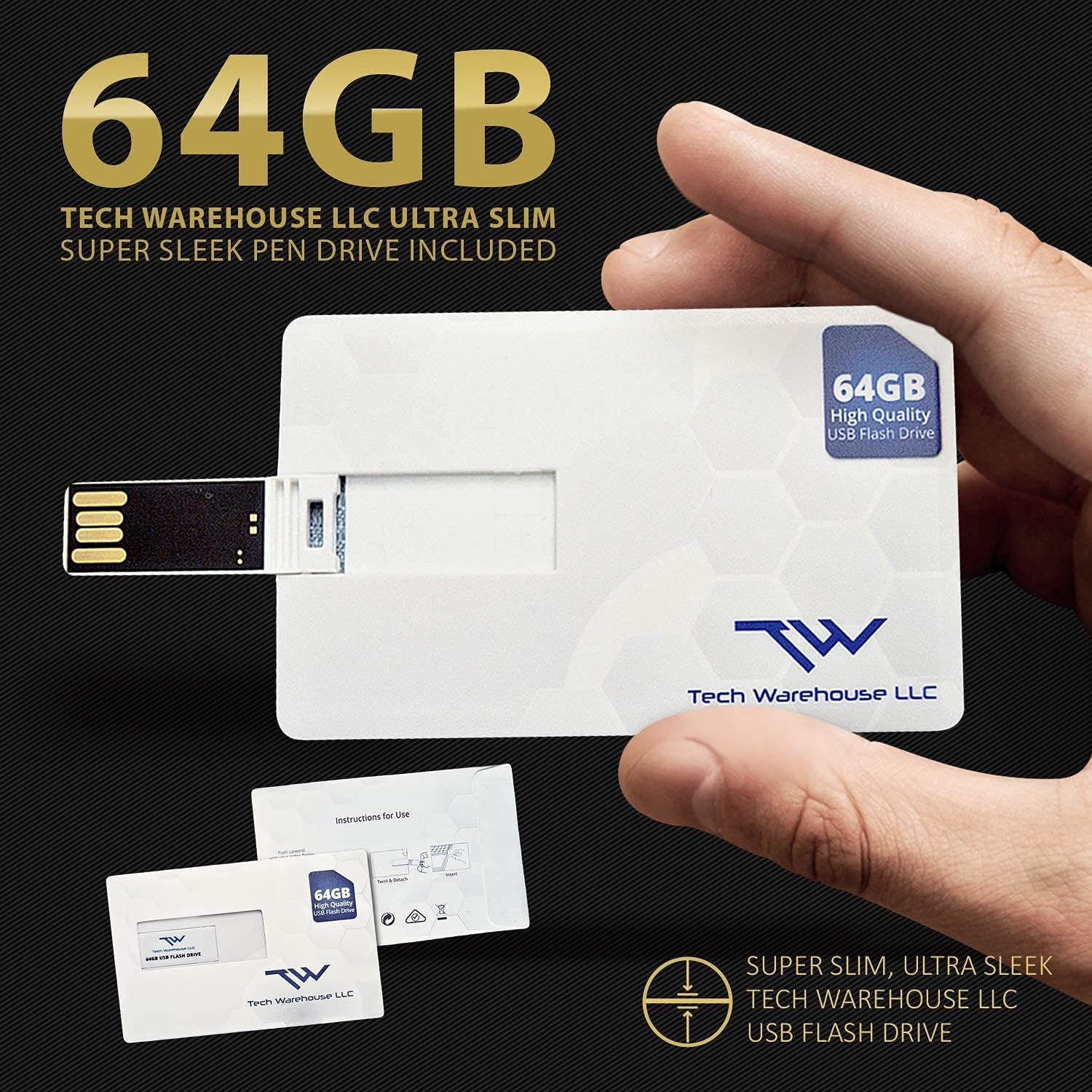
Image: The included 64GB Tech Warehouse LLC USB Flash Drive, designed for convenient data transfer and storage.
4.5 Security Features
- Physical Camera Shutter: Slide the small cover over the webcam lens to ensure privacy when the camera is not in use.
- Fingerprint Reader: Configure Windows Hello to use the integrated fingerprint reader for secure and quick login.

Image: Close-up of the Lenovo IdeaPad Flex 5's webcam, showing the physical privacy shutter in place for user security.
5. Maintenance
5.1 Cleaning Your Laptop
- Always power off and unplug the laptop before cleaning.
- Use a soft, lint-free cloth slightly dampened with water or a screen cleaner for the display.
- For the keyboard and chassis, use a soft, dry cloth. Avoid harsh chemicals or abrasive materials.
5.2 Battery Care
- Avoid fully discharging the battery frequently.
- Store the laptop in a cool, dry place if not used for extended periods.
- For optimal battery longevity, avoid exposing the laptop to extreme temperatures.
5.3 Software Updates
Regularly check for and install Windows updates and Lenovo driver updates to ensure optimal performance and security.
6. Troubleshooting
6.1 Common Issues and Solutions
- Laptop does not power on: Ensure the power adapter is securely connected and the battery has sufficient charge. Try a different power outlet.
- Screen is blank: Check if the laptop is powered on. Press Fn + F2 (or the display toggle key) to ensure the display is not turned off. Reconnect external monitors if applicable.
- Wi-Fi not connecting: Verify Wi-Fi is enabled in Windows settings. Restart your router and laptop. Ensure you have the correct Wi-Fi password.
- Slow performance: Close unnecessary applications. Check for background updates. Ensure sufficient free storage space on the SSD.
- Touchscreen unresponsive: Restart the laptop. Ensure no physical obstructions are on the screen. Check for driver updates.
For more detailed troubleshooting, refer to the Lenovo support website or contact customer support.
7. Specifications
| Feature | Detail |
|---|---|
| Brand | Lenovo |
| Model Name | IdeaPad Flex 5 |
| Standing Screen Display Size | 14 Inches |
| Max Screen Resolution | 1920x1080 Pixels (FHD) |
| Processor | Intel Core i5-1135G7 (2.4 GHz, 4 Cores) |
| RAM | 8 GB DDR4-3200 SDRAM |
| Hard Drive | 512 GB NVMe SSD |
| Graphics Coprocessor | Intel Xe Graphics |
| Operating System | Windows 10 Home |
| Wireless Type | Intel Wi-Fi 6 AX 201 (2x2), Bluetooth 5 |
| Average Battery Life | 9 Hours |
| Item Weight | 2.96 pounds |
| Color | Abyss Blue |

Image: Information detailing the capabilities and advantages of Intel Iris Xe Graphics, a key component of the laptop's performance.
8. Warranty and Support
8.1 Warranty Information
Your Lenovo IdeaPad Flex 5 comes with a 1-Year On-site Premium 24/7 Warranty. This warranty includes:
- Repairs performed at your location.
- Front-of-the-queue, VIP access to technicians.
- Getting Started and How-to assistance.
- Support for Hardware, Software and Peripherals.
- Free Annual PC Health Check.

Image: A visual representation of the Lenovo Premium On-site / In-Home 24/7 Warranty, detailing the comprehensive support services provided.
8.2 Customer Support
For technical assistance, warranty claims, or product inquiries, please visit the official Lenovo support website or contact their customer service directly. Have your product's serial number ready when contacting support.