
FOXWELL NT726
FOXWELL NT726 OBD2 Scanner User Manual
Professional Automotive Diagnostic Tool
1. Product Overview
The FOXWELL NT726 is a professional automotive diagnostic scanner designed for comprehensive vehicle system analysis and maintenance. It features full-system diagnostic capabilities, bi-directional control, and 12 commonly used service reset functions. This tool is ideal for both home mechanics and professional repair shops, offering a user-friendly interface and lifetime free updates.
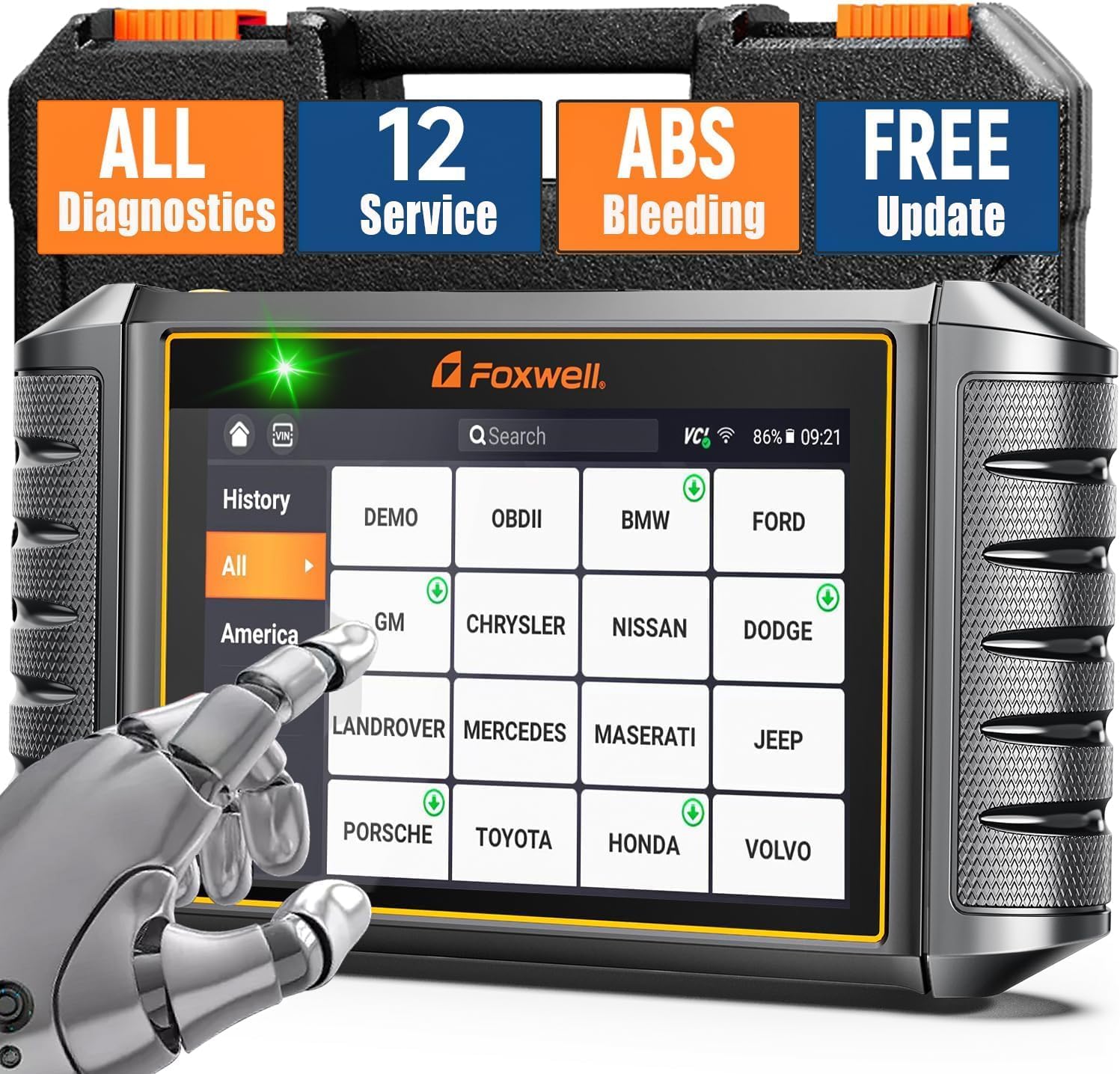
Figure 1.1: FOXWELL NT726 OBD2 Scanner and Protective Case
This device operates on an Android 9.0 system, features a 5.5-inch touchscreen, a 4000mAh built-in battery, and 32GB SSD storage with 1GB DDR4 memory, ensuring fast and smooth operation. It supports Wi-Fi for convenient one-click updates and allows for printing and sharing of vehicle health reports.
2. What's in the Box
Upon opening the package, verify that all the following items are included:
- 1 x FOXWELL NT726 Car Code Reader (Main Unit)
- 1 x Heavy Duty Protective Case
- 1 x Diagnostic Cable
- 1 x USB C Cable
- 1 x User Manual
- 1 x Quick Start Guide

Figure 2.1: Package Contents of FOXWELL NT726
3. Setup and Initial Use
3.1 Powering On and Initial Configuration
- Charge the Device: Before first use, ensure the NT726 is fully charged using the provided USB C cable.
- Power On: Press and hold the power button located on the side of the device until the screen illuminates.
- Language Selection: Upon first boot, you will be prompted to select your preferred language. Navigate using the touchscreen and select "English".
- Wi-Fi Connection: Connect the device to a stable Wi-Fi network. This is crucial for software updates and accessing online features. Go to Settings > Wi-Fi and select your network.
- Registration (Optional): You may be prompted to register your product. Follow the on-screen instructions to complete registration, which may be required for warranty or support.
3.2 Software Update
The NT726 offers lifetime free updates via Wi-Fi. It is highly recommended to update the software immediately after initial setup to ensure you have the latest vehicle coverage and functions.
- From the main menu, tap on the "Update" icon.
- The device will check for available updates.
- Tap "Update All" or select specific updates to download and install. Ensure a stable Wi-Fi connection throughout the process.

Figure 3.1: One-Click Software Update Interface
4. Operating the NT726 Scanner
The FOXWELL NT726 is designed for intuitive operation. Connect the diagnostic cable to the vehicle's OBDII port, usually located under the dashboard on the driver's side.
4.1 All System Diagnostic
This function allows you to scan all available electronic control modules (ECUs) in the vehicle to read and clear diagnostic trouble codes (DTCs), view live data, and retrieve vehicle information. This includes systems such as Engine, Transmission, ABS, SRS (Airbag), TPMS, EPB, BMS, SAS, HVAC, and more.
- Connect the diagnostic cable to the vehicle's OBDII port and the NT726.
- Turn the vehicle's ignition to the "ON" position (engine off).
- From the main menu, tap "Diagnostic".
- The device will attempt to automatically identify the vehicle via Auto VIN Scan. If unsuccessful, you can manually select the vehicle make, model, and year.
- Select "Quick Scan" to perform a comprehensive scan of all systems or choose specific modules for diagnosis.
- Review the scan results, including DTCs, live data streams, and vehicle health reports.

Figure 4.1: All System Diagnostic Interface

Figure 4.2: All System Diagnostics Capabilities
4.2 Bi-directional Control (Active Test)
The NT726 supports bi-directional control, also known as Active Test, allowing you to send commands to vehicle systems and components to test their functionality. This is useful for pinpointing issues and verifying repairs.
- Examples of Active Tests: Parking Brake, Fuel Pump, Radiator Fan, Injectors, A/C Clutch, Door Locks, Wipers, etc.
- After selecting the vehicle and system, navigate to the "Active Test" or "Bi-directional Control" option.
- Select the component you wish to test from the displayed list.
- Follow the on-screen prompts to activate or deactivate the component and observe its response.

Figure 4.3: Full Bi-directional Controls
Figure 4.4: Active Test Function Diagnosis Workflow
4.3 12 Commonly Used Service Resets
The NT726 provides access to 12 essential service reset functions, enabling you to perform common maintenance tasks without needing specialized dealer tools.

Figure 4.5: 12 Essential Service Resets
- ABS Bleeding: Used to bleed air from the ABS system after component replacement or brake fluid change.

Figure 4.6: ABS Bleeding Reset
- Oil Reset: Resets the oil life monitoring system after an oil change.

Figure 4.7: Oil Light Reset
- Battery Registration: Registers a new battery with the vehicle's ECU to ensure proper charging and system function.
- Injector Coding: Codes new injector numbers to the ECU after replacement to ensure correct fuel delivery.
- EPB Reset: Resets the Electronic Parking Brake system after brake pad replacement.
- Suspension Reset: Resets the electronic suspension system.
- TPMS Reset: Resets the Tire Pressure Monitoring System after tire rotation or sensor replacement.
- Throttle Relearn: Relearns the throttle body position after cleaning or replacement.
- DPF Regeneration: Initiates the Diesel Particulate Filter regeneration process to clear accumulated soot.
- SAS Calibration: Calibrates the Steering Angle Sensor after steering component replacement or alignment.

Figure 4.8: SAS Reset and Airbag Reset
- Transmission Adaptation: Resets transmission adaptive values.
- Windows-door: Performs window and door system initialization.
To perform a service reset: Navigate to the "Maintenance" section from the main menu, select the desired reset function, and follow the on-screen instructions.
4.4 Full OBDII Functions
The NT726 supports all 10 modes of OBDII testing, providing comprehensive engine and emission-related diagnostics.
- Read Codes: Displays current, pending, and permanent Diagnostic Trouble Codes (DTCs).
- Clear Codes: Erases DTCs from the vehicle's computer and turns off the Malfunction Indicator Lamp (MIL).
- Live Data: Displays real-time data stream from the vehicle's sensors in text and graph format (supports 4-in-1 live data graph).
- Freeze Frame: Shows a snapshot of operating conditions at the time of an emission-related fault.
- I/M Readiness: Checks the readiness of the emission monitoring systems.
- O2 Monitor Test: Retrieves O2 sensor monitor test results.
- On-Board Monitor Test: Retrieves results for emission-related diagnostic monitoring tests of specific components/systems.
- EVAP System Test: Initiates a test of the Evaporative Emission Control System.
- Vehicle Information: Retrieves vehicle identification number (VIN), calibration ID (CALID), and calibration verification number (CVN).
- DTC Lookup: Provides definitions for generic and manufacturer-specific codes.

Figure 4.9: Full OBDII Functions
4.5 Official Product Video
Watch the official product video for a visual guide on the FOXWELL NT726's features and operation.
Video 4.1: FOXWELL NT726 - Android Tablet All System Scanner with 12 Service Functions. This video demonstrates the key features and operational flow of the NT726 diagnostic tool, including all system scanning, service resets, and user interface navigation.
5. Maintenance and Care
- Cleaning: Use a soft, damp cloth to clean the device. Avoid harsh chemicals or abrasive cleaners.
- Storage: Store the NT726 in its protective case when not in use to prevent damage. Keep it in a cool, dry place away from direct sunlight and extreme temperatures.
- Software Updates: Regularly check for and install software updates to ensure optimal performance and the latest vehicle coverage.
- Battery Care: For prolonged storage, ensure the battery is charged to about 50%. Recharge periodically if stored for long periods to maintain battery health.
6. Troubleshooting
| Problem | Possible Cause | Solution |
|---|---|---|
| Device does not power on. | Low battery; faulty power button; internal issue. | Charge the device for at least 30 minutes. If still unresponsive, contact customer support. |
| Failed to connect to vehicle. | Loose cable connection; ignition not on; vehicle's OBDII port issue; incompatible vehicle. | Ensure diagnostic cable is securely connected. Turn ignition to "ON". Try on another vehicle if possible. Verify vehicle compatibility. |
| Software update fails. | Unstable Wi-Fi connection; insufficient storage; server issue. | Ensure strong Wi-Fi signal. Check available storage on the device. Try updating again later. |
| Screen is unresponsive. | Software glitch; physical damage. | Restart the device. If issue persists, contact customer support. |
7. Specifications
| Feature | Detail |
|---|---|
| Model | FOXWELL NT726 |
| Operating System | Android 9.0 |
| Display | 5.5-inch Touch Screen (1280x720 resolution) |
| Memory | 1GB DDR4 |
| Storage | 32GB SSD |
| Battery | 4000mAh Lithium Ion (included) |
| Connectivity | USB Type-C, Wi-Fi |
| Dimensions | 9.29 x 4.88 x 1.5 inches |
| Weight | 1.91 pounds |
| Vehicle Coverage | Compatible with over 100 car makes (USA, European, Asian) |
| Update Method | Lifetime Free WiFi Update |
| Multilingual Support | 24+ languages including English, German, French, Spanish, etc. |

Figure 7.1: 5.5" Touch Screen Display

Figure 7.2: Wide Car Model Coverage

Figure 7.3: Multilingual Support
8. Warranty and Support
8.1 Warranty Information
The FOXWELL NT726 comes with a 12-month warranty from the date of purchase. This warranty covers manufacturing defects and malfunctions under normal use. It does not cover damage caused by misuse, accidents, unauthorized modifications, or improper maintenance.
For detailed warranty terms and conditions, please refer to the Warranty card included in your product package or visit the official FOXWELL website.
8.2 Customer Support
If you encounter any issues or have questions regarding your FOXWELL NT726 scanner, please contact FOXWELL customer support through the following channels:
- Official Website: Visit the FOXWELL Store on Amazon for FAQs, software downloads, and contact information.
- Email Support: Refer to your Quick Start Guide or User Manual for the dedicated support email address.
- Online Resources: Access the User Manual (PDF) and User Guide (PDF) for additional information.
When contacting support, please have your product model (NT726) and serial number (found on the back of the device or in the device's settings under "About") ready to expedite the process.
Related documentsNT726


Ask a question about this manual
Ask about setup, troubleshooting, compatibility, parts, safety, or missing instructions. Manuals+ will review the question and use this page’s manual context to help answer it.