1. Introduction
This manual provides detailed instructions for the proper setup, operation, and maintenance of your IETS GT500-B Laptop Cooling Pad. The GT500-B is designed to enhance laptop performance by providing efficient cooling, featuring a powerful turbo-fan, infinitely variable speed control, and a unique sealing foam system. Please read this manual thoroughly before using the product to ensure optimal performance and longevity.

Image: IETS GT500-B Cooling Pad. This image displays the IETS GT500-B laptop cooling pad, highlighting its central turbofan and the blue swirling airflow it generates for effective cooling.
2. Safety Information
Observe the following safety guidelines to prevent injury or damage to the product:
- Keep packaging materials away from children to prevent choking hazards.
- Avoid accidental swallowing of small parts.
- The device is waterproof and moisture-proof; however, avoid submerging it in liquids.
- Do not step on the cooling pad, as this may cause damage.
- Use only the provided power adapter.
- Do not attempt to disassemble or repair the unit yourself. Contact customer support for assistance.

Image: Safety Warning Labels. This image displays universal safety symbols indicating precautions such as preventing choking, avoiding accidental swallowing, maintaining waterproof integrity, and not stepping on the device to prevent damage.
3. Package Contents
Please verify that all items are present in your package:
- IETS GT500-B Laptop Cooling Pad
- Power Adapter (UK plug, or regional equivalent)
- Detachable Sealing Foam Kit (various sizes)
- User Manual (this document)
4. Setup
4.1. Power Connection
Connect the provided power adapter to the DC 12V port on the cooling pad and then plug it into a wall outlet. The cooling pad operates independently of your laptop's USB power.

Image: Power Connection. This image illustrates the power input port on the cooling pad and the included UK plug adapter, highlighting the external power source.
4.2. Laptop Placement and Foam Configuration
The GT500-B utilizes a combined sealed foam kit to optimize airflow and cooling efficiency for various laptop sizes. Proper foam placement is crucial for effective cooling.
- Laptops without bottom vents: No sealing foam is required.
- 13-14 inch laptops: Use both smaller foam pieces to create a seal around your laptop's intake area.
- 15-17.3 inch laptops: Use the larger single foam piece to create a seal around your laptop's intake area.
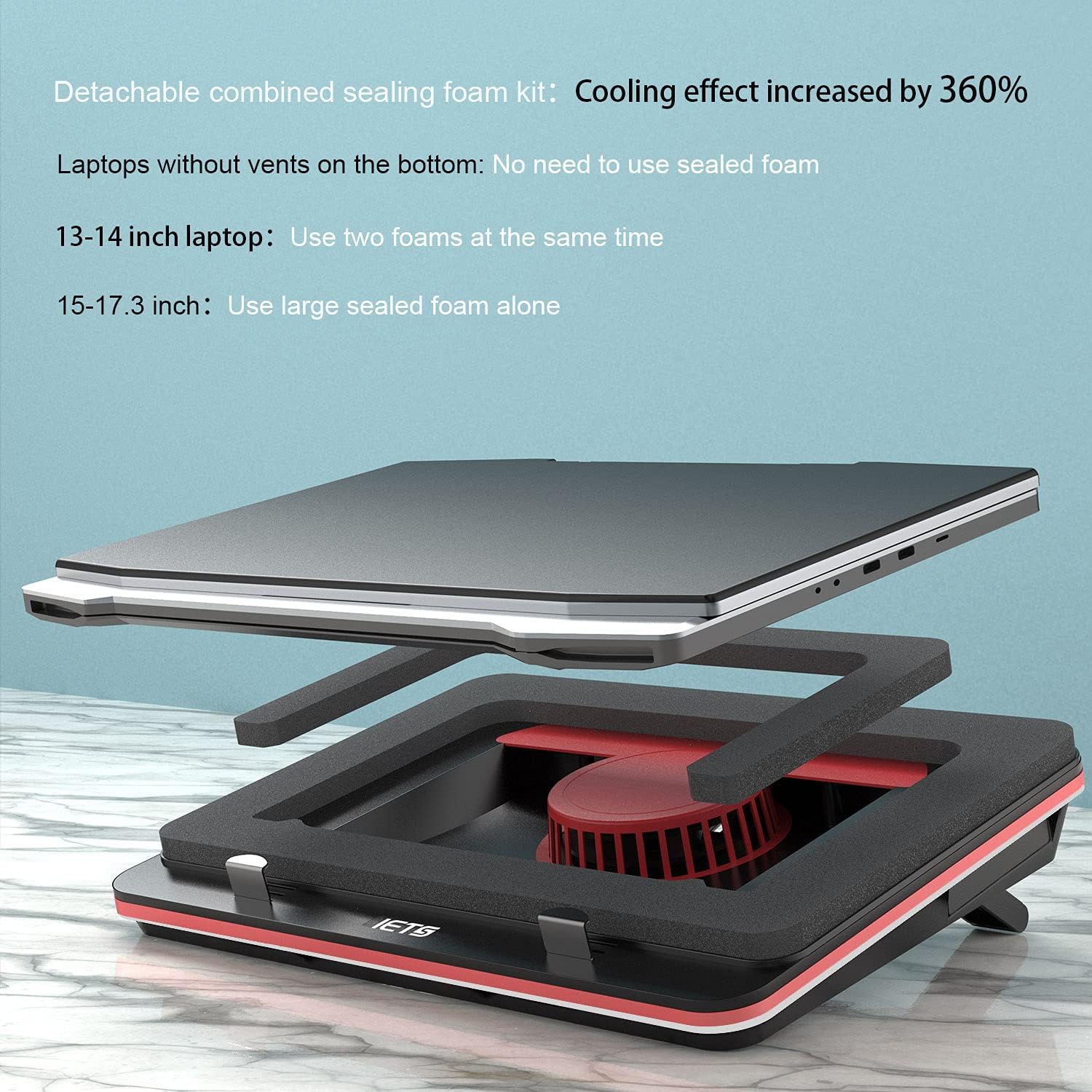
Image: Sealing Foam Kit. This image demonstrates the detachable sealing foam kit, showing how it creates a sealed environment between the laptop and the cooling pad for enhanced airflow.

Image: Foam Configuration Guide. A visual guide detailing how to arrange the sealing foam pieces for optimal cooling based on laptop size (13-14 inch, 15-17.3 inch, or no vents).
4.3. Height Adjustment
The cooling pad features 7 adjustable height settings to provide an ergonomic viewing and typing angle, helping to protect your spine and improve comfort during use.

Image: Adjustable Height. This image highlights the 7 available height adjustment levels of the cooling pad, demonstrating how it can improve ergonomic posture for laptop users.
4.4. Securing the Laptop
Utilize the patented buckle design to securely fix your laptop in place on the cooling pad, preventing slippage, especially when adjusted to higher angles.

Image: Patented Buckle Design. A detailed view of the two-way adjustable buckles that provide strong fixation for the laptop on the cooling pad.
5. Operation
5.1. Powering On/Off
Once connected to power, the cooling pad can be turned on or off using the designated power switch, typically located near the power input port.
5.2. Adjusting Fan Speed
The GT500-B features an infinitely variable speed control dial. Rotate the dial to adjust the fan speed from 0 to 4200 RPM, allowing you to customize cooling performance based on your laptop's needs and ambient noise preferences. Higher speeds provide maximum cooling but will generate more noise.

Image: Fan Speed Control. This image highlights the industrial-grade turbofan capable of 4200 RPM and points to the infinitely variable speed adjustment dial on the side of the cooling pad.
5.3. Cooling Mechanism
The GT500-B employs a powerful industrial-grade turbofan that generates a 360-degree uniform airflow. Combined with the sealing foam, this design guides the wind direction and locks the air volume, creating wind pressure to accelerate cooling directly to your laptop's intake vents, regardless of their position.

Image: Airflow Dynamics. This image visually represents the powerful, swirling airflow generated by the turbofan, illustrating how it provides comprehensive cooling.
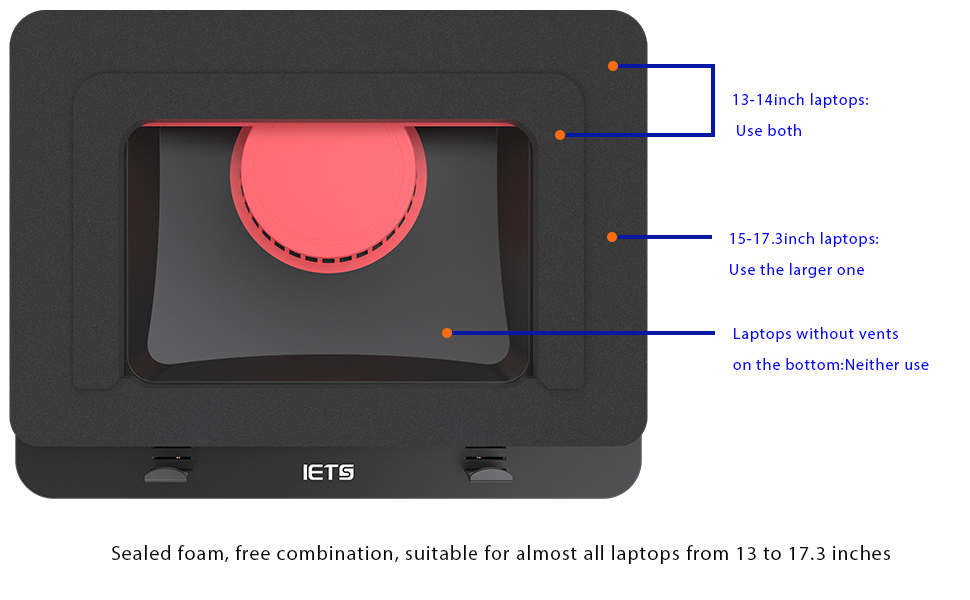
Image: Role of Sealing Foam. A diagram illustrating how the sealing foam guides airflow and creates wind pressure to enhance cooling efficiency by directing air to the laptop's vents.
6. Maintenance
6.1. Cleaning the Dust Filter
The GT500-B includes a detachable dust filter designed to prevent dust accumulation in your laptop's vents and the cooling pad itself. Regularly clean the filter to maintain optimal airflow and cooling performance.
- Gently slide out the dust filter from its slot on the cooling pad.
- Clean the filter using a soft brush, compressed air, or by rinsing it with water (ensure it is completely dry before reinserting).
- Slide the clean filter back into its slot until it clicks into place.
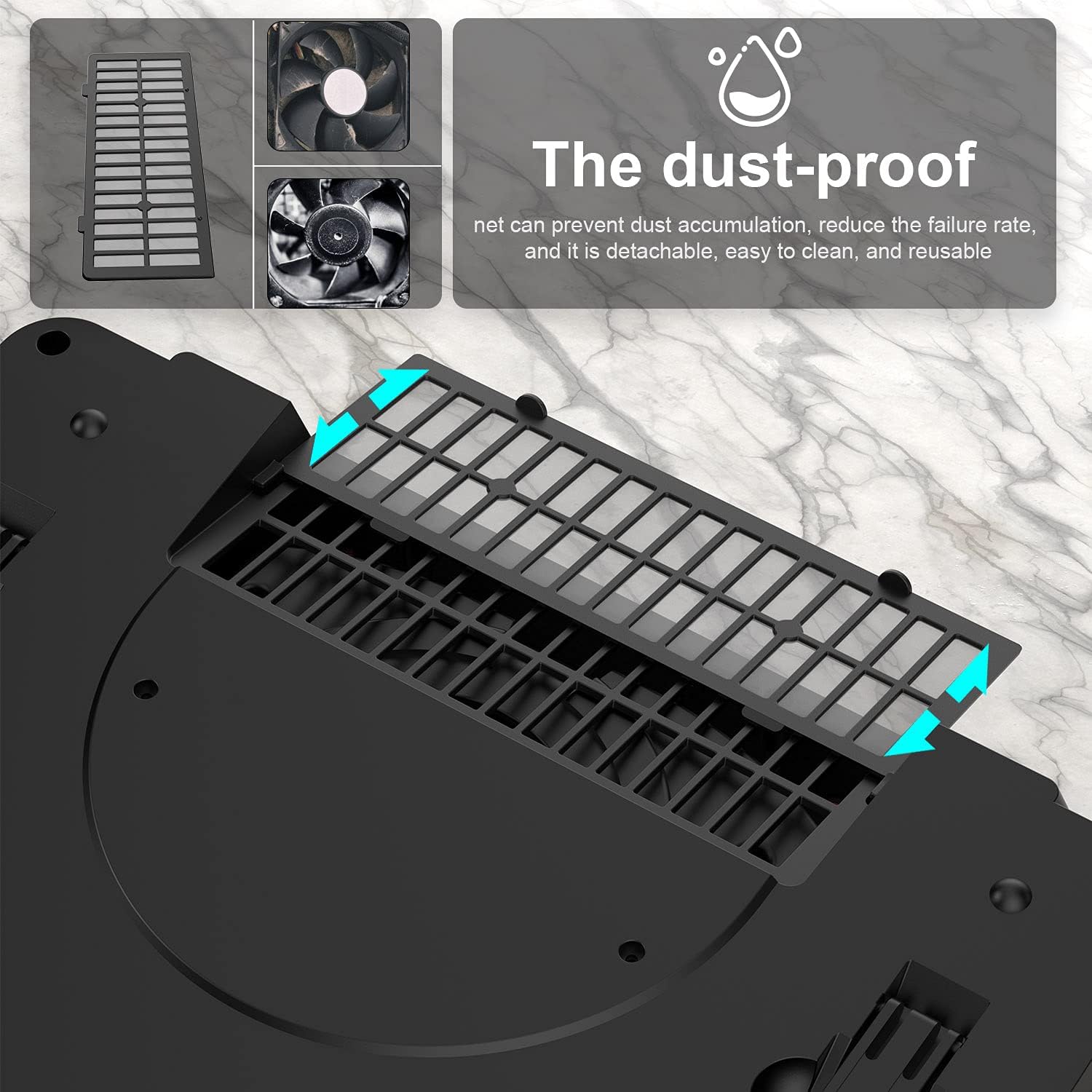
Image: Dust Filter Removal. This image shows the detachable dust filter being removed from the cooling pad, illustrating its design for easy cleaning and maintenance.

Image: Dust Filter Detail. A close-up showing the dust filter and fan blades, highlighting the filter's role in preventing dust accumulation and protecting internal components.
6.2. General Cleaning
Wipe the exterior of the cooling pad with a soft, dry cloth. Avoid using abrasive cleaners or solvents that could damage the surface.
7. Troubleshooting
| Problem | Possible Cause | Solution |
|---|---|---|
| Cooling pad does not power on. | No power connection; power adapter faulty; power switch off. | Ensure power adapter is securely plugged into the cooling pad and a working wall outlet. Check the power switch. |
| Fan is not spinning or spinning slowly. | Fan speed dial set to minimum; power issue. | Rotate the fan speed dial clockwise to increase speed. Verify power connection. |
| Cooling effect is minimal. | Incorrect foam configuration; dust filter clogged; laptop vents blocked. | Ensure sealing foam is correctly placed for your laptop size. Clean the dust filter. Check and clean your laptop's intake vents. Increase fan speed. |
| Excessive noise from the fan. | Fan operating at high speed; foreign object in fan. | Reduce fan speed using the control dial. If noise persists and is unusual, check for obstructions (with power off). Note that at maximum speed (4200 RPM), the industrial-grade fan can reach up to 55 dB, which is comparable to normal conversation levels. This is expected for high-performance cooling. |
8. Specifications
| Feature | Detail |
|---|---|
| Model Number | GT500B |
| Brand | IETS |
| Maximum Fan Speed | 4200 RPM |
| Cooling Method | Air |
| Material | Metal |
| Item Weight | 1.13 Kilograms (2.49 pounds) |
| Package Dimensions | 16.81 x 12.99 x 2.68 inches |
| Compatibility | 13-17.3 inch laptops |
| Noise Level (Max Speed) | Up to 55 dB |

Image: GT500 Series Comparison. This table provides a comparison of different GT500 series models, detailing specifications such as maximum fan speed, air volume, wind pressure, power, weight, and features like RGB lighting and USB expansion.
9. Warranty and Support
IETS products are manufactured with high-quality standards. For information regarding warranty coverage, please refer to the warranty card included with your product or visit the official IETS website. If you encounter any issues or require technical assistance, please contact IETS customer support through their official channels. Do not attempt to repair the device yourself, as this may void your warranty.
For further assistance, please visit the IETS Store on Amazon.