
1. Introduction
This manual provides detailed instructions for assembling and operating your iCubeSmart 8x8x8 3D LED Cube Kit. This DIY electronic kit is designed for enthusiasts interested in soldering projects and creating dynamic LED displays. The kit utilizes Blue SMD LEDs and a PCB-based design for a clean and vibrant finished product.
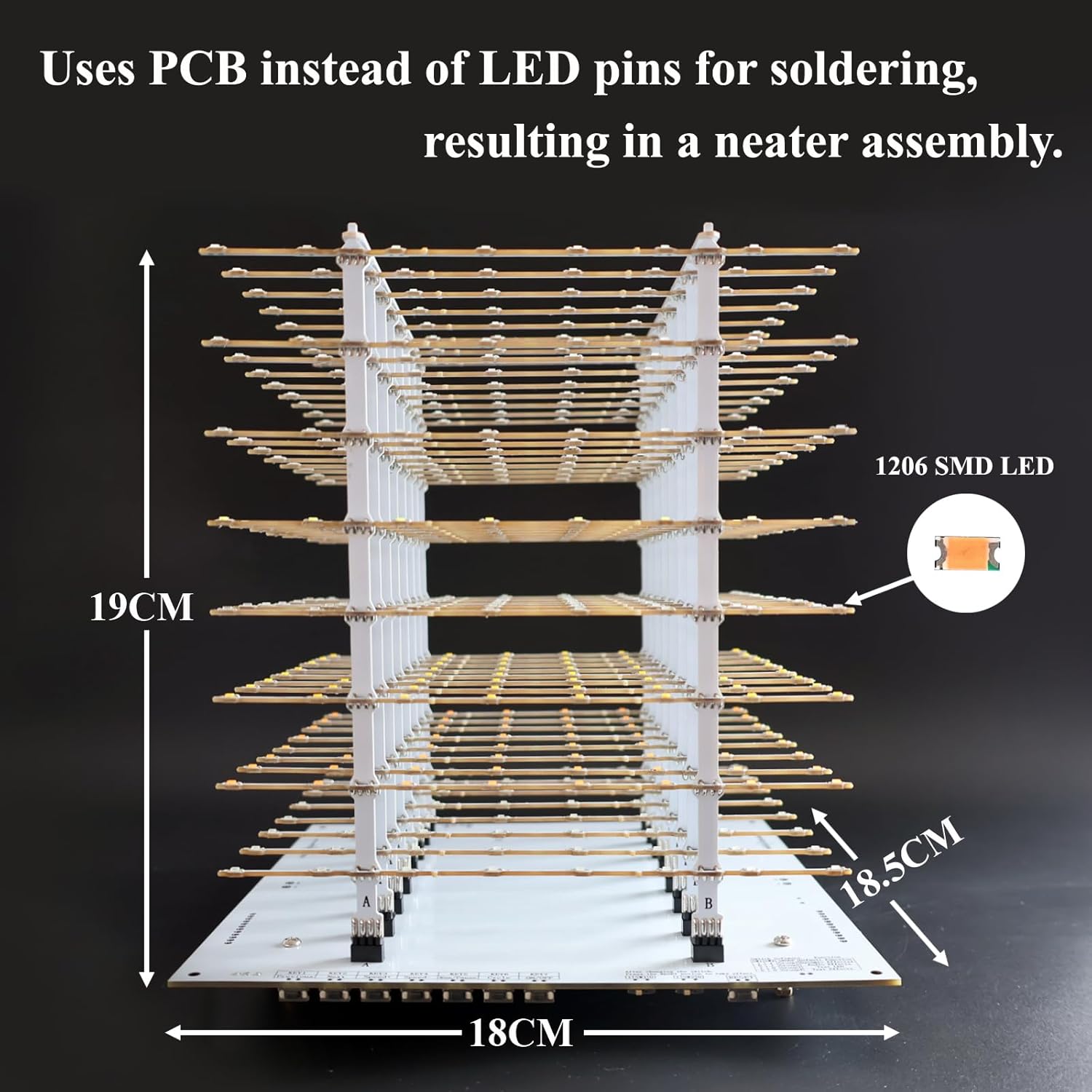
Figure 1: Assembled iCubeSmart 8x8x8 3D LED Cube. The finished product measures approximately 18.5 x 18 x 19 cm.
2. Safety Information
Warning: This kit requires soldering. Always use appropriate safety precautions, including wearing safety glasses and ensuring good ventilation. Keep out of reach of children under 14 years of age. Hot soldering irons can cause severe burns. Ensure all connections are properly made to prevent electrical shorts or damage to components.
3. Package Contents
Before beginning assembly, please verify that all components listed below are present in your kit:
- Tested Mainboard x1
- LED Lamp Bead PCB x64
- Support PCB x16
- 2P Pin Header x128
- 8P Pin Header x16
- LED Welding Bracket x1
- Lamp Anchor Bracket x2
- Blue SMD LED x550 (512 used, spares included)
- Program Downloader + Dupont Line x1
- White Power Cord x1

Figure 2: All components included in the iCubeSmart 3D LED Cube Kit.
4. Assembly Instructions (Setup)
The assembly process involves soldering the SMD LEDs onto the provided PCBs and then constructing the 3D cube structure. Detailed paper instructions are included with your kit. The following steps provide a general overview:
- Prepare LEDs and PCBs: Carefully separate the individual LED strips and prepare the SMD LEDs for soldering.
- Solder LEDs: Using a soldering iron, solder each Blue SMD LED onto its designated pad on the LED Lamp Bead PCBs. Ensure correct polarity and secure connections.
- Assemble LED Layers: Once all LEDs are soldered, connect the individual LED Lamp Bead PCBs to form the 8x8 layers of the cube.
- Mount Layers to Support PCBs: Attach the completed LED layers to the Support PCBs, creating the vertical structure of the cube.
- Integrate with Mainboard: Secure the entire LED structure onto the tested mainboard using the provided pin headers and brackets.

Figure 3: Soldering individual SMD LEDs onto the PCB strips.

Figure 4: Assembling the LED layers to form the cube structure.
For a visual guide to the assembly process, please refer to the video below:
Video 1: iCubeSmart 3D8P LED Cube Kit DIY Electronics Kit Assembly and Demo. This video demonstrates the assembly steps and showcases the cube's dynamic effects.
5. Operation
Once assembled, connect the provided 5V power supply to the mainboard. The cube will automatically begin displaying its built-in animation programs.
5.1 Built-in Programs
The motherboard comes pre-loaded with 30 vibrant animation programs. These programs cycle automatically, providing a variety of visual effects.
5.2 Customization with 3D Software
Users can customize the displayed content using the dedicated 3D editing software provided by iCubeSmart. This software allows for creation and modification of unique animation sequences.

Figure 5: The 3D editing software interface for customizing LED cube animations.
5.3 Music-Inspired Animation Mode
The cube features a music-inspired animation mode that utilizes a built-in microphone for sound capture. This allows the LED display to react dynamically to ambient sounds and music.

Figure 6: Detail of the motherboard, showing the power input and microphone for sound-reactive animations.
6. Maintenance
The iCubeSmart 3D LED Cube requires minimal maintenance. Keep the device clean and free from dust. Use a soft, dry cloth for cleaning. Avoid exposing the cube to moisture or extreme temperatures. The LED light assembly is detachable for easy transportation and cleaning.
7. Troubleshooting
If you encounter issues with your 3D LED Cube, consider the following troubleshooting steps:
- LEDs Not Lighting Up: Check all soldered connections for cold joints or bridges. Ensure correct polarity of the LEDs. Verify the power supply is connected and functioning.
- Inconsistent Display: Re-examine connections between LED layers and the mainboard. Ensure all pin headers are securely seated.
- Software Connection Issues: Confirm the program downloader is correctly connected to both the computer and the mainboard. Check for driver installations if necessary.
- No Sound Reaction: Ensure the microphone area on the mainboard is not obstructed. Verify the music-inspired animation mode is active.
If problems persist, please contact iCubeSmart technical support for assistance.
8. Specifications
| Feature | Detail |
|---|---|
| Brand | iCubeSmart |
| Model Number | 3D8P-MULTI |
| LED Type | Blue SMD LEDs (512 used) |
| Finished Product Dimensions | 18.5 x 18 x 19 cm (approx. 7 x 7.3 x 7.5 inches) |
| Material Type | Acrylic |
| Assembly Required | Yes |
| Educational Objective | Hand-Eye Coordination, Fine Motor Skills |
| Recommended Age | Adult (14+ years) |
9. Warranty and Support
iCubeSmart offers lifetime technical support for all DIY products. Our professional technical engineers are available to assist with any installation issues or questions you may have. We also provide free animation modification services. Please refer to the contact information provided with your purchase for support details.