
Introduction
Welcome to the user manual for your KXD 6A 3G Smartphone. This guide provides essential information on setting up, operating, maintaining, and troubleshooting your device. Please read this manual thoroughly to ensure optimal performance and longevity of your smartphone.
What's in the Box
Upon opening your KXD 6A package, you should find the following items:
- KXD 6A Smartphone
- Phone Case
- Charging Cable (Micro USB)
- Power Adapter
- SIM Ejector Tool
- Quick Guide
Video: Unboxing the KXD 6A Smartphone. This video demonstrates the contents of the KXD 6A package and the initial unboxing process.
Product Overview
The KXD 6A is a 3G smartphone featuring a 5.5-inch full-screen display, dual SIM capability, and an Android 8.1 Go Edition operating system. It is designed for essential communication and entertainment needs.
Key Features:
- Display: 5.5-inch Full-Screen Display (480 x 800 resolution)
- Processor: Quad-Core 1.3GHz (SC9832E)
- Memory: 1GB RAM, 8GB ROM (expandable up to 64GB via SD card)
- Cameras: 8MP Main Camera, 2MP Sub-Camera (rear), 5MP Front Camera
- Battery: 2500mAh Lithium-Ion
- Operating System: Android 8.1 Oreo (Go Edition)
- Connectivity: 3G Network, Wi-Fi, Bluetooth, FM Radio, GPS
- Security: Face Recognition
- SIM: Dual SIM support

Image: Rear view of the KXD 6A smartphone in blue, highlighting its textured back cover and dual camera module.

Image: Overview of the KXD 6A smartphone, showcasing its 5.5-inch full screen, 8MP+2MP back camera, Quad-Core 1.3GHz processor, Android 8.1 Go edition, 8GB+1GB memory, 2500mAh battery, 3G network, Face Unlock, 5MP front camera, Dual SIM, Video Player, and GPS capabilities.
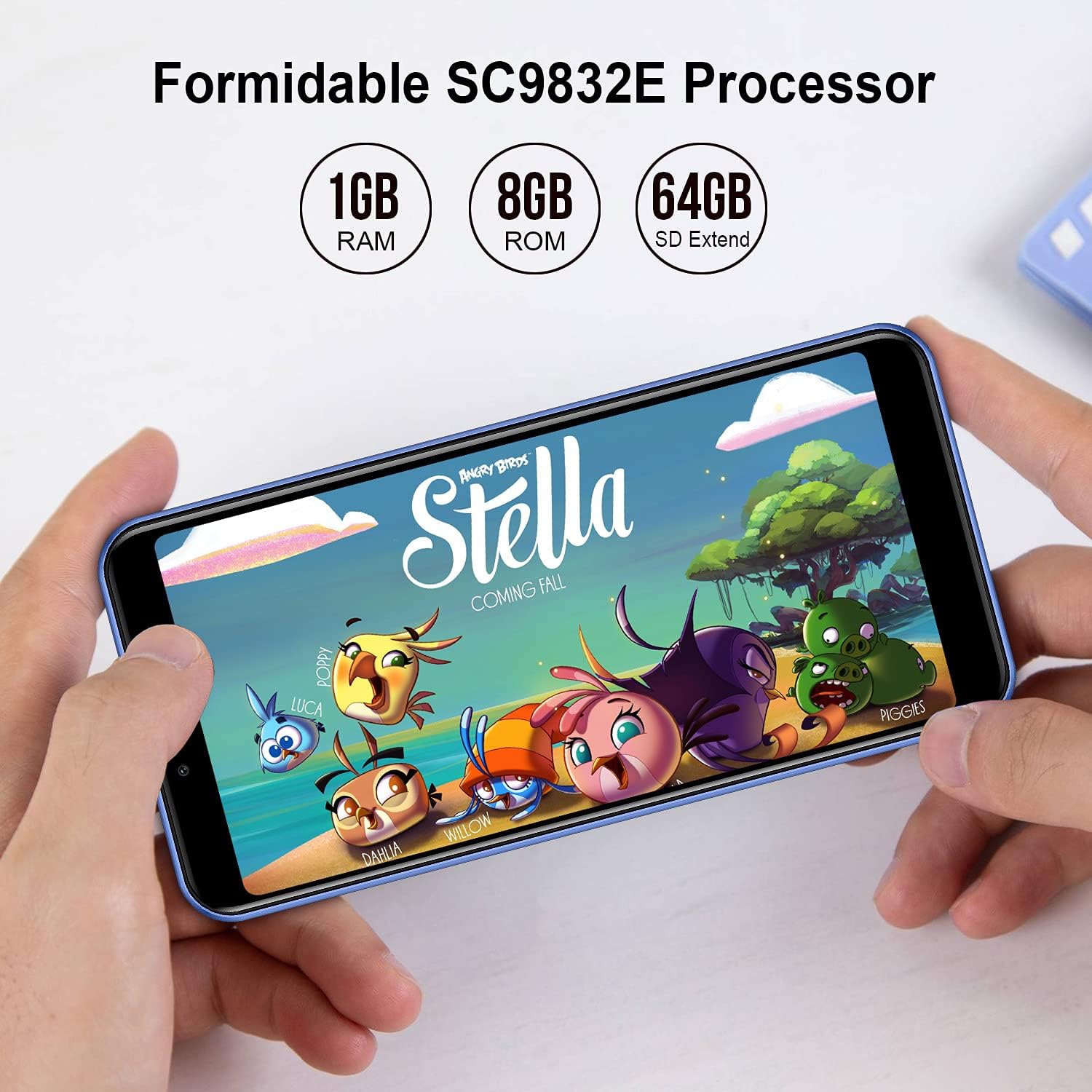
Image: The KXD 6A smartphone screen displaying "Formidable SC9832E Processor" along with "1GB RAM", "8GB ROM", and "64GB SD Extend" specifications.

Image: The KXD 6A smartphone screen displaying various application icons, with text indicating "1GB RAM + 8GB ROM 64GB Expandable" and "8GB Basic Storage Is Large Enough To Meet Your Daily Requirement For Phone Call, Message, Photos, Facebook, Music, Etc."
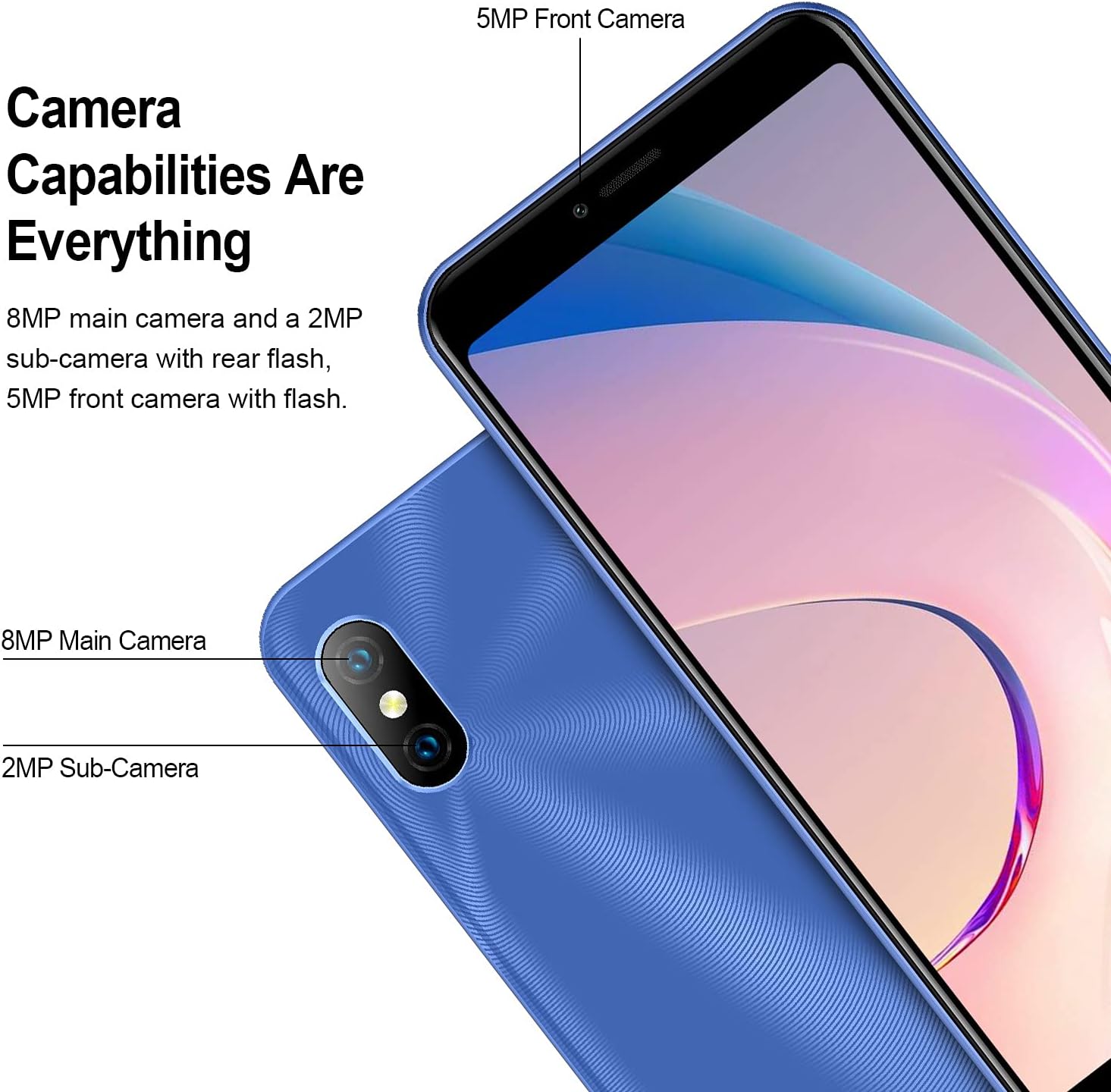
Image: Close-up of the KXD 6A smartphone's camera area, detailing "Camera Capabilities Are Everything" with "8MP main camera and a 2MP sub-camera with rear flash, 5MP front camera with flash."

Image: The KXD 6A smartphone screen displaying "2500mAh Battery" with text stating "The KXD 6A is equipped with a large capacity battery of 2500mAh to support all day using."
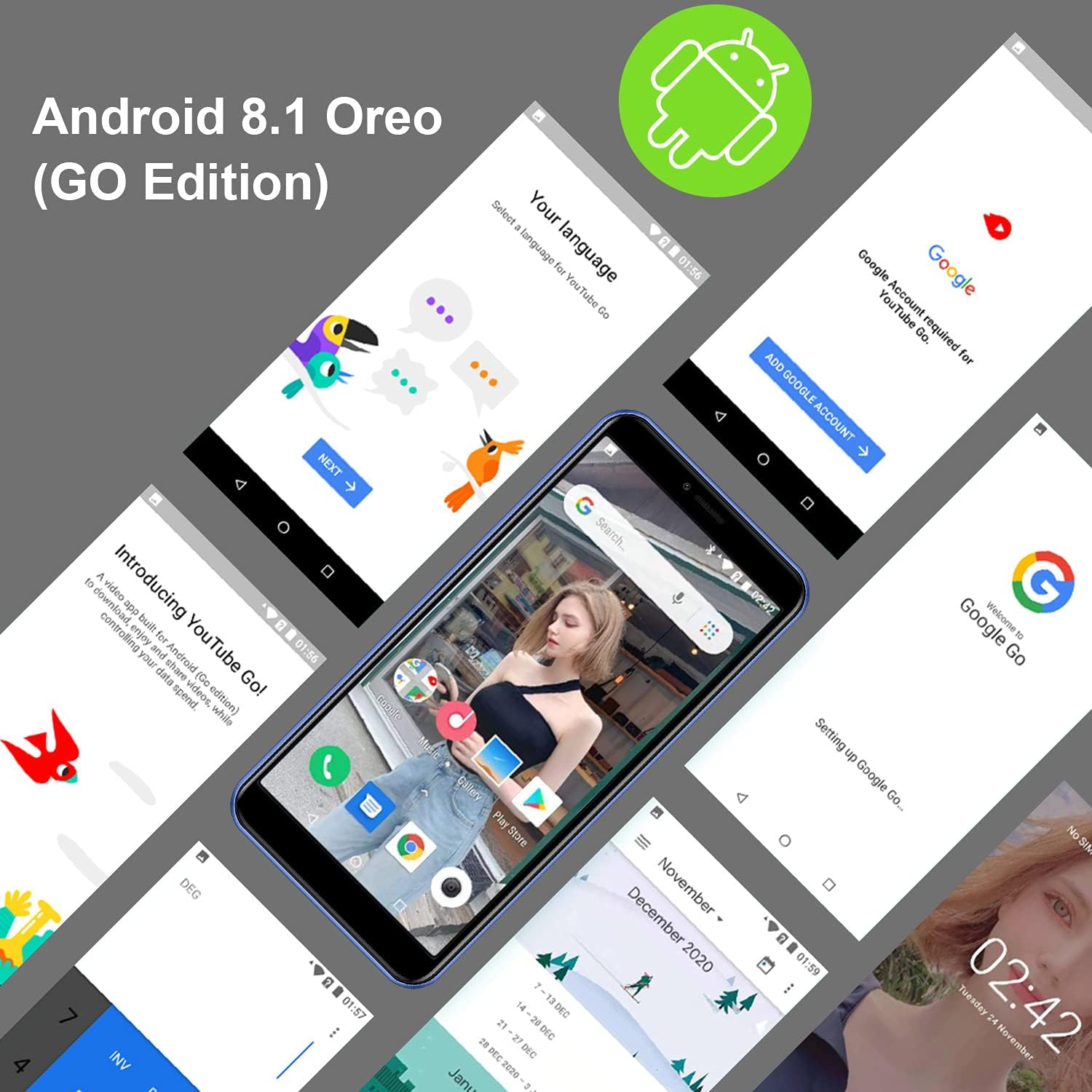
Image: Multiple views of the KXD 6A smartphone screens showing the Android 8.1 Oreo (Go Edition) interface, including language selection, Google account setup, and the home screen with various apps.
Setup
1. Installing SIM and SD Card
- Locate the SIM card tray on the side of your phone.
- Insert the provided SIM ejector tool into the small hole next to the tray and press gently until the tray pops out.
- Place your Nano-SIM card(s) and/or microSD card into the designated slots on the tray. Ensure the gold contacts are facing down and the cards are correctly oriented.
- Carefully push the tray back into the phone until it clicks into place.
2. Charging the Battery
- Connect the Micro USB end of the charging cable to the phone's charging port.
- Connect the USB-A end of the cable to the power adapter.
- Plug the power adapter into a wall outlet.
- Allow the phone to charge completely before initial use. The battery indicator on the screen will show charging status.
3. Powering On and Initial Setup
- Press and hold the Power button (usually on the right side) until the KXD logo appears on the screen.
- Follow the on-screen prompts to select your language, connect to Wi-Fi, set up your Google account, and configure other basic settings.
- You can set up Face Recognition during this process or later in the settings menu.
Operating Your Phone
Basic Navigation
- Home Screen: Swipe left or right to access different home screens with app shortcuts and widgets.
- App Drawer: Swipe up from the bottom of the screen to view all installed applications.
- Notifications & Quick Settings: Swipe down from the top of the screen to view notifications and quick access toggles like Wi-Fi, Bluetooth, and flashlight.
- Recent Apps: Tap the square icon (or swipe up and hold from the bottom if using gesture navigation) to see recently used applications.
Making Calls and Sending Messages
- Calls: Tap the Phone icon, enter the number, and tap the call button.
- Messages: Tap the Messages icon, start a new conversation, enter the recipient's number or select from contacts, and type your message.
Using the Camera
The KXD 6A features an 8MP main rear camera, a 2MP sub-camera, and a 5MP front camera for photos and videos.
- Open the Camera app from your home screen or app drawer.
- Tap the shutter button to take a photo.
- Tap the video icon to switch to video recording mode.
- Tap the camera switch icon to toggle between the front and rear cameras.
Video: Demonstration of KXD 6A smartphone features, including camera usage and general interface navigation.
Face Recognition
- To set up Face Recognition, go to Settings > Security & location > Face Unlock.
- Follow the on-screen instructions to register your face.
- Once set up, you can unlock your phone by looking at the front camera.
Maintenance
- Cleaning: Use a soft, lint-free cloth to clean the screen and body of the phone. Avoid harsh chemicals.
- Battery Care: To prolong battery life, avoid extreme temperatures and do not leave the phone charging for extended periods after it's full.
- Software Updates: Regularly check for and install software updates to ensure optimal performance and security. Go to Settings > System > About phone > System update.
- Storage Management: Periodically clear unnecessary files and apps to free up storage space. You can use the Files Go app (part of Android Go Edition) for this.
- Protection: Use the provided phone case to protect your device from drops and scratches.
Troubleshooting
| Problem | Possible Solution |
|---|---|
| Phone does not turn on | Ensure the battery is charged. Connect the phone to the charger and wait a few minutes before attempting to power on again. |
| Poor network signal | Check if your SIM card is correctly inserted. Move to an area with better network coverage. Restart the phone. |
| Apps crashing or freezing | Close background apps. Clear the cache of the problematic app (Settings > Apps & notifications > App info > [App Name] > Storage & cache > Clear cache). Restart the phone. |
| Battery drains quickly | Reduce screen brightness. Close unused apps. Turn off Wi-Fi, Bluetooth, and GPS when not in use. Check battery usage in Settings to identify power-hungry apps. |
| Cannot connect to Wi-Fi | Ensure Wi-Fi is enabled. Restart your router and phone. Forget the network and reconnect. |
| Touchscreen unresponsive | Restart the phone by holding the power button. If unresponsive, force restart by holding power button for 10-15 seconds. |
Specifications
| Feature | Detail |
|---|---|
| Brand | KXD |
| Model | 6A |
| Screen Size | 5.5 Inches |
| Resolution | 480 x 800 |
| Memory Storage Capacity | 8 GB ROM (expandable up to 64GB) |
| RAM | 1 GB |
| Wireless Carrier | AT&T (US Version) |
| Wireless Network Technology | Wi-Fi, 3G |
| SIM Card Slot Count | Dual SIM |
| Connector Type | 3.5mm Jack, Micro USB |
| Form Factor | Smartphone |
| Battery Capacity | 2500 Milliamp Hours (Lithium-Ion) |
| Biometric Security Feature | Face Recognition |
| Water Resistance Level | Not Water Resistant |
| Rear Camera | 8MP Main, 2MP Sub-Camera |
| Front Camera | 5MP |
| Item Dimensions | 5.83 x 2.8 x 0.35 inches |
Warranty and Support
For warranty information and technical support, please refer to the official KXD website or contact their customer service directly. The Quick Guide included in your package may also contain specific warranty details.
Manufacturer: KXD
Average Battery Life: 2 years