
1. Introduction
The FOXWELL NT716 OBD2 Scanner is an advanced diagnostic tool designed for automotive enthusiasts, DIYers, and professional mechanics. This device offers comprehensive system diagnostics, bidirectional control, and a wide range of maintenance reset functions. It is built to help users quickly identify and resolve vehicle issues, saving time and costs associated with professional repairs.
2. What's in the Box
Upon unboxing your FOXWELL NT716 Scanner, please verify that all the following components are present:
- 1 X NT716 Elite Code Scanner
- 1 X Protection Carrying Case
- 1 X Quick Start Guide
- 1 X USB TYPE C Cable
- 1 X Diagnostic Cable
3. Key Features
The FOXWELL NT716 Scanner is equipped with a range of powerful features to assist in vehicle diagnostics and maintenance:
- Bidirectional Control (Active Tests): This advanced function allows the scanner to send commands to vehicle systems and components, such as testing injectors, cooling fans, and fuel pumps, to quickly pinpoint faulty parts.
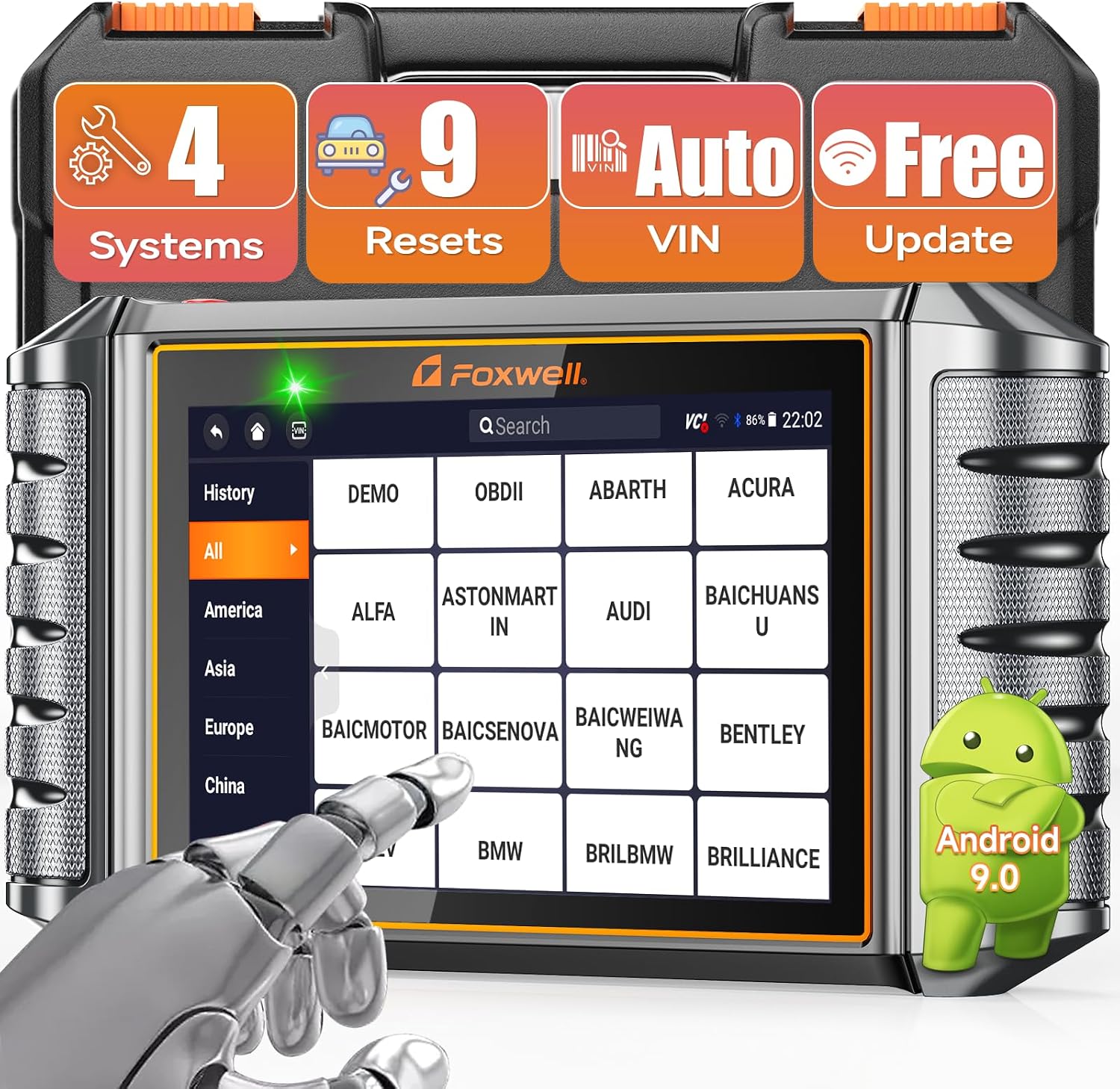
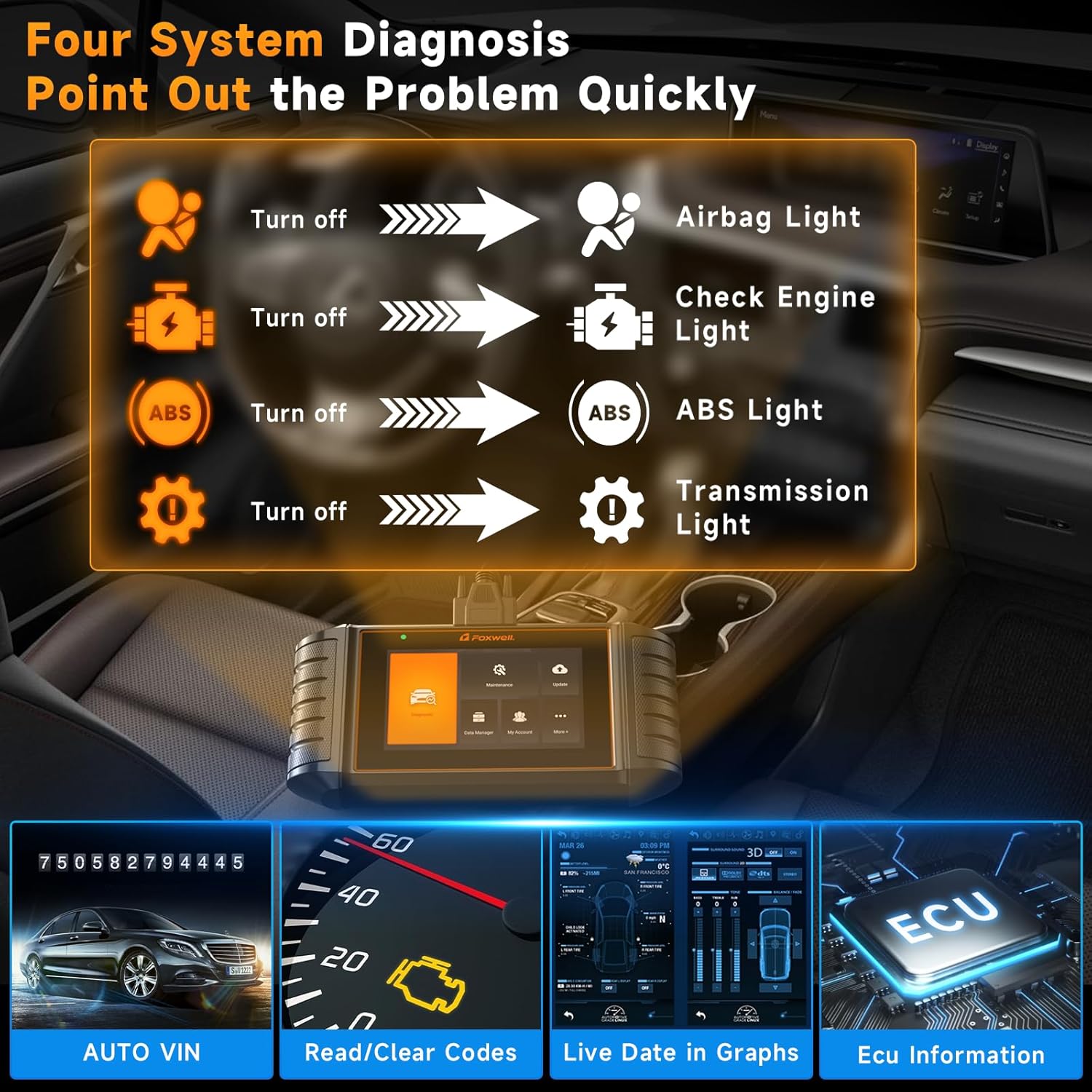
- Comprehensive 4-System OBD2 Diagnostics: Provides in-depth diagnostics for Engine, Transmission, Anti-lock Braking System (ABS), and Supplemental Restraint System (SRS) to read and clear trouble codes and view live data.
- 9 Powerful Advanced Maintenance Functions: Includes essential services such as ABS Bleeding, Oil Reset, Steering Angle Sensor (SAS) Calibration, Tire Pressure Monitoring System (TPMS) Reset, Throttle Reset, Electronic Parking Brake (EPB) Reset, Injector Coding, Diesel Particulate Filter (DPF) Regeneration, and Battery Registration.
- 4-in-1 Live Data + Battery Voltage Monitoring: Allows simultaneous viewing of up to four live data streams in text and graph formats, along with real-time battery voltage monitoring to detect potential battery issues.
- Massive Vehicle Coverage + Smart AutoVIN: Supports over 100 vehicle brands and models worldwide, including those built after 1996. The AutoVIN feature provides quick vehicle identification.
- User-Friendly Design + Lifetime Updates: Features a 5.5-inch responsive touchscreen, Android 9.0 OS, one-click WiFi updates, and a durable 4000mAh battery. Includes 32GB storage for data logging and updates.

4. Setup
4.1 Initial Power On
The NT716 Scanner is powered by an internal lithium-ion battery. Ensure the device is sufficiently charged before first use. Connect the provided USB Type-C cable to a power source to charge the device.
4.2 Connecting to Wi-Fi
To access software updates and online features, connect the scanner to a Wi-Fi network:
- From the main menu, tap on 'Settings' or 'Update'.
- Select 'Wi-Fi' and choose your desired network.
- Enter the password if prompted and connect.

5. Operating Instructions
5.1 Connecting to Vehicle
Locate your vehicle's OBDII port, typically under the dashboard on the driver's side. Connect the diagnostic cable from the NT716 Scanner to the vehicle's OBDII port. Turn the vehicle's ignition to the 'ON' position (engine off or running, depending on the test).
5.2 Performing Diagnostics
From the main menu, select 'Diagnostic'. The scanner will attempt to automatically identify the vehicle via AutoVIN. If AutoVIN fails, you may need to manually select the vehicle make, model, and year.
5.2.1 Reading and Clearing Codes
After vehicle identification, select the system you wish to diagnose (e.g., Engine, ABS, SRS, Transmission). Choose 'Read Codes' to view Diagnostic Trouble Codes (DTCs). To clear codes after repairs, select 'Clear Codes'.
5.2.2 Viewing Live Data
Select 'Live Data' to view real-time sensor data. This data can be displayed in text, graph, or combined formats. The 4-in-1 graphing feature allows for comparative analysis of multiple data streams.

5.3 Bidirectional Control (Active Tests)
Bidirectional control allows you to command specific components to perform actions, aiding in diagnosis. Navigate to the 'Active Test' or 'Bidirectional Control' option within the diagnostic menu for a selected system. Follow the on-screen prompts to perform tests such as activating the fuel pump, cycling the ABS motor, or testing cooling fan operation.

5.4 Performing Reset Functions
The NT716 offers 9 common maintenance reset functions. From the main menu, select 'Maintenance' or 'Service' and choose the desired function. Follow the on-screen instructions carefully for each specific reset procedure.
- Oil Reset: Resets the oil service light after an oil change.
- ABS Bleeding: Bleeds air from the ABS system after brake component replacement.
- EPB Reset: Resets the electronic parking brake after brake pad replacement.
- BMS Reset: Registers a new battery to the vehicle's Battery Management System.
- TPMS Reset: Resets the TPMS system after tire rotation or sensor replacement.
- SAS Calibration: Calibrates the steering angle sensor.
- Throttle Relearn: Relearns the throttle body position.
- Injector Coding: Codes new injector values into the ECU.
- DPF Regeneration: Initiates the DPF regeneration process for diesel vehicles.

6. Maintenance
6.1 Software Updates
The FOXWELL NT716 Scanner offers lifetime free software updates via Wi-Fi. Regularly updating your device ensures access to the latest vehicle models, diagnostic functions, and bug fixes. To update, ensure the device is connected to Wi-Fi and has sufficient battery, then navigate to the 'Update' section from the main menu and follow the prompts.
6.2 Cleaning and Storage
Keep the scanner clean by wiping it with a soft, damp cloth. Avoid using abrasive cleaners or solvents. Store the device in its protective carrying case in a cool, dry place away from direct sunlight and extreme temperatures when not in use.
7. Troubleshooting
If you encounter issues with your NT716 Scanner, consider the following common troubleshooting steps:
- Device not powering on: Ensure the battery is charged. Connect the USB-C cable to a power source and allow it to charge for at least 30 minutes before attempting to power on again.
- No communication with vehicle: Verify that the diagnostic cable is securely connected to both the scanner and the vehicle's OBDII port. Ensure the vehicle's ignition is in the 'ON' position. Check the vehicle's fuse for the OBDII port.
- Inaccurate vehicle identification: If AutoVIN fails or identifies the wrong vehicle, manually select the correct vehicle information (make, model, year) from the menu.
- Function not supported: Vehicle compatibility for specific functions (e.g., certain reset services, bidirectional controls) can vary by vehicle make, model, and year. Not all functions are universally supported across all vehicles.
- Slow operation: Ensure the device software is up to date. A full memory or background processes might also affect performance.
For persistent issues or advanced technical support, please contact FOXWELL customer service. Compatibility for specific functions may differ by vehicle year, model, and VIN. It is recommended to contact customer support to check function compatibility if you have specific concerns.
8. Specifications
| Feature | Specification |
|---|---|
| Model | NT716 Scanner |
| Operating System | Android 9.0 |
| Display | 5.5 inch Touch Screen |
| Item Weight | 1.92 pounds |
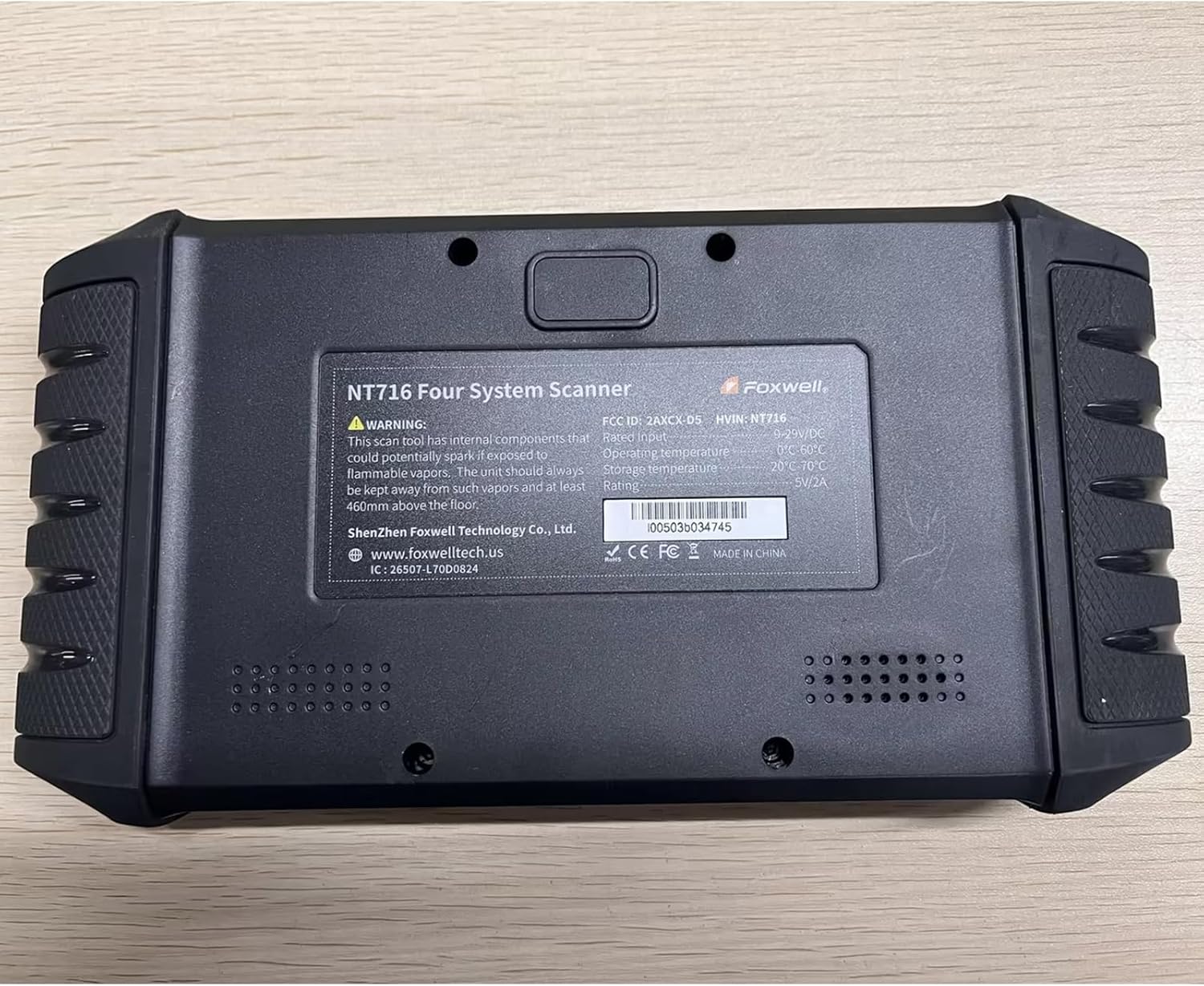
| Product Dimensions | 9.29 x 4.88 x 1.5 inches |
| Batteries | 1 Lithium Ion battery (included) |
| Memory | 32GB Storage, 1GB Processing Memory |
| Connectivity | WiFi, Bluetooth |
9. Warranty and Support
FOXWELL provides lifetime free software updates for the NT716 Scanner, ensuring your device remains current with the latest vehicle data and functionalities.
For any technical assistance, warranty claims, or inquiries regarding product compatibility, please contact FOXWELL customer support directly. You can reach them via email at amazonsupport@foxwelltech.com.


