
NC SWM 9702
NC Car Radio 1 Din MP5 Player User Manual
Model: SWM 9702
Product Overview
This manual provides detailed instructions for the installation, operation, and maintenance of your NC Car Radio 1 Din MP5 Player (Model SWM 9702). This versatile unit features a 7-inch retractable HD screen, Bluetooth connectivity, GPS navigation, USB support, iOS/Android Mirror Link, and FM radio. It is designed to enhance your in-car entertainment and navigation experience.

Figure 1.1: The NC Car Radio MP5 Player unit shown with its essential components, including the main head unit, two wiring harnesses for power and speakers, a GPS antenna for navigation, and the user operation manual. This image provides a comprehensive view of what is included in the product package.
Setup and Installation
1. Package Contents
Before beginning installation, please verify that all components are present in the package:
- Main Head Unit (Car Radio MP5 Player)
- GPS Antenna
- Disassembly Keys (2)
- Power Cords (2) - for rear tail cable plus front connections
- User Operation Manual
2. Wiring Connections
Proper wiring is crucial for the functionality of the car radio. Refer to the wiring diagram provided with the unit for specific connections. Below are general guidelines:
- Power Connection: Connect the yellow wire to constant 12V (B+), the red wire to accessory 12V (ACC), and the black wire to ground.
- Speaker Connections: Connect the speaker wires to your vehicle's speaker system. Ensure correct polarity for optimal sound.
- Antenna Connection: Connect the vehicle's radio antenna.
- GPS Antenna: Connect the provided GPS antenna to the designated port on the rear of the unit. Position the antenna in a location with a clear view of the sky for best signal reception.
- Rear View Camera Input (Optional): If installing a rear view camera (not included with this specific model), connect its video output to the "REVERSE IN" RCA port and its power to the reverse light circuit.
- RCA Outputs: Utilize the 2 audio outputs for connecting to external amplifiers or subwoofers.
- USB Ports: The unit features 2 rear tail cable USB ports and a front USB port for media playback and phone connectivity.
Note: Incorrect wiring can damage the unit or your vehicle's electrical system. If you are unsure, consult a professional installer.
3. Mounting the Unit
Insert the 1-DIN unit into your vehicle's dashboard opening. Secure it using the provided mounting brackets or screws. Ensure the retractable screen mechanism has sufficient clearance to extend and retract without obstruction.
Operating Instructions
1. Basic Functions
- Power On/Off: Press the power button (usually the VOL knob) to turn the unit on or off.
- Volume Control: Rotate the VOL knob to adjust the volume.
- Mode Selection: Use the "MODE" button or the touchscreen interface to switch between functions like Radio, USB, AUX, Bluetooth, and Navigation.
- Radio (FM): Access the FM radio function to scan for stations (87.5~108MHz).
- USB Playback: Insert a USB drive into the front or rear USB ports to play audio (MP3/WMA/WAV/APE/FLAC), video, or view pictures (JPG).
- AUX Function: Connect external audio devices via the front AUX audio input.

Figure 2.1: An overview of the diverse functionalities offered by the car radio, including Mirrorlink for phone integration, GPS Navigation, WiFi connectivity, Reverse Image display, Bluetooth for hands-free calls and audio streaming, Aux In for external devices, USB support for media, a responsive Capacitive touchscreen, support for high-quality audio formats like FLAC/APE, 1080P video playback, Driving Record capability, and FM Radio.
2. Advanced Features
- Bluetooth Function (Version 4.0):
- Pairing: Enable Bluetooth on your mobile device and search for the car radio (e.g., "CarBT"). Select and pair.
- Hands-free Calling: Once paired, you can make and receive calls directly through the unit.
- Audio Streaming: Play music from your phone wirelessly via Bluetooth.
- Mirror Link (Mobile Phone Interconnection):
- Android: Supports USB and WiFi screencasting. You can operate your phone from the car screen.
- Apple (iOS): Supports WiFi screencasting. The phone screen is mirrored to the player.
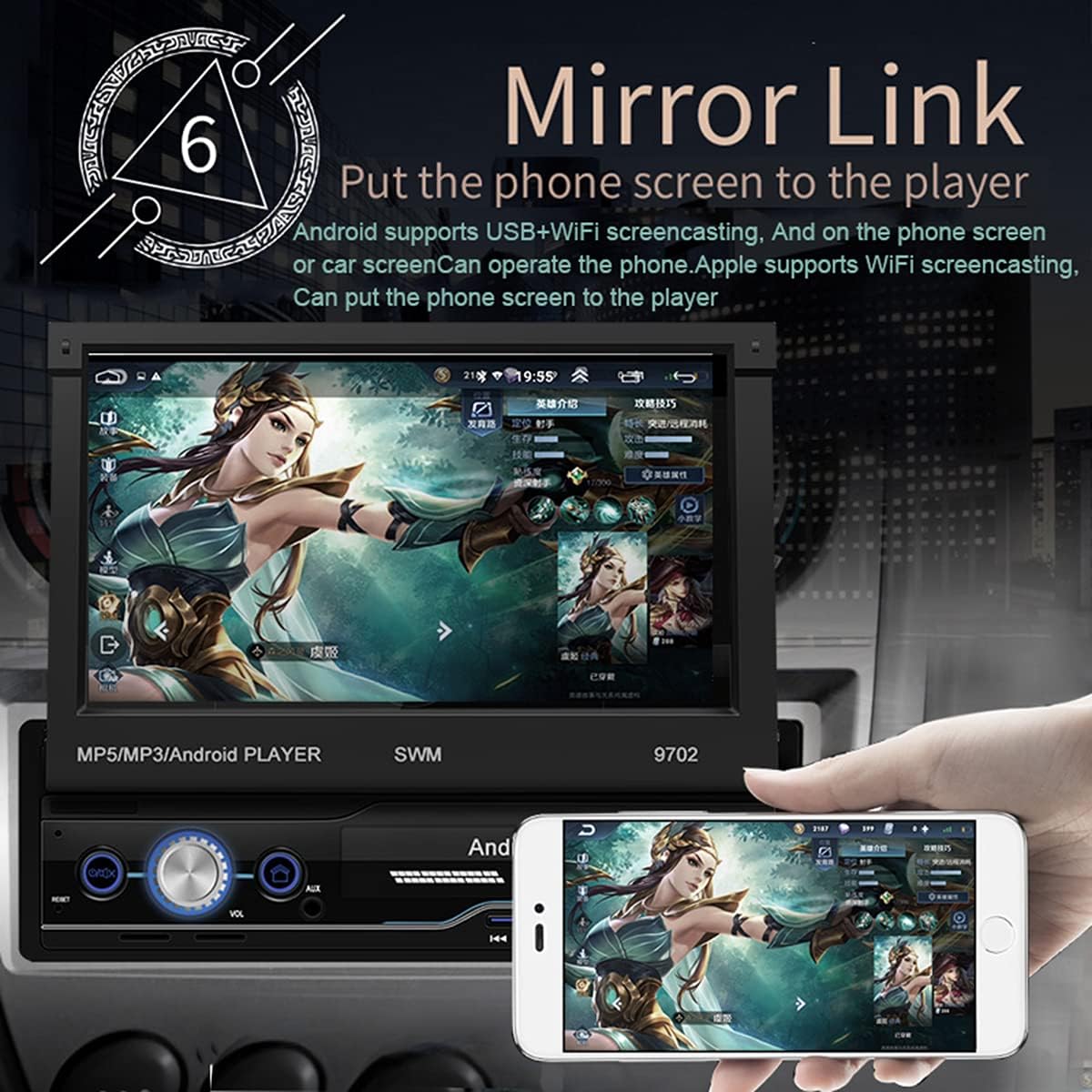
Figure 2.2: The Mirror Link function in action, showing a smartphone's display content, such as a game, being mirrored onto the car radio's 7-inch retractable screen. This feature allows for seamless integration and control of mobile applications directly from the car's display.
- GPS Navigation:
- The unit comes with built-in offline maps (Europe).
- Supports online real-time traffic maps and quick positioning.
- Access navigation applications through the touchscreen.

Figure 2.3: The GPS navigation interface on the car radio screen, showing a detailed map with route guidance and estimated travel time. Icons for popular navigation applications are also visible, highlighting the unit's capability for multiple navigation options and real-time traffic updates.
- Rear View Function:
- When a compatible rear view camera is connected (optional, not included), the screen automatically displays the rear view image when the vehicle is put into reverse.
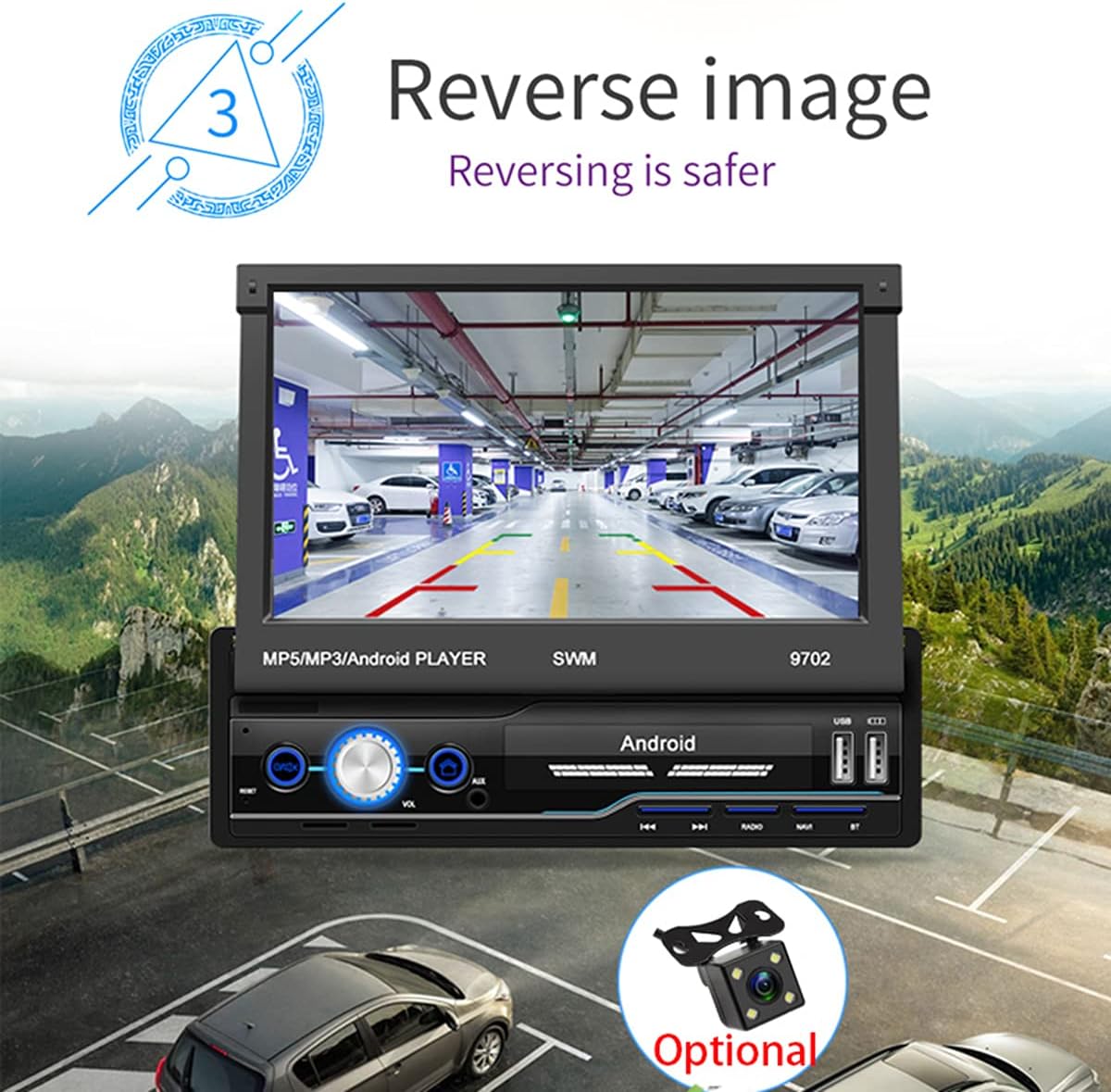
Figure 2.4: The reverse image feature in operation, displaying a clear view from a rear camera on the car radio's screen. This function enhances safety during parking and reversing maneuvers by providing a wide-angle view of the area behind the vehicle, complete with guiding lines.
- WIFI Internet Access:
- Connect to a mobile hotspot or available Wi-Fi networks to access online features, download apps, and browse the internet.

Figure 2.5: The car radio's screen showcasing a variety of application icons, including social media, navigation, and entertainment apps, demonstrating the unit's WiFi connectivity and ability to run Android applications. This feature allows users to access online content and services directly from the car's display.
- Steering Wheel Control Function:
- The unit supports learning functions for your original car's steering wheel controls. This allows you to control basic functions (e.g., volume, track skip) without taking your hands off the wheel.
- Navigate to "Steering Learn" in the settings menu to configure.
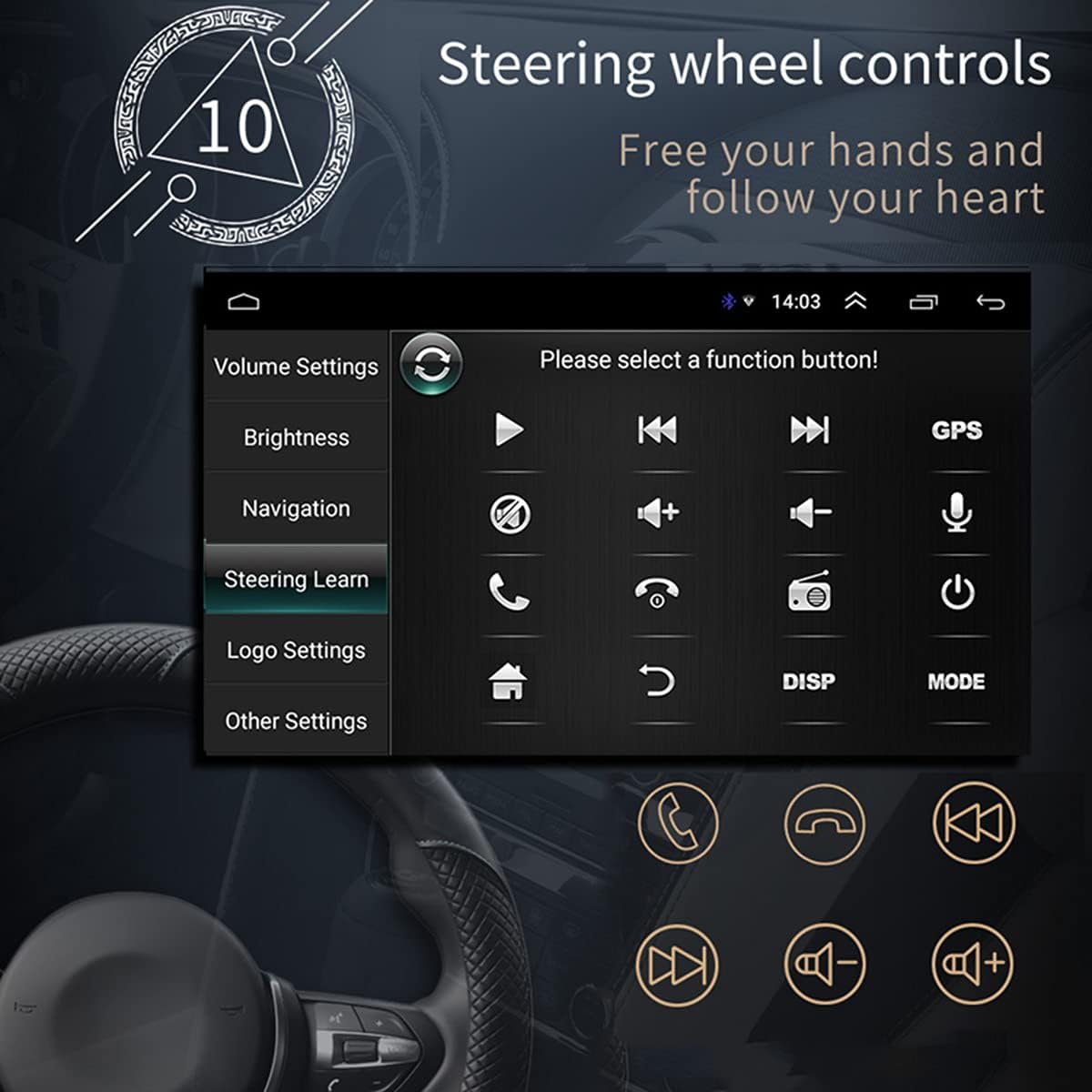
Figure 2.6: The steering wheel control learning interface on the car radio, showing options to configure various functions like volume, track control, and call handling directly from the vehicle's steering wheel buttons. This feature enhances driving safety and convenience by keeping hands on the wheel.
- App Installation:
- As an Android system, you can install compatible applications directly onto the unit.
- Car Logo Replacement:
- Customize the boot-up logo to match your car's brand. (Factory setting password: 1111)
Maintenance
- Screen Cleaning: Use a soft, lint-free cloth to gently wipe the screen. For stubborn smudges, slightly dampen the cloth with water or a screen-safe cleaner. Avoid abrasive materials or harsh chemicals.
- General Cleaning: Keep the unit free from dust and debris. Use a soft brush or compressed air to clean vents and buttons.
- Software Updates: Periodically check the manufacturer's website or contact support for available software updates to ensure optimal performance and access to new features.
- Avoid Extreme Temperatures: Do not expose the unit to extreme heat or cold, as this can affect its performance and lifespan.
Troubleshooting
| Problem | Possible Cause | Solution |
|---|---|---|
| No Power | Incorrect wiring (power/ground), blown fuse, vehicle battery issue. | Check power and ground connections. Verify vehicle fuses. Ensure battery has sufficient charge. |
| No Sound | Volume too low, mute activated, incorrect speaker wiring, damaged speakers. | Increase volume. Check if mute is on. Verify speaker connections and polarity. Test with different audio source. |
| GPS Signal Lost/Weak | GPS antenna not properly connected or obstructed, unit in an area with poor satellite reception. | Ensure GPS antenna is securely connected and placed in a clear line of sight to the sky. Move to an open area. |
| Bluetooth Not Connecting | Bluetooth not enabled on phone/unit, incorrect pairing, interference. | Ensure Bluetooth is enabled on both devices. Delete previous pairings and re-pair. Move closer to the unit. |
| Screen Not Retracting/Extending | Obstruction, mechanical issue. | Check for any physical obstructions. Do not force the screen. If issue persists, contact support. |
| Touchscreen Unresponsive | Software glitch, screen dirty, physical damage. | Restart the unit. Clean the screen. If issue persists, contact support. |
Specifications
| Feature | Detail |
|---|---|
| Model | SWM 9702 |
| Voltage | 12V |
| System | Android |
| Configuration | 1G+16G |
| Screen Model | 7 inch HD |
| Screen Resolution | 1024*600 |
| Panel Size | 188*58mm |
| Power | 60W |
| Working Temperature | -10~60 degrees Celsius |
| Bluetooth Model | Version 4.0 |
| Power Amplifier Chip | TDA7388 |
| Radio Frequency | FM 87.5~108MHz |
| Built-in Offline Map | Europe |
| USB Interface | 2 rear tail cable plus front |
| RCA Terminal Introduction | 2 audio outputs, 2 audio inputs, 2 video inputs, 1 reversing input, 1 video output |
| Front AUX Audio Input | Yes |
| DVR Function | Support |
| Supported Picture Format | JPG |
| Supported Audio Formats | MP3/WMA/WAV/APE/FLAC |

Figure 3.1: An illustration of the unit's 4-core Cortex-A7 processor, emphasizing its efficient architecture and manufacturing process (28nm/40nm). This powerful CPU ensures better performance and faster operation for all functions.

Figure 3.2: The audio playback interface on the car radio, demonstrating support for high-fidelity lossless audio formats such as APE and FLAC. This ensures a superior listening experience with native sound quality, powered by the TDA7388 high-power amplifier IC.
Warranty and Support
For warranty information, technical support, or service inquiries, please contact the seller or manufacturer directly. Keep your purchase receipt as proof of purchase.
You can visit the official NC Store on Amazon for more information and product updates: NC Store
Ask a question about this manual
Ask about setup, troubleshooting, compatibility, parts, safety, or missing instructions. Manuals+ will review the question and use this page’s manual context to help answer it.