
1. Introduction
Thank you for choosing the KLIM Blaze Pro Wireless Gaming Mouse. This manual provides essential information for setting up, operating, and maintaining your new device. The KLIM Blaze Pro is designed for high-performance gaming, offering a lag-free wireless experience, precise tracking, and customizable features.

Figure 1: KLIM Blaze Pro Wireless Gaming Mouse and Charging Dock. This image shows the black gaming mouse with its RGB lighting and the accompanying charging dock.
2. Package Contents
Ensure all items are present in your package:
- KLIM Blaze Pro Wireless Gaming Mouse
- Charging Dock
- USB Charging Cable
- Wireless USB Receiver
- User Manual (this document)
3. Setup
3.1. Initial Charging
Before first use, fully charge the mouse. Connect the charging dock to a USB power source using the provided USB cable. Place the mouse onto the charging dock. The mouse's RGB lighting will indicate charging status.
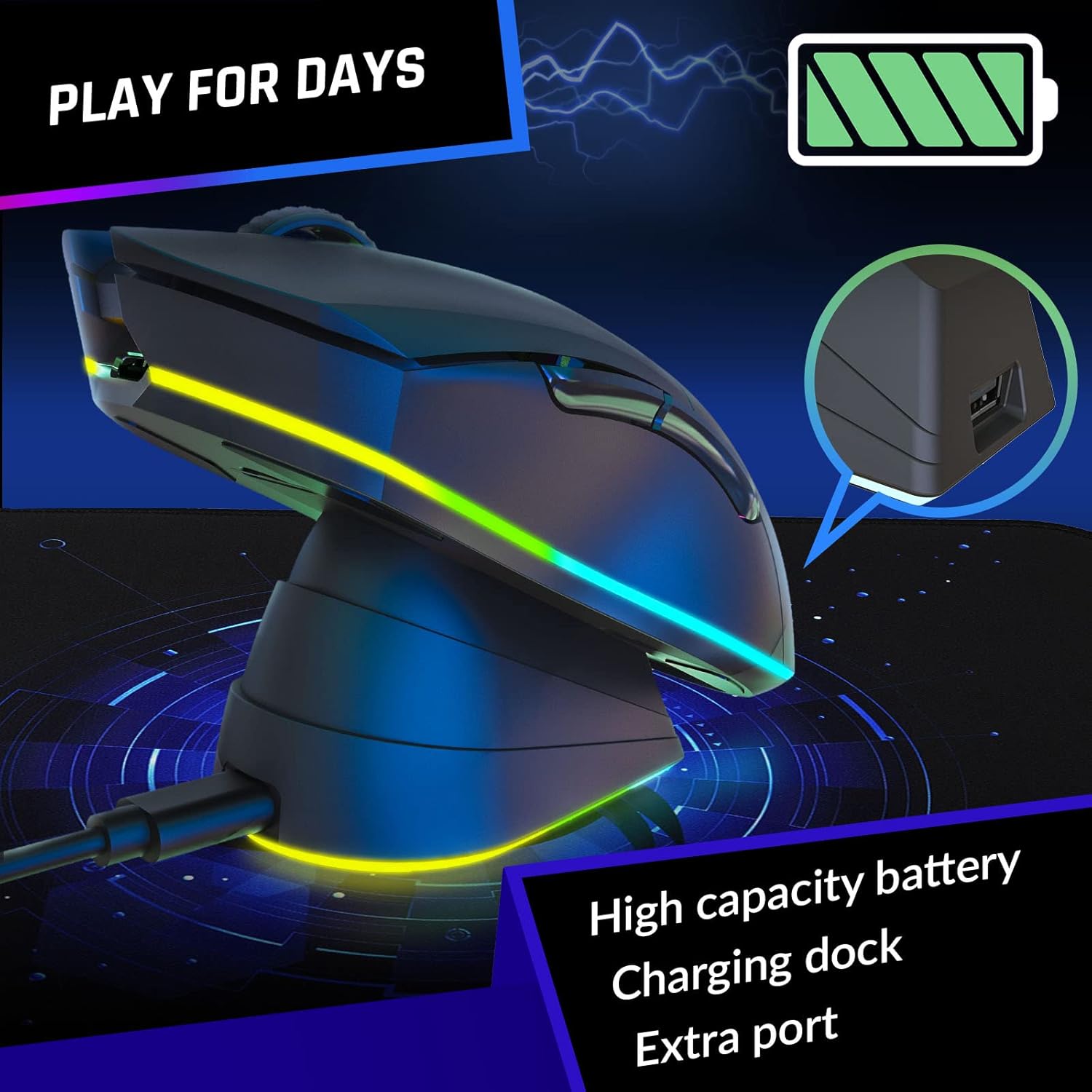
Figure 2: The KLIM Blaze Pro mouse resting on its charging dock, illustrating the charging process. The image highlights the high capacity battery and extra port on the dock.
3.2. Connecting the Mouse
The KLIM Blaze Pro offers both wireless and wired connectivity.
Wireless Mode:
- Locate the wireless USB receiver stored in the mouse's underside compartment.
- Plug the USB receiver into an available USB port on your computer. For optimal signal, you can plug the receiver into the USB port on the charging dock.
- Turn on the mouse using the power switch located on the underside.
- The mouse should automatically connect to your computer.
Wired Mode:
Connect the USB charging cable directly from the mouse to your computer's USB port. The mouse will function as a wired mouse and charge simultaneously.
3.3. Software Installation
For full customization of buttons, DPI settings, and RGB lighting, download the dedicated KLIM software from the official KLIM website. The software allows for creating unique combinations and fine-tuning performance settings.

Figure 3: Screenshot of the KLIM customization software interface, showing options for ergonomic grip and personalized settings.
4. Operating the Mouse
4.1. Button Functions
The KLIM Blaze Pro features multiple programmable buttons for enhanced control:
- Left Click: Standard primary click.
- Right Click: Standard secondary click.
- Middle Button/Scroll Wheel Click: Programmable.
- Forward Button: Programmable (default: browser forward).
- Back Button: Programmable (default: browser back).
- DPI Button: Cycles through DPI settings.
4.2. DPI Adjustment
The mouse supports DPI settings up to 6000 DPI. Use the dedicated DPI button to cycle through preset sensitivity levels. Customize these levels further using the KLIM software.
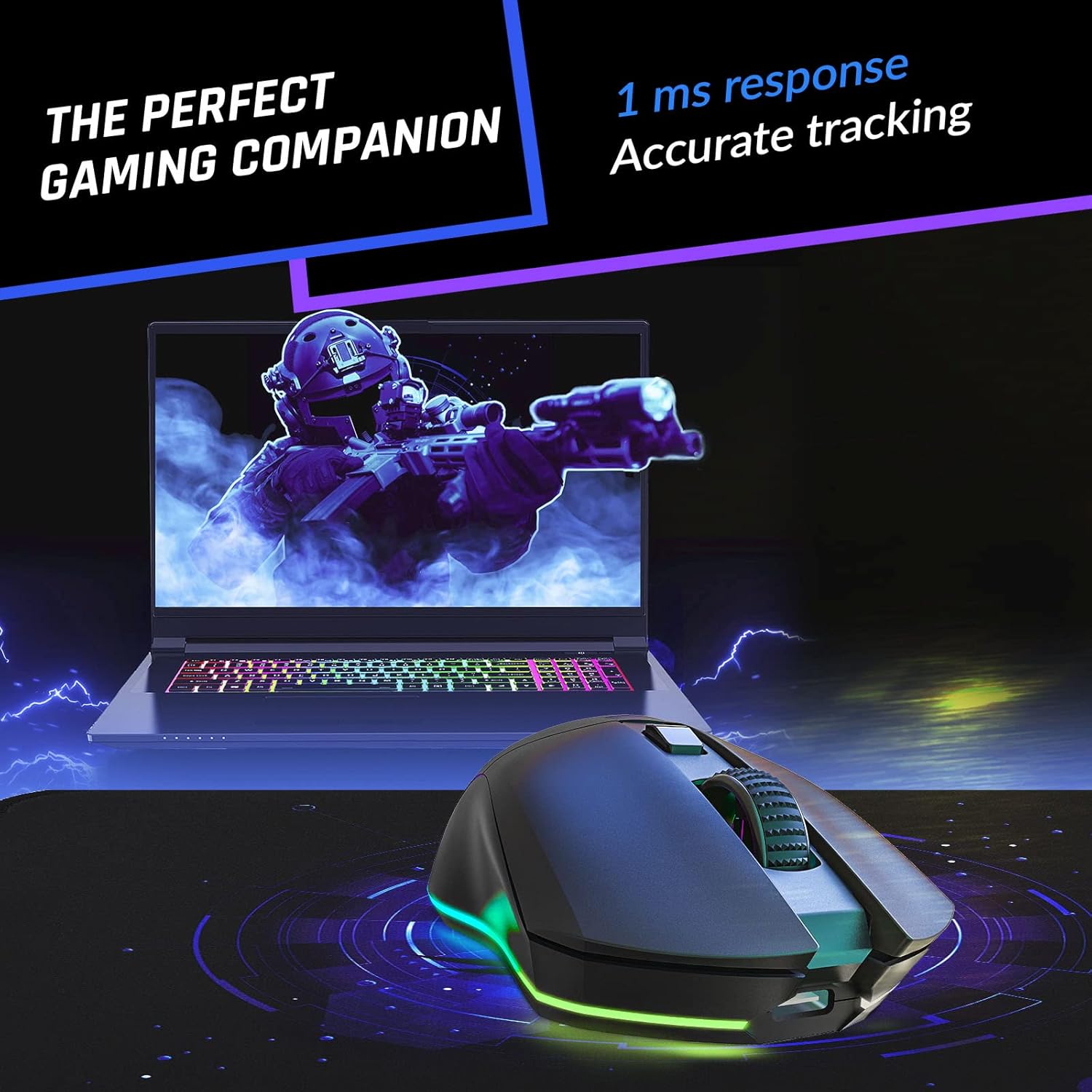
Figure 4: The KLIM Blaze Pro mouse in action, highlighting its 1ms response time and accurate tracking for precise gaming.
4.3. RGB Lighting Customization
Personalize your gaming setup with vibrant RGB lighting effects. Use the KLIM software to select from multiple colors and effects, adjust brightness, and set animation speed.

Figure 5: The KLIM Blaze Pro mouse showcasing its impressive RGB lighting, illustrating the stunning aesthetics and multiple color options.
4.4. Battery Life
The mouse features a long-lasting rechargeable battery. With RGB lighting at 100% brightness, expect up to 18 hours of use. With RGB lighting off, the battery can last up to 150 hours. The mouse enters a low-power state after a short period of inactivity to conserve battery life.
5. Maintenance
To ensure the longevity and optimal performance of your KLIM Blaze Pro mouse:
- Cleaning: Use a soft, dry cloth to clean the mouse. Avoid harsh chemicals or abrasive materials.
- Storage: Store the mouse in a cool, dry place when not in use. If storing for extended periods, ensure it is fully charged.
- Durability: The mouse is built with durable, wear-resistant coating and buttons rated for over 20 million clicks. Avoid dropping or subjecting the mouse to excessive force.

Figure 6: An illustration emphasizing the durable build and robust switches of the KLIM Blaze Pro mouse, highlighting its longevity.
6. Troubleshooting
| Issue | Possible Solution |
|---|---|
| Mouse not responding | Ensure the mouse is turned on. Check if the USB receiver is properly plugged in. Try a different USB port. Ensure the mouse is charged. |
| Lag or disconnections | Ensure the mouse is within range of the receiver. Avoid interference from other wireless devices. Try plugging the receiver into the charging dock for better signal. |
| RGB lighting not working | Check battery level. Ensure RGB is enabled in the KLIM software. |
| DPI not changing | Ensure the DPI button is functioning. Adjust DPI settings via the KLIM software. |
7. Specifications
- Product Dimensions: 4.92 x 2.66 x 0.04 inches
- Item Weight: 4.9 ounces
- Connectivity Technology: Radio Frequency (Wireless)
- Movement Detection Technology: Optical
- DPI: Up to 6000 DPI
- Battery: 1 Lithium Polymer battery (included)
- Manufacturer: KLIM
- Model Number: KLIM Blaze
8. Official Product Video
Video 1: Official KLIM Blaze Pro Rechargeable Wireless Gaming Mouse product video. This video provides an overview of the mouse's features, including its design, sensor, battery, and customization options.
9. Warranty and Support
The KLIM Blaze Pro comes with a 5-year protection. For any issues, questions, or support, please contact KLIM Technologies directly. Our team of specialists is available to assist you.
Support Contact: SUPPORT@KLIMTECHNOLOGIES.COM
You can also refer to the official user manual PDF for more detailed information: User Manual (PDF)


