
1. Product Overview
The PNY NVIDIA RTX A6000 is a high-performance visual computing GPU designed for desktop workstations. It leverages cutting-edge NVIDIA Ampere Architecture to deliver exceptional performance for demanding professional applications, including 3D design, scientific research, and immersive entertainment.

Figure 1.1: PNY NVIDIA RTX A6000 Graphics Card. This image shows the overall design of the graphics card, featuring a sleek black casing with gold accents and a large cooling fan.
Key Features:
- NVIDIA Ampere Architecture-based CUDA Cores: Provides double-speed processing for single-precision floating point (FP32) operations, enhancing performance for graphics and simulation workflows like complex 3D CAD and CAE.
- Second-Generation RT Cores: Offers up to 2X throughput for real-time ray tracing, accelerating photorealistic rendering, architectural design evaluations, and virtual prototyping.
- Third-Generation Tensor Cores: Delivers up to 5X training throughput for AI and data science model training with new Tensor Float 32 (TF32) precision, and doubles inferencing throughput with structural sparsity support.
- Third-Generation NVIDIA NVLink: Increases GPU-to-GPU interconnect bandwidth, providing a single scalable memory to accelerate graphics and compute workloads and handle larger datasets.
- 48 Gigabytes (GB) of GPU Memory: Features ultra-fast GDDR6 memory, scalable up to 96 GB with NVLink, essential for data scientists, engineers, and creative professionals working with massive datasets and simulations.
What's in the Box:
- NVIDIA RTX A6000 Graphics Card
- (Note: Additional accessories such as power cables or display adapters may be included or required separately. Please check your product packaging for exact contents.)
2. Safety Information
Please read all safety instructions carefully before installing or operating the PNY NVIDIA RTX A6000 graphics card. Failure to follow these instructions may result in electric shock, fire, or damage to the product or other components.
- Always disconnect power from your computer before installing or removing any components.
- Wear an anti-static wrist strap or frequently touch a grounded metal object to discharge static electricity before handling the graphics card.
- Ensure your power supply unit (PSU) meets the minimum wattage requirements for your system, including the RTX A6000. Refer to the specifications section for power consumption details.
- Install the graphics card in a well-ventilated computer case to prevent overheating.
- Do not expose the graphics card to moisture or extreme temperatures.
- Handle the card by its edges; avoid touching the gold connector pins or components on the circuit board.
3. Setup & Installation
3.1. System Requirements
- PCI Express-compliant motherboard with one dual-width x16 graphics slot.
- Minimum 750W power supply with appropriate PCIe power connectors (e.g., 8-pin or 6+2-pin).
- Operating System: Windows 10 64-bit, Linux 64-bit.
- 8GB system memory (16GB recommended).
- Internet connection for driver installation.
3.2. Hardware Installation
- Prepare your system: Power off your computer and disconnect the power cable. Open the computer case.
- Locate PCIe slot: Identify an available PCI Express x16 slot on your motherboard. The RTX A6000 is a dual-slot card, so ensure adjacent slots are clear.
- Remove slot covers: Remove the two metal slot covers from the back of your computer case corresponding to the chosen PCIe slot.
- Insert the graphics card: Carefully align the graphics card with the PCIe slot and press down firmly until it is securely seated. A click may be heard.
- Secure the card: Fasten the graphics card to the case using the screws from the removed slot covers.
- Connect power: Connect the required PCIe power cables from your power supply to the power connectors on the graphics card. The RTX A6000 typically requires an 8-pin PCIe power connector.
- Close case and reconnect: Close your computer case and reconnect all peripherals and the power cable.

Figure 3.1: Graphics card with illustrations of power and display connectors. This image highlights the necessary power input and common display output types (HDMI, DisplayPort) for the graphics card.
3.3. Driver Installation
After hardware installation, you must install the latest NVIDIA drivers for optimal performance and stability.
- Boot your system: Power on your computer. Your operating system may detect new hardware and install generic drivers.
- Download drivers: Visit the official NVIDIA website (www.nvidia.com/drivers) and navigate to the driver download section.
- Select your product: Choose "Quadro" or "RTX" series, then select "RTX A6000" and your operating system.
- Download and run: Download the latest recommended driver package and run the executable file.
- Follow on-screen instructions: Follow the prompts to complete the installation. A restart may be required.
4. Operating Instructions
4.1. Display Connectivity
The NVIDIA RTX A6000 typically features four DisplayPort 1.4a outputs. Connect your monitors to these ports using DisplayPort cables. Adapters for HDMI or DVI may be used if necessary.

Figure 4.1: Rear view of the graphics card, highlighting the four DisplayPort outputs. These ports are used to connect to monitors and other display devices.
- Supports up to four 5K displays at 60Hz, or two 8K displays at 60Hz.
- Maximum digital resolution: 7680x4320.
4.2. NVIDIA Control Panel
The NVIDIA Control Panel provides comprehensive settings for managing your graphics card, including display resolution, 3D settings, video color settings, and more. Access it by right-clicking on your desktop and selecting "NVIDIA Control Panel."
4.3. NVLink (Optional)
For advanced users requiring increased GPU-to-GPU interconnect bandwidth and scalable memory, the RTX A6000 supports NVIDIA NVLink. This allows two RTX A6000 cards to be linked together.
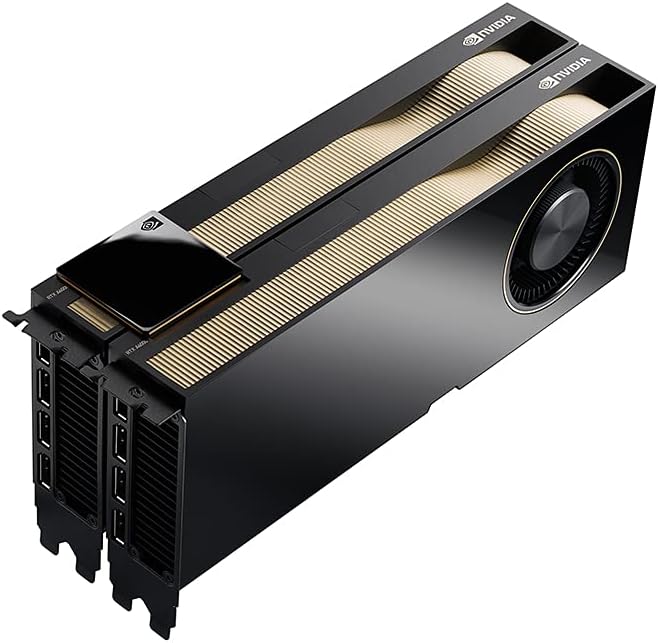
Figure 4.2: Two NVIDIA RTX A6000 graphics cards connected via an NVLink bridge. This configuration enables enhanced performance and memory scaling for demanding professional workloads.
- Requires a compatible NVLink bridge (sold separately).
- Ensure both cards are properly seated and powered before installing the NVLink bridge.
- Refer to NVIDIA's official documentation for detailed NVLink setup and configuration.
5. Maintenance
Proper maintenance ensures the longevity and optimal performance of your graphics card.
- Keep it clean: Periodically clean dust from the graphics card's heatsink and fan using compressed air. Ensure the system is powered off and unplugged before cleaning.
- Monitor temperatures: Use monitoring software (e.g., NVIDIA's own tools or third-party utilities) to keep an eye on GPU temperatures, especially during heavy workloads.
- Update drivers: Regularly check for and install the latest NVIDIA drivers to benefit from performance improvements, bug fixes, and new features.
- Ensure proper airflow: Make sure your computer case has adequate airflow to dissipate heat generated by the GPU and other components.
6. Troubleshooting
This section provides solutions to common issues you might encounter.
| Problem | Possible Cause | Solution |
|---|---|---|
| No display output after installation. |
|
|
| System crashes or freezes during use. |
|
|
| Low performance in applications. |
|
|
7. Technical Specifications
| Feature | Detail |
|---|---|
| Graphics Coprocessor | NVIDIA RTX A6000 |
| GPU Architecture | NVIDIA Ampere Architecture |
| CUDA Cores | 10752 |
| RT Cores | 84 (2nd Gen) |
| Tensor Cores | 336 (3rd Gen) |
| GPU Memory | 48 GB GDDR6 with ECC |
| Memory Interface | 384-bit |
| Memory Bandwidth | 768 GB/s |
| GPU Clock Speed | 1860 MHz (Boost) |
| Max Screen Resolution | 7680x4320 |
| Video Output Interface | 4x DisplayPort 1.4a |
| Interface | PCI Express 4.0 x16 |
| Power Consumption | 300W (Max) |
| Item Weight | 2.6 pounds |
| Product Dimensions (LxWxH) | 15 x 3.3 x 9.5 inches |
| Model Number | VCNRTXA6000-PB |
8. Warranty & Support
8.1. Warranty Information
PNY products are covered by a limited warranty. For specific warranty terms and conditions, please refer to the warranty card included with your product or visit the official PNY website.
- Keep your proof of purchase for warranty claims.
- Warranty typically covers defects in materials and workmanship under normal use.
- Damage due to improper installation, abuse, or unauthorized modification may void the warranty.
8.2. Technical Support
For technical assistance, driver downloads, or further information, please visit the PNY support website or contact their customer service.
- PNY Support Website: www.pny.com/support
- NVIDIA Drivers: www.nvidia.com/drivers
- When contacting support, have your product model number (VCNRTXA6000-PB) and serial number ready.


