
PEIOUS Wireless Keyboard and Mouse Combo B09BCBKGY7
PEIOUS Wireless Keyboard and Mouse Combo User Manual
Model: Wireless Keyboard and Mouse Combo (B09BCBKGY7)
Introduction
This manual provides comprehensive instructions for the setup, operation, and maintenance of your PEIOUS Wireless Keyboard and Mouse Combo. Please read this manual thoroughly before use to ensure optimal performance and longevity of your device.
Package Contents
- 1 x PEIOUS Wireless Keyboard
- 1 x PEIOUS Wireless Mouse
- 1 x 2-in-1 USB-A/Type-C Receiver (stored inside the mouse battery compartment)
- 1 x User Manual

Image: The complete PEIOUS Wireless Keyboard and Mouse Combo in pink, including the keyboard, mouse, and the compact dual USB receiver.
Setup Instructions
1. Battery Installation
- For the Mouse: Open the battery compartment cover on the underside of the mouse. Insert one (1) AA battery, ensuring correct polarity.
- For the Keyboard: Open the battery compartment cover on the underside of the keyboard. Insert one (1) AAA battery, ensuring correct polarity.
- Close both battery compartment covers securely.

Image: A detailed view showing the battery compartments for both the keyboard (requiring 1 AAA battery) and the mouse (requiring 1 AA battery), along with the location of the USB receiver inside the mouse.
2. Connecting the Receiver
- Locate the 2-in-1 USB-A/Type-C receiver. It is stored within the mouse's battery compartment. Gently remove it.
- Identify the appropriate port on your computer (USB-A or USB-C).
- Plug the receiver into an available USB-A or USB-C port on your computer. The system should automatically detect and install the necessary drivers.
- Turn on the keyboard and mouse using their respective power switches (usually located on the underside or top edge).

Image: An illustration demonstrating the versatility of the dual USB-A/Type-C receiver, showing it connected to both a USB-A port on a Windows laptop and a USB-C port on a MacBook.

Image: A close-up view of the 2-in-1 receiver, clearly showing its USB-A and USB-C connectors for broad compatibility.
Operating Instructions
1. System Layout Switching (Windows/Mac)
The keyboard supports both Windows and Mac OS layouts. To switch between layouts:
- For Windows Layout: Press the Win key.
- For Mac OS Layout: Press the Option key.

Image: A visual guide highlighting the specific keys on the keyboard used to switch between Windows (Win key) and Mac OS (Option key) operating system layouts.
2. Keyboard Hotkeys and Function Keys
The keyboard features dedicated hotkeys for various functions. These keys are typically located in the F1-F12 row and provide quick access to multimedia controls, brightness adjustments, and other system functions.

Image: A detailed diagram of the keyboard's top row, illustrating the functions of each hotkey from F1 (Mute) to F12 (Paste), along with dedicated keys for Save/Fn Lock, Search, and Turn Off Screen.
- F1: Mute
- F2: Volume Down
- F3: Volume Up
- F4: Previous Track
- F5: Play/Pause
- F6: Next Track
- F7: Brightness Down
- F8: Brightness Up
- F9: Program List
- F10: Home
- F11: Copy
- F12: Paste
- Save/Fn Lock: Located near Esc key.
- Search: Dedicated search key.
- Turn Off Screen: Dedicated key to turn off the display.
3. Power Saving Mode
To conserve battery life, the keyboard and mouse will automatically enter a sleep mode after a period of inactivity. To wake them up, simply press any key on the keyboard or move/click the mouse.

Image: A conceptual graphic showing a battery icon above the keyboard, symbolizing its power-saving features and battery status.
Key Features
- Responsive Keys: Capable of handling up to 5,000,000 presses for long-term durability.
- Comfortable Typing: Ergonomic design with feet to maintain an optimum typing angle, reducing wrist strain.
- Pebble-Shaped Mouse: Designed for comfortable grip, helping to relieve stress during extended use.
- Quiet Operation: Keys are designed for soft and quiet presses.
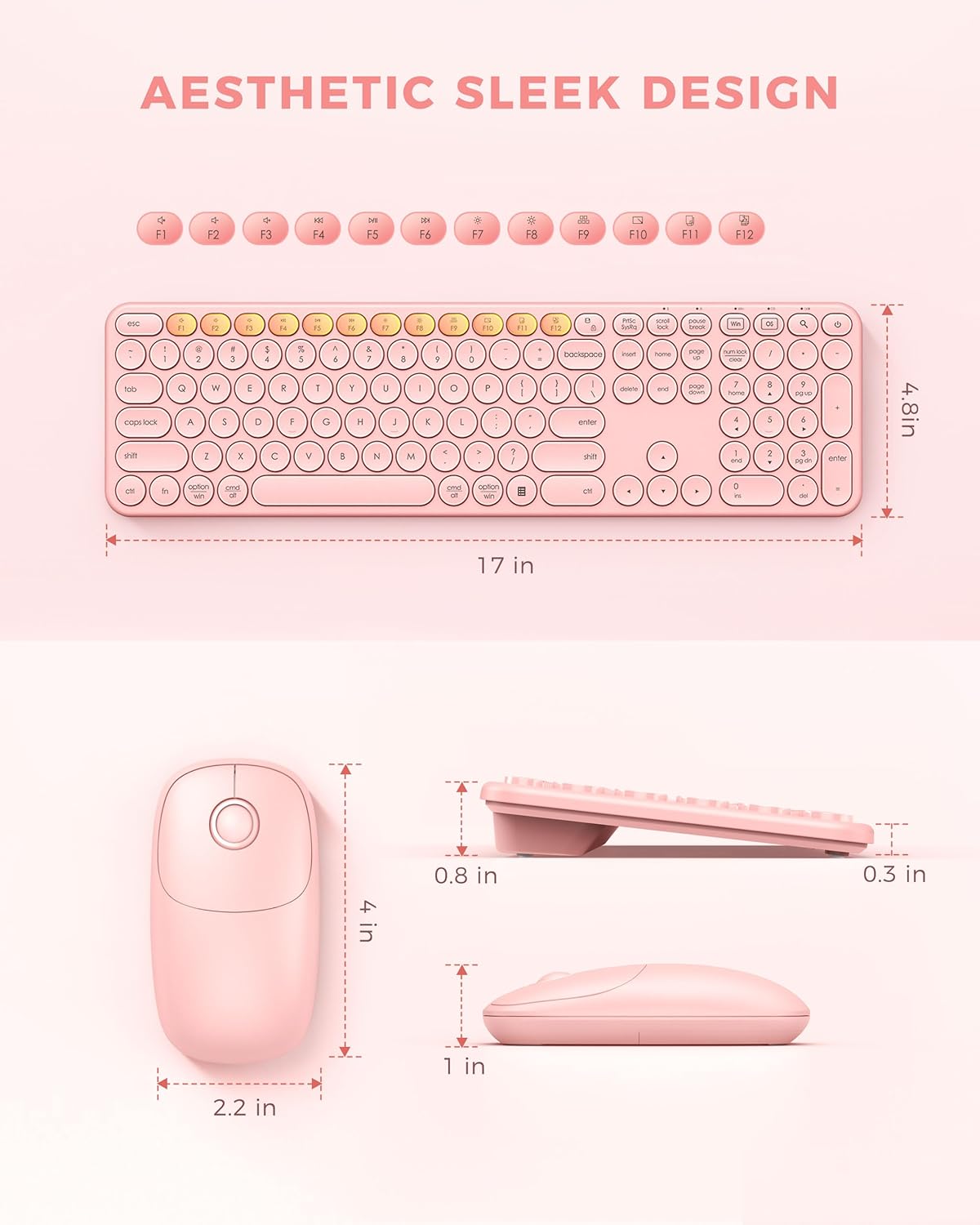
Image: A close-up view of the keyboard keys, highlighting features such as round keycaps, water-drop concave design, anti-grease coating, and overall aesthetic appeal.
Maintenance
- Cleaning: Use a soft, dry cloth to clean the surfaces of the keyboard and mouse. For stubborn dirt, a slightly damp cloth with mild soap can be used, ensuring no liquid enters the device. Do not use harsh chemicals or abrasive cleaners.
- Battery Replacement: When the keyboard or mouse performance degrades, replace the batteries with new ones of the specified type (AA for mouse, AAA for keyboard). Dispose of old batteries responsibly according to local regulations.
- Storage: When not in use for extended periods, turn off the keyboard and mouse to conserve battery life. Store them in a cool, dry place away from direct sunlight and extreme temperatures.
Troubleshooting
| Problem | Solution |
|---|---|
| Keyboard/Mouse not responding |
|
| Lag or intermittent connection |
|
| Keys typing incorrectly or double-typing |
|
| Mouse cursor erratic or not moving |
|
Specifications
- Brand: PEIOUS
- Model: Wireless Keyboard and Mouse Combo
- Connectivity Technology: 2.4GHz Wireless (via USB-A/Type-C Receiver)
- Keyboard Layout: Full Size, Round Key, Ergonomic, Windows & Mac OS Layout
- Keyboard Battery: 1 x AAA (not included)
- Mouse Battery: 1 x AA (not included)
- Compatible Devices: Computer, Laptop, Desktop, PC, MacBook Pro, MacBook Air
- Key Durability: Up to 5,000,000 presses
- Color: Pink
- Package Dimensions: 17.56 x 5.2 x 1.85 inches
- Item Weight: 1.63 pounds

Image: A diagram illustrating the physical dimensions of the PEIOUS wireless keyboard (17 inches length, 4.8 inches width) and the mouse (4 inches length, 2.2 inches width, 1 inch height).

Image: Side profile views of both the PEIOUS mouse and keyboard, emphasizing their ergonomic contours and the keyboard's adjustable tilt for enhanced user comfort.
Warranty and Support
For warranty information or technical support, please refer to the contact details provided on the product packaging or visit the official PEIOUS website. Keep your purchase receipt as proof of purchase for warranty claims.
Manufacturer: PEIOUS
Date First Available: September 23, 2021
Ask a question about this manual
Ask about setup, troubleshooting, compatibility, parts, safety, or missing instructions. Manuals+ will review the question and use this page’s manual context to help answer it.