
EPEVER XTRA4210N
EPEVER MPPT Solar Charge Controller User Manual
Model: XTRA4210N
Brand: EPEVER
1. Introduction
This manual provides detailed instructions for the installation, operation, and maintenance of your EPEVER MPPT Solar Charge Controller XTRA4210N. This advanced Maximum Power Point Tracking (MPPT) solar charge controller is designed to maximize energy harvest from solar panels for efficient battery charging in off-grid photovoltaic systems.
It supports various battery types including Lead-Acid (Sealed, Gel, Flooded) and Lithium (LiFePO4, Li(NiCoMn)O2, User-defined) and features common negative grounding for wide application compatibility. The kit includes the XTRA4210N controller, MT50 remote meter, RTS temperature sensor cable, and CC-RS485-USB-150U communication PC cable.
2. Safety Information
Please read all instructions carefully before installation and operation. Failure to follow these instructions may result in electric shock, fire, or serious injury.
- Risk of Electric Shock: Do not remove the cover. There are no user-serviceable parts inside. Refer servicing to qualified service personnel.
- Risk of Electric Shock: When the photovoltaic array is exposed to light, it supplies a DC voltage to this equipment.
- Hot Surfaces: To reduce the risk of burns, do not touch hot surfaces during operation.
- Always connect the battery first during installation and disconnect the solar panel last during uninstallation.
- Ensure correct polarity for all connections to prevent damage to the controller and connected devices.
3. Product Overview and Features
The EPEVER MPPT Solar Charge Controller XTRA4210N is designed for optimal performance and user convenience. Key features include:
- Advanced MPPT Technology with high tracking efficiency up to 99.5% and peak conversion efficiency of 98%.
- Automatic 12V/24V DC system voltage identification.
- Max PV input power: 520W for 12V systems, 1040W for 24V systems.
- Common negative grounding design for versatile applications.
- Support for multiple battery types: Sealed (AGM), Gel, Flooded, and User-defined Lithium (LiFePO4, Li(NiCoMn)O2).
- Four stages of charging (bulk, absorption, float, equalization) to prolong battery lifespan.
- Blacklight LCD Display with three color LED indicators for intuitive status monitoring.
- Comprehensive protection functions: PV Over Current/Power, PV Short Circuit, PV Reverse Polarity, Night Reverse Charging, Battery Reverse Polarity, Battery Over Voltage, Battery Over Discharge, Battery Overheating, Controller Overheating, Lithium Battery Low Temperature, Load Short Circuit, Load Overload, TVS High Voltage Transients.
- Real-Time energy statistics function.

Figure 1: EPEVER MPPT Solar Charge Controller XTRA4210N Kit Components.
Video 1: EPEVER MPPT Solar Charge Controller XTRA Series Overview. This video provides a visual guide to the product, its components, and basic operation.
4. Setup and Installation
Follow these steps for proper installation. Always ensure the system is disconnected from power sources before making any connections.
4.1 Component Identification

Figure 2: Controller Top and Bottom View with Terminal Labels.

Figure 3: Controller Dimensions.
4.2 Wiring Steps
Important: Always connect the battery first! Do not use an electric screwdriver for connections.
- Connect the Battery: Loosen the screws for the battery terminals. Connect the positive (+) and negative (-) battery cables to the corresponding terminals on the controller. Ensure correct polarity.
- Connect the Load: Connect the load cables to the load terminals on the controller.
- Connect the Solar Panel (PV Array): Connect the solar panel cables to the PV terminals on the controller. Ensure correct polarity.

Figure 4: Basic Connection Diagram.
For detailed visual instructions on wiring, refer to the "Unboxing and Installation" segment of Video 1.
5. Operating Instructions
The controller features an LCD display and LED indicators for monitoring system status and setting parameters.
5.1 LCD Display and Navigation
The LCD displays various parameters such as PV voltage, battery voltage, load current, and generated energy. Use the buttons below the display to navigate through the screens and adjust settings.

Figure 5: LCD Display Screens and Parameters.
5.2 LED Indicators
The LED indicators provide quick visual feedback on the system's status:

Figure 6: LED Indicator Status and Instructions.
5.3 Setting Parameters
Parameters such as battery type, battery capacity, and load working mode can be configured directly from the controller's interface or via the MT50 remote meter. For detailed steps on setting parameters, refer to the "Setting Parameters" segment of Video 1.
- Battery Type Selection: Press the BATT+/- button for 5 seconds to enter the battery type interface. Use the LOAD+/- buttons to choose the battery type (Sealed, Gel, Flooded, User). Press SET to confirm.
- Battery Capacity Setting: From the battery type interface, press BATT+/- to access the battery capacity setting. Use LOAD+/- to adjust the capacity (Ah). Press SET to confirm.
- Load Working Mode: Press the SET button for 5 seconds to enter the load working mode interface. Use LOAD+/- to select the desired mode (e.g., Manual Control, Light ON/OFF, Light ON+Timer, Time Control). Press SET to confirm.
- LCD Cycle Time: Press the SET button for 5 seconds to enter the setting interface. Press BATT+/- twice for the LCD cycle time interface. Use LOAD+/- to set the cycle time. Press SET to confirm.
6. Maintenance
Regular maintenance ensures optimal performance and longevity of your solar charge controller. Perform the following checks periodically:
- Inspect all wiring and connections for loose connections, corrosion, or damage. Tighten as necessary.
- Clean the controller's exterior with a dry cloth to remove dust and debris. Ensure ventilation openings are clear.
- Check battery terminals for corrosion and clean if necessary.
- Monitor the LCD display for any error codes or unusual readings.
- Ensure the temperature sensor is securely attached to the battery for accurate temperature compensation.
7. Troubleshooting
If you encounter issues with your EPEVER MPPT Solar Charge Controller, refer to the LED indicator table (Figure 6) for initial diagnosis. Common issues and their solutions include:
- No Display/Power: Check battery connections and ensure the battery voltage is within the operating range.
- No Charging: Verify solar panel connections and ensure sufficient sunlight. Check PV voltage on the display.
- Load Not Working: Check load connections, ensure the load is not overloaded or short-circuited. Verify load working mode settings.
- Battery Over-Discharged: The battery indicator may show red. This indicates the battery voltage is too low. Disconnect the load and charge the battery.
- System Voltage Error: If using a lithium battery, ensure the correct system voltage (12V or 24V) is manually selected, as lithium batteries do not auto-identify system voltage.
For more complex issues, consult the comprehensive user manual provided with the product or contact EPEVER customer support.
8. Technical Specifications
Below are the key technical specifications for the EPEVER MPPT Solar Charge Controller XTRA4210N:
- Rated Charge Current: 40A
- System Nominal Voltage: 12V/24VDC Auto identifying
- Battery Voltage Range: 8V~32V
- Max. PV Open Circuit Voltage: 100VDC
- Max. PV Input Power: 520W/12V, 1040W/24V
- Battery Types Supported: Sealed (AGM), Gel, Flooded, LiFePO4 Lithium, Li(NiCoMn)O2 Lithium, Lithium User (9~68V)
- Grounding: Common Negative Ground
- Display Type: LCD
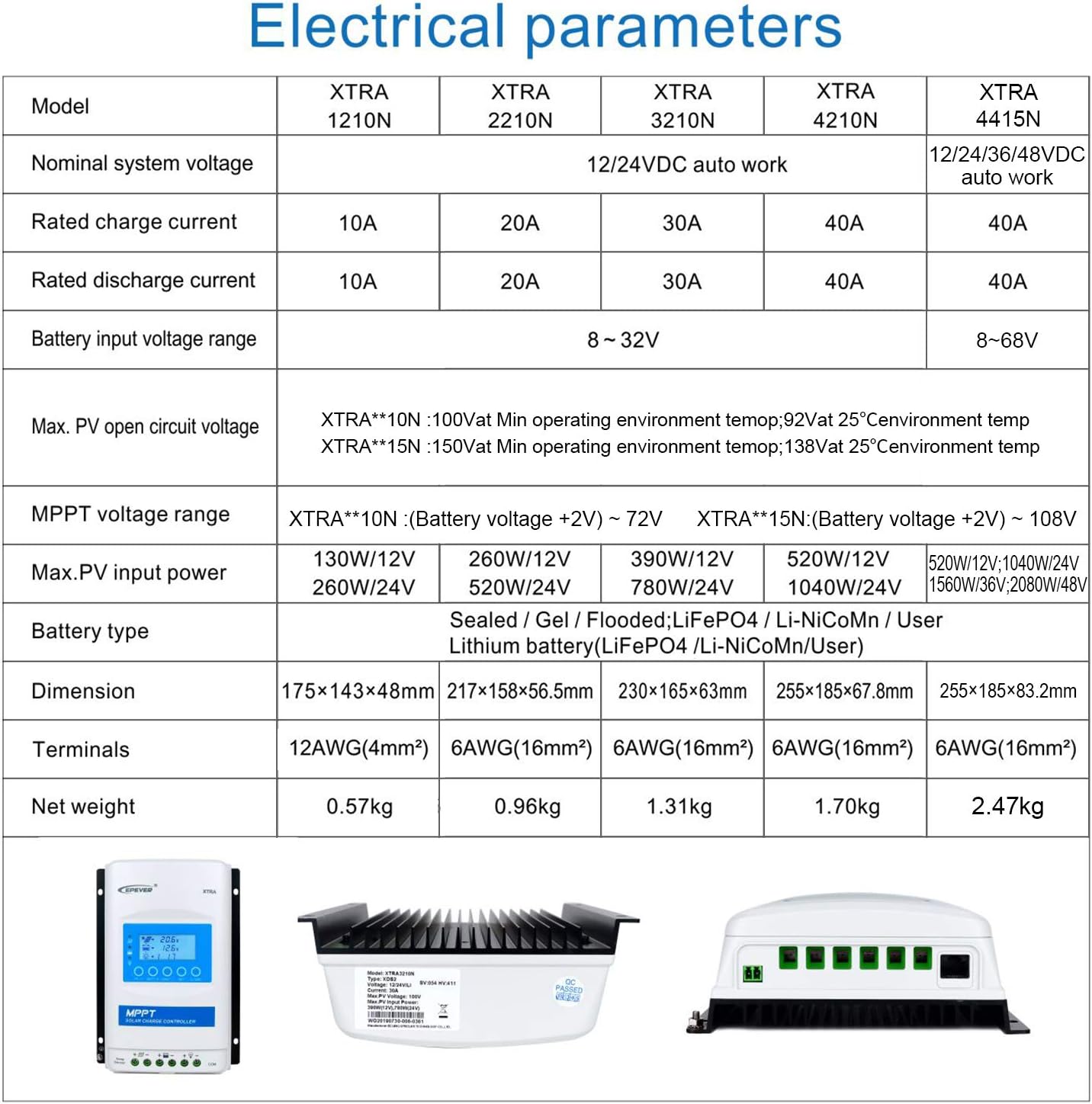
Figure 7: Electrical Parameters for XTRA Series Controllers.
9. Optional Accessories
Enhance the functionality of your EPEVER MPPT Solar Charge Controller with these optional accessories:
- Remote Meter (MT50): Displays all operating data and system working status on a large-screen LCD. Allows for simple operation, real-time alarm information, and diversified load control modes.
- Remote Temperature Sensor (RTS300R47K3.81A): Used for battery temperature compensation, ensuring accurate charging parameters.
- RS485 Communication PC Cable (CC-RS485-USB-150U): Enables monitoring and setting parameters via PC software.
- WiFi Serial Adapter (eBox-WiFi-01): Allows monitoring and setting parameters via mobile APP through WiFi signals.
- RS485 to Bluetooth Adapter (eBox-BLE-01): Enables monitoring and setting parameters via mobile APP through Bluetooth signals.
- Logger (eLOG01): Records operating status data of the controller for real-time monitoring via PC software.

Figure 8: Controller Connectivity with Optional Accessories.
10. Warranty and Support
EPEVER products are manufactured to high-quality standards. For warranty information and technical support, please refer to the official EPEVER website or contact the authorized seller, Goland Century. Goland Century provides free technical support and has service centers in various regions to assist customers with their solar product needs.
Related documentsXTRA4210N


Ask a question about this manual
Ask about setup, troubleshooting, compatibility, parts, safety, or missing instructions. Manuals+ will review the question and use this page’s manual context to help answer it.