
1. Introduction
This manual provides comprehensive instructions for the setup, operation, maintenance, and troubleshooting of your D-Link COVR AX1800 Whole Home Mesh Wi-Fi 6 System. This system is designed to deliver seamless, high-speed Wi-Fi 6 coverage throughout your home, supporting multiple devices and demanding applications.

Image: Two D-Link COVR AX1800 Mesh Wi-Fi units, white, square-shaped with a textured top surface, reflecting on a white surface.
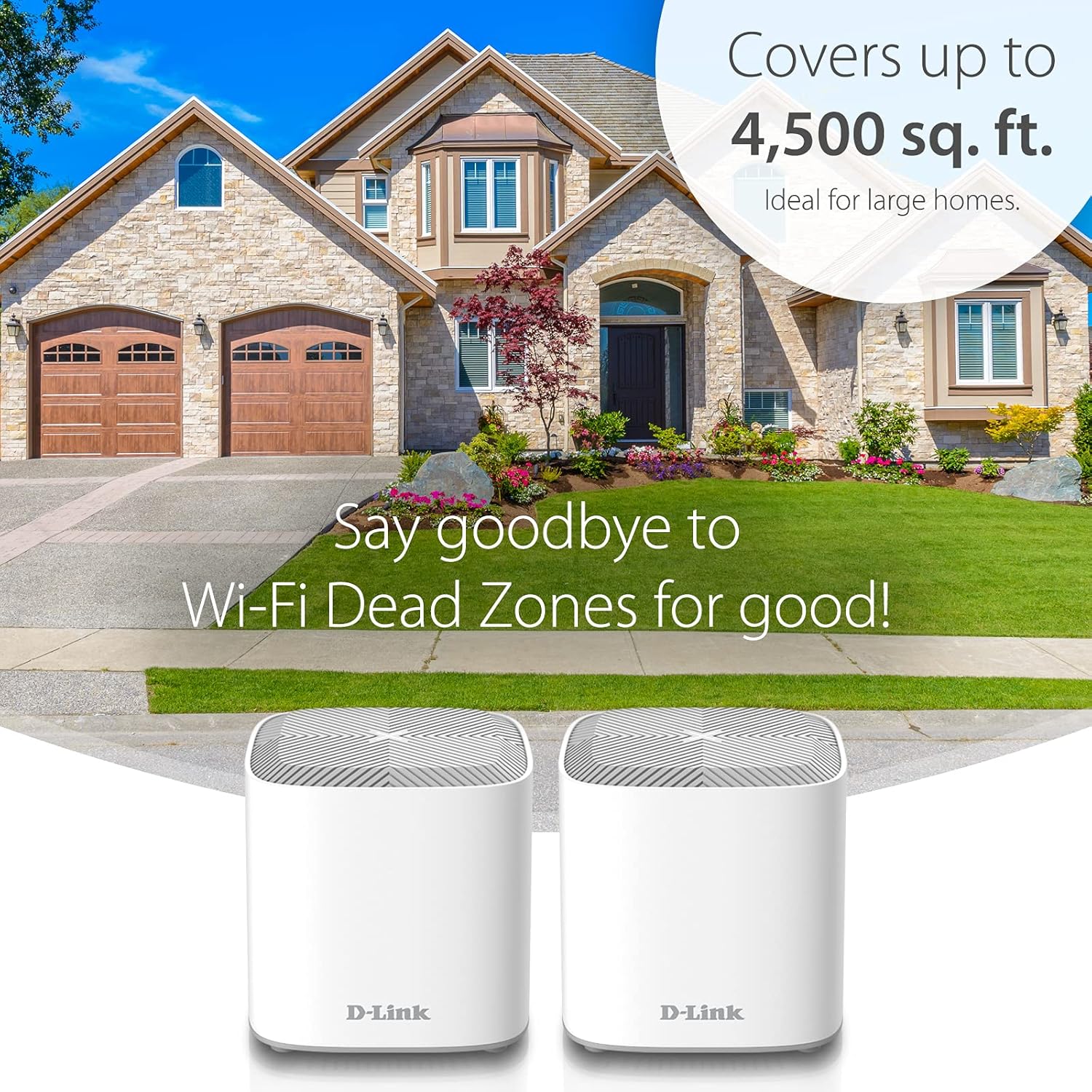
Image: An illustration showing a large house with the D-Link COVR AX1800 Mesh Wi-Fi system providing coverage up to 4,500 sq. ft., emphasizing the elimination of Wi-Fi dead zones.
2. Package Contents
Verify that your package contains the following items:
- 2 x AX1800 Wi-Fi 6 Covr Points (COVR-X1860)
- 2 x Power Adapters
- 1 x Ethernet Cable
- Installation Documents
3. Setup
The D-Link COVR AX1800 system is designed for quick and easy setup using the D-Link Wi-Fi app. The Covr Points come pre-paired for convenience.
- Download the D-Link Wi-Fi App: Search for "D-Link Wi-Fi" in your mobile device's app store (Apple App Store or Google Play Store) and download the application.
- Connect the Primary Covr Point: Plug one of the Covr Points into a power outlet and connect it to your modem using the provided Ethernet cable.
- Power On: Ensure both the modem and the Covr Point are powered on.
- Launch the App: Open the D-Link Wi-Fi app on your smartphone or tablet.
- Follow In-App Instructions: The app will guide you through the remaining steps to configure your network, including setting up your Wi-Fi name (SSID) and password.
- Place Additional Covr Points: Once the primary unit is configured, place the second Covr Point in a central location within your home to extend coverage. It will automatically connect to the primary unit.
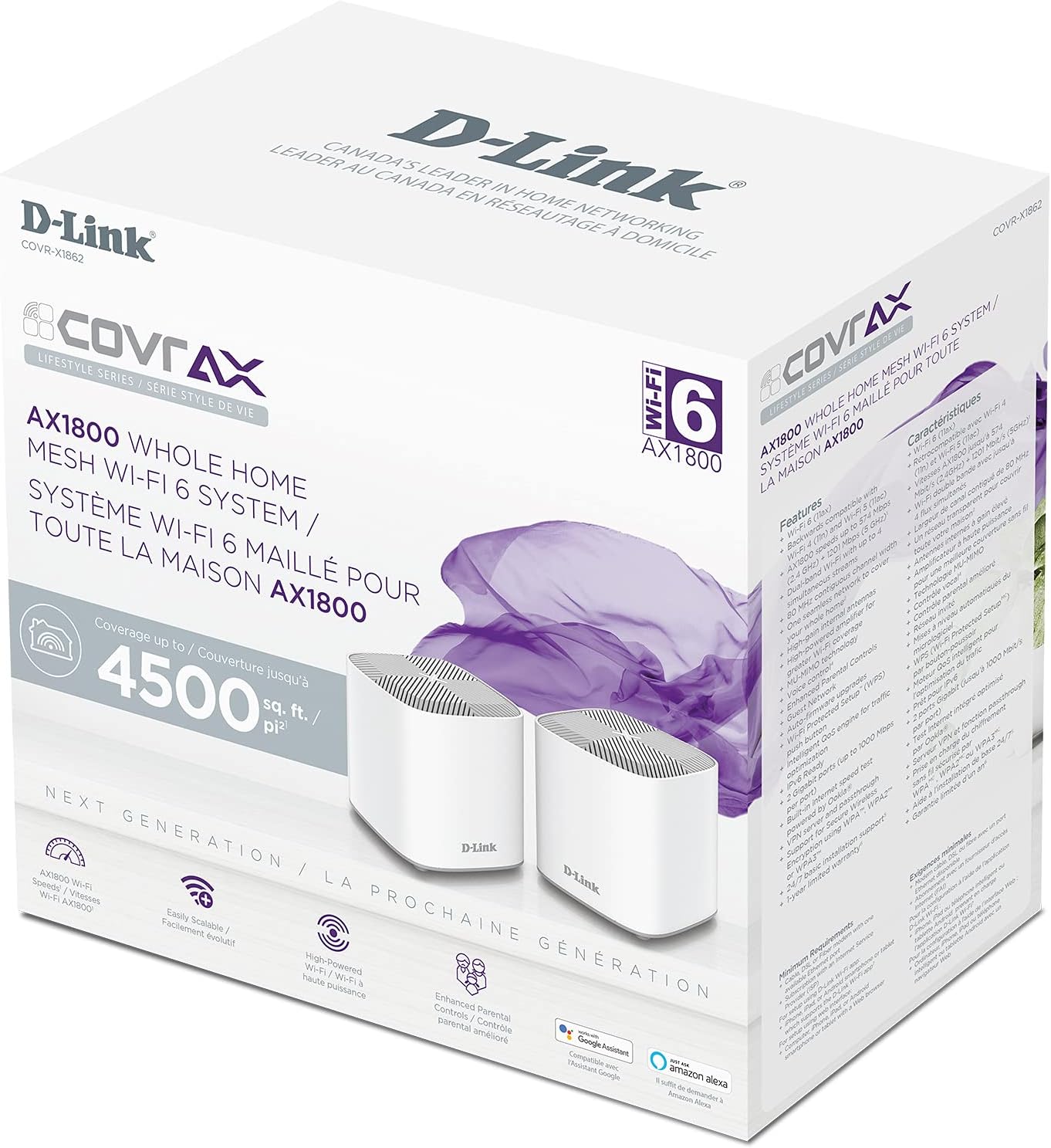
Image: A visual representation of the D-Link Wi-Fi App setup process, showing a smartphone displaying the app interface and a hand holding another smartphone, illustrating the ease of configuration.
4. Operating Instructions
4.1 Seamless Roaming
The COVR AX1800 system creates a single, unified Wi-Fi network name (SSID) across all Covr Points. As you move throughout your home, your devices will automatically connect to the Covr Point with the strongest signal, ensuring uninterrupted connectivity without manual switching.
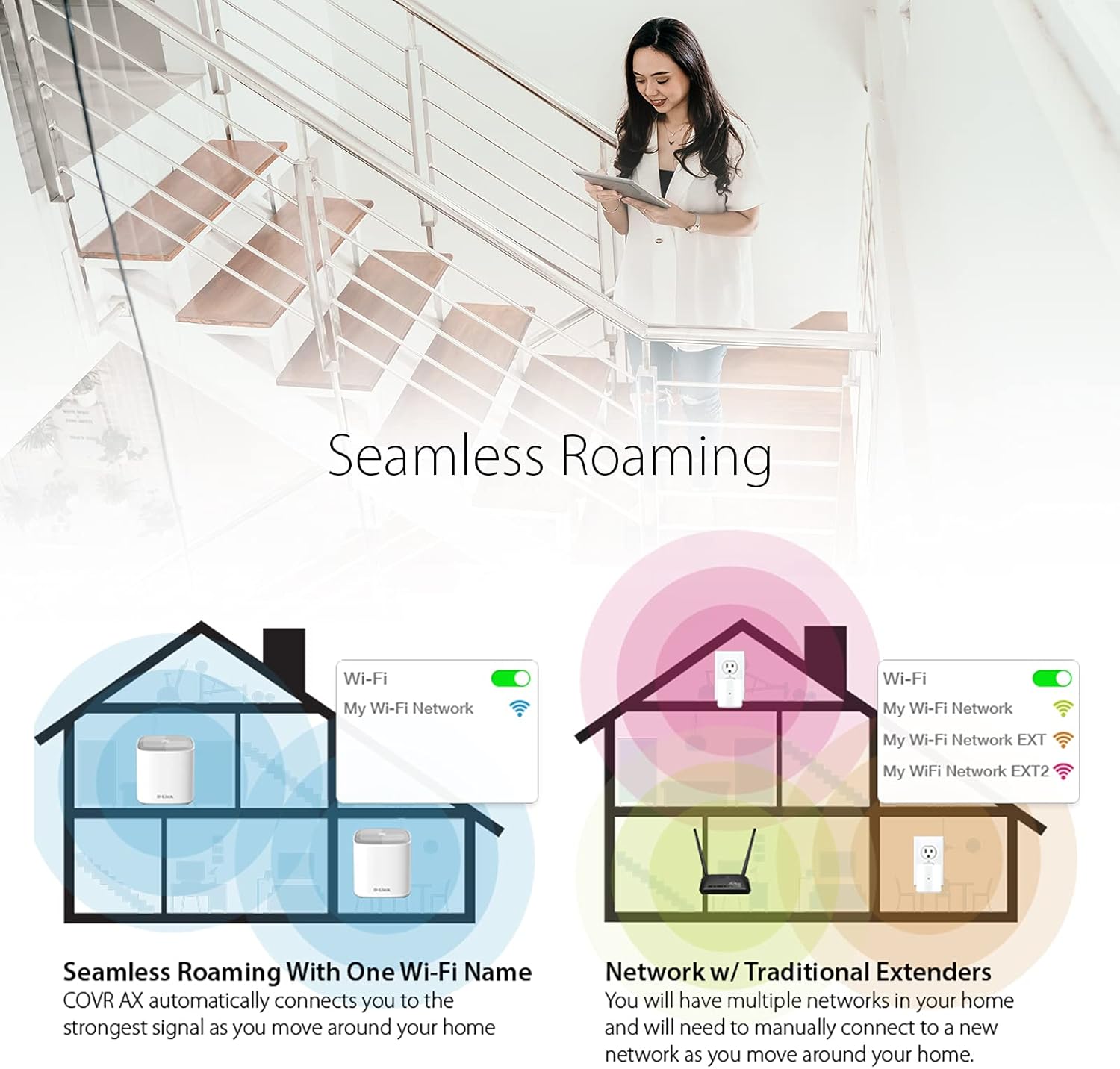
Image: A diagram comparing seamless roaming with a single Wi-Fi name (left) to a network with traditional extenders requiring manual connection to multiple networks (right).

Image: A person walking up stairs while using a tablet, illustrating continuous Wi-Fi connectivity provided by seamless roaming throughout a multi-level home.
4.2 Wi-Fi 6 Advantages
This system utilizes Wi-Fi 6 (802.11ax) technology, offering several enhancements over previous Wi-Fi standards:
- Faster Speeds: Up to 90% faster on the 2.4 GHz band and 38% faster on the 5 GHz band compared to previous generation Wi-Fi.
- Increased Efficiency (OFDMA): Orthogonal Frequency-Division Multiple Access allows for more efficient data transmission to multiple devices simultaneously.
- Reduced Interference (BSS Colouring): Improves network performance in congested Wi-Fi environments.
- Longer Device Battery Life (Target Wake Time): Devices can schedule when to wake up to send or receive data, conserving power.
- Higher Capacity: Supports more simultaneous streams, providing greater bandwidth for device-dense homes.

Image: A graphic highlighting the Wi-Fi 6 Advantage, including faster speeds, more efficiency, greater stability, and higher capacity, with a background image of someone playing a video game.

Image: A visual comparison showing Wi-Fi 6 speeds are up to 90% faster on 2.4 GHz and 38% faster on 5 GHz compared to previous generation Wi-Fi, next to a D-Link Covr unit.
5. Enhanced Features
5.1 Parental Controls
The D-Link Wi-Fi app provides enhanced parental control features. You can:
- Create profiles for individual users or devices.
- Set internet access schedules.
- Pause internet access for specific profiles or devices.
- Manage content filtering.
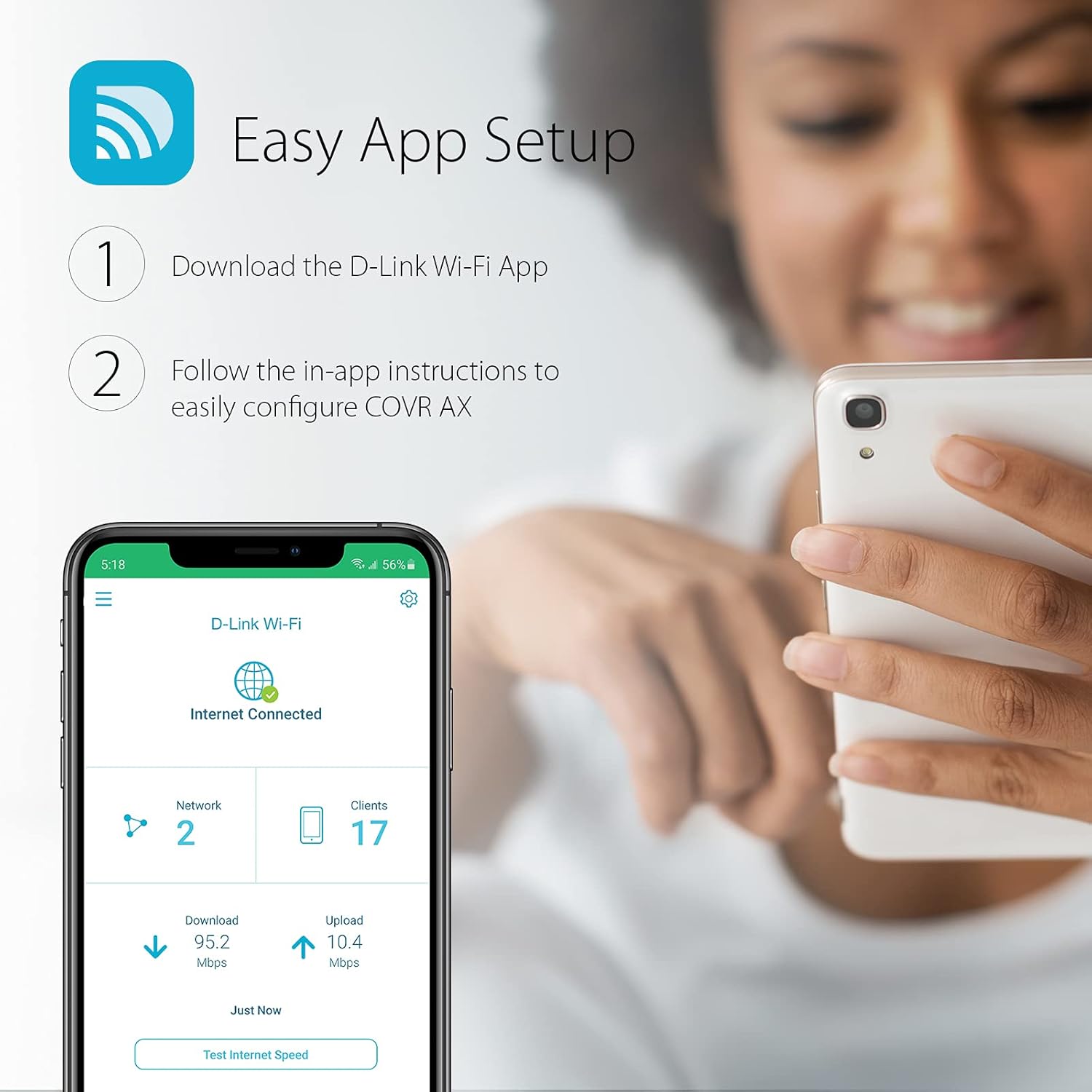
Image: A smartphone screen displaying the D-Link Wi-Fi App's Parental Control interface, showing options to set schedules for a user profile named "Bobby", with a child using a tablet in the background.
5.2 Voice Control
Integrate your COVR AX1800 system with voice assistants for convenient control:
- Amazon Alexa: Use voice commands to manage your Wi-Fi network.
- Google Assistant: Control network settings and features with simple voice commands.
6. Maintenance
To ensure optimal performance and longevity of your D-Link COVR AX1800 system, consider the following maintenance practices:
- Firmware Updates: Enable automatic firmware updates through the D-Link Wi-Fi app to ensure your system has the latest security patches and performance enhancements.
- Placement: Ensure Covr Points are placed in open areas, away from obstructions and other electronic devices that may cause interference.
- Cleaning: Periodically clean the exterior of the Covr Points with a soft, dry cloth. Avoid using liquid cleaners or abrasive materials.
- Restarting: If you experience network issues, a simple restart of your modem and all Covr Points can often resolve connectivity problems. Power off all devices, wait 30 seconds, then power on the modem first, followed by the Covr Points.
7. Troubleshooting
This section addresses common issues you might encounter with your D-Link COVR AX1800 system.
7.1 No Internet Connection
- Check Cables: Ensure all Ethernet cables are securely connected to the modem and the primary Covr Point.
- Modem Status: Verify that your internet modem is working correctly and has an active internet connection.
- Restart Devices: Power cycle your modem and all Covr Points. Wait for each device to fully boot up before checking the connection.
- D-Link Wi-Fi App: Use the app to check the network status and run diagnostics.
7.2 Poor Wi-Fi Signal or Slow Speeds
- Covr Point Placement: Ensure Covr Points are strategically placed to maximize coverage, avoiding physical obstructions like thick walls or large appliances.
- Interference: Move Covr Points away from other electronic devices (e.g., cordless phones, microwaves) that operate on similar frequencies.
- Device Compatibility: Ensure your devices support Wi-Fi 6 for optimal performance. Older devices will still connect but may not achieve maximum speeds.
- Network Congestion: If many devices are active, the network may experience congestion. The Wi-Fi 6 features (OFDMA, MU-MIMO) are designed to mitigate this, but extreme usage can still impact performance.
7.3 Devices Not Connecting to 2.4 GHz Band
The COVR system uses Smart Connect to automatically assign devices to the optimal 2.4 GHz or 5 GHz band. Some older smart home devices may specifically require a 2.4 GHz connection and might have trouble connecting if Smart Connect is enabled.
- Disable Smart Connect (Advanced Users): If a device consistently fails to connect, you may need to temporarily disable Smart Connect in the D-Link Wi-Fi app settings to separate the 2.4 GHz and 5 GHz SSIDs. Re-enable Smart Connect after the device is configured if desired for overall network optimization.
8. Specifications
| Feature | Detail |
|---|---|
| Brand | D-Link |
| Model | COVR-X1862 |
| Wireless Standard | 802.11ac, 802.11ax, 802.11g, 802.11n |
| Frequency Band Class | Dual-Band (2.4 GHz, 5 GHz) |
| Data Transfer Rate | Up to 1800 Mbps (574 Mbps on 2.4 GHz, 1201 Mbps on 5 GHz) |
| Coverage | Up to 4500 sq. ft. (with 2 units) |
| Number of Ports | 4 (Gigabit Ethernet, 2 per unit) |
| Connectivity Technology | Ethernet, Wi-Fi |
| Special Features | WPS, Parental Controls, Voice Control (Google Assistant, Alexa), MU-MIMO, OFDMA, BSS Colouring, Target Wake Time, Smart Connect |
| Compatible Devices | Smart Television, Smartphone, Gaming Consoles, IoT Devices |
| Operating Temperature | 0 to 40 °C (32 to 104 °F) |
| Product Dimensions | 10.39 x 10.39 x 11.2 cm; 526.17 g (per unit) |
| Security | WPA3 (128-bit encryption) |
9. Warranty and Support
For warranty information and technical support, please refer to the official D-Link website or the documentation included with your product. D-Link provides customer support to assist with any issues or questions you may have regarding your COVR AX1800 Mesh Wi-Fi 6 System.
D-Link Support: Visit www.dlink.com/support for FAQs, troubleshooting guides, and contact information.


