
APETOO APETOO-0078
APETOO USB-C Wired In-Ear Headphones Instruction Manual
Model: APETOO-0078
1. Introduction
Thank you for choosing APETOO USB-C Wired In-Ear Headphones. This manual provides essential information for the proper setup, operation, and maintenance of your new headphones. Please read it carefully before use.

Image 1.1: APETOO USB-C Wired In-Ear Headphones, showing the USB-C connector, in-line controls, earbuds, extra ear tips, and a small carrying case.
2. What's Included
The package contains the following items:
- 1x APETOO Magnetic USB-C Headphones
- 1x Mini Storage Case
- 2x Extra S/L Ear Tips (one pair Small, one pair Large)
3. Product Features
- Noise Isolating & HiFi Stereo Sound: Equipped with an advanced digital DAC chip for high-fidelity stereo sound transmission. Soft silicone ear tips contribute to effective ambient noise isolation.
- Comfortable and Magnetic Design: Ergonomically designed earbuds with soft silicone ear tips for a secure and comfortable fit. Integrated magnets allow the earbuds to stick together, preventing tangling and facilitating storage.
- Built-in Microphone and Wired Control: Features an in-line microphone for hands-free calls and a remote control for managing audio playback and calls.

Image 3.1: Illustration of the magnetic feature, showing the two earbuds attracting each other for convenient storage and wear around the neck.
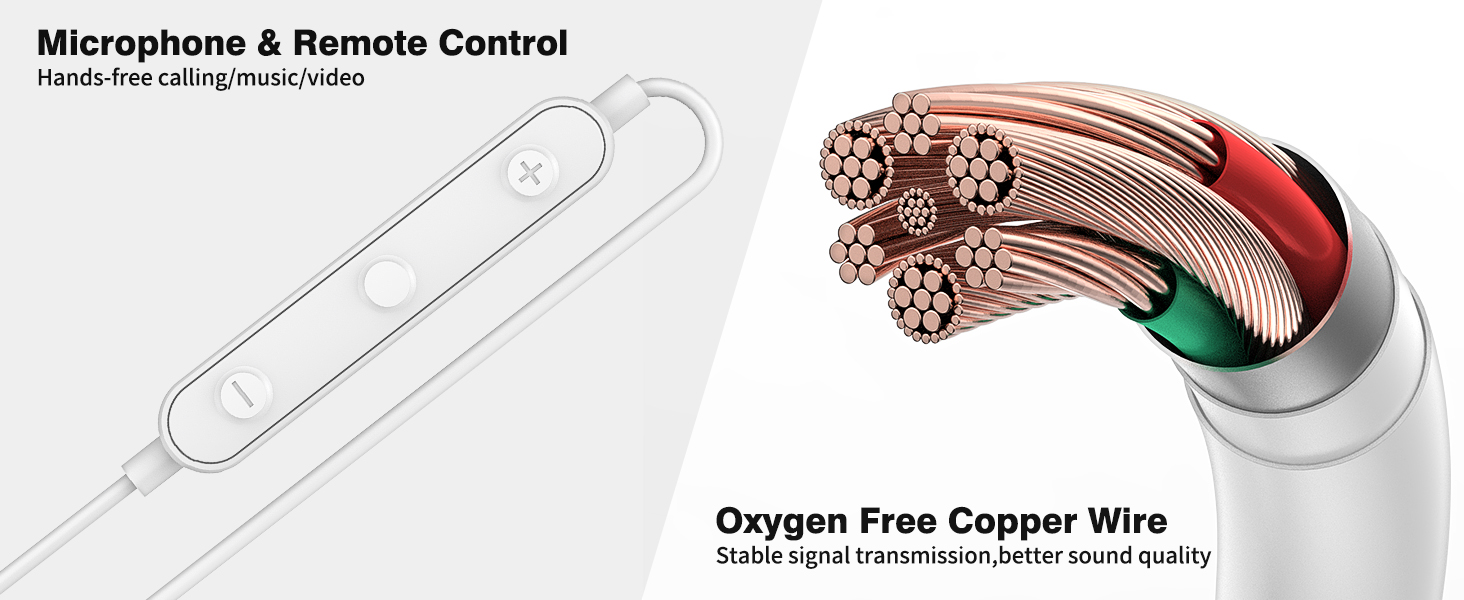
Image 3.2: Visual representation highlighting the USB-C digital connector with a built-in DAC chip and the magnetic design of the earbuds.
4. Setup
To begin using your APETOO USB-C Wired In-Ear Headphones, follow these steps:
- Connect to Device: Insert the USB-C plug into the USB-C port of your compatible smartphone, tablet, or laptop.
- Initial Recognition: For the first-time use, your device may display a notification regarding audio accessories. Ensure the headphones are recognized.
- Laptop/PC Audio Settings: If using with a laptop or PC, navigate to your sound settings. Select the connected USB audio device as the sound input/output.

Image 4.1: A screenshot illustrating how to select the USB audio device as the sound input/output on a laptop's sound settings.
5. Operating Instructions
The in-line remote control allows for easy management of audio and calls:

Image 5.1: A detailed diagram of the in-line remote control, showing the functions of the buttons.
- Volume Control:
- Press the '+' button to increase volume.
- Press the '-' button to decrease volume.
- Music Playback Control:
- Single Click (Center Button): Play/Pause music.
- Double Click (Center Button): Skip to the next song.
- Triple Click (Center Button): Go to the previous song.
- Call Management:
- Single Click (Center Button): Answer an incoming call or hang up an active call.
- Long Press (Center Button): Reject an incoming call.
6. Compatibility
These headphones are designed for wide compatibility with various USB-C enabled devices, including:

Image 6.1: A visual guide listing various compatible devices, including models from Samsung, Apple (iPhone 15 series and newer, iPad models), OnePlus, and Google Pixel.
- iPhone: 17 Air/17/16/15 Pro Max Plus series
- Samsung Galaxy: S24 Ultra/S24+/S24, S23 FE/S23 Ultra/S23/S23+ 5G, S22/S22+/S22 Ultra 5G, S21 Ultra/S21 Plus/S21 FE/S21 5G, S20 FE S20 Plus S20 Ultra, Note 20 Ultra/20, Note 10 Plus/10, Galaxy A53 A54 A34 A35, Z Flip5/4/3/2, Z Fold5/4/3/2, Galaxy Tablet S9/S8/S7/S6
- Google Pixel: 8, 8 Pro, 7, 7 Pro, 7a, 6a, 6 Pro, 6, 5, 4, 4XL, 3, 3XL, 2, 2XL
- iPad: 10 Pro Air/mini 6, 12.9-inch iPad Pro 6th/5th/4th/3rd gen, 11-inch iPad Pro 4th/3rd/2nd gen, 10.9-inch iPad 10th gen, iPad Air 5th/4th gen, iPad mini 6th gen
- Macbook: Air Pro
- Other USB-C Devices: OnePlus Open, 11T, 11 Pro, 10T, 10 Pro, 9 Pro 5G, 9 5G, 8T, 8 Pro, 8, 7T Pro, 7T, 7, 6T, Nord 2 5G, Nord; Huawei Mate 60 50 30 20 10 Pro, P60 P50 P30 P20 pro; Sony Xperia Z2, Xiao mi Mi 11 Ultra, OPPO Find X3 Neo, VIVO X60 Pro 5G, etc.
7. Maintenance
To ensure the longevity and optimal performance of your headphones, follow these maintenance guidelines:
- Cleaning: Gently wipe the earbuds and cable with a soft, dry cloth. Avoid using harsh chemicals or abrasive materials.
- Storage: When not in use, store the headphones in the provided mini storage case to prevent tangling and damage. The magnetic earbuds help keep them neat.
- Avoid Moisture: While the headphones are water-resistant, avoid prolonged exposure to water or high humidity. Do not submerge them.
- Handle with Care: Do not pull on the cable forcefully when disconnecting from a device. Always grasp the USB-C plug.
8. Troubleshooting
If you encounter issues with your headphones, refer to the following common solutions:

Image 8.1: A visual troubleshooting guide for common issues with USB-C headphones on iPhone 15 and Samsung phones, detailing steps to check audio settings.
- No Sound or Intermittent Audio:
- Ensure the USB-C plug is fully inserted into your device's port.
- Check your device's volume settings.
- For first-time use or if issues persist, go to your device's audio settings (e.g., Settings > Sounds & Haptics > Headphone Safety > USB Audio Accessories on iPhone/iPad, or Settings > Connected to Headphones on Samsung) and ensure the headphones are recognized and connected.
- Try connecting the headphones to a different compatible device to rule out a device-specific issue.
- Microphone Not Working:
- Ensure the microphone is not obstructed.
- Check your device's privacy settings to ensure the application you are using has permission to access the microphone.
- Verify that the headphones are selected as the input device in your device's sound settings.
- Sound Quality Issues (e.g., tinny sound):
- Ensure the ear tips are properly seated in your ears to create a good seal for optimal sound isolation and bass response. Try different sized ear tips if necessary.
- Check for any debris in the earbud nozzles that might be affecting sound output.
- Volume Too Low (iPhone/iPad):
- Navigate to Settings > Sounds & Haptics > Headphone Safety and ensure "Reduce Loud Sounds" is disabled or set to an appropriate level.
- Check Accessibility > Audio/Visual > Headphone Accommodations and Mono Audio settings.
- Android Developer Options (if applicable):
- If experiencing persistent issues on Android, ensure "Disable USB audio routing" is turned off in Developer Options. To access Developer Options, go to Settings > About Phone and tap "Build number" 7 times.
9. Specifications
| Feature | Specification |
|---|---|
| Model Name | APETOO-0078 |
| Connectivity Technology | Wired (USB-C) |
| Headphones Jack | USB-C |
| Noise Control | Sound Isolation |
| Control Type | Volume Control, Remote (Button) |
| Microphone | Built-in |
| Material | Silicone (ear tips) |
| Item Weight | 20 Grams (0.705 ounces) |
| Product Dimensions | 47.24 x 0.39 x 0.12 inches |
| Frequency Range | 20 Hz - 20,000 Hz |
| Impedance | 32 Ohm |
| Water Resistance Level | Water Resistant |
10. Warranty and Support
APETOO provides friendly after-sales service for its products. If you have any questions or require assistance, please contact APETOO customer support. We aim to respond to inquiries within 24 hours on weekdays.
Please refer to your purchase documentation or the retailer's website for specific warranty terms and contact information.
Ask a question about this manual
Ask about setup, troubleshooting, compatibility, parts, safety, or missing instructions. Manuals+ will review the question and use this page’s manual context to help answer it.