
1. Introduction
The Insta360 GO 2 is a compact, thumb-sized action camera designed for versatile point-of-view (POV) capture. Weighing just 1 oz, it features a powerful 1/2.3" image sensor capable of shooting crisp 1440p video. The camera is rugged and waterproof up to 13 feet (4 meters), making it suitable for various environments and activities.
Key features include:
- FlowState Stabilization: Advanced image stabilization and horizon leveling algorithms ensure smooth, steady video footage.
- Mount Anywhere Design: Its wearable design and magnetic accessories allow for hands-free shooting from unique perspectives.
- Multi-Use Charge Case: The included pocket-sized case functions as a charger, remote control, and tripod, extending battery life and enhancing usability.
2. What's in the Box
Your Insta360 GO 2 package includes the following items:
- 1x Insta360 GO 2 Camera (32GB)
- 1x Charge Case
- 1x Lens Guard (pre-installed)
- 1x Magnet Pendant
- 1x Pivot Stand
- 1x Easy Clip
- 1x Type-C Charge Cable
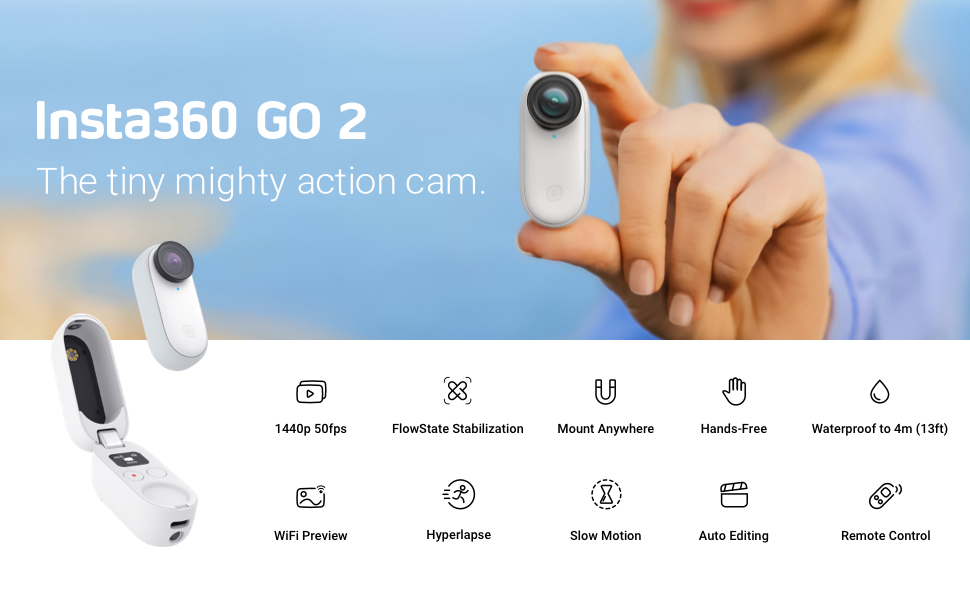
Figure 2.1: Insta360 GO 2 camera, charge case, and various mounting accessories.
3. Setup
3.1 Initial Charging
Before first use, ensure both your Insta360 GO 2 camera and its Charge Case are fully charged. Place the camera inside the Charge Case. Connect the Type-C charge cable to the port on the Charge Case and a power source. The indicator lights on the case will show charging status.
3.2 Powering On/Off
To power on the camera, open the Charge Case. The camera will automatically power on. To power off, close the Charge Case or long-press the main button on the camera until it shuts down.
3.3 Connecting to the Mobile App
Download the Insta360 app from your device's app store. Open the Charge Case to power on the camera. In the Insta360 app, tap the camera icon and follow the on-screen instructions to connect via Bluetooth and Wi-Fi. This allows for live preview, remote control, and access to advanced settings.
3.4 Mounting the Camera
The Insta360 GO 2 features a magnetic design, allowing it to attach to various surfaces and accessories. Ensure the camera is securely attached before use.
- Magnet Pendant: Wear the pendant under your clothing, and the camera can magnetically attach to the outside, enabling hands-free POV shots.
- Pivot Stand: This accessory allows you to place the camera on flat surfaces or attach it to objects for stable shots.
- Easy Clip: Attach the camera to a hat brim or other thin objects for unique perspectives.
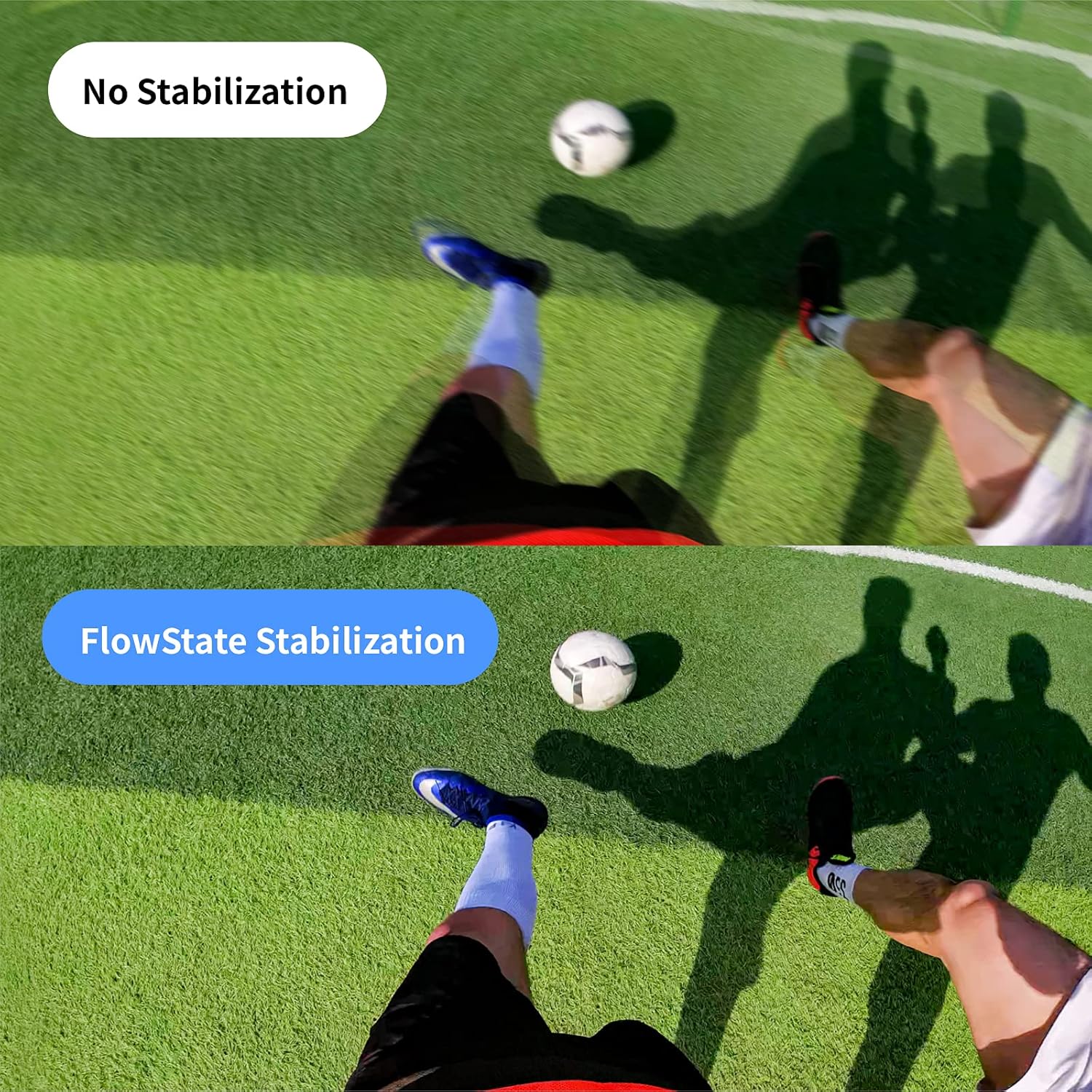
Figure 3.1: Camera mounted using the magnetic pendant for hands-free recording.

Figure 3.2: Camera positioned on the pivot stand.

Figure 3.3: Camera attached to a hat using the easy clip.
4. Operating Instructions
4.1 Basic Controls
The Insta360 GO 2 camera has a single main button. A short press typically starts/stops recording or takes a photo, depending on the selected mode. The Charge Case also features a small screen and two buttons for navigating modes and settings directly without the app.
4.2 Shooting Modes
The camera offers several shooting modes to suit different needs:
- Normal Video: Standard video recording.
- Pro Video: Captures a wider field of view, allowing for reframing and advanced editing in the Insta360 app.
- TimeShift: Hyperlapse video with dynamic speed changes.
- Timelapse: Captures a sequence of photos over time to create a sped-up video.
- HDR Video: High Dynamic Range video for improved detail in highlights and shadows.
- Slow-Mo: Records video at a higher frame rate for slow-motion playback.
- Photo: Captures still images.
Video 4.1: Detailed explanation of Insta360 GO 2 shooting modes and camera settings.
4.3 FlowState Stabilization & Horizon Lock
FlowState Stabilization uses advanced algorithms to keep your footage incredibly smooth, even during intense action. Horizon Lock ensures your video remains level, regardless of the camera's orientation.

Figure 4.1: Demonstrating the effectiveness of FlowState Stabilization.
Figure 4.2: Horizon Lock feature keeps the video level.
4.4 Waterproofing
The Insta360 GO 2 is waterproof to 13 feet (4 meters) without any additional housing. This allows for direct use in water activities.

Figure 4.3: The Insta360 GO 2 is waterproof for underwater use.
4.5 Using the Charge Case as a Remote/Tripod
The Charge Case is not just for charging; it also acts as a remote control for the camera. Its built-in screen allows you to view settings and modes. Additionally, it features small foldable legs that transform it into a mini-tripod for stable placement.

Figure 4.4: The Charge Case can be used as a remote control and mini-tripod.
5. Maintenance
5.1 Cleaning the Lens
Regularly clean the camera lens with a soft, lint-free cloth. For stubborn smudges, use a lens cleaning solution designed for optical surfaces. Avoid abrasive materials that could scratch the lens.
5.2 Battery Care
To prolong battery life, avoid exposing the camera and Charge Case to extreme temperatures. Store in a cool, dry place. Fully charge the devices before extended periods of non-use.
5.3 Storage Management
The Insta360 GO 2 comes with 32GB of built-in storage. Regularly transfer your footage to a computer or cloud storage to free up space and prevent data loss. The Insta360 app facilitates easy transfer of files.
6. Troubleshooting
6.1 Connectivity Issues
If the camera fails to connect to the mobile app, ensure both devices have Bluetooth and Wi-Fi enabled. Try restarting both the camera and your mobile device. If issues persist, reset the camera's Wi-Fi settings via the Charge Case menu.
6.2 Battery Drain
Rapid battery drain can occur in extreme temperatures or with continuous Wi-Fi usage. Minimize Wi-Fi connection when not actively previewing or transferring files. Ensure the camera is fully powered off when not in use.
6.3 Overheating
The camera may become warm during extended recording sessions, especially in high-resolution modes or warm environments. If the camera overheats, it may automatically shut down to prevent damage. Allow it to cool down before resuming use.
7. Specifications
| Brand: | Insta360 |
| Model Number: | CING2XX/A |
| Item Weight: | 1 pounds |
| Product Dimensions: | 2.08 x 0.93 x 0.81 inches |
| Batteries: | 1 Lithium Polymer batteries required (included) |
| Color: | White |
| Special Features: | Anti-Shake, Time Lapse |
| Photo Sensor Technology: | CMOS |
| Video Capture Resolution: | 1440p (up to 2K) |
| Maximum Aperture: | 2 f |
| Flash Memory Type: | Built-in (32GB) |
| Video Capture Format: | MP4 |
| Supported Audio Format: | AAC or MP3 |
| Connectivity Technology: | Wi-Fi |
8. Warranty & Support
For warranty information and technical support, please refer to the official Insta360 website or contact their customer service directly. Keep your proof of purchase for warranty claims.


