
Roxicosly CR1018
Roxicosly Digital Alarm Clock User Manual
Model: CR1018
1. Introduction
Thank you for choosing the Roxicosly Digital Alarm Clock. This device is designed to provide accurate timekeeping, reliable alarm functions, and convenient charging capabilities for your mobile devices. Featuring a large LED display and user-friendly controls, this manual will guide you through the setup, operation, and maintenance of your new alarm clock.
2. Product Features
- 8.7" LED Display with 7-Level Dimmer: Large digits for clear visibility from a distance, with adjustable brightness to suit day and night viewing.
- Dual Alarm Clock: Set two separate alarms for different schedules.
- 2 USB Charging Ports: Conveniently charge two mobile devices simultaneously.
- 7-Level Adjustable Volume: Customize alarm volume from 92-110dB.
- Large Snooze Button: Provides an extra 9 minutes of sleep.
- AC Powered with Battery Backup: Requires AC power for operation, with a CR2032 coin cell battery (included) to retain time and alarm settings during power outages.
- 12/24H & DST Support: Switch between 12-hour and 24-hour time formats, and enable/disable Daylight Saving Time.
3. Package Contents
- Roxicosly Digital Alarm Clock (Model: CR1018)
- CR2032 Coin Cell Battery (pre-installed)
- Charging Cable
- Power Adapter
- User Manual
4. Setup Guide
4.1 Power Connection
Connect the provided charging cable to the DC IN 5V port on the back of the alarm clock. Plug the power adapter into a standard AC outlet (100-240V). The display will light up, indicating the clock is powered on.
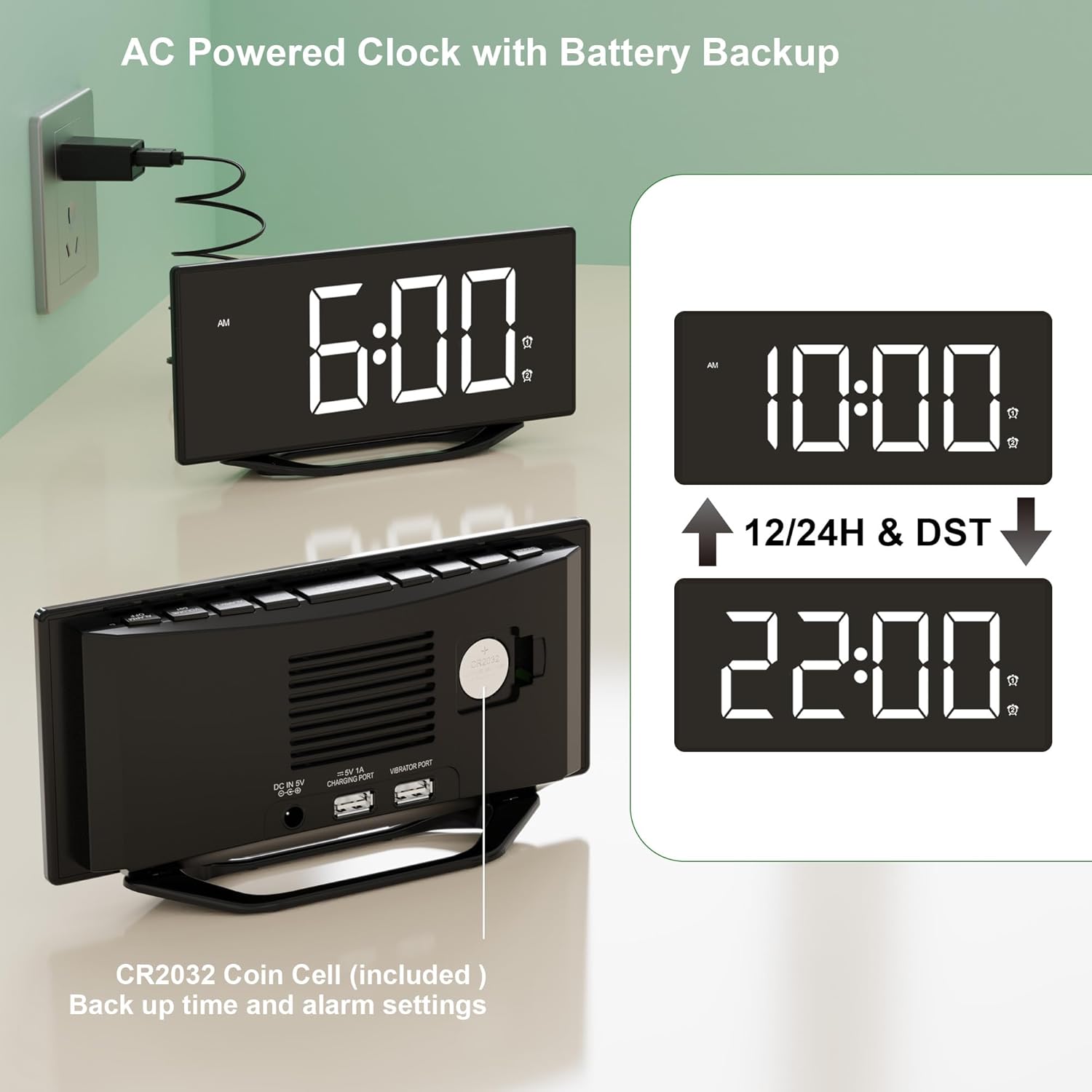
Image: The alarm clock connected to a wall outlet via its power adapter, illustrating the AC power connection.
4.2 Battery Backup
A CR2032 coin cell battery is pre-installed to provide backup power. This battery ensures that time and alarm settings are retained during a power outage. The clock will not display time or function without AC power, but settings will be saved.

Image: Rear view of the clock highlighting the CR2032 battery compartment, indicating its role in backing up settings.
5. Operating Instructions
5.1 Setting the Time
- Press the TIME SET button once. The hour digits will begin to flash.
- Use the HOUR button to adjust the hour.
- Press the MINUTE button to adjust the minute.
- Press TIME SET again to confirm and exit time setting mode.
5.2 Setting Alarms (Alarm 1 & Alarm 2)
This clock features two independent alarms.
- Press the ALARM 1 or ALARM 2 button once. The corresponding alarm time will flash.
- Use the HOUR button to set the desired alarm hour.
- Use the MINUTE button to set the desired alarm minute.
- Press ALARM 1 or ALARM 2 again to confirm the alarm time. The alarm icon (1 or 2) will appear on the display, indicating the alarm is active.
- To turn off an alarm, press the corresponding ALARM 1 or ALARM 2 button until the alarm icon disappears from the display.

Image: Illustration of the dual alarm functionality, allowing for two distinct alarm settings.
5.3 Adjusting Display Brightness
The display has 7 levels of brightness. Press the DIMMER button repeatedly to cycle through the brightness levels from brightest to dimmest. Select the level that is most comfortable for your environment.

Image: Visual representation of the 7-level display brightness settings.
5.4 Adjusting Alarm Volume
The alarm volume can be adjusted to 7 levels. When an alarm is sounding, or while setting an alarm, press the VOLUME button to cycle through the volume levels. Choose a volume suitable for your needs.

Image: Detail of the volume control button on the clock's interface.
5.5 Snooze Function
When an alarm sounds, press the large SNOOZE button located on top of the clock. The alarm will pause for 9 minutes and then sound again. You can repeat this process until you press the corresponding ALARM OFF button to fully deactivate the alarm.

Image: A user activating the snooze function by pressing the large button on top of the clock.
5.6 USB Charging Ports
The clock is equipped with two USB output ports (5V/1A) on the back, allowing you to charge your smartphones, tablets, or other USB-powered devices. Simply connect your device's USB charging cable to one of the ports.

Image: The alarm clock actively charging two mobile devices via its integrated USB ports.
5.7 12/24H Format & DST
To switch between 12-hour and 24-hour time formats, press the 12/24H button. When in 12-hour format, 'AM' or 'PM' indicators will be displayed. To enable or disable Daylight Saving Time (DST), press the DST button. When DST is active, the time will adjust by one hour, and the 'DST' indicator will appear on the display.

Image: Comparison of the clock display in 12-hour and 24-hour formats.
6. Maintenance
To ensure the longevity and optimal performance of your alarm clock, follow these maintenance guidelines:
- Cleaning: Wipe the clock with a soft, dry cloth. Do not use abrasive cleaners, waxes, or solvents as they may damage the finish.
- Placement: Place the clock on a stable, flat surface away from direct sunlight, excessive heat, or moisture.
- Battery Replacement: If the CR2032 backup battery needs replacement, carefully open the battery compartment on the back of the unit and insert a new CR2032 battery, observing polarity.
7. Troubleshooting
| Problem | Possible Cause | Solution |
|---|---|---|
| Display is blank or not lighting up. | No AC power; Power adapter faulty; Dimmer set to lowest level. | Ensure power adapter is securely plugged into the clock and a working outlet. Check the power outlet. Press the DIMMER button to increase brightness. |
| Alarm does not sound. | Alarm not set or deactivated; Volume set too low. | Verify alarm icon (1 or 2) is visible on the display. Re-set the alarm if necessary. Increase alarm volume using the VOLUME button. |
| USB charging not working. | Device not properly connected; Cable faulty; Device requires more power than 1A. | Ensure USB cable is firmly connected to both the clock and the device. Try a different USB cable. Note that the ports provide 5V/1A, which may not be sufficient for all devices (e.g., some tablets). |
| Time/settings reset after power outage. | CR2032 backup battery is dead or missing. | Replace the CR2032 coin cell battery. Ensure it is inserted with correct polarity. |
8. Specifications
- Brand: Roxicosly
- Model Number: CR1018
- Colour: Black (non-mirror Surface)
- Product Dimensions: 19.79 x 10.21 x 4.42 cm
- Item Weight: 300 g
- Material: Plastic
- Display Type: LED
- Power Source: AC (100-240V)
- Battery Backup: 1 x CR2032 Coin Cell (included)
- USB Output: 2 x 5V/1A ports
- Special Features: 7-level Dimmer, Dual Alarm, Dual USB Charging Ports, Snooze, 12/24H & DST
9. Warranty and Support
For warranty information or technical support, please refer to the purchase documentation or contact the seller/manufacturer directly. Keep your proof of purchase for any warranty claims.
Related documentsCR1018


Ask a question about this manual
Ask about setup, troubleshooting, compatibility, parts, safety, or missing instructions. Manuals+ will review the question and use this page’s manual context to help answer it.