1. Introduction
Thank you for choosing the Topcony TY10BKV5 Outdoor WiFi PTZ Security Camera. This manual provides essential information for the proper installation, operation, and maintenance of your security camera. Please read this manual thoroughly before use and retain it for future reference.
2. Package Contents
Verify that all items listed below are included in your package. If any items are missing or damaged, please contact Topcony customer support.
- 1 x Topcony Outdoor WiFi PTZ Camera
- 1 x 3-meter Power Adapter
- 1 x LAN Cable
- 4 x Screws
- 4 x Wall Plugs
- 1 x Waterproof Kit for Network Cable
- 1 x User Manual
- 1 x Screwdriver
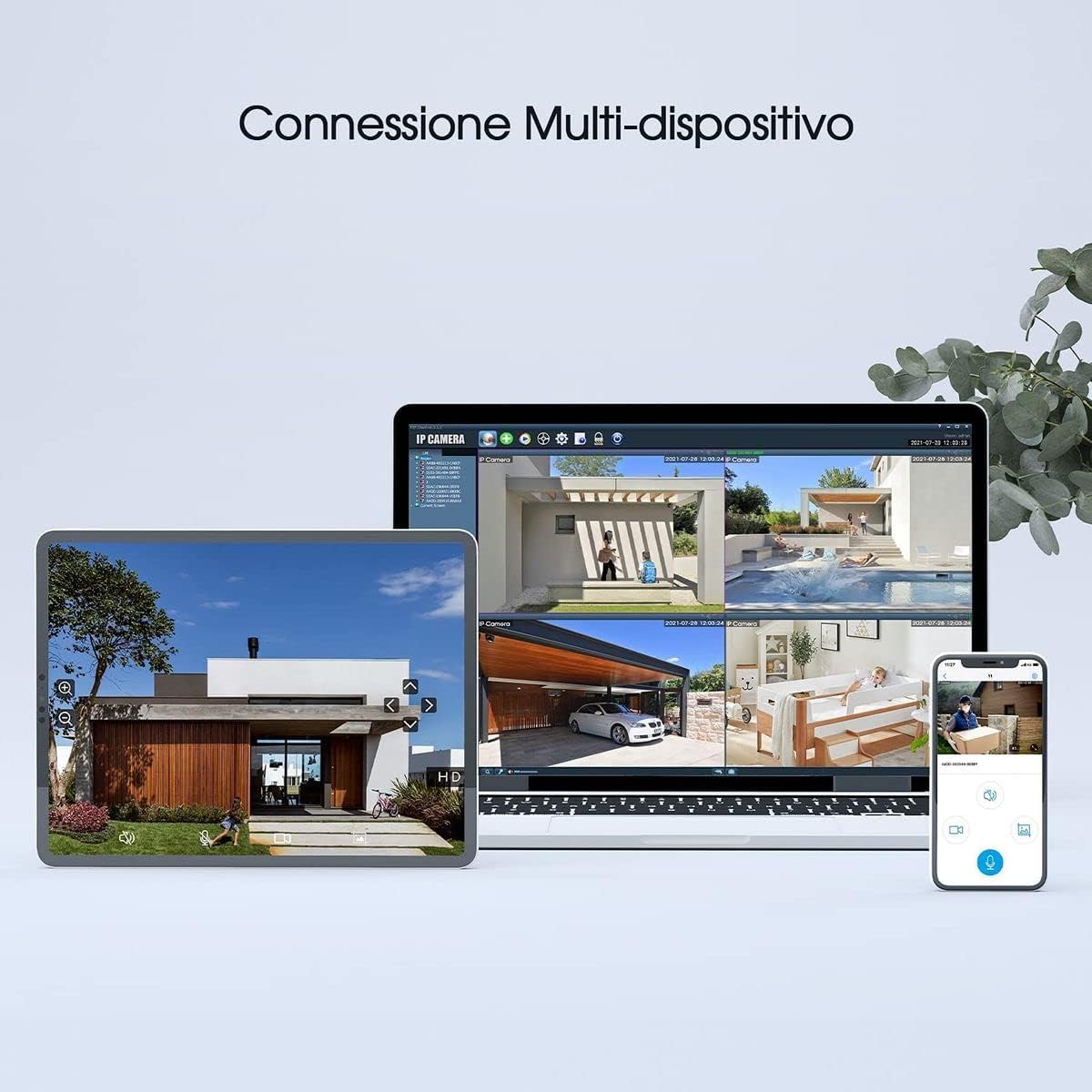
Image: Contents of the Topcony TY10BKV5 package, including the camera, power adapter, LAN cable, mounting hardware, and user manual.
3. Product Features
3.1. 1080P Full HD & Color Night Vision
Equipped with a high-end chip and SONY sensors, 8 white LEDs, and 8 infrared lights, the camera delivers clear and smooth 1080P Full HD video both day and night. It provides up to 30 meters of color night vision, ensuring comprehensive surveillance.

Image: A demonstration of the camera's 1080P Full HD color night vision, displaying clear images of vehicles in low light conditions.
3.2. Auto Tracking & IP66 Waterproof
The camera automatically tracks moving objects, keeping them centered in the frame. Its IP66-rated weatherproof housing ensures reliable operation in extreme weather conditions, making it suitable for outdoor use.

Image: The camera's auto-tracking feature in action, following a person's movement across a wall.

Image: The camera installed outdoors, with water droplets on its surface, illustrating its IP66 waterproof rating.
3.3. Two-Way Audio & Motion Detection
Built-in microphone and speakers enable real-time two-way communication via the app. Advanced sensors detect motion, sending alarm messages to your phone. You can also customize alarm zones within the application.
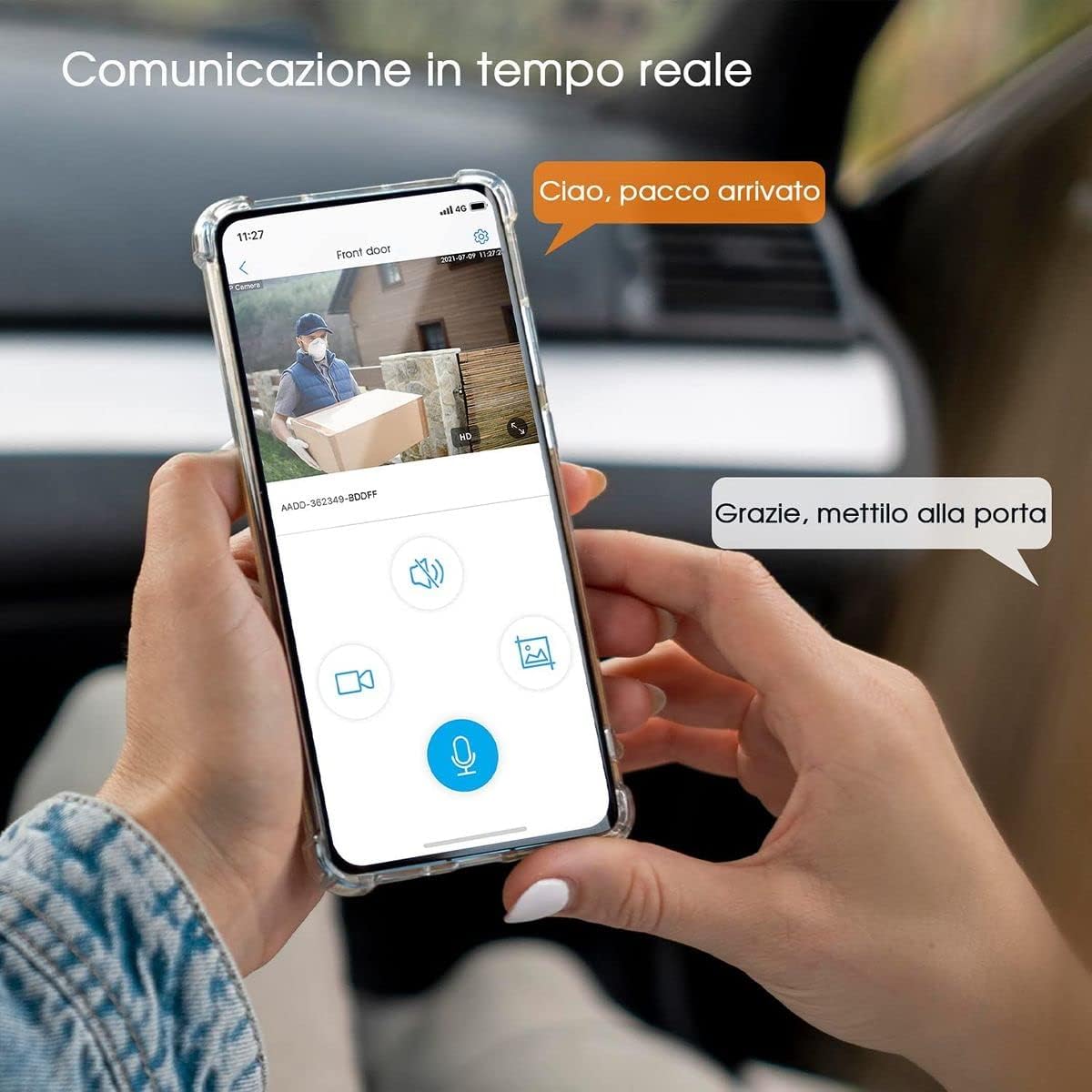
Image: A smartphone displaying the camera's live feed with options for two-way audio communication, showing a person receiving a package.
3.4. Pan and Tilt Functionality
The camera supports 355° horizontal pan and 120° vertical tilt rotation, providing 360° coverage. Control the camera's movement remotely from your smartphone to monitor every corner.

Image: The camera mounted on a wall, illustrating its 355° horizontal and 90° vertical rotation capabilities, controlled via a smartphone app.
3.5. SD Card Storage & Remote Access
The camera supports up to 128GB SD card storage (not included) for local recording. It is compatible with ONVIF/NVR systems and supports iOS/Android/Windows. View the camera remotely from your smartphone or computer using the "CamHipro" app.

Image: A tablet, laptop, and smartphone simultaneously displaying live surveillance feeds from the camera, demonstrating multi-device access.
4. Setup
4.1. Physical Installation
- Choose a Location: Select an outdoor location with a clear view of the area you wish to monitor. Ensure the location is within range of your Wi-Fi network or accessible for an Ethernet cable.
- Mount the Camera: Use the provided screws and wall plugs to securely mount the camera to a wall or ceiling.
- Connect Power: Connect the 3-meter power adapter to the camera's power port and plug it into a suitable power outlet.
Image: The camera securely mounted on an exterior wall, demonstrating a typical installation scenario.
4.2. Network Connection
The camera supports both Wi-Fi and wired Ethernet connections.
- Wi-Fi Connection: Ensure your Wi-Fi router is within range. The camera features dual 5dBi antennas for improved signal strength.
- Ethernet Connection: For a stable connection, connect the provided LAN cable to the camera's Ethernet port and your router. Use the waterproof kit for the network cable if installing outdoors.
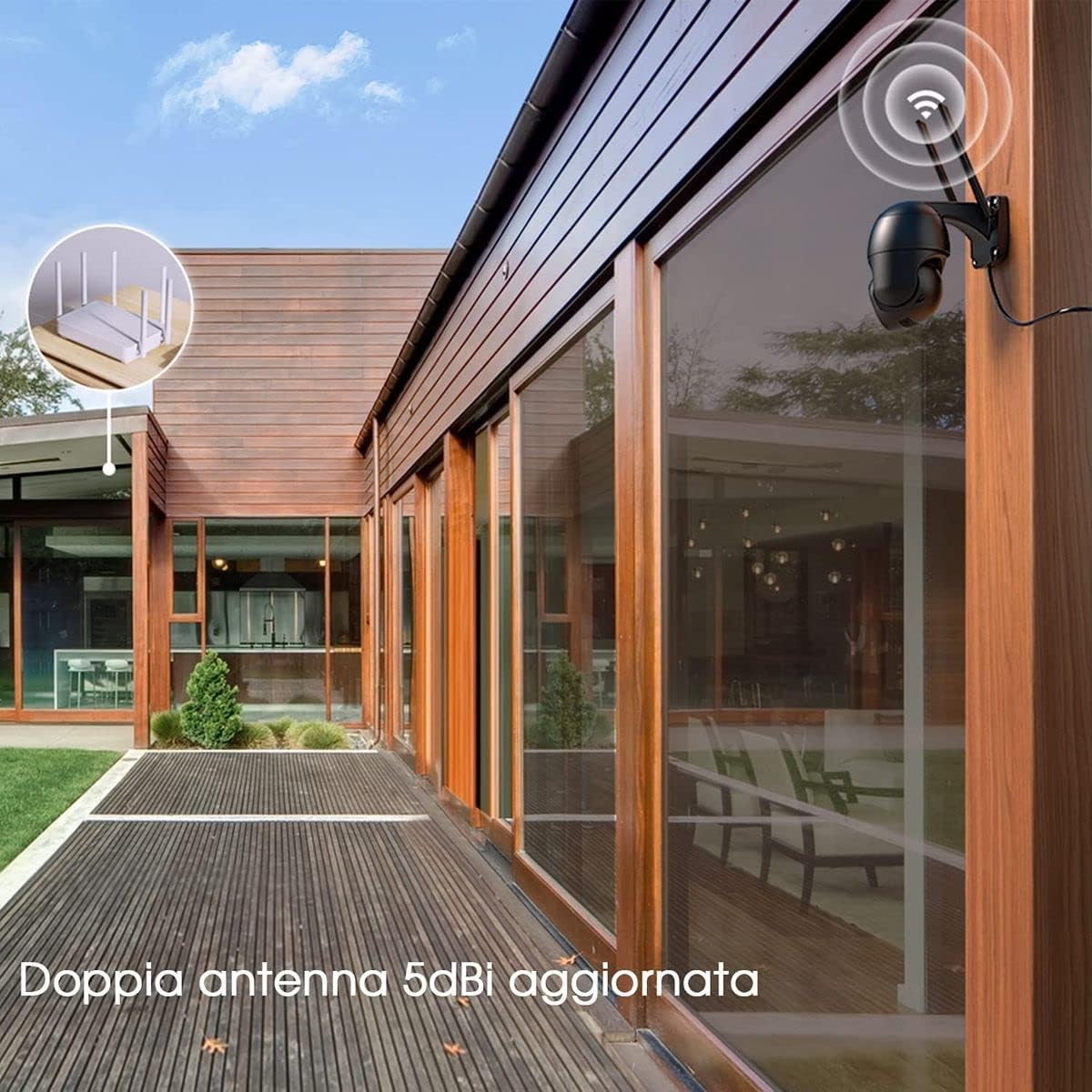
Image: The camera with its dual antennas, positioned near a router, illustrating its wireless connectivity.

Image: A diagram illustrating the two connection methods: wireless Wi-Fi and wired Ethernet, for the camera.
4.3. App Installation and Pairing
- Download App: Download the "CamHipro" app from your smartphone's app store (iOS/Android).
- Register Account: Open the app and register a new account or log in if you already have one.
- Add Camera: Follow the in-app instructions to add your camera. This typically involves scanning a QR code on the camera or searching for it on your local network. For initial setup, connecting the camera via Ethernet to your router is recommended for easier discovery.
- Configure Wi-Fi (if applicable): If using Wi-Fi, configure the Wi-Fi settings through the app after the camera is initially connected.
4.4. Initial Configuration
- Insert SD Card: If you plan to use local storage, insert a Micro SD card (up to 128GB, not included) into the designated slot on the camera. Ensure the camera is powered off before inserting/removing the SD card.
- Format SD Card: Format the SD card through the CamHipro app settings for optimal performance.
- Set Time Zone: Adjust the time zone in the app settings to ensure accurate timestamps on recordings.

Image: A smartphone screen displaying the CamHipro app interface, showing camera controls and settings for pan and tilt.
5. Operating the Camera
5.1. Live View
Open the CamHipro app and select your camera to access the live video feed. You can view the feed in real-time from anywhere with an internet connection.
5.2. Pan/Tilt Control
On the live view screen, use the directional controls within the app to remotely adjust the camera's horizontal (pan) and vertical (tilt) angles. The camera offers 355° pan and 120° tilt.
5.3. Two-Way Audio
Tap the microphone icon in the app to speak through the camera's speaker, and tap the speaker icon to listen to audio from the camera's microphone. This allows for real-time communication with visitors or to deter intruders.
5.4. Motion Detection Settings
Access the camera settings in the app to configure motion detection:
- Sensitivity: Adjust the motion detection sensitivity to minimize false alarms.
- Alarm Zone: Define specific areas within the camera's view where motion detection should be active.
- Notifications: Enable push notifications to receive alerts on your phone when motion is detected.

Image: An illustration of how to set up specific preset zones for motion detection around a property.
5.5. Night Vision Modes
The camera offers multiple night vision modes:
- Infrared Mode: Standard black and white night vision using infrared LEDs.
- Color Mode: Utilizes white LEDs to provide full-color night vision.
- Intelligent Mode: Automatically switches between infrared and color night vision based on detected motion or light conditions.

Image: A smartphone screen displaying the CamHipro app's night vision mode selection, including Ordinary (infrared), Color, and Intelligent options.
5.6. Recording & Playback
Recordings are stored on the inserted SD card. Access the playback feature in the CamHipro app to review recorded footage. You can filter by date and time to find specific events.
Image: A Micro SD card being inserted into the camera, with a visual representation of recorded events on a filmstrip, indicating local storage.
6. Maintenance
- Cleaning: Regularly clean the camera lens with a soft, dry cloth to ensure clear image quality. Do not use harsh chemicals or abrasive materials.
- Firmware Updates: Check the CamHipro app periodically for available firmware updates. Keeping your camera's firmware up-to-date ensures optimal performance and security.
- SD Card Management: If using an SD card, consider formatting it periodically (e.g., every few months) to maintain recording efficiency. Back up important footage before formatting.
7. Troubleshooting
7.1. Camera Offline / Connection Issues
Possible Causes: Weak Wi-Fi signal, incorrect Wi-Fi password, router issues, power interruption.
Solutions:
- Ensure the camera is powered on and the power adapter is securely connected.
- Check your Wi-Fi router and internet connection.
- Move the camera closer to the router or use an Ethernet cable for a more stable connection.
- Reset the camera (refer to the app or camera's physical reset button) and re-pair it with the app.
7.2. Poor Image Quality
Possible Causes: Dirty lens, insufficient lighting, network bandwidth issues.
Solutions:
- Clean the camera lens with a soft, dry cloth.
- Ensure adequate lighting for optimal daytime performance.
- Check night vision settings (infrared, color, intelligent) in the app.
- Verify your internet speed and network stability.
7.3. Motion Detection Not Working / Too Many False Alarms
Possible Causes: Incorrect sensitivity settings, improper alarm zone configuration, environmental factors.
Solutions:
- Adjust the motion detection sensitivity in the app. Lower sensitivity for fewer false alarms.
- Refine the alarm zones to exclude areas with frequent irrelevant movement (e.g., trees swaying).
- Ensure push notifications are enabled in both the app and your phone's settings.
7.4. SD Card Not Recording
Possible Causes: SD card full, corrupted, or not inserted correctly; recording settings incorrect.
Solutions:
- Check the SD card status in the app.
- Format the SD card through the app. If issues persist, try a different SD card.
- Ensure continuous recording or motion-triggered recording is enabled in the app settings.
8. Specifications
| Feature | Specification |
|---|---|
| Model Number | TY10BKV5 |
| Video Recording Resolution | 1080p |
| Color | Black |
| Wireless Technology | Wi-Fi |
| Effective Video Resolution | 1080 Pixels |
| Material | Plastic |
| Voltage | 12 Volts (DC) |
| Power | 5 Watts |
| Dimensions (L x W x H) | 19.2 x 18 x 12 cm |
| Weight | 850 Grams |
| Bulb Type | White LED/Infrared |
| Special Features | Motion Detector, Night Vision |
| Usage | Outdoor, Indoor |
| Connectivity Technology | Wireless |
| Controller Type | iOS |
| Mounting Type | Wall Mount |
9. Warranty and Support
Topcony products are designed for reliability and performance. For warranty information, please refer to the warranty card included in your package or visit the official Topcony website. If you encounter any issues or have questions regarding your Topcony TY10BKV5 camera, please contact Topcony customer support for assistance. Our support team is available to help you with installation, troubleshooting, and general inquiries.
Please have your model number (TY10BKV5) and purchase details ready when contacting support.


