
1. Introduction
This manual provides detailed instructions for the operation and maintenance of the RD UM34C USB Meter Tester. This device is designed to measure voltage, current, power, and cable resistance for various USB-powered devices and chargers. The UM34C model includes Bluetooth connectivity for enhanced monitoring via a mobile application.

The RD UM34C USB Meter Tester, a compact device with a yellow casing and a color LCD screen displaying various measurements. A close-up inset shows the internal circuitry.
2. Key Features
2.1. High Definition Display
The UM34C features a 1.44-inch IPS HD color LCD display with a 160-degree wide viewing angle, offering high brightness and extended service life. It provides clear and detailed readings from various perspectives.

The UM34C USB Meter Tester displaying its 1.44-inch IPS HD color LCD screen with various measurement interfaces, including main interface, quick charge recognition, charging recording, wire impedance, measurement graphing, and system parameter settings.
2.2. APP Control (UM34C Only)
The UM34C model supports Bluetooth connectivity, allowing users to connect to a dedicated mobile application (Android 5.0+ / iOS 8.0+) for real-time data monitoring, graphing, and data export. The app provides a convenient way to check voltage, current, and power status without complex wiring.

Screenshots of the UM34C mobile application interface on both Android and iOS devices, showing real-time voltage and current graphs, data display, data export to Excel, and automatic update features.
2.3. Versatile Measurement Functions
The UM34C offers multiple measurement capabilities:
- Cable Impedance Detection: Utilizes a differential pressure method to measure cable resistance, helping to identify voltage drop issues caused by cable quality.
- Quick Charge Recognition: Supports various fast charging protocols including QC2.0, QC3.0, APPLE 2.4A/2.1A/1A/0.5A, Android DCP, and SAMSUNG.
- Voltage/Current/Power Detection: Provides high-definition, real-time measurement of voltage, current, power, and internal resistance.
- Capacity/Energy Detection: Allows for the identification and evaluation of power bank capacity and energy.
- Load Connecting Detection: Automatically illuminates the screen when a load is connected after the screen auto-off function.

An overview of the UM34C's eight core functions, including APP connection control, cable impedance detection, quick charge recognition, voltage/current/power detection, capacity/energy detection, load connecting detection, help interface, and screen rotation.
2.4. User Interface and Accessibility
The device includes a help interface available in both Chinese and English. The screen can be rotated in four directions to ensure optimal viewing regardless of the device's orientation.

Images illustrating the UM34C's help interface with instructions for screen rotation and adjustment, and a visual representation of the screen rotating in different directions.
3. Setup Instructions
The UM34C USB Meter Tester is designed for plug-and-play operation.
- Connect Input: Insert the USB-A male port of the UM34C into the USB output port of your charger, power bank, or computer.
- Connect Output: Connect your device (e.g., smartphone, tablet) to the USB-A female output port or the Type-C input port of the UM34C.
- Power On: The device will automatically power on and display measurement data once connected.
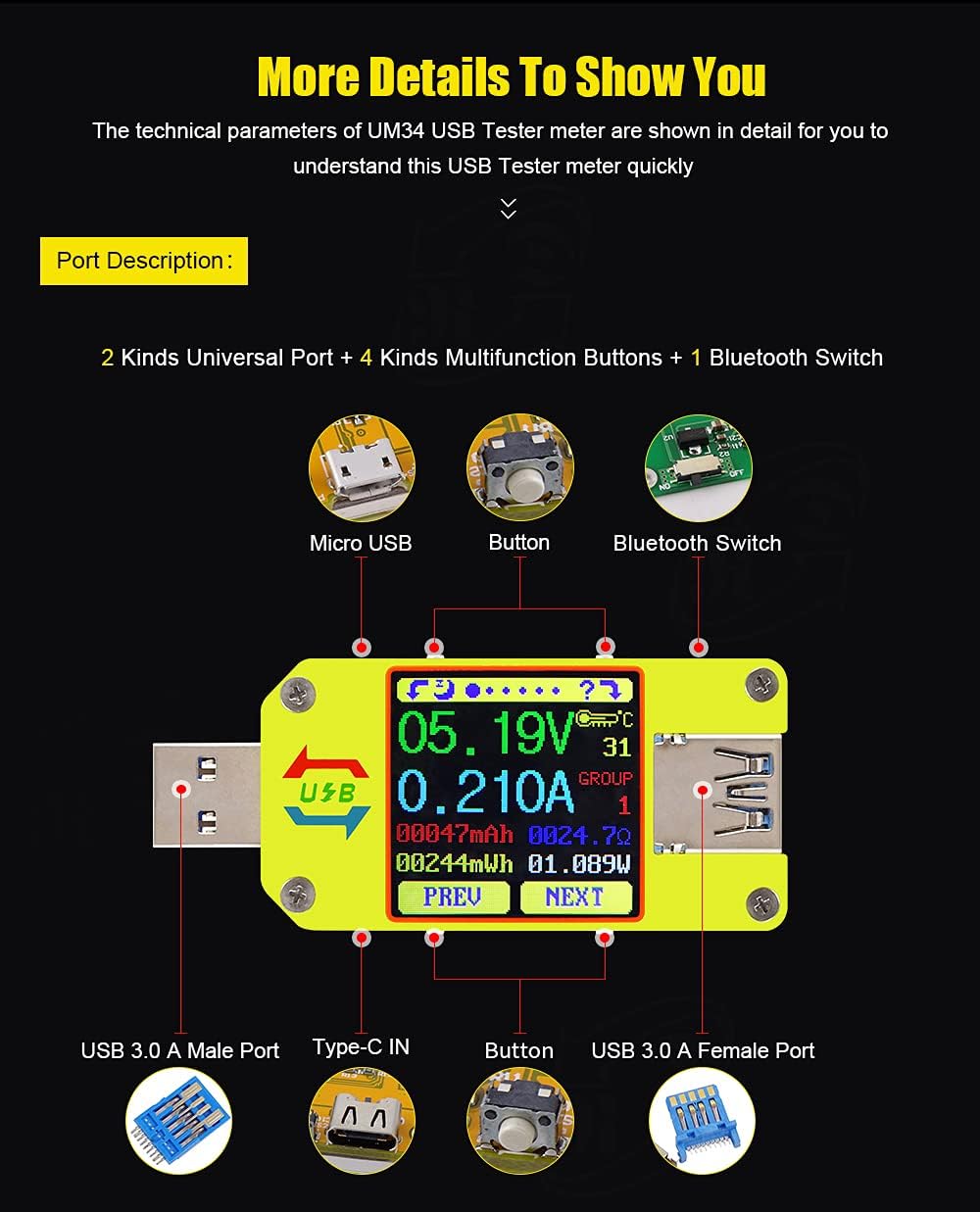
A diagram highlighting the various ports and buttons on the UM34C, including Micro USB, buttons, Bluetooth switch, USB 3.0 A Male Port, Type-C IN, and USB 3.0 A Female Port.

An illustration showing the UM34C USB Meter Tester connected in various scenarios, including with laptops, smartphones, power banks, and chargers, demonstrating its versatility.
4. Operating Instructions
4.1. Navigating Interfaces
The UM34C features multiple measurement interfaces. Use the "PREV" and "NEXT" buttons to cycle through them.
- Measurement Main Interface: Displays real-time voltage, current, power, capacity, and energy.
- Quick Charge Recognition Interface: Shows detected quick charge protocols.
- Charging Recording Interface: Logs charging data over time.
- Wire Impedance Measurement Interface: For cable resistance testing.
- Measurement Graphing Interface: Visualizes voltage and current trends.
- System Parameter Setting Interface: Allows adjustment of settings like screen brightness and auto-off time.

A collage showing the UM34C displaying its six different measurement interfaces, including the main display, quick charge recognition, charging record, wire impedance, graphing, and system settings.
4.2. Correct Connection Orientation
Ensure the UM34C is connected with the USB-A IN port facing the power source and the USB-A OUT or Type-C IN port facing the device being charged or tested. Refer to the diagram for correct and incorrect connection methods.

A diagram illustrating the correct and incorrect ways to connect the UM34C USB Meter Tester, showing the proper orientation for USB-A IN and USB-A OUT/Type-C IN ports.
4.3. APP Connection (UM34C Only)
For the UM34C model, download the "UM_Meter" app. For Android, the app can be found via the provided QR code or link. For iOS, search "UM_Meter" in the App Store. Enable Bluetooth on your mobile device and connect to the UM34C to access advanced monitoring and data logging features.
5. Maintenance
To ensure the longevity and accuracy of your UM34C USB Meter Tester:
- Keep the device clean and free from dust and moisture.
- Avoid dropping or subjecting the device to strong impacts.
- Do not attempt to disassemble the device, as this may void the warranty.
- Store in a cool, dry place when not in use.
- The protective film on the screen can be removed if scratched, as this is a normal phenomenon and not a defect.

An image of the UM34C USB Meter Tester with a close-up showing the protective film on the screen, indicating it can be removed.
6. Troubleshooting
6.1. No Display/No Power
- Ensure the USB-A male port is fully inserted into a powered USB source.
- Check if the power source itself is functional by connecting another device.
6.2. Inaccurate Readings
- Verify that all connections are secure and free from debris.
- Ensure the cable being tested is not faulty.
- For quick charge recognition, note that agreement models are for reference only and may vary with device updates.
6.3. Bluetooth Connection Issues (UM34C Only)
- Ensure Bluetooth is enabled on both your mobile device and the UM34C.
- Restart both the meter and your phone.
- Confirm you have the correct "UM_Meter" app installed from a reliable source.
- Ensure the app has necessary permissions on your mobile device.
7. Technical Specifications
| Parameter | Value |
|---|---|
| Model | UM34/UM34C |
| Display screen | 1.44 inch color LCD display |
| Voltage measurement range | 4-24.00V |
| Voltage measurement resolution | 0.01V |
| Current measurement range | 0-4.000A |
| Current measurement resolution | 0.001A |
| Capacity accumulation range | 0-99999mAh |
| Energy accumulation range | 0-99999mWh |
| Load impedance range | 0.8Ω-9999.9Ω |
| Temperature range | -10°C~100°C/0°F~200°F |
| Refresh rate | 2Hz |
| Voltage measurement accuracy | ± (0.2%+1digit) |
| Current measurement accuracy | ± (0.8%+3digits) |
| Temperature measurement error | ± 3°C/ ± 6°F |
| Screen brightness setting | Levels 0-5 |
| Delay off the screen time | 0-9minutes |
| Dimensions | 71.2mm x 30.5mm x 11.3mm (UM34) 71.2mm x 30.5mm x 12.4mm (UM34C) |
| Product weight | UM34: 47g, UM34C: 51g (With packaging) |
| Quick charge recognition mode | QC2.0, QC3.0, APPLE 2.4A/2.1A/1A/0.5A, Android DCP, SAMSUNG |
8. Warranty and Support
Specific warranty information for the RD UM34C USB Meter Tester is not provided in this manual. Please refer to the product packaging or the manufacturer's official website for warranty details. For technical support, contact the manufacturer directly through their official channels.


