1. Setup
1.1 Package Contents
Verify that all items are present in the package:
- Super Console X Cube Unit
- 2 Wireless Controllers
- HD Cable
- Power Adapter
- TF Card (128GB)
- User Manual

Image: All components included in the Super Console X Cube package.
1.2 Connecting Your Console
Follow these steps to connect your Super Console X Cube:
- Insert TF Card: Gently insert the pre-loaded TF card into the TF card slot on the console.
- Connect HD Cable: Connect one end of the HD cable to the 'HD' port on the console and the other end to an available HDMI input on your television or monitor.
- Connect Power Adapter: Plug the power adapter into the 'DCIN' port on the console, then plug the adapter into a power outlet.
- Connect Controllers: The wireless controllers connect via USB dongles. Insert the USB dongles into any of the four USB ports on the front of the console. Ensure the controllers are powered on.
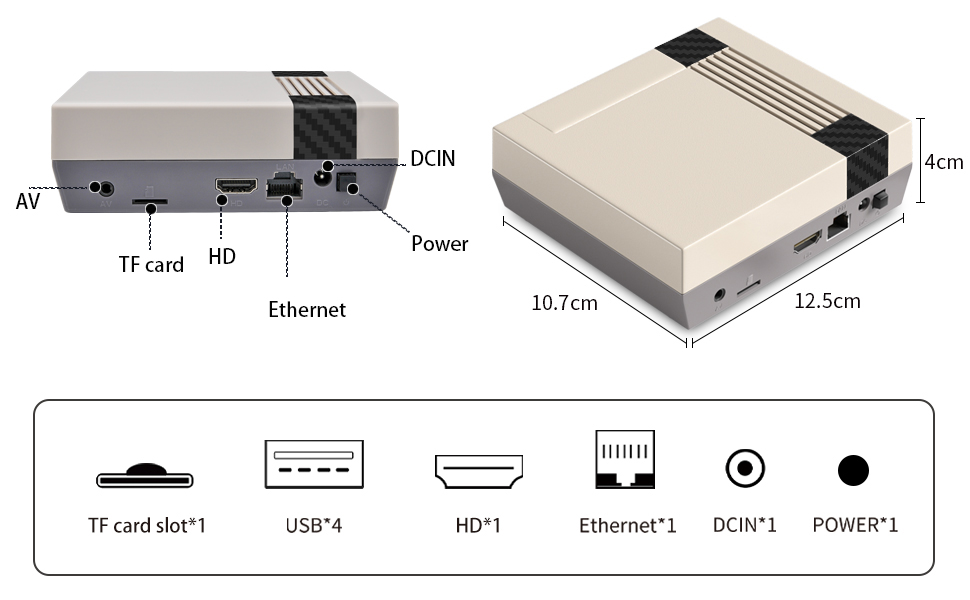
Image: Overview of the console's ports and dimensions.

Image: The console connected to a television, demonstrating 4K HD output.
1.3 Initial Power On
After connecting all components, press the power button on the console. The system will boot up, and the main menu will appear on your screen. Allow a few moments for the system to load completely.
2. Operating Instructions
2.1 Navigating the System
Use the directional pad (D-pad) on your controller to navigate through menus and game lists. The 'A' button typically confirms selections, and the 'B' button usually returns to the previous screen.
2.2 Playing Games
From the main menu, select an emulator or game category. Browse the list of pre-installed games. Select a game and press the 'A' button to launch it. To exit a game, refer to the specific emulator's hotkey combination (often a combination of 'SELECT' and 'START' buttons).
2.3 Network Connection (Wi-Fi & LAN)
The console supports both Wi-Fi and LAN connections for downloading games and system updates.
- For Wi-Fi: Navigate to 'NETWORK SETTINGS' in the system menu. Select 'ENABLE WIFI' and choose your network from the list. Enter the password if prompted.
- For LAN: Connect an Ethernet cable from your router to the 'Ethernet' port on the console. The system should automatically detect the connection.
Video: Demonstrates how to access network settings and enable Wi-Fi on the Super Console X Cube.
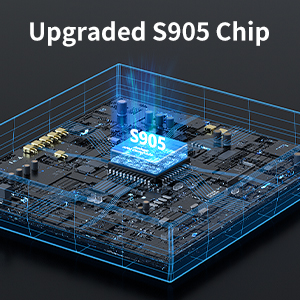
Image: Console connected to a network via Wi-Fi.
2.4 Adding More Games
The console supports adding additional games via TF card or network download.
- TF Card Expansion: You can expand the game library by adding games to the TF card. Remove the TF card from the console, insert it into a card reader connected to a computer, and transfer game ROMs to the corresponding emulator folders. Reinsert the TF card into the console.
- Network Download: With an active internet connection, some systems allow direct game downloads. Refer to the system's 'UPDATES & DOWNLOADS' section for available options.

Image: Steps for adding games to the console via TF card.
2.5 Multiplayer Gaming
The Super Console X Cube supports up to 5 players simultaneously, utilizing its 4 USB ports for controller dongles and one additional wired controller if desired. Simply connect additional wireless controller dongles or wired controllers to the available USB ports. The system will automatically detect them.

Image: Multiple players enjoying games on the console.
3. Maintenance
3.1 Cleaning
To maintain your console, regularly wipe the exterior with a soft, dry cloth. Avoid using liquid cleaners or abrasive materials, as these can damage the finish or internal components. Ensure the console is powered off and unplugged before cleaning.
3.2 Storage
Store the console in a cool, dry place away from direct sunlight, extreme temperatures, and high humidity. When not in use for extended periods, disconnect the power adapter and store the console and accessories in their original packaging or a protective case to prevent dust accumulation and damage.
4. Troubleshooting
This section addresses common issues you might encounter with your Super Console X Cube.
| Issue | Possible Cause | Solution |
|---|---|---|
| Games are slow or glitchy. | Emulator limitations, game file corruption, or system resource strain. | Ensure the TF card is properly inserted. Try restarting the console. For specific games, some older or more demanding titles may experience performance variations due to emulation. |
| Console overheats after short use. | Poor ventilation or prolonged heavy use. | Ensure the console is placed in a well-ventilated area. Avoid blocking air vents. Take breaks during extended gaming sessions. |
| Controllers do not respond. | Low battery, incorrect connection, or pairing issue. | Check controller batteries and replace if necessary. Ensure USB dongles are securely inserted into the console's USB ports. Re-pair controllers if they are not automatically detected (refer to controller-specific instructions). |
| Cannot connect to Wi-Fi/LAN. | Incorrect network settings, weak signal, or router issue. | Verify network settings (SSID, password). Ensure the console is within Wi-Fi range or the Ethernet cable is properly connected. Restart your router and the console. |
| No display on TV. | Incorrect HDMI connection, wrong TV input, or power issue. | Check that the HD cable is securely connected to both the console and the TV. Ensure your TV is set to the correct HDMI input. Verify the console is powered on. |
5. Specifications
The Kinhank Super Console X Cube is designed with the following technical specifications:
- Model Name: Super Console X Cube
- Brand: Kinhank
- Processor: Upgraded S905 Chip (64-bit 4-core CPU, 5-core Mali-450 graphics processor)
- Output: 4K HD (1080P)
- Emulators: Compatible with 70+ emulators
- Pre-installed Games: 55,000+ retro classic games
- Storage: 128GB TF Card (expandable)
- Connectivity: Wi-Fi, LAN (Ethernet), USB (4 ports)
- Input Device: Gamepad (2 wireless controllers included)
- Multiplayer Support: Up to 5 players
- Product Dimensions: 3.9 x 3.9 x 1.2 inches
- Item Weight: 1.63 pounds

Image: Visual representation of the upgraded S905 chip.
6. Warranty and Support
6.1 Product Warranty
This product comes with a standard manufacturer's warranty. Please refer to the warranty card included in your package or contact the seller for specific details regarding warranty coverage and duration.
6.2 Customer Support
For technical assistance, troubleshooting, or any questions regarding your Kinhank Super Console X Cube, please contact the seller or manufacturer directly through the platform where the product was purchased. Have your product model and purchase details ready for efficient support.


