
Introduction
This manual provides detailed instructions for the installation, operation, and maintenance of your Topcony TY-10 Outdoor WiFi Security Camera. Please read this manual thoroughly before using the product to ensure proper function and safety. Keep this manual for future reference.

Image: Topcony TY-10 Outdoor WiFi Security Camera, black dome design with dual antennas.
Product Overview
Key Features
- High Definition Video: 1920x1080 resolution with a high-performance sensor for clear imaging.
- Advanced Night Vision: Equipped with 8 white LEDs and 8 infrared lights, providing up to 30 meters of night vision, including color night vision capability.
- Pan-Tilt-Zoom (PTZ) Functionality: Horizontal rotation of 355° and vertical rotation of 90°, controllable via mobile application. Supports 4x digital zoom.
- Motion Detection & Tracking: Sends alarm messages to your phone upon detecting movement and automatically tracks moving objects.
- Two-Way Audio: Built-in microphone and speaker for real-time communication through the CamhiPro application.
- Storage Options: Supports local storage via micro SD card (up to 128GB).
- Weatherproof Design: IP66 rated for outdoor use, resistant to dust and water.
- Enhanced Connectivity: Dual 5dBi antennas ensure stable WiFi signal reception for smooth video streaming.
- Multi-Device Access: Compatible with PC and mobile phones for remote viewing and control.
Package Contents
The product package includes:
- Topcony TY-10 Outdoor WiFi Security Camera
- Power Adapter (Charger)
- Mounting Screws and Anchors
- User Manual (this document)
Setup Instructions
1. Physical Installation
- Choose a Location: Select an outdoor location with a clear view of the area you wish to monitor. Ensure the camera is within range of your WiFi network.
- Mount the Camera: Use the provided mounting screws and anchors to securely attach the camera to a wall or ceiling.
- Connect Power: Plug the power adapter into the camera and then into a power outlet.

Image: Topcony TY-10 camera mounted on an outdoor fence, demonstrating its IP66 waterproof design during rain.
2. Network Configuration
- Download the App: Search for "CamhiPro" in your mobile device's app store (iOS or Android) and download the application.
- Register/Login: Open the CamhiPro app and create a new account or log in if you already have one.
- Add Camera: Follow the in-app instructions to add your camera. This typically involves scanning a QR code on the camera or manually entering its ID.
- Connect to WiFi: Configure the camera to connect to your 2.4GHz WiFi network. Ensure your router is within effective range, especially with the camera's dual 5dBi antennas.

Image: Topcony TY-10 camera mounted on a building, highlighting its dual 5dBi antennas for improved WiFi reception.
Operating Instructions
Live View and PTZ Control
- Open the CamhiPro app and select your camera to view the live feed.
- Use the on-screen controls to pan (355° horizontal) and tilt (90° vertical) the camera lens.
- Pinch to zoom in or out on the live feed (4x digital zoom).

Image: A smartphone displaying the CamhiPro app interface with controls for 355° horizontal and 90° vertical rotation of the camera.
Motion Detection and Tracking
- Enable motion detection in the app settings.
- When motion is detected, the camera will send an alarm notification to your phone.
- The camera can automatically track moving objects within its field of view.
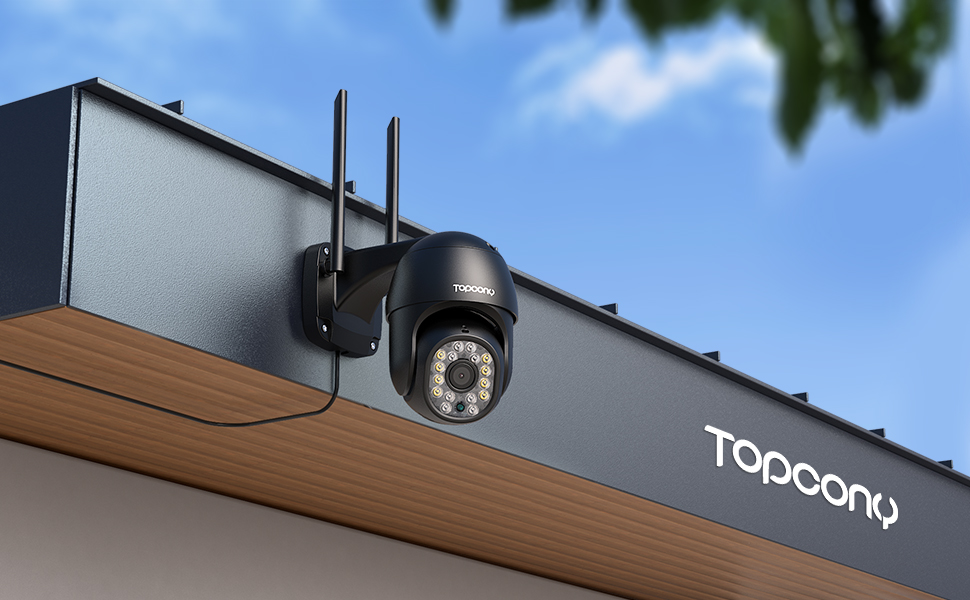
Image: A Topcony TY-10 camera mounted on a brick wall, with a notification bubble indicating "IP CAM: Motion Detection Notification" from CamhiPro. This image also shows video preview thumbnails, but no video files are embedded.
Two-Way Audio
- From the live view in the CamhiPro app, tap the microphone icon to speak through the camera's speaker.
- Tap the speaker icon to listen to audio from the camera's microphone.

Image: A person using the CamhiPro app on a smartphone to communicate via the camera, showing speech bubbles like "Hello, your package has arrived" and "Thank you, please leave it at the door."
Night Vision Modes
- The camera supports both infrared (black and white) and color night vision, utilizing its 8 white LEDs and 8 infrared lights.
- Switch between night vision modes in the app settings as needed.

Image: A split view showing the same outdoor scene at night, one side in "Color Mode 1080P FHD" with ambient lighting, and the other in "Infrared Mode 1080P FHD" in black and white.
Multi-Device Connection
- The camera supports simultaneous viewing and control from multiple devices, including smartphones, tablets, and PCs.
- Access your camera feed and settings from various devices using the CamhiPro application.

Image: A laptop, tablet, and smartphone simultaneously displaying live feeds from the security camera, illustrating multi-device connectivity.
Maintenance
- Cleaning: Regularly wipe the camera lens with a soft, dry cloth to ensure clear image quality. Do not use harsh chemicals.
- Firmware Updates: Check the CamhiPro app periodically for firmware updates to ensure optimal performance and security.
- Power Supply: Ensure the power adapter and cable are free from damage.
- SD Card Management: If using a micro SD card, periodically check its status and format it through the app to maintain recording efficiency.
Troubleshooting
Common Issues and Solutions
| Issue | Possible Cause | Solution |
|---|---|---|
| Camera offline | No power, weak WiFi signal, network changes. | Check power connection. Ensure camera is within WiFi range. Restart router. Reconfigure network settings in the app. |
| Poor image quality | Dirty lens, low light, network bandwidth. | Clean the lens. Ensure adequate lighting or proper night vision mode is selected. Check internet speed. |
| Motion detection not working | Feature disabled, incorrect sensitivity settings. | Enable motion detection in app settings. Adjust sensitivity levels. Define detection zones. |
| Two-way audio issues | Microphone/speaker muted, app permissions, network delay. | Check mute settings in the app. Grant microphone permissions to the app. Ensure stable network connection. |
Specifications
| Feature | Detail |
|---|---|
| Model Name | TY-10 |
| Model Number | TY10BK |
| Video Resolution | 1080p (1920x1080) |
| Viewing Angle | 355° Horizontal, 90° Vertical |
| Night Vision Range | Up to 30 meters |
| LEDs | 8 White LEDs, 8 Infrared LEDs |
| Connectivity | Wi-Fi (2.4GHz) with Dual 5dBi Antennas |
| Storage | Micro SD card up to 128GB (not included) |
| Weather Resistance | IP66 Waterproof |
| Power Source | Electric Cable (Charger included) |
| Material | Plastic |
| Dimensions (L x W x H) | 19.2 x 18 x 12 cm |
| Weight | 780 grams |
| Recommended Use | Outdoor Surveillance |
Warranty and Support
For warranty information and technical support, please refer to the documentation provided with your purchase or visit the official Topcony website. If you encounter any issues not covered in this manual, please contact Topcony customer service for assistance.
Contact information can typically be found on the product packaging or the manufacturer's website: Topcony Brand Store

