
Jebao MLW-30
Jebao MLW-30 Smart Wave Maker Instruction Manual
Model: MLW-30
1. Introduction
The Jebao MLW-30 Smart Wave Maker is designed to create diverse wave patterns in saltwater tanks, providing an optimal environment for aquatic life. Featuring a unique control system with multiple wave styles and functions, this device offers wireless control for synchronized operation. Its low voltage DC brushless electronic motor ensures safe and quiet performance.
2. What's in the Box
Upon unboxing your Jebao MLW-30 Smart Wave Maker, ensure all components listed below are present and free from damage.
- Jebao MLW-30 Wave Maker Pump
- LCD Display Controller
- Power Supply Adapter
- Magnetic Base
- Angled Rubber Mount
- User Manual

Figure 2.1: Contents of the Jebao MLW-30 Smart Wave Maker package.
3. Product Overview
Familiarize yourself with the different parts of the Jebao MLW-30 Wave Maker.

Figure 3.1: Front view of the wave maker pump.

Figure 3.2: Side view of the wave maker pump.

Figure 3.3: Top view of the wave maker pump.
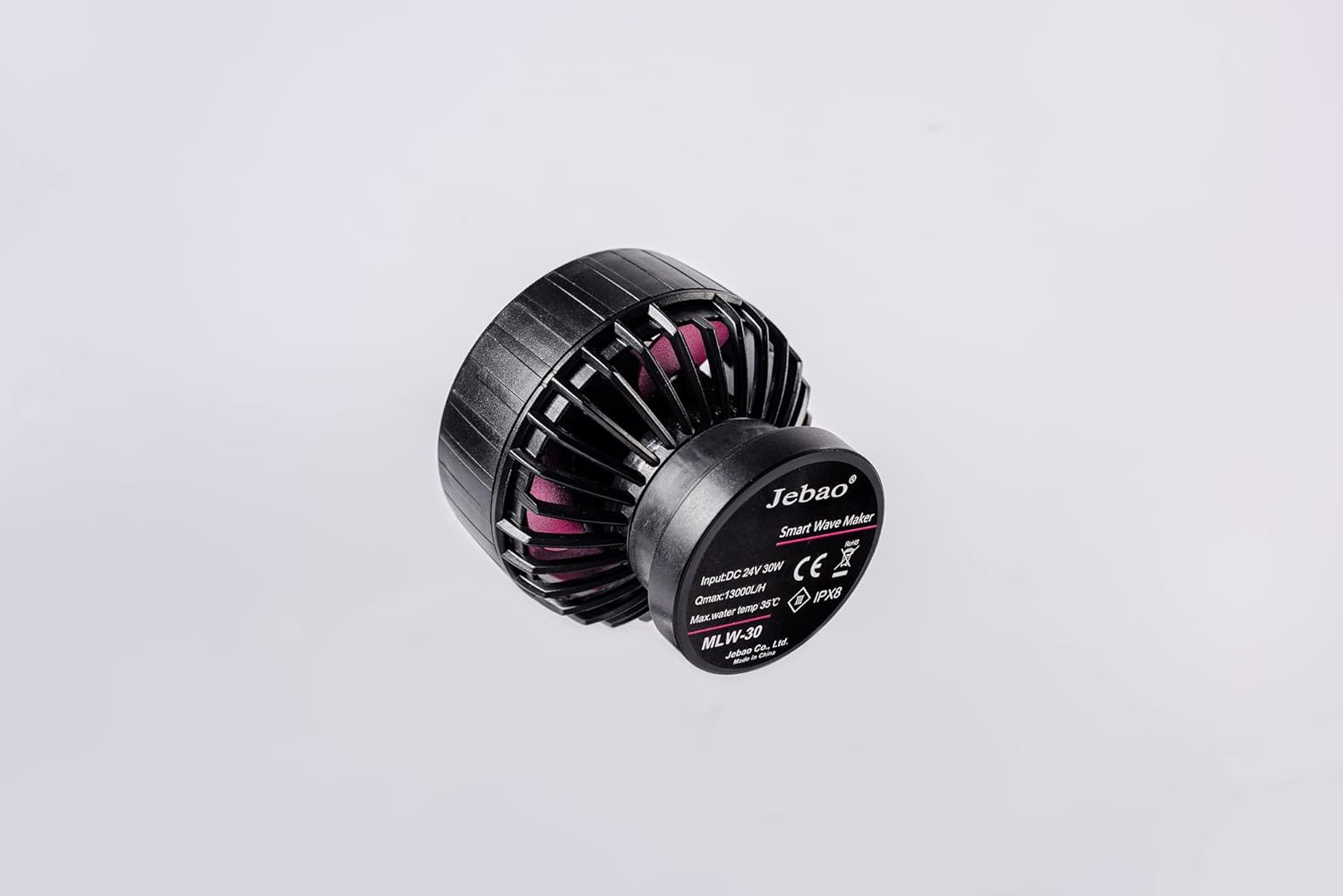
Figure 3.4: Rear view of the wave maker pump with specifications.
4. Setup Instructions
- Unpack: Carefully unbox the Jebao MLW Smart Wave Maker and remove all protective packaging materials.
- Position Wave Maker: Place the wave maker inside your aquarium. Ensure the magnetic base is securely attached to the aquarium glass. The angled rubber mount can be used to adjust the pump's direction.
- Connect Power: Connect the power cable adapter to the wave maker and then to a power outlet.
- Download App: Download and install the 'Jebao Aqua' app on your iOS or Android device.
- Connect Wi-Fi: Follow the in-app instructions to connect the wave maker to your Wi-Fi network.
- Initial Control: Once connected, you can begin controlling the wave maker using either the LCD display controller or the mobile app.
- Optimal Performance: Always ensure the submerged water intake is not blocked for optimal performance.
- Safety: Do not operate the pump without water. Keep the device away from children and pets.
Video 4.1: Unboxing and initial setup guide for the Jebao MLW Series Wavemaker, demonstrating component identification and basic assembly.
5. Operating Instructions
5.1. Manual Control (LCD Display Controller)
- Power On/Off: Press and hold the middle button to turn the wave maker on or off.
- Adjust Flow Rate: Use the up and down arrow buttons to adjust the flow rate. The lowest flow rate is 30%, and the highest is 100%. Tap to adjust by 1%, or press and hold for quick adjustment.
- Feed Mode: Quickly press the middle button to enter Feed Mode. Press it again to exit.
- Change Modes: Press the 'Mode' button to cycle through different wave modes (e.g., Classic, Sine, Random). The display will show an image representing the selected wave mode.
- Adjust Frequency: Press and hold the 'Mode' button to adjust the frequency of the wave maker. The number in the lower-left corner will flash. Use the up and down buttons to adjust the frequency from 5% to 100%.
- Master/Slave Mode: Tap the Wi-Fi symbol to enter Master or Slave mode. The display will show 'S' for Slave or 'M' for Master in the lower-right corner.
Video 5.1: Demonstration of manual control functions on the LCD display controller, including power, flow, mode, and frequency adjustments.
5.2. App Control (Jebao Aqua App)
- Connect Device: Open the Jebao Aqua app and select your wave maker from the 'My Devices' list.
- Power On/Off: Press the central 'OFF' button on the app interface to turn the wave maker on. It will change to 'ON'.
- Manual Setting: Tap the 'Manual' button (lower-left) to adjust flow rate and frequency. You can select different wave types like Pulse or Cross-flow and set their parameters.
- Feed Pause Time: Within the manual settings, you can adjust the duration of the feed pause time.
- Linkage (Master/Slave): Use the 'Linkage' button to select between Master and Slave pump modes for synchronized operation with multiple wave makers.
- Program Schedule: The 'Program' button (lower-right) allows you to set a schedule for when the pump should turn on and operate in specific modes (e.g., Classic, Sine, Random, Feed). You can define start and end times and select the desired mode, flow rate, and frequency for each programmed period. Programs can also be deleted.
- Rename/Delete Device: Tap the three-dot symbol in the top-right corner of the app to rename or delete your device from the app.
Video 5.2: Detailed guide on connecting the wave maker to the Jebao Aqua app and utilizing its various control features, including manual settings and programming.
6. Maintenance
- Regularly check and clean the water intake to prevent blockages, which can affect performance.
- Ensure the wave maker is always submerged in water during operation. Operating without water can cause damage.
- Periodically inspect the power cable and connections for any signs of wear or damage.
7. Troubleshooting
If you encounter issues with your Jebao MLW-30 Smart Wave Maker, consider the following general troubleshooting steps:
- No Power: Check all power connections and ensure the power adapter is securely plugged into both the wave maker and a working power outlet.
- Weak Flow/No Waves: Verify that the water intake is not blocked by debris. Ensure the pump is fully submerged and operating correctly.
- App Connectivity Issues: Confirm your Wi-Fi network is active and stable. Ensure your mobile device is connected to a 2.4GHz Wi-Fi network during initial setup, as some devices may struggle with 5GHz. Restart the app and the wave maker controller.
- Unusual Noise: Check for any foreign objects inside the pump impeller. Ensure the magnetic mount is securely attached and the pump is not vibrating against the tank glass.
For more detailed troubleshooting or specific error codes, please refer to the Jebao Aqua app's help section or the official Jebao website.
8. Specifications
| Feature | Detail |
|---|---|
| Model | MLW-30 |
| Brand | Jebao |
| Power | 24V 30-watt |
| Max Flow | 3434 GPH (13000 L/H) |
| Control | 2.4G Wi-Fi (iOS/Android) + LCD Display Controller |
| Technology | SINE wave technology for ultra-quiet operation |
| Water Type | Suitable for both marine and fresh water |
| Material | Plastic, Stainless Steel (No exposed copper elements) |
| Dimensions (Pump Only) | 2" x 3" diameter |
| Item Weight | 2.07 pounds |
9. Warranty and Support
For detailed warranty information, product registration, and customer support, please visit the official Jebao website or contact their customer service directly. Keep your purchase receipt as proof of purchase for warranty claims.
Related documentsMLW-30


Ask a question about this manual
Ask about setup, troubleshooting, compatibility, parts, safety, or missing instructions. Manuals+ will review the question and use this page’s manual context to help answer it.