
Introduction
The Cooler Master MM731 Wireless Gaming Mouse is engineered for high-performance gaming, combining a lightweight design with advanced connectivity options and precise sensor technology. This manual provides detailed instructions for setting up, operating, maintaining, and troubleshooting your MM731 mouse to ensure optimal performance and longevity.
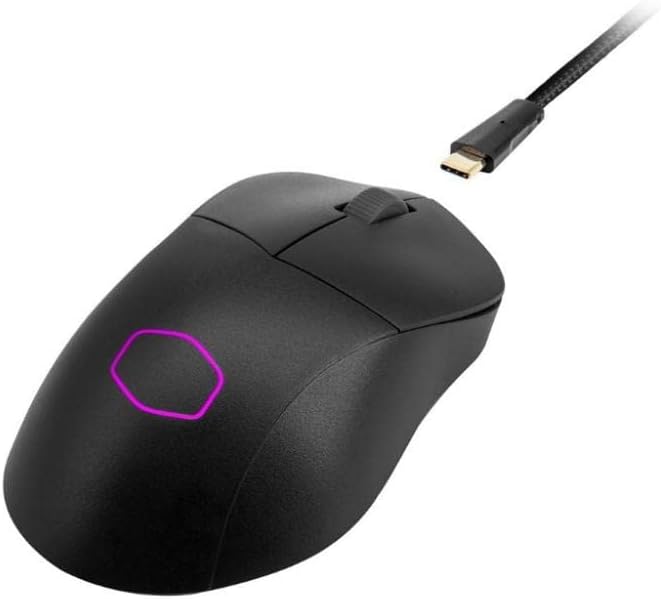
Figure 1: Cooler Master MM731 Wireless Gaming Mouse with USB-C Cable.
Key features include hybrid 2.4GHz/Bluetooth wireless connectivity, an adjustable 19,000 DPI optical sensor, durable optical micro switches, and ultra-smooth PTFE feet, all housed within a lightweight 59g ergonomic shell.
Setup
The MM731 offers versatile connectivity options: wired, 2.4GHz wireless, and Bluetooth 5.1. Follow these steps for initial setup:
1. Wired Connection
- Connect the provided Ultraweave USB-C cable to the front port of the MM731 mouse.
- Plug the other end of the USB-A cable into an available USB port on your computer.
- The mouse will be recognized automatically, and you can begin using it immediately.
2. 2.4GHz Wireless Connection
- Locate the 2.4GHz wireless dongle stored in the compartment on the underside of the mouse.
- Plug the USB dongle into an available USB port on your computer.
- On the underside of the mouse, slide the connectivity switch to the 2.4GHz position (indicated by a wireless icon).
- The mouse should automatically connect. If not, press the 'Pair' button on the underside of the mouse.

Figure 2: Underside of MM731 showing the USB dongle compartment, connectivity switch, and pair button.
3. Bluetooth 5.1 Connection
- On the underside of the mouse, slide the connectivity switch to the Bluetooth position (indicated by a Bluetooth icon).
- Press and hold the 'Pair' button on the underside of the mouse until the RGB lighting on the mouse begins to blink, indicating it is in pairing mode.
- On your computer, navigate to Bluetooth settings and search for new devices.
- Select 'Cooler Master MM731' from the list of available devices to complete the pairing process.
4. Software Installation (MasterPlus+)
For advanced customization, including DPI settings, button remapping, macros, and RGB lighting control, download and install the Cooler Master MasterPlus+ software from the official Cooler Master website. This software allows you to fine-tune your mouse to your preferences.

Figure 3: MasterPlus+ software interface for customizing mouse features.
Operating the Mouse
The MM731 is designed for intuitive use with several features to enhance your gaming and productivity.
Button Functions
- Left Click Button: Primary action. Equipped with optical switches for superior durability and instant actuation.
- Right Click Button: Secondary action. Also features optical switches.
- Scroll Wheel: Used for scrolling through documents or web pages. Can also be pressed for a middle-click action.
- Side Buttons (Forward/Backward): Typically used for navigation in web browsers or can be programmed for in-game actions via MasterPlus+ software.
- DPI Cycle Button: Located behind the scroll wheel, this button cycles through pre-set DPI levels. Default DPI levels can be customized in MasterPlus+.
DPI Adjustment
The MM731 features an adjustable optical sensor up to 19,000 DPI. You can change DPI sensitivity on-the-fly using the DPI cycle button or precisely configure multiple DPI stages within the MasterPlus+ software.

Figure 4: High-precision 19,000 DPI optical sensor.
RGB Lighting
The Cooler Master logo on the palm rest features customizable RGB lighting. Use the MasterPlus+ software to select from various lighting effects, colors, and brightness levels to personalize your mouse.
Ergonomics and Glide
The MM731's ergonomic shape is designed for comfortable palm and claw grip styles. The upgraded PTFE feet provide an unrivaled, smooth glide across various surfaces, reducing friction and enhancing control.

Figure 5: Durable and smooth PTFE feet.
Maintenance
Proper maintenance ensures the longevity and optimal performance of your MM731 mouse.
Cleaning
- Regularly wipe the surface of the mouse with a soft, dry, lint-free cloth.
- For stubborn dirt, slightly dampen the cloth with water or a mild, non-abrasive cleaner. Avoid harsh chemicals.
- Use a can of compressed air to clear dust and debris from around the buttons, scroll wheel, and sensor area.
- Do not immerse the mouse in water or any cleaning solution.
PTFE Feet Care
The PTFE feet are designed for durability, but excessive friction or abrasive surfaces can wear them down over time. Ensure your mouse pad or surface is clean and free of debris to maintain optimal glide. Replacement PTFE feet may be available from Cooler Master support if needed.
Troubleshooting
If you encounter issues with your MM731 mouse, refer to the following common solutions:
Connectivity Issues
- Wireless (2.4GHz/Bluetooth) Disconnection: Ensure the mouse is charged. Check that the USB dongle is securely plugged in for 2.4GHz. For Bluetooth, ensure your computer's Bluetooth is enabled and the mouse is paired correctly. Try re-pairing the mouse.
- Lag or Stuttering: Move the USB dongle closer to the mouse, or use a USB extension cable if necessary, to reduce interference. Ensure no other wireless devices are causing interference on the same frequency.
- Mouse Not Responding: Try switching to wired mode to confirm basic functionality. Recharge the mouse if the battery is low.
Performance Issues
- Inaccurate Tracking: Clean the optical sensor on the underside of the mouse with a soft cloth. Ensure you are using the mouse on a suitable surface (e.g., a mouse pad).
- DPI Not Changing: Ensure the MasterPlus+ software is installed and updated. Check your DPI profiles within the software.
Software Issues (MasterPlus+)
- Software Not Detecting Mouse: Ensure the mouse is connected (wired or wireless) and powered on. Restart the MasterPlus+ software and your computer.
- Firmware Update: Regularly check for and install firmware updates for your mouse via the MasterPlus+ software. Firmware updates often resolve performance issues and improve stability.
If problems persist, visit the Cooler Master support website for further assistance or to contact technical support.
Specifications
| Feature | Specification |
|---|---|
| Brand | Cooler Master |
| Model Number | MM-731-KKOH1 |
| Connectivity | Wired (USB-C), 2.4GHz Wireless, Bluetooth 5.1 |
| Sensor | Optical (PixArt) |
| DPI | Adjustable up to 19,000 DPI |
| Switches | Optical Micro Switches (70 million click lifespan) |
| Weight | 59g (approx. 2.08 ounces) |
| Dimensions (LxWxH) | 4.8 x 2.72 x 1.54 inches (12.2 x 6.9 x 3.9 cm) |
| Cable | Ultraweave Cable |
| Feet | PTFE |
| Lighting | RGB |
| Operating System Compatibility | Windows 8+, macOS |

Figure 6: MM731 Mouse Dimensions.
Warranty and Support
Cooler Master products are designed for reliability and performance. For warranty information, technical support, and service inquiries, please refer to the official Cooler Master website or contact their customer service directly.
Additional protection plans may be available for purchase from authorized retailers, offering extended coverage beyond the standard manufacturer's warranty. Please review the terms and conditions of any such plans carefully.
For the most up-to-date support resources, including FAQs, drivers, and firmware updates, visit the Cooler Master support portal:


