
1. Introduction
This manual provides detailed instructions for the installation, operation, and maintenance of your VPFET HDMI Extender. This device allows you to extend 1080p HDMI signals up to 200 feet (60 meters) over a single Cat5e/6/7 Ethernet cable. It supports Power over Cable (POC) technology, requiring power only at the Transmitter (TX) unit.
2. Safety Information
- Ensure all cables are connected securely before powering on the device.
- Use only the provided 5V DC power adapter.
- Do not expose the device to moisture or extreme temperatures.
- Avoid disassembling the unit; refer servicing to qualified personnel.
- Use high-quality oxygen-free copper Cat5e/6/7 cables for optimal performance and transmission distance.
3. Package Contents
Verify that all items are present in your package:
- 1 x HDMI Transmitter (TX) Unit
- 1 x HDMI Receiver (RX) Unit
- 1 x 5V DC Power Supply
- 1 x User Manual

Image: Contents of the VPFET HDMI Extender package, showing the transmitter, receiver, power adapter, and user manual.
4. Product Overview and Components
Familiarize yourself with the ports and indicators on both the Transmitter (TX) and Receiver (RX) units.

Image: Detailed view of the Transmitter (TX) and Receiver (RX) units, highlighting HDMI Input/Output, 5V Power Output, EDID Copy button, and RJ45 ports.
Transmitter (TX) Unit:
- HDMI Input: Connects to the HDMI source device (e.g., PC, DVD player, game console).
- 5V Power Input: Connects to the included 5V DC power adapter.
- EDID Copy Button: Used to copy EDID information from the display.
- RJ45 Output (OUT): Connects to the Receiver (RX) unit via Cat5e/6/7 cable.
Receiver (RX) Unit:
- HDMI Output: Connects to the HDMI display device (e.g., TV, monitor).
- RJ45 Input (IN): Connects to the Transmitter (TX) unit via Cat5e/6/7 cable.
- Note: The RX unit receives power via the Cat cable (POC) from the TX unit.
5. Setup Instructions
Follow these steps to set up your HDMI Extender:
- Connect HDMI Source to TX: Connect your HDMI source device (e.g., PC, DVD player, game console) to the HDMI IN port of the Transmitter (TX) unit using a high-quality HDMI cable.
- Connect Display to RX: Connect your HDMI display device (e.g., TV, monitor) to the HDMI OUT port of the Receiver (RX) unit using a high-quality HDMI cable.
- Connect TX and RX with Ethernet Cable: Connect the RJ45 OUT port of the TX unit to the RJ45 IN port of the RX unit using a single Cat5e, Cat6, or Cat7 Ethernet cable. Ensure the cable is oxygen-free copper for optimal performance.
- Power On TX Unit: Connect the included 5V DC power adapter to the 5V Power Input port on the Transmitter (TX) unit. The RX unit will receive power via the Ethernet cable (POC).
- Verify Connection: Once all connections are made and the TX unit is powered, check for signal on your display.

Image: Connection diagram illustrating how to connect the HDMI source (laptop, PC, DVD, TV Box) to the Transmitter (TX), the TX to the Receiver (RX) via a Cat5e/6/7 cable, and the RX to the display.
EDID Copy Function:
The EDID (Extended Display Identification Data) copy function ensures the best video and audio signals are transmitted by allowing the TX unit to learn the display's capabilities. It is recommended to perform this step if you experience display issues.
- Connect the Transmitter (TX) unit directly to your monitor/display using an HDMI cable (without the RX unit or Cat cable).
- Connect the 5V power adapter to the TX unit.
- Press and hold the EDID button on the TX unit for approximately 3 seconds.
- The signal indicator light will flash 3 times, indicating that the EDID information has been successfully copied and stored.
- You can now proceed with the full setup as described above. The copied EDID will be remembered until the TX unit is reset or a new EDID copy operation is performed.
To restore factory EDID settings, connect the TX unit to power, then press and hold the EDID button for 3 seconds. The signal indicator will light up and then turn off, confirming the reset.

Image: Close-up of the Transmitter (TX) unit, highlighting the EDID button and its function in copying display information.
6. Operating Instructions
Once the setup is complete, the VPFET HDMI Extender operates automatically. Ensure your source device is powered on and outputting an HDMI signal, and your display is set to the correct HDMI input.
- Power Over Cable (POC): The TX unit powers the RX unit through the Ethernet cable, simplifying installation by eliminating the need for a power outlet at the display end.
- Automatic Equalization: The built-in automatic equalization algorithm adjusts for cable transmission distance, ensuring stable signal transmission without manual configuration.
- Supported Resolutions: The extender supports resolutions up to 1920x1200@60Hz and 1080p@60Hz.
- Supported Audio Formats: DTS-HD, Dolby-trueHD, DTS, Dolby-AC3, DSD.
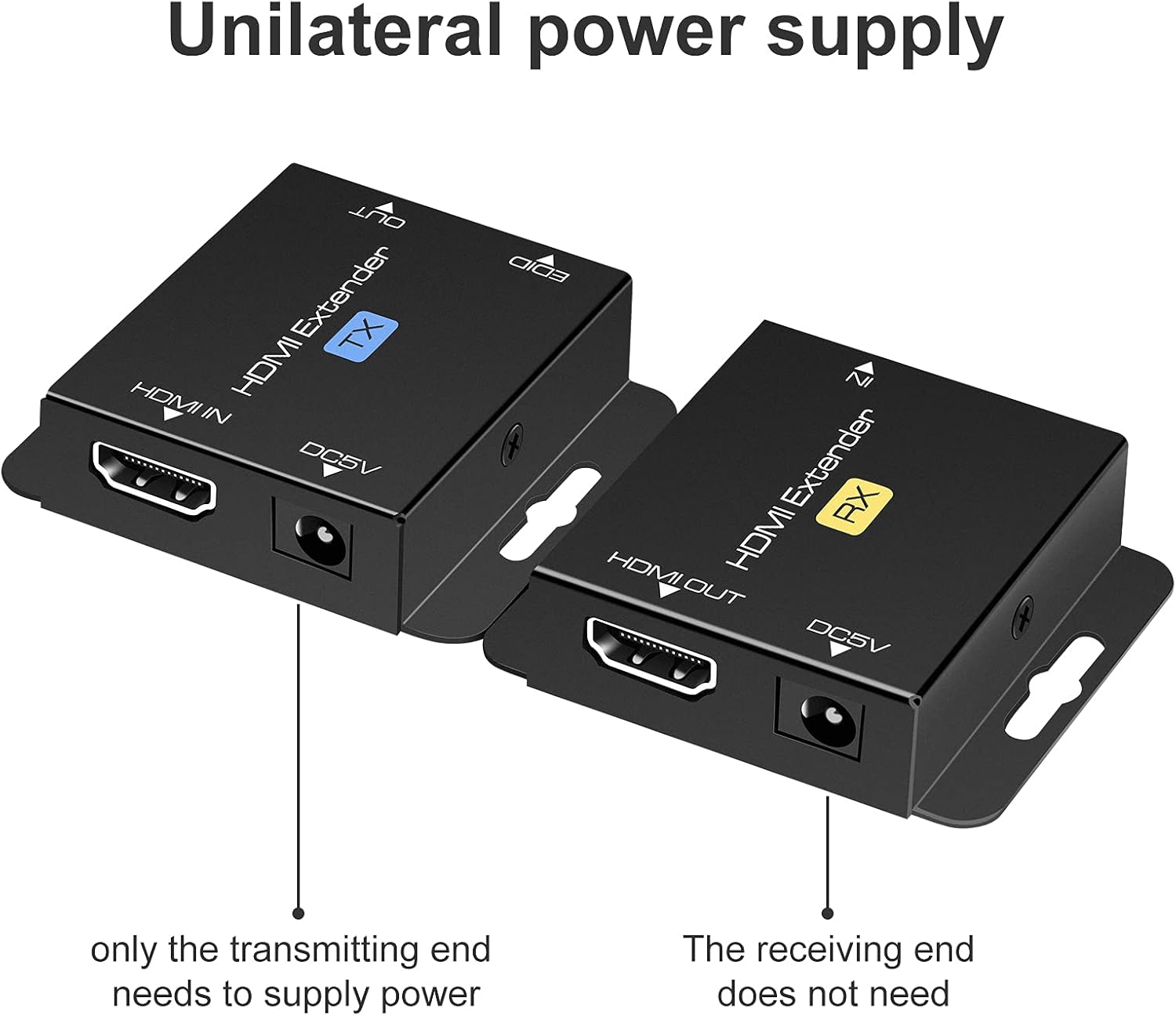
Image: Illustration of the unilateral power supply (POC) feature, indicating that only the transmitting (TX) end requires a power connection, while the receiving (RX) end does not.

Image: An illustration of the HDMI Extender in operation, showing a laptop connected to the TX unit, which is then connected via a long Ethernet cable to the RX unit, and finally to a large display, demonstrating extended transmission distance.
7. Specifications
| Feature | Detail |
|---|---|
| Max Resolution Support | 1920x1200@60Hz / 1080p@60Hz / 3D |
| Transmission Distance (Cat5e/6/7) | Up to 200ft (60m) for 1080p; up to 165ft for 1920x1200@60Hz |
| Supported Audio Formats | DTS-HD, Dolby-trueHD, DTS, Dolby-AC3, DSD |
| Max Transmission Bandwidth | 1.65Gbps |
| Input/Output HDMI Cable Distance | Up to 16ft (5m) AWG26 HDMI standard cable |
| Power Supply | Input: AC 100V-240V (50/60Hz), Output: DC 5V |
| POC Support | Yes (Power on Cat6/7 from TX to RX) |
| EDID Copy | Yes |
| Dimensions (TX/RX Unit) | Approx. 2.4in x 2.1in x 0.63in (6.1cm x 5.3cm x 1.6cm) |
| Item Weight | 9.3 ounces (total package weight) |
Image: Dimensions of the VPFET HDMI Extender Transmitter (TX) unit, showing its compact size.
8. Troubleshooting
If you encounter issues, refer to the following common problems and solutions:
- No Picture/Signal:
- Ensure all HDMI and Ethernet cables are securely connected.
- Verify the TX unit is powered on with the included 5V adapter.
- Check if the display is set to the correct HDMI input.
- Try performing the EDID Copy procedure (Section 5).
- Test with shorter, certified HDMI and Ethernet cables.
- Ensure the Ethernet cable is Cat5e/6/7 (oxygen-free copper recommended) and not damaged.
- Flickering/Intermittent Signal:
- Check cable lengths; ensure they are within the specified limits (200ft for Cat cable, 16ft for HDMI).
- Ensure the Ethernet cable is not running parallel to power lines or other sources of interference.
- Try a different Ethernet cable.
- Perform the EDID Copy procedure.
- No Audio:
- Verify audio settings on your source device and display.
- Ensure the HDMI cables support audio transmission.
- Perform the EDID Copy procedure.
9. Maintenance
The VPFET HDMI Extender requires minimal maintenance. Follow these guidelines to ensure longevity:
- Keep the device in a cool, dry place, away from direct sunlight and heat sources.
- Clean the exterior with a soft, dry cloth. Do not use liquid cleaners or aerosols.
- Ensure proper ventilation around the units to prevent overheating.
10. Warranty and Support
For warranty information or technical support, please refer to the contact details provided with your purchase or visit the official VPFET website. Please have your model number (B099ZCTV74) and purchase date ready when contacting support.