
ORDRO ORDRO Z63-Microphone
ORDRO Z20 Video Camera Camcorder User Manual
Model: ORDRO Z63-Microphone
Introduction
This manual provides detailed instructions for the proper use and maintenance of your ORDRO Z20 Video Camera Camcorder. Please read this manual thoroughly before operating the device to ensure optimal performance and longevity.
What's in the Box
Verify that all items listed below are included in your package:
- ORDRO Z20 Video Camera Camcorder
- 32G SD card
- USB cable
- HDMI cable
- Remote control
- Lens cover
- Hand-held bracket
- Wide Angle lens
- Macro lens
- CM550 Microphone
- Two Lithium Ion batteries
- Battery Charger
- Card Reader
- Camcorder Bag
- User Manual (this document)

Product Overview
The ORDRO Z20 is a Full HD 1080P camcorder designed for various video recording and photography needs. It features an 8MP 1/3.2'' CMOS Sensor, 24MP still image capability, and a 3.0" IPS touch screen with 270° rotation.
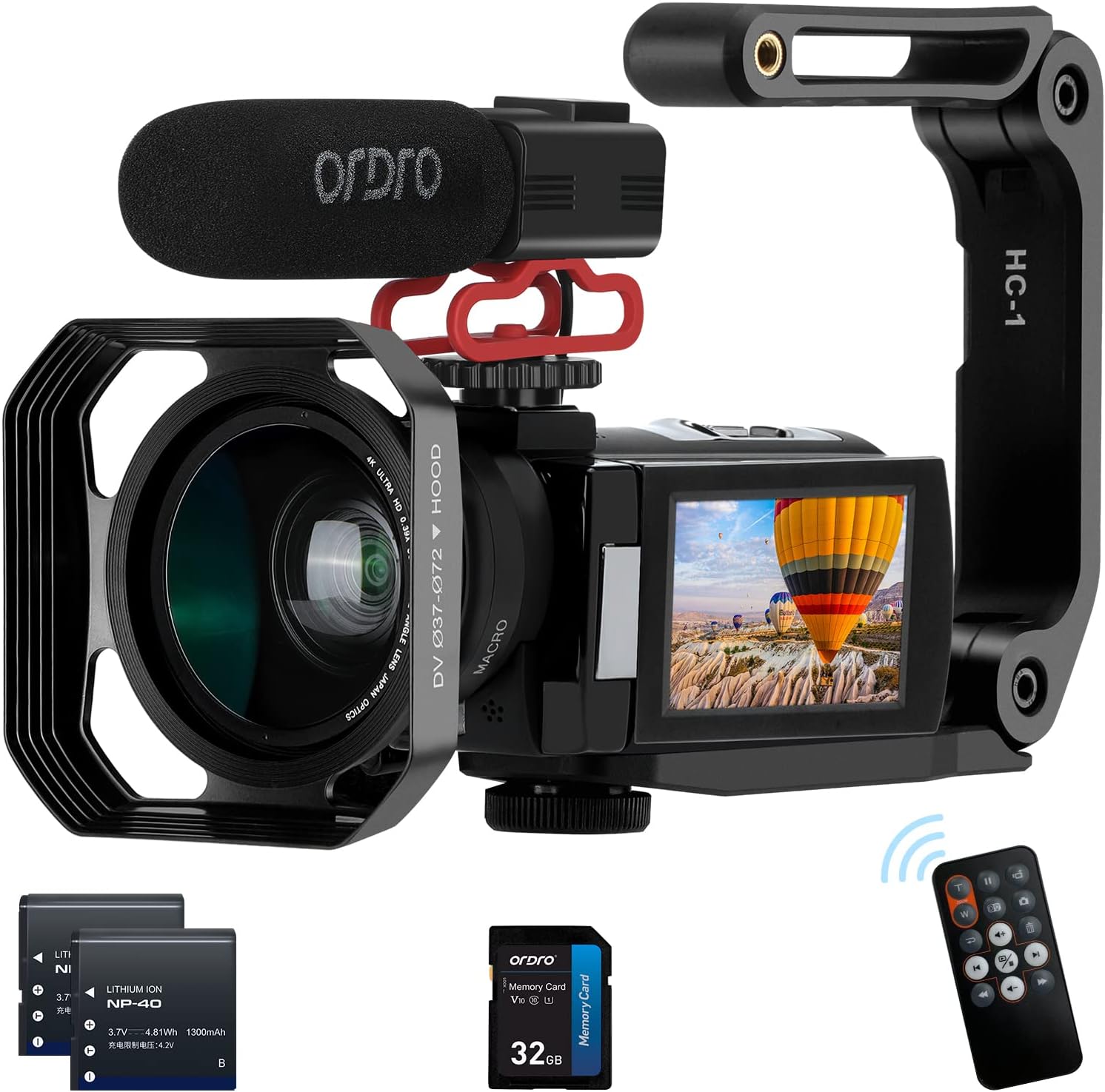
Key Features:
- Full HD 1080P 30FPS Video Recording
- 24MP Still Image Resolution
- IR Night Vision for low-light environments
- WiFi Connectivity for remote control and file transfer
- 16X Digital Zoom
- 3.0" IPS Touch Screen with 270° Rotation
- HDMI and USB Output
- Included Wide Angle and Macro Lenses
- External CM550 Microphone with noise reduction
- Handheld Stabilizer for improved shooting stability

Setup
1. Battery Installation
- Open the battery compartment cover on the camcorder.
- Insert the Lithium Ion battery (NP-40) into the compartment, ensuring correct polarity.
- Close the battery compartment cover securely.
- Charge the battery using the provided charger and USB cable before first use.

2. SD Card Installation
- Locate the SD card slot on the camcorder.
- Insert the 32GB SD card (included) into the slot until it clicks into place. Ensure the card is oriented correctly.
- To remove, gently press the card to eject it.
3. Attaching Accessories
Microphone (CM550)
- Mount the CM550 microphone onto the hot shoe mount on top of the camcorder.
- Connect the microphone's 3.5mm audio jack to the microphone input port on the camcorder.
- Ensure the microphone is charged if it has an internal battery.

Wide Angle and Macro Lenses
- The macro lens is designed for close-up shots (within 10cm).
- The wide-angle lens (0.39x) captures a broader field of view (1.5 meters or more).
- To use the wide-angle lens, it must be screwed onto the macro lens first. The macro lens then attaches to the camcorder's main lens.

Handheld Stabilizer
- Attach the camcorder to the handheld bracket using the standard tripod screw mount at the bottom of the camera.
- The stabilizer helps improve shooting stability, especially during handheld recording.

Operating Instructions
1. Power On/Off
Open the LCD screen to power on the camcorder. Close the LCD screen to power off. There is also a dedicated power button behind the LCD screen.
2. Basic Recording (Video/Photo)
- Use the 'Mode' button (located behind the LCD screen) to switch between video recording mode and photo capture mode.
- In video mode, press the dedicated record button on the back of the camera to start/stop recording.
- In photo mode, press the shutter button on top of the camera to take a picture.
3. Using the Touch Screen
The 3.0" IPS touch screen allows for intuitive navigation of menus and settings. Tap on icons or options to select them.
4. Zoom Function
Utilize the zoom controls on the camcorder to adjust the 16X digital zoom. Note that digital zoom may reduce image quality at higher magnifications.
5. Infrared Night Vision
To enable night vision, press the 'IR' button (located behind the LCD screen). This function uses infrared waves sensed by the CMOS sensor to capture clearer, black and white images in low-light or dark environments.
6. WiFi Function / App Connectivity
The camcorder supports WiFi connectivity. Download the 'D Video' app on your smartphone to connect to the camera. This allows for remote preview, recording, shooting, and transferring videos and images to your smartphone.

7. Webcam Function
Connect the camcorder to your computer using the included USB cable. The camera can function as a webcam for video calls or live streaming on platforms like Facebook or YouTube.

8. HDMI Output
Connect the camcorder to a TV or monitor using the included HDMI cable to play back recorded content in Full HD quality.

9. Other Functions
- Pause Function: Allows pausing and resuming video recording without creating multiple files.
- Anti-shake: Helps reduce blur caused by camera movement.
- Face Priority: Optimizes focus and exposure for faces detected in the frame.
- Continuous Shooting: Captures a rapid sequence of photos.
- Date Watermark: Adds a date and time stamp to your recordings.
- Time-lapse: Records a series of images over time to create a sped-up video.
- Recording While Charging: The camera can operate while connected to a power source.
Maintenance
- Keep the camcorder and accessories clean and free from dust. Use a soft, dry cloth for cleaning.
- Avoid exposing the device to extreme temperatures, humidity, or direct sunlight for extended periods.
- Do not attempt to disassemble or repair the camcorder yourself, as this may void the warranty and cause damage.
- Store the camcorder in its protective bag when not in use.
Troubleshooting
Common Issues and Solutions:
- Camera does not power on:
Ensure the battery is correctly installed and fully charged. Try opening and closing the LCD screen, or press the power button. - Remote control not working:
Check if the macro lens is attached, as it may obstruct the IR sensor. Ensure there are no physical obstructions between the remote and the camera's IR sensor. - Blurry or shaky video:
While the camera has an anti-shake feature, it is recommended to use the included handheld stabilizer or a tripod for optimal stability, especially in motion. - Wide-angle/macro lens not focusing:
Ensure the wide-angle lens is correctly screwed onto the macro lens, and the macro lens is properly attached to the camera. For macro shots, ensure the subject is within 10cm. For wide-angle, ensure the subject is 1.5 meters or more away. - No audio during video playback on computer:
Some media players may not fully support the audio codec used by the camcorder. Try using alternative media players such as VLC Media Player or Windows Media Player. - Cannot connect via WiFi app:
Ensure the 'D Video' app is correctly installed on your smartphone and the camcorder's WiFi function is enabled. Follow the app's instructions for pairing.
Specifications
| Brand Name | ORDRO |
| Model Number | ORDRO Z63-Microphone |
| Item Weight | 3.25 pounds |
| Product Dimensions | 8.35 x 5.87 x 5.2 inches |
| Batteries | 2 Lithium Ion batteries (included) |
| Color Name | Black |
| Photo Sensor Technology | CMOS |
| Video Capture Resolution | 1080p |
| Maximum Focal Length | 37 Millimeters |
| Maximum Aperture | 2.3 f |
| Flash Memory Type | SD |
| Video Capture Format | MP4 |
| Supported Audio Format | AAC, MP3, PCM |
| Screen Size | 3 Inches |
| Connectivity Technology | HDMI, USB, Wi-Fi |
Warranty and Support
For warranty information and technical support, please refer to the documentation provided with your purchase or visit the official ORDRO website. Keep your proof of purchase for warranty claims.
Related documentsORDRO Z63-Microphone


Ask a question about this manual
Ask about setup, troubleshooting, compatibility, parts, safety, or missing instructions. Manuals+ will review the question and use this page’s manual context to help answer it.