
1. Introduction
Welcome to your new HAOVM 10-inch Android 11 Tablet. This manual provides essential information to help you set up, operate, maintain, and troubleshoot your device. Please read it carefully to ensure optimal performance and longevity of your tablet.

Image: The HAOVM 10-inch Android 11 Tablet, showcasing its sleek design and display.
2. Getting Started (Setup)
2.1 Charging the Tablet
Before first use, ensure your tablet is fully charged.
- Connect the USB Type-C cable to the tablet's charging port.
- Connect the other end of the cable to a compatible power adapter and plug it into a wall outlet.
- The battery icon on the screen will indicate the charging status.
2.2 Power On/Off
- To Power On: Press and hold the Power Button (located on the side) until the HAOVM logo appears on the screen.
- To Power Off: Press and hold the Power Button until a power options menu appears. Select "Power off" and confirm.
2.3 Initial Setup
Upon first power-on, you will be guided through the initial setup process:
- Select your preferred language.
- Connect to a Wi-Fi network to access the internet.
- Sign in with your Google account or create a new one.
- Follow the remaining prompts to complete the setup.

Image: Close-up of the tablet's USB Type-C port, highlighting its modern connectivity.
3. Operating Your Tablet
3.1 Display and Navigation
The HAOVM tablet features a vibrant 10.1-inch IPS FHD display with a resolution of 1920x1200 pixels, providing clear and crisp visuals. The capacitive touchscreen allows for smooth and responsive navigation.
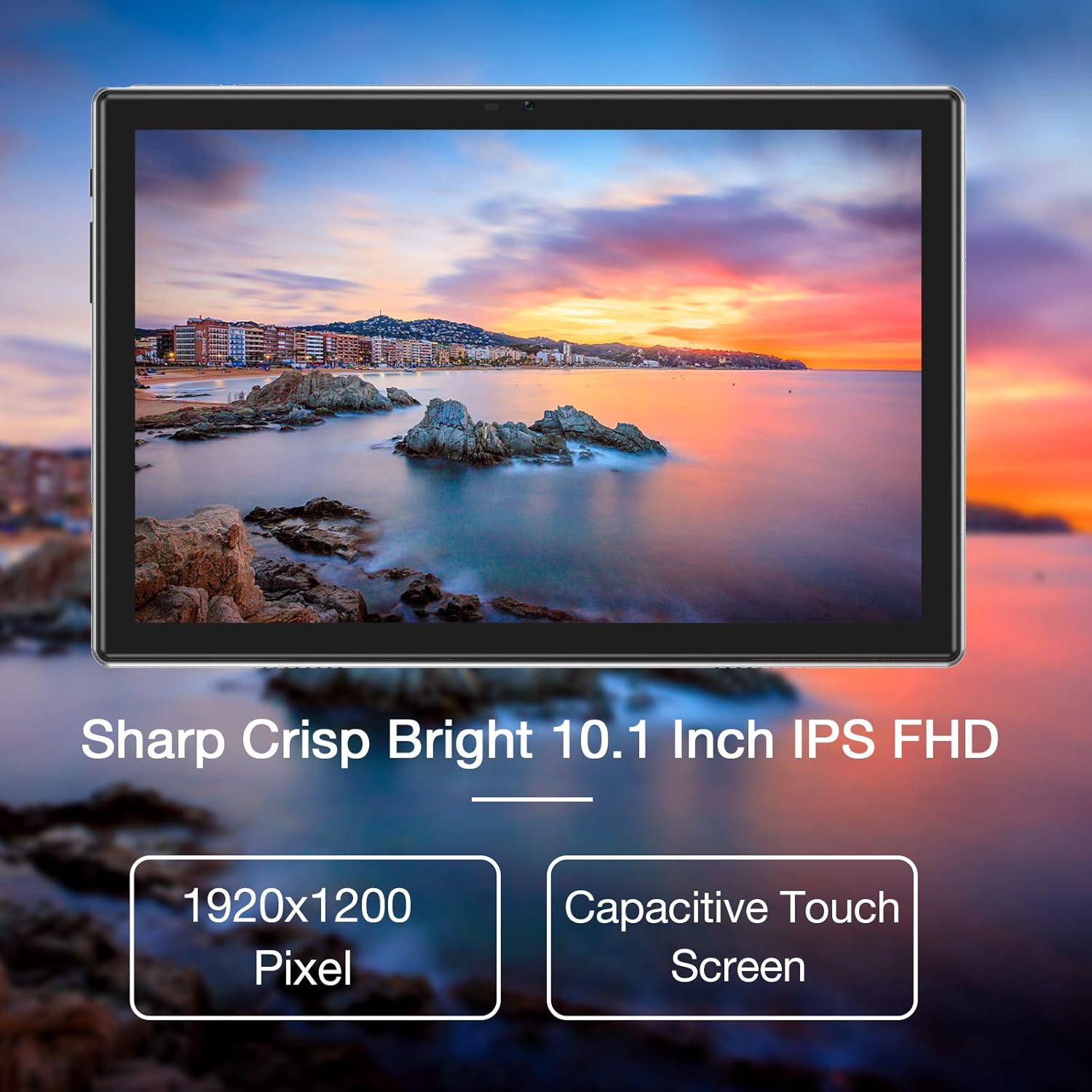
Image: The tablet's 10.1-inch IPS FHD display showcasing its sharp and bright visual quality.
3.2 Connectivity
Your tablet offers robust connectivity options:
- Wi-Fi: Supports 5G WiFi (802.11ac) for high-speed internet access. To connect, go to Settings > Network & internet > Wi-Fi, select your network, and enter the password.
- Bluetooth: Equipped with Bluetooth 5.0 for connecting to wireless headphones, speakers, and other compatible devices. Enable it via Settings > Connected devices > Connection preferences > Bluetooth.
3.3 Cameras
Capture moments and make video calls with the tablet's dual cameras:
- Front Camera: 5 Megapixels, ideal for video conferencing and selfies.
- Rear Camera: 13 Megapixels, suitable for taking photos and recording videos.

Image: Illustration showing the tablet's 5.0MP front camera and 13.0MP back camera capabilities.
3.4 Storage and Performance
The tablet is designed for efficient multitasking and ample storage:
- RAM: 3GB of RAM ensures smooth operation and efficient multitasking.
- Internal Storage: 64GB of internal storage for your apps, photos, and files.
- Expandable Storage: Storage can be expanded up to 128GB using a microSD card (not included).
- Processor: Powered by a 1.6 GHz Octa-Core processor, providing fast and fluid performance for various applications.

Image: Diagram illustrating the tablet's powerful internal configuration, including the Octa-Core CPU, 3GB RAM, and 64GB storage.
3.5 GPS Functionality
The integrated GPS system allows for accurate navigation and location-based services, making it a useful tool for travel and exploration.

Image: The tablet being used for navigation, demonstrating its GPS capabilities and long-lasting 6000mAh battery.
4. Maintenance
4.1 Cleaning
- Use a soft, lint-free cloth to gently wipe the screen and body of the tablet.
- Avoid using abrasive cleaners, alcohol, or chemical solvents, as they may damage the surface.
4.2 Battery Care
- To prolong battery life, avoid exposing the tablet to extreme temperatures (hot or cold).
- Do not frequently allow the battery to fully discharge to 0%.
- If storing the tablet for an extended period, charge it to about 50% before turning it off.
4.3 Software Updates
- Regularly check for system updates to ensure your tablet has the latest features, performance improvements, and security patches.
- You can usually find update options in Settings > System > System update.
5. Troubleshooting
5.1 Common Issues and Solutions
| Problem | Solution |
|---|---|
| Tablet won't turn on | Ensure the battery is charged. Connect to a power source for at least 30 minutes. Press and hold the power button for 10-15 seconds to force a restart. |
| Wi-Fi connection issues | Restart the tablet and your Wi-Fi router. Go to Wi-Fi settings, forget the network, and then reconnect. Ensure you are within range of the Wi-Fi signal. |
| Apps crashing or freezing | Close the app and reopen it. Clear the app's cache and data in Settings > Apps > [App Name] > Storage > Clear cache/Clear data. Ensure sufficient storage space is available. |
| Slow performance | Close unused background apps. Clear system cache (if option available). Uninstall unnecessary apps. If issues persist, consider a factory reset (backup all data first). |
| Screen is unresponsive | Restart the tablet by holding the power button. If unresponsive, let the battery drain completely and then recharge and power on. |
6. Specifications
6.1 Technical Specifications
| Feature | Detail |
|---|---|
| Brand | HAOVM |
| Model Number | Tablet (HP20) |
| Operating System | Android 11 |
| Processor | Octa-Core 1.6 GHz |
| RAM | 3 GB |
| Internal Storage | 64 GB |
| Expandable Storage | Up to 128 GB (MicroSD) |
| Screen Size | 10.1 Inches |
| Display Resolution | 1920 x 1200 pixels (FHD IPS) |
| Front Camera | 5 MP |
| Rear Camera | 13 MP |
| Connectivity | Wi-Fi (802.11ac), Bluetooth 5.0, GPS |
| Interface | USB Type-C |
| Battery | 6000mAh |
| Dimensions (L x W x H) | 27.2 x 18 x 6.1 cm |
| Weight | 5 Grams |
7. Warranty and Support
7.1 Warranty Information
Your HAOVM tablet comes with a limited warranty. Please refer to the warranty card or documentation included in the product packaging for specific terms, conditions, and duration of the warranty. Keep your proof of purchase for warranty claims.
7.2 Customer Support
For technical assistance, troubleshooting beyond this manual, or service inquiries, please contact HAOVM customer support. You can typically find contact information on the official HAOVM website or through the retailer where you purchased the product.
