
1. Introduction
This manual provides comprehensive instructions for the installation, operation, and maintenance of your Dual DCPA701W 7-inch Double-DIN In-Dash Digital Media Receiver. This unit is designed for modern digital media use, offering Bluetooth, wireless Android Auto, and Apple CarPlay connectivity. It features a large touchscreen display and supports a backup camera input for enhanced safety. Additional inputs include USB with charging, 3.5 mm auxiliary, and a steering wheel control input.
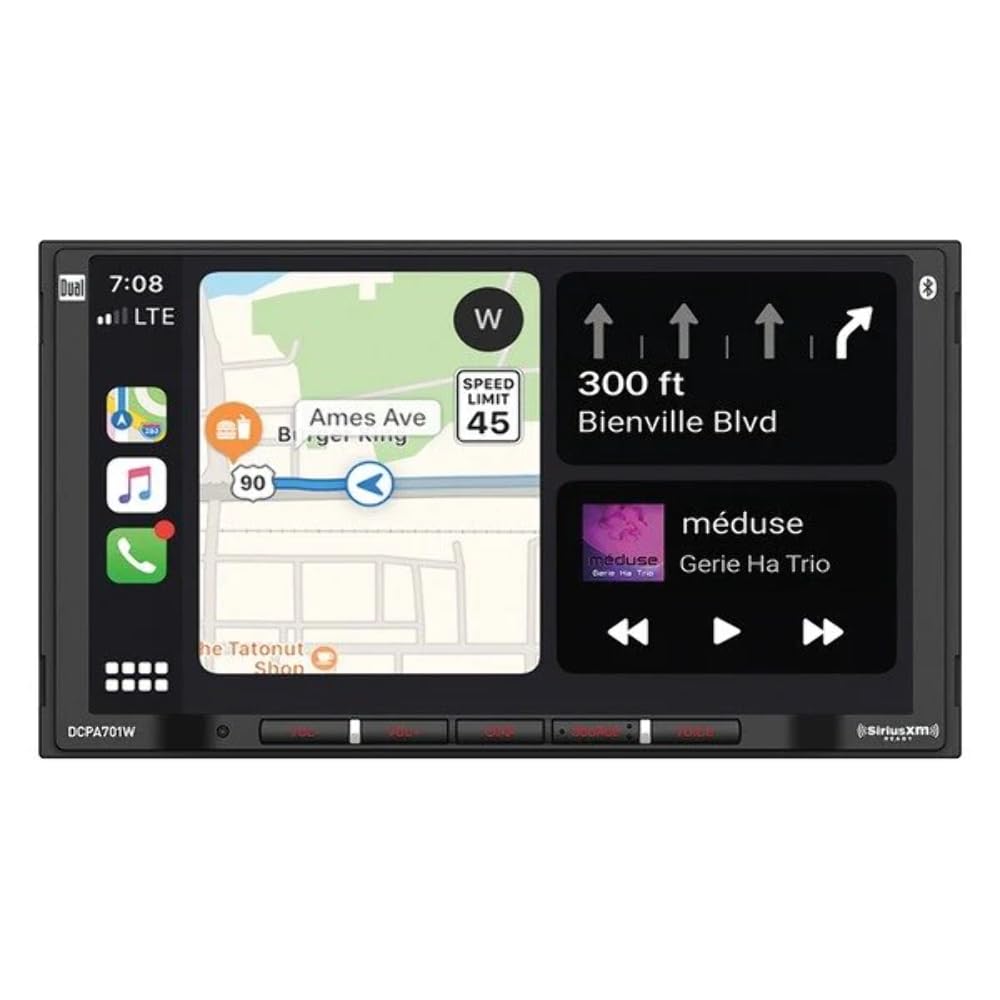
Image 1.1: Dual DCPA701W Digital Media Receiver front view, showcasing the 7-inch touchscreen.
2. Key Features
- 7-inch Capacitive Touchscreen: 1024 x 600 LED backlit display for clear visuals and responsive interaction.
- Built-in Bluetooth: Enables hands-free calling, music streaming with ID3 tags, and phonebook support (HFP, A2DP, AVRCP, PBAP).
- Wireless Android Auto & Apple CarPlay: Seamless integration with compatible Android and Apple devices for navigation, communication, and entertainment.
- Voice Assistant Button: Dedicated push-to-talk button for activating Siri or Google Assistant.
- External Microphone: Included for clear hands-free communication.
- USB Input: For media playback and device charging.
- 3.5mm Auxiliary Input: For connecting external audio devices.
- Steering Wheel Control Input: Allows integration with existing vehicle steering wheel controls (adapter may be required, sold separately).
3. Package Contents
Verify that all items are present in the package before proceeding with installation:
- Dual DCPA701W Digital Media Receiver
- User Manual
- Wiring Harness
- Mounting Hardware
- External Microphone
4. Setup and Installation
Installation of this unit requires technical knowledge and experience with car audio systems. It is highly recommended that installation be performed by a qualified professional. Incorrect installation can lead to damage to the unit, vehicle, or personal injury.
4.1 Wiring Connections
Ensure the vehicle's battery is disconnected before making any electrical connections. Refer to the wiring diagram provided in the separate installation guide for detailed instructions. Key connections include:
- Power (Yellow): Connect to constant 12V power.
- Accessory (Red): Connect to switched 12V power.
- Ground (Black): Connect to a clean chassis ground point.
- Speaker Outputs: Connect to vehicle speakers (Front Left, Front Right, Rear Left, Rear Right).
- Parking Brake (Light Green): Connect to the parking brake circuit for safety features.
- Reverse Gear (Brown): Connect to the reverse light circuit for automatic backup camera display.
- External Microphone: Plug the external microphone into the designated input on the rear of the unit and route it to a suitable location (e.g., sun visor) for optimal voice pickup.
4.2 Mounting
Secure the receiver into the vehicle's double-DIN opening using the provided mounting hardware. Ensure the unit is firmly seated and does not obstruct any vehicle controls or airbags.
5. Operating Instructions
5.1 Power On/Off and Volume
- Power On: Turn the vehicle's ignition to the ACC or ON position. The unit should power on automatically.
- Power Off: Turn the vehicle's ignition to the OFF position.
- Volume Control: Use the physical VOL+ and VOL- buttons on the front panel or the on-screen volume controls to adjust the audio level.
5.2 Bluetooth Pairing
- Ensure Bluetooth is enabled on your mobile device.
- On the DCPA701W, navigate to the Bluetooth menu.
- Select "Pair Device" or similar option. The unit will become discoverable.
- On your mobile device, search for available Bluetooth devices and select "DCPA701W".
- Confirm the pairing code on both devices if prompted.
- Once paired, you can make hands-free calls and stream audio.
5.3 Wireless Android Auto / Apple CarPlay
For wireless connectivity, ensure your phone's Wi-Fi and Bluetooth are enabled. For wired connectivity, connect your phone via a USB cable to the unit's USB port.
- Connect your compatible smartphone to the receiver via Bluetooth (for wireless) or USB cable (for wired).
- The unit will prompt you to launch Android Auto or Apple CarPlay. Confirm on both the receiver and your phone.
- Follow any on-screen instructions to complete the setup.
- Once connected, your phone's compatible apps will appear on the receiver's screen, allowing for navigation, music, and communication.
5.4 USB and Auxiliary Inputs
- USB: Connect a USB storage device or your smartphone to the USB port for media playback or charging. Select "USB" as the source.
- Auxiliary: Connect an external audio player using a 3.5mm audio cable to the AUX input. Select "AUX" as the source.
5.5 Voice Assistant
Press the dedicated "Voice" button on the unit's front panel to activate Siri (for Apple CarPlay) or Google Assistant (for Android Auto). Speak your commands clearly into the external microphone.
6. Maintenance
- Cleaning the Screen: Use a soft, dry, lint-free cloth to gently wipe the touchscreen. For stubborn smudges, slightly dampen the cloth with water or a screen-safe cleaner. Avoid harsh chemicals or abrasive materials.
- General Cleaning: Use a soft, dry cloth to clean the unit's exterior. Do not use liquid cleaners or sprays directly on the unit.
- Software Updates: Periodically check the Dual Electronics website for available software updates for your DCPA701W model. Updates can improve performance and add new features. Follow the instructions provided with the update carefully.
7. Troubleshooting
If you encounter issues with your DCPA701W, refer to the following common problems and solutions:
| Problem | Possible Cause | Solution |
|---|---|---|
| No power | Incorrect wiring; Blown fuse; Vehicle ignition off. | Check power and ground connections. Inspect vehicle fuses. Ensure ignition is in ACC or ON position. |
| No sound | Volume too low; Mute activated; Incorrect speaker wiring; Source not selected. | Increase volume. Check if mute is active. Verify speaker connections. Select the correct audio source. |
| Bluetooth pairing fails | Bluetooth not enabled on phone; Device out of range; Interference. | Ensure phone's Bluetooth is on and discoverable. Bring devices closer. Restart both devices. |
| Android Auto/Apple CarPlay not connecting or unstable | Faulty USB cable; Phone software issue; Unit software outdated; Wi-Fi/Bluetooth interference. | Try a different, high-quality USB cable. Restart phone and receiver. Check for and install software updates for the DCPA701W. Ensure Wi-Fi and Bluetooth are stable for wireless connections. |
| Unit freezes or becomes unresponsive | Software glitch; Temporary error. | Locate the small reset button (often a pinhole) on the front panel and press it with a pointed object (e.g., a paperclip). This will restart the unit without losing settings. |
8. Specifications
| Feature | Detail |
|---|---|
| Model Number | DCPA701W |
| Brand | Dual Electronics |
| Screen Size | 7 inches |
| Display Type | LED backlit, Capacitive Touchscreen |
| Resolution | 1024 x 600 |
| Connectivity Technology | Bluetooth |
| Wireless Technology | Bluetooth |
| Controller Type | Android |
| Compatible Devices | Smartphone |
| Connector Type | 3.5mm Jack, USB |
| Audio Output Mode | Stereo |
| Output Power | 240 Watts |
| Number of Channels | 4 |
| Supported Internet Services | SiriusXM (requires tuner, sold separately) |
| Control Method | Voice, Touchscreen |
| Audio Output Type | Speakers |
| Supported Audio Format | WMA (and others via Android Auto/CarPlay) |
| Product Dimensions | 18"D x 8"W x 14"H (Approximate, refer to actual product for precise measurements) |
| Item Weight | 3.4 Pounds |
| Color | Black |
| UPC | 827204117774 |
9. Warranty Information
The Dual DCPA701W Digital Media Receiver comes with a 1-year warranty from the date of purchase. This warranty covers defects in materials and workmanship under normal use. It does not cover damage caused by improper installation, accident, misuse, abuse, neglect, unauthorized product modification, or damage during return shipment. For full warranty terms and conditions, please refer to the warranty card included with your product or visit the official Dual Electronics website.
10. Customer Support
For technical assistance, troubleshooting, or warranty inquiries, please contact Dual Electronics customer support. Before contacting support, please have your model number (DCPA701W) and proof of purchase readily available.
- Website: Visit the official Dual Electronics website for FAQs, product registration, and support resources.
- Phone: Refer to the contact information provided in your product packaging or on the Dual Electronics website.


