
1. Introduction
The Cooler Master StreamEnjin is an all-in-one livestream mixer designed for seamless broadcasting. It integrates livestreaming, content mixing, switching, capturing, and editing capabilities. This device allows users to create and deliver customized livestreams to multiple CDN destinations, utilizing up to 8 preset scenes for personalized content. Its intuitive button layout simplifies switching and mixing, while the dedicated iPad or Android tablet app provides comprehensive control over overlays, program previewing, and scene transitions. The StreamEnjin features a portable design with a handle-stand, making it suitable for streaming from various locations.

Figure 1.1: The Cooler Master StreamEnjin Livestream Mixer with a tablet inserted, showcasing its compact design and control surface.
Video 1.1: An overview of the Cooler Master StreamEnjin, demonstrating its features and potential applications in a live streaming setup.
2. Setup Guide
Follow these steps to set up your Cooler Master StreamEnjin Livestream Mixer.
2.1 Unboxing and Initial Inspection
- Carefully remove all components from the packaging.
- Verify that all items listed in the "What's in the Box" section are present.
- Inspect the device for any signs of damage. If damage is found, contact customer support immediately.
2.2 Connecting Power and Network
- Connect the power adapter to the StreamEnjin and then to a power outlet.
- For network connectivity, connect an Ethernet cable from your router or network switch to the LAN port on the StreamEnjin.
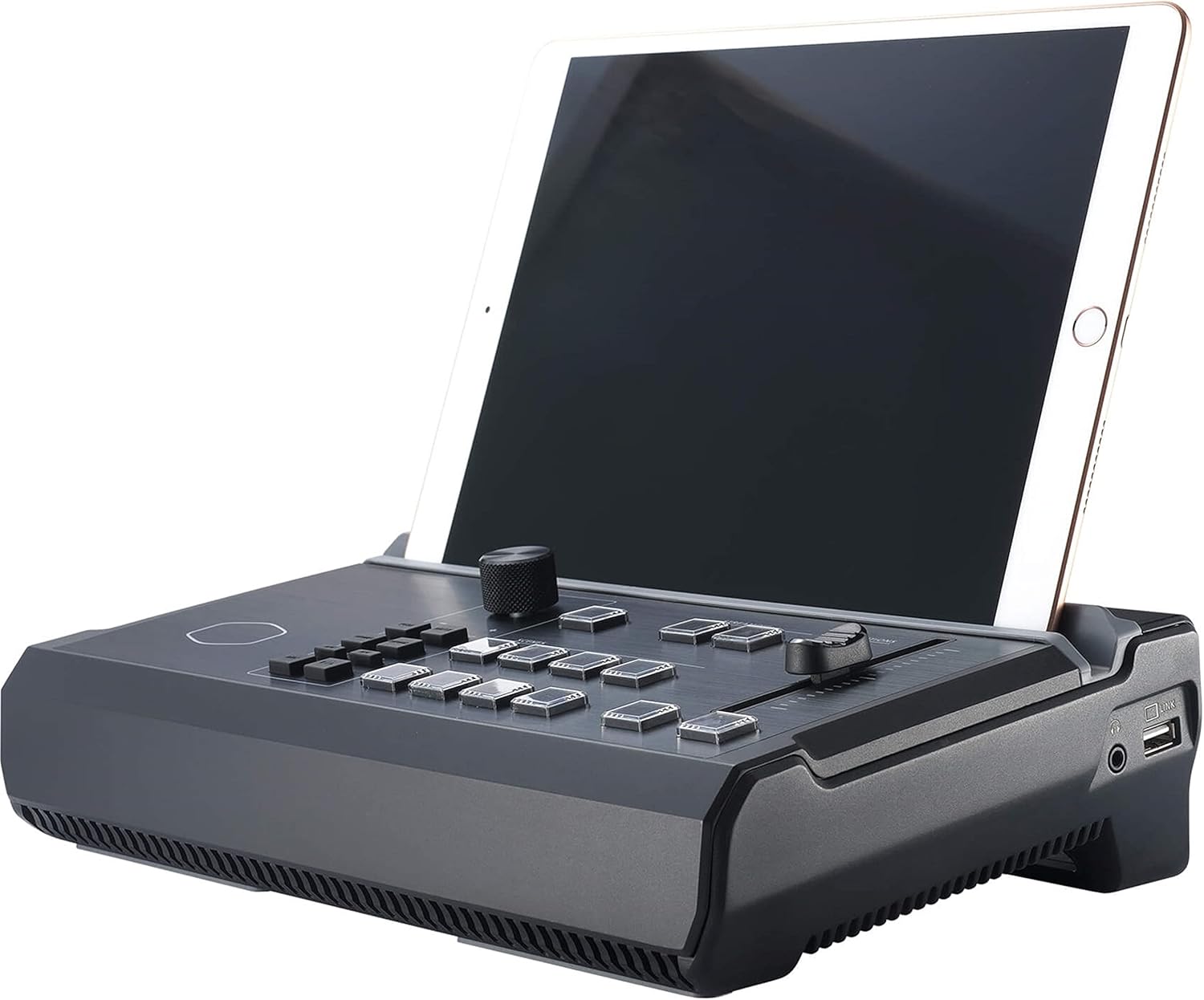
Figure 2.1: Rear panel of the StreamEnjin, illustrating the power, network, and various input/output ports for device connections.
2.3 Connecting Input Sources
The StreamEnjin supports multiple input sources. Refer to the rear panel diagram for port locations.
- HDMI Inputs: Connect your cameras, game consoles, or other video sources to the HDMI input ports. The device supports up to two HDMI inputs (Input A and Input B).
- Audio Inputs: Connect microphones or other audio devices to the dedicated audio input jacks.
- USB Ports: Use the USB ports for connecting external storage or other compatible peripherals.
2.4 Tablet App Installation and Connection
The StreamEnjin requires a compatible iPad or Android tablet (not included) for full control and functionality. Ensure your tablet meets the system requirements.
- Download the official Cooler Master StreamEnjin app from your tablet's app store (Apple App Store for iPad, Google Play Store for Android).
- Install the app on your tablet.
- Place your tablet into the integrated slot on the StreamEnjin.
- Launch the StreamEnjin app. The app should automatically detect and connect to the StreamEnjin device on the same network.
- Note: Android Tablet Support may require a firmware update downloadable from Cooler Master's website.
Video 2.1: A quick start guide for the Cooler Master StreamEnjin, covering initial connections and basic setup procedures.
3. Operation
This section details the operational aspects of the StreamEnjin, from basic controls to advanced features.
3.1 Basic Controls and Interface
- The StreamEnjin features a clean and direct control layout with physical buttons for quick switching and mixing.
- The integrated tablet app serves as the primary interface for detailed control, program previewing, and scene management.

Figure 3.1: The StreamEnjin highlighting its dual professional livestreaming capability and user-friendly physical controls.
3.2 Scene Presets and Customization
The StreamEnjin offers up to 8 customizable preset scenes, allowing you to quickly switch between different layouts and content configurations.
- Access the scene management interface through the tablet app.
- Each scene can be configured with specific video inputs, audio levels, and overlays.
- Use the physical buttons or the app to transition between scenes.

Figure 3.2: The StreamEnjin tablet app interface, demonstrating the integrated app features and the preset storyboard for scene customization.
Video 3.1: A tutorial on utilizing scene presets with the Cooler Master StreamEnjin, demonstrating how to configure and switch between different broadcast layouts.
3.3 Livestreaming to CDN Destinations
The StreamEnjin supports broadcasting to up to two simultaneous Content Delivery Network (CDN) destinations.
- Within the app, navigate to the streaming settings.
- Configure your primary and secondary CDN destinations by entering the required stream keys and URLs.
- Ensure your internet connection is stable for optimal streaming performance.
3.4 Advanced Settings
The tablet app provides access to advanced settings for fine-tuning your livestream.
- Adjust video resolution and bitrate.
- Manage audio input levels and mixing.
- Customize transition effects and durations.
Video 3.2: A detailed guide to the settings available on the Cooler Master StreamEnjin, including network configuration, transition periods, and other customization options.
3.5 Usage Examples

Figure 3.3: Setup for Esports Live streaming, connecting gaming PCs and microphones.

Figure 3.4: Setup for a Webinar, integrating presentation slides and speaker cameras.

Figure 3.5: Setup for Video Vloggers, connecting cameras and external microphones.
4. Maintenance
Proper maintenance ensures the longevity and optimal performance of your StreamEnjin.
- Cleaning: Use a soft, dry cloth to clean the exterior of the device. Avoid abrasive cleaners or solvents.
- Ventilation: Ensure the ventilation openings are clear of dust and obstructions to prevent overheating.
- Firmware Updates: Regularly check the Cooler Master official website for firmware updates to ensure compatibility and access to new features.
- Storage: When not in use for extended periods, store the device in a cool, dry place away from direct sunlight and extreme temperatures.
5. Troubleshooting
This section provides solutions to common issues you might encounter with your StreamEnjin.
5.1 No Power
- Ensure the power adapter is securely connected to both the StreamEnjin and a working power outlet.
- Verify the power outlet is functional by plugging in another device.
5.2 No Video Input
- Check that HDMI cables are securely connected to both the source device and the StreamEnjin.
- Ensure the input source is powered on and outputting a signal.
- Verify the correct input is selected in the StreamEnjin app.
- Test with different HDMI cables or source devices if possible.
5.3 No Audio Output/Input
- Check all audio cable connections.
- Verify audio levels in the StreamEnjin app are not muted or set too low.
- Ensure the correct audio input source is selected.
5.4 Tablet App Not Connecting
- Ensure both the StreamEnjin and your tablet are connected to the same local network (Wi-Fi for tablet, Ethernet for StreamEnjin).
- Restart both the StreamEnjin device and the tablet app.
- Check for any available firmware updates for the StreamEnjin on the Cooler Master website.
- Verify your tablet's operating system is compatible with the app.
6. Specifications
| Feature | Detail |
|---|---|
| Brand Name | Cooler Master |
| Item Model Number | RM-SEN1-H2H3-R1 |
| Item Weight | 4.17 pounds |
| Product Dimensions | 15.1 x 12.4 x 6.8 inches |
| Color Name | Streaming |
| Speaker Type | Built-In |
| First Available Date | July 16, 2021 |
| What's in the Box | StreamEnjin |
7. Warranty and Support
For warranty information, technical support, and the latest firmware updates, please visit the official Cooler Master website:
You can also find additional resources and FAQs on their support pages.
