
PHILIPS 43PUS7556/12
PHILIPS 43PUS7556/12 4K UHD LED Smart TV User Manual
Model: 43PUS7556/12
Introduction
This user manual provides comprehensive instructions for the PHILIPS 43PUS7556/12 4K UHD LED Smart TV. Please read this manual carefully before using your television to ensure proper setup, operation, and maintenance. Keep this manual for future reference.
Important Safety Information
Always follow basic safety precautions when using this television to reduce the risk of fire, electric shock, and injury.
- Do not expose the television to rain or moisture.
- Do not block ventilation openings.
- Ensure proper grounding.
- Unplug the television during lightning storms or when unused for long periods.
- Refer all servicing to qualified service personnel.
Package Contents
Verify that all items are present in the package:
- PHILIPS 43PUS7556/12 4K UHD LED Smart TV
- Remote Control
- Power Cord
- Tabletop Stand (if applicable)
- Quick Start Guide
- Safety and Legal Leaflet
- Batteries for Remote Control
Setup
1. Attaching the Stand
If you are not wall-mounting the television, attach the tabletop stand as follows:
- Carefully place the television face down on a soft, flat surface to prevent screen damage.
- Align the stand with the mounting holes on the bottom of the television.
- Secure the stand using the provided screws. Ensure the stand is firmly attached.

Image: Rear view of the television, illustrating the stand attachment points and various input/output ports. This image helps in identifying where to connect the stand and external devices.
2. Connecting External Devices
The PHILIPS 43PUS7556/12 TV offers multiple connectivity options. Refer to the image below for port locations.
- HDMI: Connect Blu-ray players, game consoles, or set-top boxes. This model features 3 HDMI ports.
- USB: Connect USB storage devices for media playback. This model features 2 USB ports.
- Antenna/Cable: Connect your antenna or cable TV input.
- Ethernet: For a wired internet connection. Wi-Fi is also available.

Image: Detailed view of the television's rear panel, highlighting the HDMI, USB, and other connectivity ports. This visual aid assists users in correctly identifying and connecting their external devices.
3. Powering On
- Connect the power cord to the television and then to a wall outlet.
- Press the power button on the remote control or on the television itself.
- Follow the on-screen instructions for initial setup, including language selection, network connection (Wi-Fi or Ethernet), and channel scanning.
Operating Instructions
Remote Control Functions
Familiarize yourself with the remote control buttons for easy navigation.
- Power: Turns the TV on or off.
- Source: Selects input sources (HDMI 1, HDMI 2, TV, etc.).
- Navigation Buttons (Up/Down/Left/Right): Navigate menus and options.
- OK: Confirms selections.
- Back/Exit: Returns to the previous menu or exits the current menu.
- Volume +/-: Adjusts the volume level.
- Channel +/-: Changes TV channels.
- Smart TV/Home: Accesses the Smart TV interface (SAPHI OS).
Smart TV Features (SAPHI OS)
The PHILIPS 43PUS7556/12 runs on the SAPHI operating system, providing access to various apps and streaming services.

Image: Screenshot of the Philips Smart TV home screen, displaying the SAPHI OS interface with icons for popular streaming applications such as YouTube, Netflix, and Prime Video. This illustrates the user interface for accessing smart features.
- Press the Smart TV or Home button on your remote.
- Use the navigation buttons to browse through available applications.
- Select an app (e.g., Netflix, YouTube, Amazon Prime Video) and press OK to launch it.
- Ensure your TV is connected to the internet for optimal Smart TV functionality.

Image: Another view of the Philips Smart TV interface, specifically highlighting the logos of popular streaming services like Netflix, Rakuten TV, YouTube, and Amazon Prime Video. This confirms the availability of these services on the TV.
Picture and Sound Settings
Customize your viewing and listening experience:
- Picture Modes: Access settings to adjust brightness, contrast, color, and sharpness. Pre-set modes like Standard, Vivid, Movie, and Game are available.
- Sound Modes: Adjust audio settings, including bass, treble, and balance. This TV supports Dolby Atmos for immersive sound.
- Dolby Vision: The TV supports Dolby Vision for enhanced HDR content. Ensure your content source also supports Dolby Vision for the best experience.

Image: The Philips 43PUS7556/12 television screen displaying a dynamic, colorful image, accompanied by icons indicating key features such as LED display technology, Dolby Vision Atmos, and UltraHD HDR. This visually represents the TV's display capabilities.
Maintenance
Cleaning the Television
- Always unplug the television before cleaning.
- Use a soft, lint-free cloth to gently wipe the screen and cabinet.
- For stubborn marks, dampen the cloth with a small amount of water or a mild, non-abrasive screen cleaner. Do not spray cleaner directly onto the screen.
- Avoid using alcohol, solvents, or ammonia-based cleaners, as these can damage the screen.
Remote Control Battery Replacement
When the remote control's performance decreases, replace the batteries:
- Open the battery compartment cover on the back of the remote control.
- Remove the old batteries.
- Insert new batteries, ensuring correct polarity (+ and -).
- Close the battery compartment cover.
Troubleshooting
If you encounter issues with your television, refer to the following common solutions:
No Power
- Ensure the power cord is securely connected to both the TV and the wall outlet.
- Check if the wall outlet is functioning by plugging in another device.
- Try pressing the power button on the TV itself, not just the remote.
No Picture, But Sound is Present
- Verify that the correct input source is selected (e.g., HDMI 1, TV).
- Check the cable connections between the TV and external devices.
- Adjust picture settings (brightness, contrast).
No Sound, But Picture is Present
- Ensure the volume is not muted or set to zero.
- Check audio cable connections.
- Verify sound output settings on the TV (e.g., internal speakers, external audio system).
Remote Control Not Working
- Replace the batteries in the remote control.
- Ensure there are no obstructions between the remote and the TV's IR sensor.
- Point the remote directly at the TV.
Smart TV Apps Not Loading or Slow
- Check your internet connection (Wi-Fi or Ethernet).
- Restart the TV by unplugging it from the power outlet for a few minutes, then plugging it back in.
- Ensure the TV's software is up to date.
Specifications
The following table outlines the key technical specifications for the PHILIPS 43PUS7556/12 TV.
| Feature | Specification |
|---|---|
| Brand | PHILIPS |
| Model Number | 43PUS7556/12 |
| Screen Size | 43 Inches |
| Display Technology | LED |
| Resolution | 4K (3840 x 2160) |
| Refresh Rate | 60 Hz |
| Operating System | SAPHI |
| Connectivity | Bluetooth, Wi-Fi |
| HDMI Ports | 3 |
| USB Ports | 2 |
| Audio Output | 20 W |
| Special Features | Dolby Vision, Dolby Atmos, Freeview HD |
| Color | Black |
| Dimensions (without stand) | 82.1 mm (Depth) |
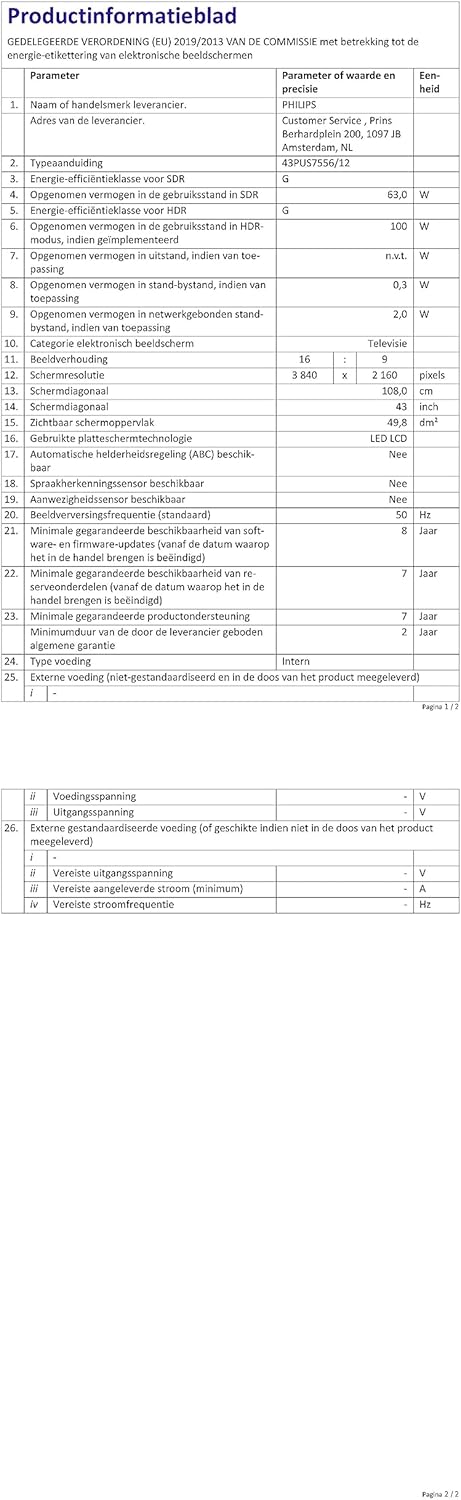
Image: A technical specification sheet for the Philips 43PUS7556/12 television, detailing various parameters and values. This document provides comprehensive technical data for the product.

Image: Another technical specification sheet for the Philips 43PUS7556/12 television, presented in Dutch, listing detailed product information and performance metrics. This provides additional technical context.

Image: A diagram illustrating the physical dimensions of the 43-inch Philips 43PUS7556/12 television, including width, height, and depth measurements. This helps users understand the TV's physical footprint.
Warranty and Support
Warranty Information
This product comes with a manufacturer's warranty. Please refer to the warranty card included in your package for specific terms and conditions. The typical warranty period for consumer electronics is 2 years from the date of purchase.
- Minimum guaranteed availability of spare parts: 7 years
- Minimum guaranteed product support: 7 years
Customer Support
For further assistance, technical support, or service inquiries, please contact PHILIPS customer support. You can find contact details on the official PHILIPS website or in the documentation provided with your television.
When contacting support, please have your model number (43PUS7556/12) and serial number ready.
Related documents43PUS7556/12


Ask a question about this manual
Ask about setup, troubleshooting, compatibility, parts, safety, or missing instructions. Manuals+ will review the question and use this page’s manual context to help answer it.