
Introduction
This manual provides comprehensive instructions for the Acer Aspire 5 laptop, equipped with an 11th Gen Intel Core i3-1115G4 processor, 8GB DDR4 RAM, and a 512GB NVMe SSD. It covers initial setup, operational guidelines, maintenance procedures, and troubleshooting common issues to ensure optimal performance and longevity of your device.
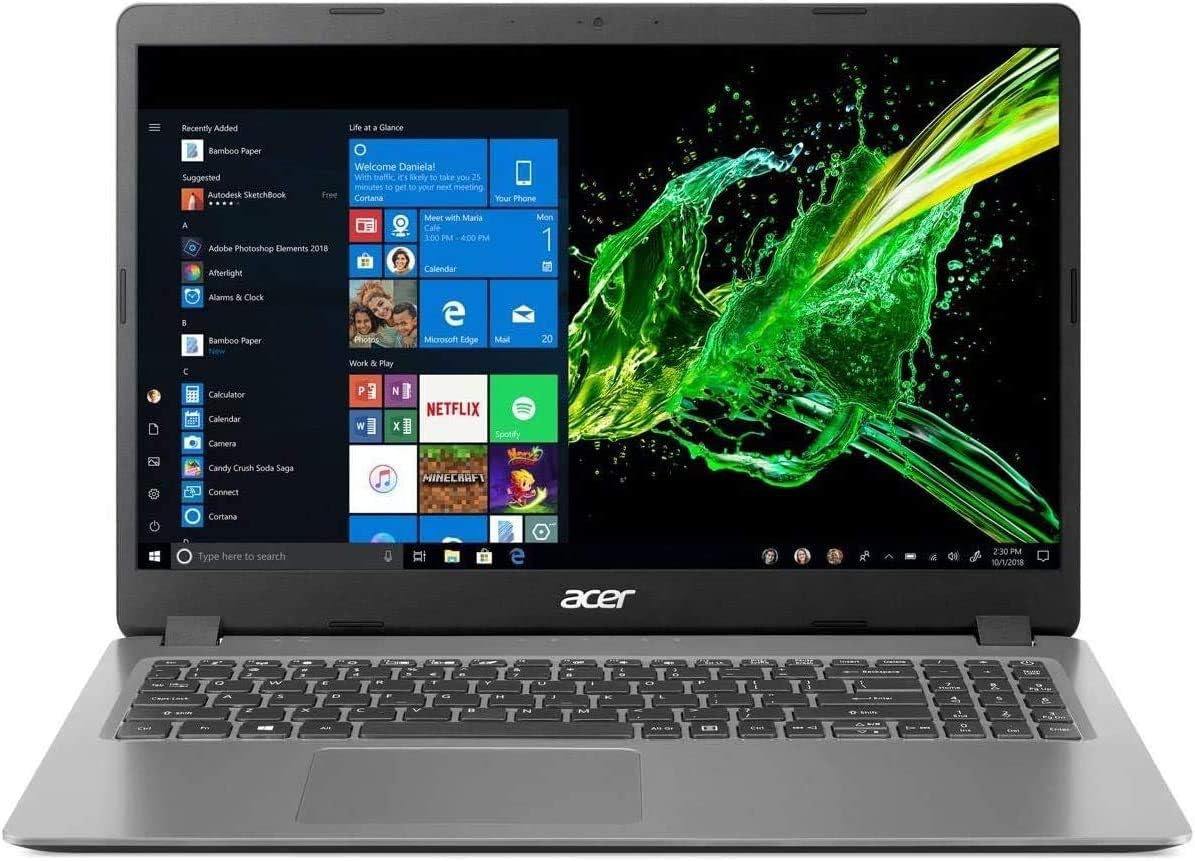
Image: Front view of the Acer Aspire 5 laptop with the screen powered on, showing the Windows 10 interface.
1. Setup
1.1 Unpacking and Initial Inspection
- Carefully remove the laptop and all accessories from the packaging.
- Verify that all components are present: Acer Aspire 5 laptop, AC power adapter, and HDMI cable.
- Inspect the laptop for any physical damage. If damage is found, contact your retailer immediately.
1.2 Connecting the Power Adapter
- Connect the AC adapter cable to the power input port on the side of the laptop.
- Plug the AC adapter into a grounded electrical outlet.
- The battery indicator light will illuminate, indicating that the laptop is charging.
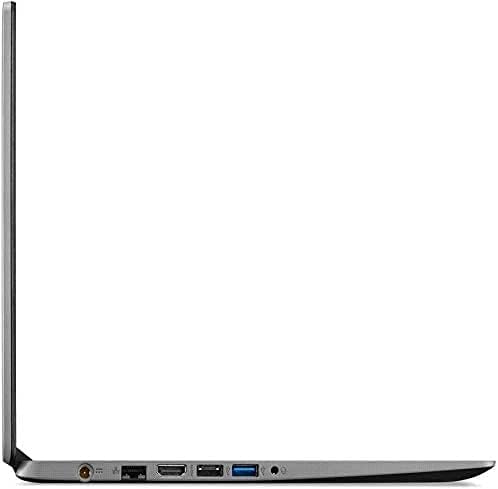
Image: Right side of the Acer Aspire 5 laptop, highlighting the power input port, USB 2.0 port, and security lock slot.
1.3 Initial Power On and Windows Setup
- Open the laptop lid and press the power button located on the keyboard.
- Follow the on-screen instructions to complete the Windows 10 Home (S Mode) setup process. This includes selecting your region, keyboard layout, connecting to a Wi-Fi network, and creating a user account.
- Ensure you have an active internet connection for Windows activation and updates. The laptop supports Wi-Fi 6 (802.11ax) for fast wireless connectivity.
2. Operating Your Laptop
2.1 Keyboard and Touchpad Usage
The Acer Aspire 5 features a standard keyboard and a precision touchpad for navigation. Familiarize yourself with the function keys (F1-F12) which often have secondary actions (e.g., volume control, screen brightness) when pressed with the Fn key.

Image: Top-down view of the Acer Aspire 5 laptop's keyboard and touchpad layout.
2.2 Understanding Windows 10 Home (S Mode)
- Windows 10 Home in S Mode is a version of Windows designed for security and performance, exclusively running apps from the Microsoft Store.
- You can switch out of S Mode to standard Windows 10 Home at any time, but you cannot switch back. Refer to Microsoft's official documentation for detailed instructions on switching out of S Mode.
2.3 Connecting External Devices
Your laptop is equipped with various ports for connecting peripherals:
- USB 3.2 Type-C: For high-speed data transfer and connecting compatible USB-C devices.
- USB 3.2 Gen 1 (x2): For connecting USB devices, one port supports power-off charging.
- USB 2.0: For standard USB devices.
- HDMI 2.0: For connecting to external displays or projectors, supporting HDCP. An HDMI cable is included.
- Ethernet (RJ-45): For wired network connections.
- Headphone/Speaker/Line-out Jack: For audio output.
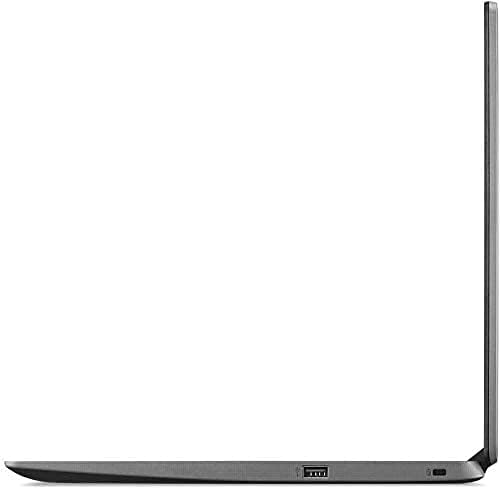
Image: Left side of the Acer Aspire 5 laptop, showing the USB Type-C, HDMI, and USB 3.2 ports.
2.4 Audio Features
The laptop is designed and certified to work with Cortana, Microsoft's voice assistant. It also features Acer True Harmony for enhanced sound quality through its integrated speakers or connected headphones.
3. Maintenance
3.1 Battery Care
- The laptop's battery provides up to 8.5 hours of average standby life.
- To prolong battery lifespan, avoid fully discharging the battery frequently.
- Store the laptop in a cool, dry place when not in use for extended periods.
3.2 Cleaning Instructions
- Use a soft, lint-free cloth to clean the screen. For stubborn smudges, dampen the cloth slightly with water or a screen-cleaning solution.
- Wipe the keyboard and chassis with a soft, dry cloth. Avoid using harsh chemicals or abrasive materials.
- Periodically clean the ventilation openings to prevent dust buildup, which can affect cooling performance.
3.3 Software Updates
Regularly check for and install Windows updates to ensure your system has the latest security patches and performance improvements. You can access Windows Update through the Settings menu.
3.4 Storage Management
Your laptop comes with a 512GB PCIe SSD. To maintain optimal performance, periodically review and delete unnecessary files, uninstall unused applications, and consider using cloud storage for large files.
4. Troubleshooting
This section addresses common issues you might encounter with your Acer Aspire 5 laptop.
4.1 Power Issues
- Laptop does not turn on: Ensure the AC adapter is securely connected to both the laptop and a working power outlet. Check if the power indicator light is on. Try pressing and holding the power button for 10-15 seconds to perform a hard reset.
- Battery not charging: Verify the AC adapter connection. If the issue persists, the adapter or battery may require service.
4.2 Display Issues
- No image on screen: Connect an external monitor via the HDMI port to check if the display output is working. If the external monitor works, the laptop's internal display may have an issue.
- Dim screen: Adjust the screen brightness using the function keys (usually F3/F4 or similar icons).
4.3 Connectivity Issues
- Wi-Fi not connecting: Ensure Wi-Fi is enabled in Windows settings. Restart your router and the laptop. Check for updated Wi-Fi drivers.
- Bluetooth device not pairing: Ensure Bluetooth is enabled on both the laptop and the device. Place devices close to each other and try pairing again.
4.4 General System Unresponsiveness
- If the system becomes unresponsive, press Ctrl + Alt + Delete to open Task Manager and close unresponsive applications.
- If the system remains unresponsive, perform a hard shutdown by pressing and holding the power button until the laptop turns off. Wait a few seconds, then restart.
5. Specifications
| Feature | Specification |
|---|---|
| Brand | Acer |
| Model Name | Acer Aspire 5 |
| Processor | 11th Gen Intel Core i3-1115G4 (up to 4.1 GHz) |
| RAM | 8 GB DDR4 |
| Storage | 512 GB NVMe PCIe SSD |
| Operating System | Windows 10 Home (S Mode) |
| Display | 15.6" Full HD (1920 x 1080) Widescreen LED-backlit IPS Display |
| Graphics | Intel UHD Graphics (Integrated) |
| Wireless Connectivity | Wi-Fi 6 (802.11ax), Bluetooth |
| Ports | 1x USB 3.2 Type-C, 2x USB 3.2 Gen 1 (1 with Power-off Charging), 1x USB 2.0, 1x HDMI 2.0, 1x Ethernet (RJ-45), 1x Headphone/Speaker/Line-out Jack |
| Battery Life | Up to 8.5 Hours (Average Standby) |
| Weight | 4.19 Pounds |
| Color | Silver |
6. Warranty and Support
6.1 Warranty Information
This product includes a standard manufacturer's warranty. Additionally, a 1-year standard warranty is provided on upgraded RAM/SSD components. Please retain your proof of purchase for warranty claims.
6.2 Technical Support
For technical assistance, driver downloads, or further support, please visit the official Acer support website. You will need your laptop's serial number, typically found on a label on the underside of the device.


