1. Introduction
This manual provides detailed instructions for the setup, operation, and maintenance of your SKYWORTH T1 WiFi Bluetooth Projector. Please read this manual thoroughly before using the product to ensure proper function and to prevent damage.
The SKYWORTH T1 projector offers Native 1080P Full HD resolution with 4K support, 400 ANSI lumens brightness, and versatile connectivity options including WiFi and Bluetooth. It is designed for various entertainment and presentation needs.

Image: The SKYWORTH T1 Projector, showcasing its capabilities with a vibrant projected image.
2. Product Features
2.1. High-Definition Display
The T1 projector delivers a Native 1080P Full HD resolution, supporting 4K content for clear and detailed images. With 400 ANSI lumens, it provides sufficient brightness for various viewing environments. The projector also features an 80% NTSC color gamut for accurate and vivid color reproduction.

Image: High-definition projection from the SKYWORTH T1, emphasizing 1080P Full HD, 4K support, and 400 ANSI lumens.

Image: Visual representation of the projector's 80% NTSC color gamut for enhanced color accuracy.
2.2. Versatile Connectivity
The projector supports multiple connection methods:
- WiFi: For wireless screen mirroring from compatible devices (iOS Cast, Miracast).
- Bluetooth: For connecting to external audio devices such as speakers or headphones.
- HDMI: Two HDMI 1.4 ports for connecting media players, gaming consoles, or laptops.
- USB: Two USB 2.0 ports for playing media directly from USB drives.
- AV: One AV port for connecting older devices.
- Earphone: One 3.5mm earphone jack for private listening.

Image: Detailed view of the projector's input and output ports.

Image: The projector highlighting its Bluetooth connection capabilities with a remote control.
2.3. Image Adjustment
The T1 projector includes advanced image adjustment features to ensure a perfect display:
- 4D/4P Keystone Correction: Adjusts vertical and horizontal angles up to ±40° to correct distorted images from off-axis projection.
- 50% Zoom Function: Allows you to reduce the screen size without moving the projector, providing flexibility in placement.

Image: Visual explanation of 4D/4P keystone correction for ideal image alignment.

Image: Diagram demonstrating the 50% zoom capability for flexible screen sizing.
2.4. Audio and Cooling
- Built-in Speaker: Features a 5W HIFI speaker for integrated audio.
- Low-Noise Cooling: Equipped with a low-noise radiator dual fan system to minimize operational sound.

Image: Diagram illustrating the internal 5W HIFI speaker.
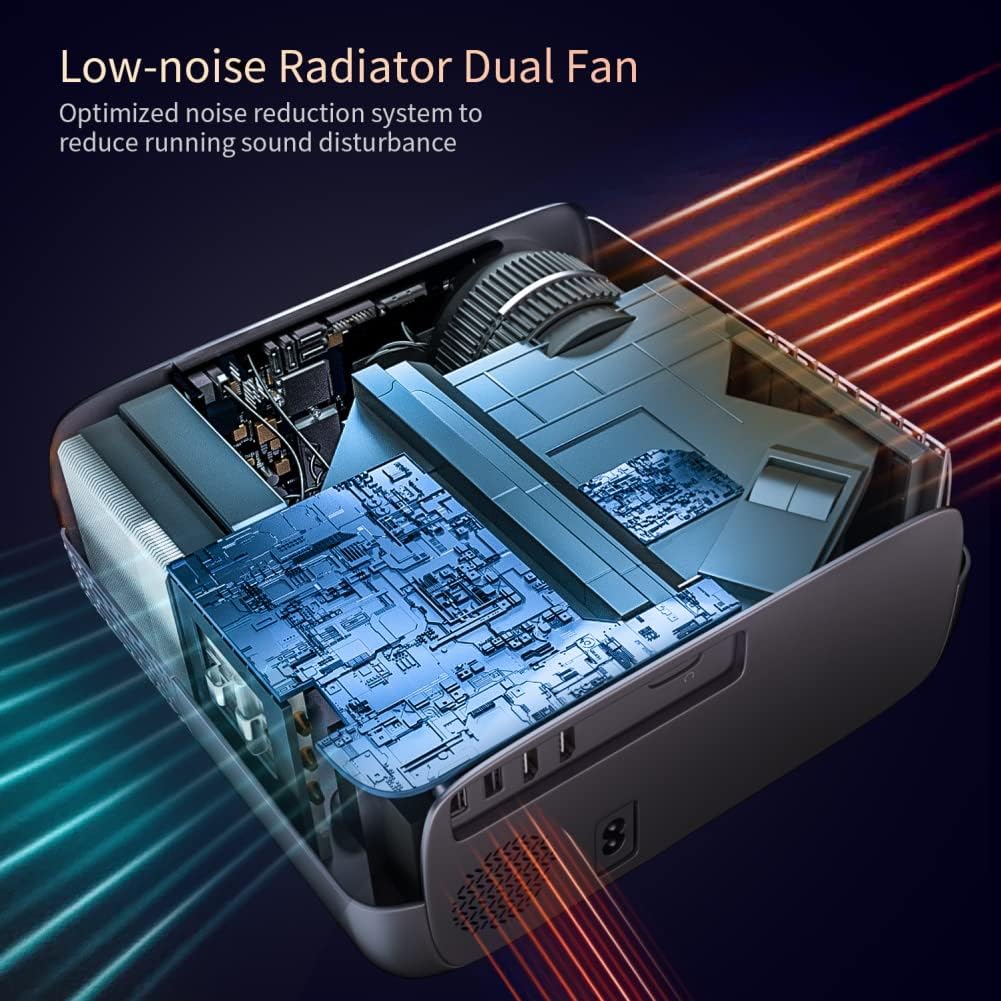
Image: Internal view of the projector's low-noise dual fan cooling system.
2.5. Product Overview Video
Video: An overview of the SKYWORTH T1 400 ANSI Lumens Projector, highlighting its WiFi and Bluetooth capabilities.
3. Setup Guide
3.1. Unpacking and Components
Carefully remove all components from the packaging. Ensure the following items are present:
- SKYWORTH T1 Projector
- Remote Control
- Power Cable
- AV Cable
- User Manual (this document)
3.2. Placement
Position the projector on a stable, flat surface. For optimal viewing, ensure the projector lens is perpendicular to the projection surface (wall or screen). Refer to the projection distance chart for recommended distances based on desired screen size.

Image: Recommended projection distances for different screen sizes.
3.3. Power Connection
- Connect the power cable to the projector's power input port.
- Plug the other end of the power cable into a power outlet.
- Press the power button on the projector or remote control to turn it on.
3.4. Focus and Keystone Adjustment
After powering on, adjust the focus and keystone correction for a clear, rectangular image.
- Focus: Rotate the focus ring on the projector lens until the image appears sharp.
- Keystone: Use the keystone adjustment controls (manual or digital via remote) to correct any trapezoidal distortion, ensuring the image is perfectly rectangular. The T1 supports 4D/4P keystone correction up to ±40°.
4. Operating Instructions
4.1. Source Selection
Use the 'Source' button on the remote control or the projector's control panel to select the desired input source (HDMI1, HDMI2, USB1, USB2, AV, or Screen Mirroring).
4.2. Wireless Screen Mirroring
The projector supports wireless screen mirroring for iOS and Android devices.
- For iOS devices (iOS Cast): Select 'iOS Cast' from the main menu. Ensure your iOS device and the projector are connected to the same Wi-Fi network. On your iOS device, open Control Center and select 'Screen Mirroring', then choose the projector from the list.
- For Android devices (Miracast): Select 'Miracast' from the main menu. Ensure your Android device's wireless display feature (often called 'Smart View', 'Screen Cast', or 'Wireless Display') is enabled. Select the projector from the available devices.
Note:
- Due to copyright restrictions, streaming services like Netflix, Amazon Prime Video, and Hulu may not support direct screen mirroring from mobile devices. For these services, it is recommended to use a TV Stick (e.g., Amazon Fire Stick, Roku) connected via HDMI.
- Bluetooth only supports audio transmission, not video.
4.3. Bluetooth Audio Connection
To connect external Bluetooth speakers or headphones:
- Ensure your Bluetooth audio device is in pairing mode.
- On the projector, navigate to the Bluetooth settings menu.
- Select your device from the list of available Bluetooth devices to pair.
4.4. Remote Control Usage
The included remote control allows you to navigate menus, adjust settings, change input sources, and control media playback. Ensure batteries are correctly inserted.
5. Maintenance
5.1. Cleaning the Lens
Use a soft, lint-free cloth specifically designed for optical lenses to gently wipe the projector lens. Avoid using abrasive cleaners or excessive force, as this can scratch the lens.
5.2. Cleaning the Vents
Regularly clean the air vents to ensure proper airflow and prevent overheating. Use a soft brush or a vacuum cleaner with a brush attachment to remove dust from the vents.
5.3. Storage
When not in use for extended periods, store the projector in a cool, dry place, away from direct sunlight and extreme temperatures. Use the original packaging or a protective case to prevent dust accumulation and physical damage.
6. Troubleshooting
- No Image or Blurry Image:
- Check the focus ring on the lens.
- Adjust keystone correction to ensure a rectangular image.
- Verify the input source is correctly selected and the external device is powered on.
- Ensure the projection distance is within the recommended range. - No Sound:
- Check the volume settings on both the projector and the connected source device.
- If using Bluetooth audio, ensure the device is properly paired and connected.
- If using HDMI, ensure the audio output settings on your source device are correct. - Cannot Connect to WiFi/Bluetooth:
- Ensure the projector's WiFi and Bluetooth functions are enabled.
- For WiFi, verify the network password is correct and the signal is strong.
- For Bluetooth, ensure the external device is in pairing mode and within range. - Remote Control Not Responding:
- Check and replace the batteries in the remote control.
- Ensure there are no obstructions between the remote and the projector's IR receiver.
7. Technical Specifications
| Feature | Specification |
|---|---|
| Brand | Skyworth |
| Model Number | T1 |
| Item Weight | 6.76 pounds |
| Product Dimensions | 10.2 x 9.6 x 4.3 inches |
| Display Resolution | 1920 x 1080 (Native) |
| Display Resolution Maximum | 1920 x 1080 (Supports 4K input) |
| Brightness | 400 ANSI Lumens |
| Connectivity Technology | Bluetooth, HDMI, USB, WiFi |
| Speaker Type | Built-In, Stereo (5W HIFI) |
| Keystone Correction | 4D/4P, ±40° |
| Zoom Function | 50% |
| Recommended Uses | TV Stick, Home Theater, Outdoor Projection |
8. Warranty and Support
For warranty information, technical support, or service inquiries, please refer to the official Skyworth website or contact their customer service directly. Details are typically provided in the product packaging or on the manufacturer's official support pages.


