1. Product Overview
The NiPoGi Mini PC GK3-8+256 is a compact and powerful desktop computer designed for various applications, from home entertainment to office tasks. It features a quad-core Intel Celeron J4125 processor, 8GB of DDR4 RAM, and a 256GB M.2 SSD, running on Windows 11 Pro (64-bit).
This mini PC supports 4K UHD resolution and triple display output via two HDMI ports and one VGA port, offering versatile connectivity options. Its efficient cooling system ensures stable performance, while dual-band Wi-Fi and Bluetooth 4.2 provide reliable wireless communication.

Figure 1: NiPoGi Mini PC GK3-8+256, a compact and powerful desktop computer.
2. Initial Setup
Follow these steps to set up your NiPoGi Mini PC:
- Connect to a Display: Use an HDMI or VGA cable to connect the mini PC to your monitor or TV. The device supports up to three displays simultaneously.
- Connect Peripherals: Plug in your USB keyboard and mouse to the available USB ports.
- Connect to Power: Connect the power adapter to the DC input port on the mini PC, then plug it into a power outlet.
- Power On: Press the power button located on the device. The system will boot into Windows 11 Pro.
- Initial Windows Setup: Follow the on-screen instructions to complete the Windows 11 Pro setup, including language, region, network connection, and user account creation.
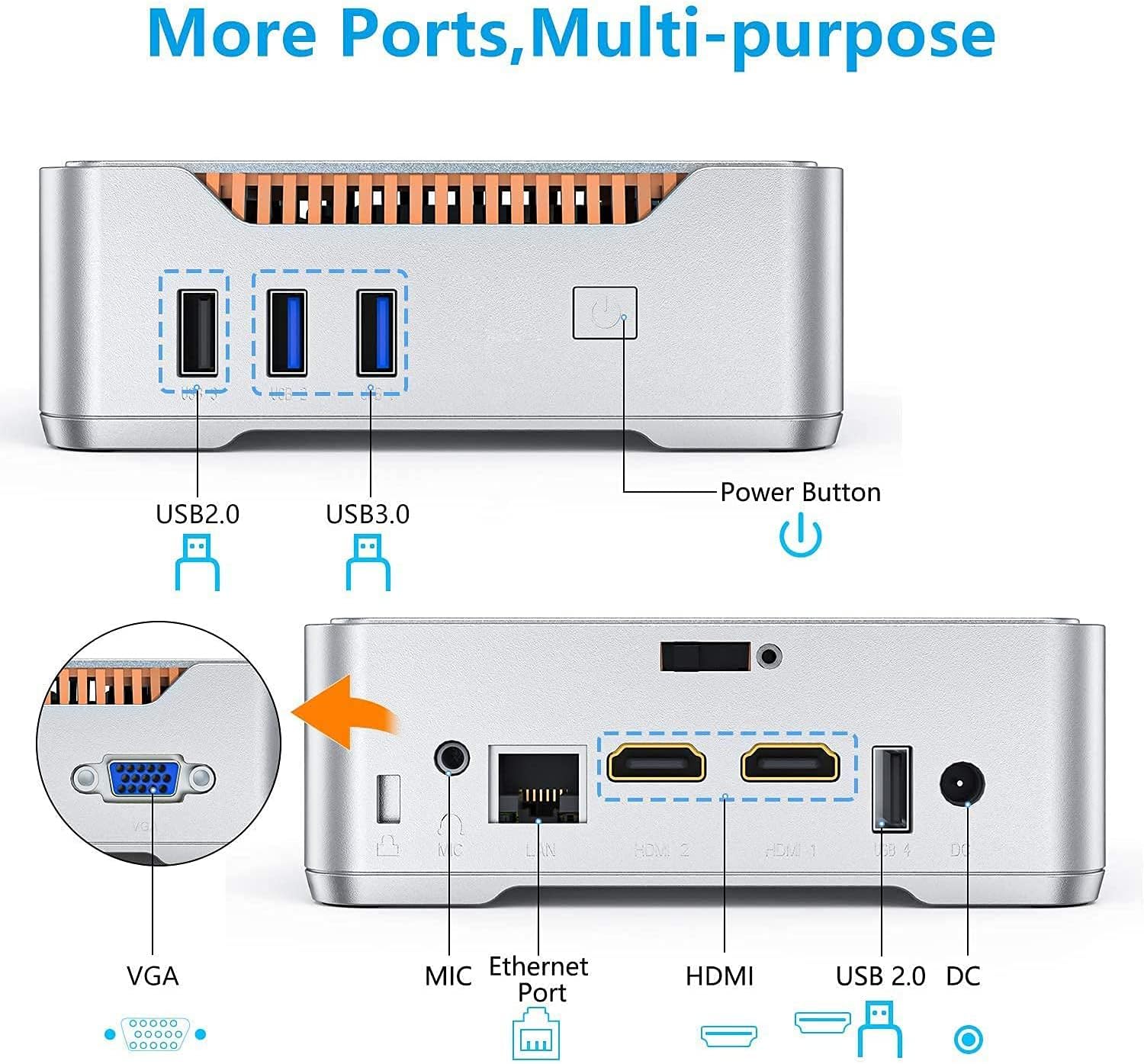
Figure 2: Overview of the NiPoGi Mini PC's ports, including USB, HDMI, VGA, Ethernet, and power input.
3. Operating Instructions
3.1 Power On/Off
- Power On: Press the power button once.
- Shut Down: Click the Windows Start button, then select Power > Shut down.
- Restart: Click the Windows Start button, then select Power > Restart.
3.2 Multi-Display Setup
The NiPoGi Mini PC supports connecting up to three displays simultaneously for enhanced productivity or entertainment.
- Connect your monitors using the available HDMI and VGA ports.
- Once connected, right-click on the desktop, select 'Display settings', and configure your displays (extend, duplicate, or show only on one).

Figure 3: The NiPoGi Mini PC supporting a triple display setup for various tasks.
3.3 Network Connectivity
- Wi-Fi: The mini PC supports dual-band 2.4G and 5G Wi-Fi. To connect, click the Wi-Fi icon in the taskbar, select your network, and enter the password.
- Ethernet: For a wired connection, plug an Ethernet cable into the RJ45 port on the back of the mini PC.
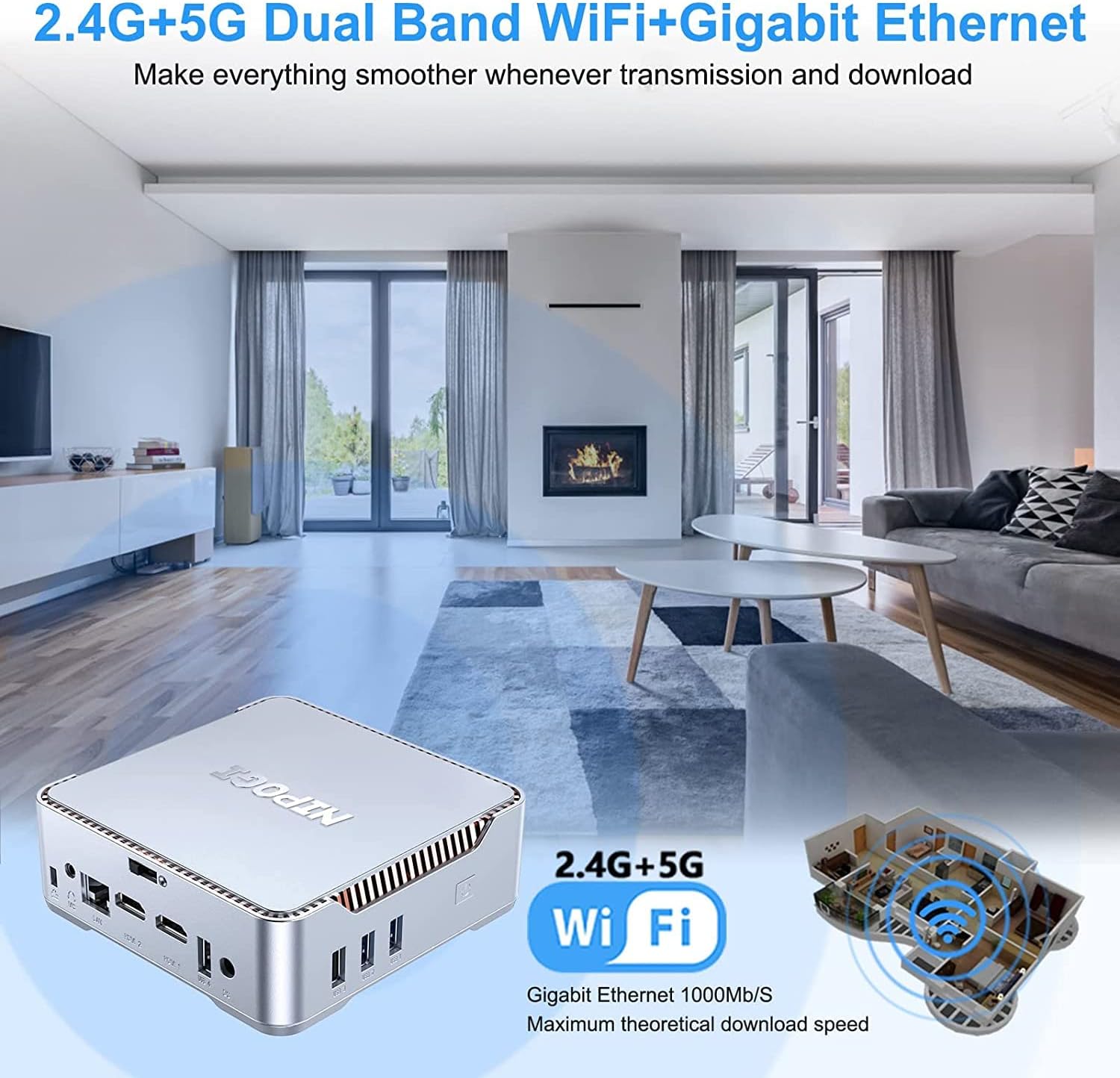
Figure 4: The NiPoGi Mini PC offering both dual-band Wi-Fi and Gigabit Ethernet connectivity.
4. Maintenance
4.1 Cleaning
Regular cleaning helps maintain optimal performance and extends the lifespan of your mini PC.
- Ensure the device is powered off and unplugged before cleaning.
- Use a soft, dry cloth to wipe the exterior.
- For dust accumulation in vents, use compressed air. Avoid spraying liquid directly onto the device.

Figure 5: The internal fan system of the NiPoGi Mini PC, designed for efficient cooling.
4.2 Storage Expansion
The NiPoGi Mini PC comes with a 256GB M.2 SSD and supports further storage expansion:
- You can add a 2.5-inch SATA HDD/SSD (up to 2TB, not included) for additional storage.
- Refer to the detailed instructions provided with your device for physical installation of the 2.5-inch drive.

Figure 6: Illustrated steps for expanding the storage of the NiPoGi Mini PC by adding a 2.5-inch SATA drive.
4.3 Software Updates
Ensure your Windows 11 Pro operating system and drivers are up to date for optimal performance and security. Windows Update typically handles this automatically, but you can manually check for updates via Settings > Windows Update.
5. Troubleshooting
| Problem | Possible Cause | Solution |
|---|---|---|
| No display on monitor | Loose cable connection, incorrect input source, monitor off. | Check HDMI/VGA cable connections. Ensure monitor is powered on and set to the correct input source. Try a different cable or port. |
| Mini PC does not power on | Power adapter not connected, power outlet issue. | Verify power adapter is securely connected to both the PC and a working power outlet. Try a different outlet. |
| Slow performance | Too many applications running, low disk space, outdated drivers. | Close unnecessary applications. Check disk space and free up if needed. Update Windows and drivers. Consider adding more storage. |
| Wi-Fi connection issues | Incorrect password, router issues, signal interference. | Double-check Wi-Fi password. Restart your router. Move the mini PC closer to the router or use an Ethernet connection. |
6. Technical Specifications
- Model: NiPoGi Mini PC GK3-8+256
- Operating System: Windows 11 Pro (64-bit)
- Processor: Intel Celeron J4125 (Quad-Core, 2.0 GHz base, up to 2.7 GHz turbo)
- Graphics: Intel UHD Graphics 600 (Supports 4K @ 60Hz)
- RAM: 8GB DDR4
- Storage: 256GB M.2 SSD (expandable with 2.5-inch SATA HDD/SSD up to 2TB)
- Video Output: 2 x HDMI, 1 x VGA (Triple Display Support)
- USB Ports: 2 x USB 3.0, 2 x USB 2.0
- Network: Dual-Band Wi-Fi (2.4G + 5G), Gigabit Ethernet (1000 Mbps)
- Bluetooth: Bluetooth 4.2
- Audio: 1 x 3.5mm Audio Jack
- Special Features: Auto Power On, Wake On LAN, VESA Mount Support
- Dimensions (L x W x H): 14 x 14 x 4.5 cm
- Weight: 390 Grams
7. Support & Warranty Information
NiPoGi is committed to providing excellent customer support for its products.
7.1 Customer Support
If you encounter any issues or have questions regarding your NiPoGi Mini PC, please contact our support team:
- Email: support@nipogi.com
- Phone (Europe): +49 800 182 1386 (Monday-Friday, 9 AM - 5 PM EST)
- Alternatively, you can log into your Amazon account, go to 'Your Orders', and select 'Ask Product Question'.
7.2 Warranty
During the warranty period, NiPoGi provides maintenance services for exchange or repair of the Mini PC. Specific warranty duration and terms may vary by region and purchase date. Please retain your proof of purchase for warranty claims.

Figure 7: NiPoGi customer support is available to assist with product inquiries and issues.


