
1. Introduction
The DJI Mavic 2 Enterprise Advanced is a compact and versatile commercial drone designed for a wide range of professional applications, including search and rescue, firefighting, and industrial inspection. It features a high-resolution thermal and visual dual-camera system, along with advanced attachments like a spotlight and loudspeaker, to enhance operational capabilities in challenging environments. This manual provides essential information for the safe and effective use of your drone.
2. What's in the Box
Carefully unpack your DJI Mavic 2 Enterprise Advanced and ensure all components are present. The standard package includes:
- DJI Mavic 2 Enterprise Advanced Aircraft
- Remote Controller
- Intelligent Flight Battery
- Propellers (pairs)
- Battery Charger
- Power Cable
- USB-C Cable
- USB Adapter
- Spare Control Sticks (pair)
- Spotlight Attachment
- Loudspeaker Attachment
- RTK Module (if included in your package)
- Hard Carrying Case

Image: All components of the DJI Mavic 2 Enterprise Advanced package, including the drone, remote controller, batteries, propellers, charger, and various attachments, neatly arranged.
3. Product Features
3.1 High-Resolution Dual-Sensor Camera
The Mavic 2 Enterprise Advanced is equipped with both a high-resolution visual camera and a thermal camera. The visual camera captures 48 MP stills, while the thermal sensor provides 640 x 512 px resolution, enabling detailed inspections and situational awareness in various conditions. It also features a 32x digital zoom for close-up analysis from a safe distance.

Image: A detailed view of the drone's gimbal, showcasing the integrated visual and thermal cameras.
3.2 Compact and Foldable Design
Designed for rapid deployment, the drone features a lightweight and foldable airframe, allowing for quick setup and portability. It can be carried easily and deployed within one minute, making it ideal for time-sensitive operations.

Image: A person holding the folded DJI Mavic 2 Enterprise Advanced drone, demonstrating its compact and portable design.
3.3 Automated Inspection Capabilities
Plan and execute complex inspection missions with centimeter-level RTK precision. The drone supports up to 240 waypoints, allowing for highly accurate and repeatable data collection, crucial for detailed infrastructure inspections.

Image: The DJI Mavic 2 Enterprise Advanced drone in flight, performing an inspection over an industrial area with a pilot operating the remote controller.
3.4 Modular Attachments
The drone supports various modular attachments that expand its functionality for specific missions. These include a spotlight for low-light operations and a loudspeaker for communication.
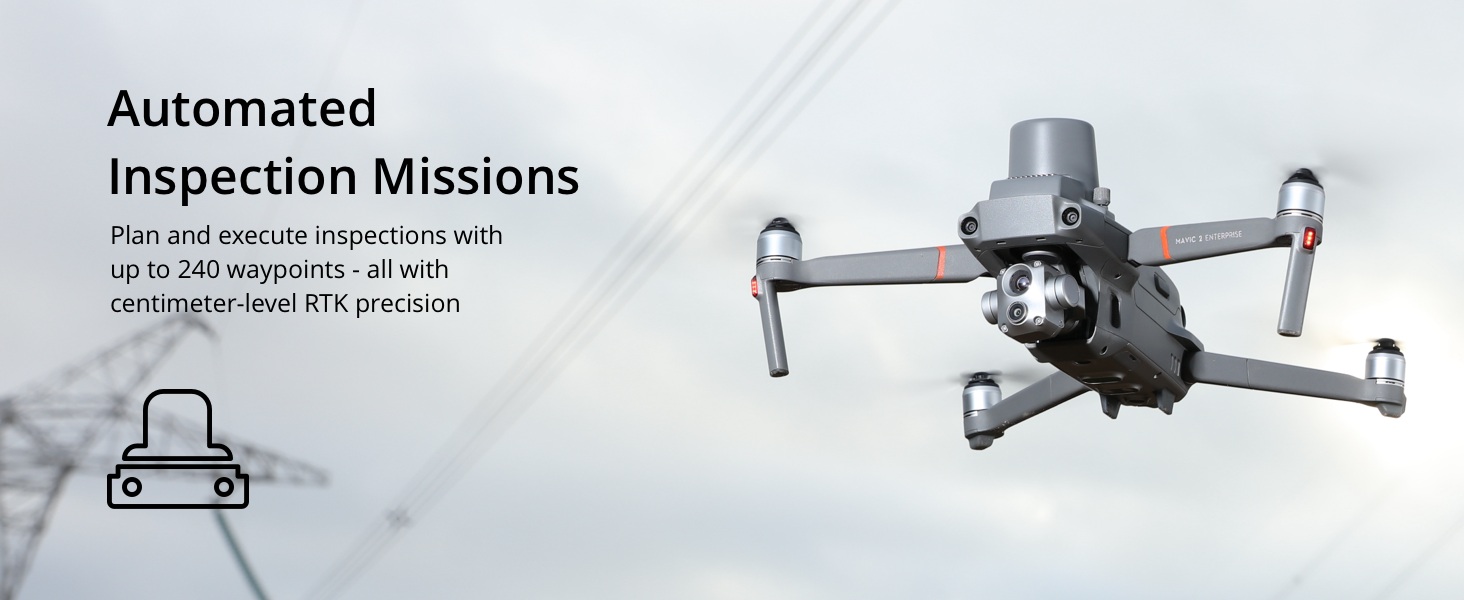
Image: The DJI Mavic 2 Enterprise Advanced drone equipped with the loudspeaker attachment, demonstrating its modular design for mission-specific tools.
4. Setup Guide
4.1 Charging Batteries
- Connect the battery charger to a power outlet.
- Insert the Intelligent Flight Battery into the charging hub or directly into the charger.
- Charge the remote controller using the provided USB-C cable.
- Ensure all batteries are fully charged before flight.
4.2 Propeller Installation
- Unfold the drone arms.
- Match the propellers with the corresponding motor bases (silver caps with silver propellers, black caps with black propellers).
- Press down on the propeller and rotate in the lock direction indicated on the propeller base until secure.
- Verify all propellers are firmly attached before flight.
4.3 App Installation and Activation
- Download the DJI Pilot app from the official DJI website or your device's app store.
- Install the app on your compatible smartphone or tablet.
- Connect your mobile device to the remote controller.
- Follow the on-screen instructions in the app to activate the aircraft and remote controller.
5. Operation Guide
5.1 Pre-Flight Checklist
- Ensure all batteries (aircraft and remote controller) are fully charged.
- Check that propellers are correctly and securely installed.
- Verify the camera gimbal protector is removed.
- Confirm sufficient storage space on the microSD card.
- Check for any physical damage to the drone or remote controller.
- Ensure you are in an open area, away from obstacles, people, and restricted airspace.
5.2 Basic Flight Controls
Familiarize yourself with the remote controller's sticks and buttons. The left stick typically controls altitude and yaw, while the right stick controls forward/backward and left/right movement. Refer to the DJI Pilot app for detailed control mapping and flight modes.
5.3 Camera and Sensor Usage
The DJI Pilot app allows you to switch between the visual and thermal camera feeds, adjust camera settings, and utilize the 32x digital zoom. The thermal sensor is crucial for identifying heat signatures in search and rescue or inspection scenarios.
5.4 Attachment Operation
To use the spotlight or loudspeaker, ensure they are securely mounted to the drone. Control these attachments directly through the DJI Pilot app interface. The spotlight provides illumination in low-light conditions, and the loudspeaker enables communication from the air.
5.5 Video Demonstration
Watch this official video for a visual overview of the DJI Mavic 2 Enterprise Advanced's capabilities and operation.
Video: An official demonstration of the DJI Mavic 2 Enterprise Advanced, highlighting its dual-sensor capabilities, modular attachments, and applications in various professional fields.
6. Maintenance
6.1 Cleaning
- Regularly clean the drone's body, propellers, and camera lens with a soft, dry cloth.
- Avoid using harsh chemicals or abrasive materials.
- Ensure no dust or debris obstructs the sensors or cooling vents.
6.2 Battery Care
- Store batteries in a cool, dry place, away from direct sunlight.
- Do not overcharge or over-discharge batteries.
- If storing for extended periods, discharge batteries to approximately 50-60% capacity.
- Inspect batteries for any swelling or damage before each use.
6.3 Propeller Inspection
Before each flight, inspect all propellers for cracks, bends, or any signs of wear. Replace damaged propellers immediately to ensure safe flight.
7. Troubleshooting
7.1 Drone Not Powering On
- Ensure the Intelligent Flight Battery is fully charged and correctly inserted.
- Press the power button once, then press and hold for two seconds to power on.
7.2 No GPS Signal
- Operate the drone in an open outdoor area, away from tall buildings or dense foliage.
- Ensure the drone has a clear view of the sky.
- Wait for the drone to acquire sufficient GPS satellites before takeoff.
7.3 Image/Video Quality Issues
- Clean the camera lens.
- Check camera settings in the DJI Pilot app (resolution, frame rate).
- Ensure the gimbal is functioning correctly and not obstructed.
- Use a high-speed microSD card.
7.4 Remote Controller Disconnection
- Ensure the remote controller is fully charged.
- Relocate to an area with less signal interference.
- Re-link the remote controller to the aircraft if necessary (refer to the DJI Pilot app for instructions).
8. Specifications
| Feature | Detail |
|---|---|
| Brand | DJI |
| Model Name | Mavic 2 Enterprise Advanced |
| Photo Sensor Resolution | 48 MP |
| Thermal Sensor Resolution | 640 x 512 px |
| Optical Zoom | 32x |
| Image Stabilization | Optical, Sensor-shift |
| Maximum Focal Length | 84 Millimeters |
| Battery Average Life | 31 minutes |
| Item Weight | 10.5 Ounces |
| Video Resolution | 3840x2160 |
| Connectivity Technology | Wi-Fi |
| Special Feature | High-resolution thermal and visual cameras, 32x digital zoom, Centimeter-level positioning accuracy with RTK module, Specialized applications in firefighting, search and rescue, law enforcement, power inspection, and environmental protection |
9. Warranty and Support
9.1 Warranty Information
The DJI Mavic 2 Enterprise Advanced is covered by a DJI Warranty. For specific terms and conditions, please refer to the official DJI warranty policy available on their website or contact DJI customer service. Keep your proof of purchase for warranty claims.
9.2 Customer Support
For technical assistance, troubleshooting, or service inquiries, please visit the official DJI support website or contact their customer service department. You can find contact information and FAQs on the DJI website.


