
1. Introduction
Welcome to the MEKO Push 65% RGB LED Hotswap Bluetooth Mechanical Keyboard user manual. This guide provides detailed instructions for setting up, operating, and maintaining your new keyboard. The MEKO Push is a compact, feature-rich 65% mechanical keyboard designed for versatility and performance, featuring full hotswap functionality, Bluetooth connectivity, vibrant RGB backlighting, and durable double-shot ABS keycaps.
2. What's in the Box
- MEKO Push 65% Mechanical Keyboard
- USB-C to USB-A Cable
- Keycap Puller
- Switch Puller (typically included with hotswap keyboards)

Image: Contents of the MEKO Push keyboard box, showing the keyboard, USB-C cable, and keycap puller.
3. Product Overview
The MEKO Push keyboard features a 65% layout with 71 keys, offering a compact design while retaining essential arrow keys. It is equipped with Kailh Box White switches for a tactile typing experience.

Image: The MEKO Push 65% mechanical keyboard, showcasing its compact layout and RGB backlighting.
Key Features:
- Hotswap Sockets: Easily remove and install any MX-based switch without soldering.
- Bluetooth Connectivity: Store up to 5 unique Bluetooth devices in Wireless Mode.
- 65% Layout: Compact design with 71 keys and dedicated arrow keys.
- RGB Backlighting: Multiple lighting modes for customization.
- Double Shot ABS Keycaps: Durable and long-lasting legends.
- Rechargeable Lithium Battery: For wireless operation.
- USB-C Wired Connection: Reliable wired connection and charging.

Image: Close-up of the 'PUSH' branding on the side of the keyboard.
4. Setup
4.1 Wired Connection
- Connect the USB-C end of the provided cable to the keyboard's USB-C port.
- Connect the USB-A end of the cable to an available USB port on your computer.
- The keyboard will be automatically recognized by your operating system and is ready for use.
4.2 Bluetooth Connection
The MEKO Push keyboard can store up to 5 Bluetooth devices.
- Ensure the keyboard is powered on and in Bluetooth mode (usually indicated by a switch on the back or side).
- Press and hold FN + Q, FN + W, FN + E, FN + R, or FN + T for 3-5 seconds to enter pairing mode for the corresponding device slot. The key's backlight will flash rapidly to indicate pairing mode.
- On your device (computer, tablet, smartphone), open Bluetooth settings and search for new devices.
- Select "MEKO Push Keyboard" (or similar name) from the list of available devices.
- Follow any on-screen prompts to complete the pairing process. The key's backlight will stop flashing once successfully paired.
- To switch between paired devices, simply press FN + Q/W/E/R/T (short press) for the desired device.
4.3 Charging
Connect the keyboard via the USB-C cable to a powered USB port on your computer or a USB wall adapter. The keyboard's indicator light will show charging status (e.g., red for charging, green for full).
5. Operating Instructions
5.1 RGB Backlighting Control
The MEKO Push keyboard offers various RGB lighting effects and customization options.
- Change Lighting Mode: Press FN + \| to cycle through different RGB lighting effects.
- Adjust Brightness: Press FN + ↑ to increase brightness, FN + ↓ to decrease brightness.
- Adjust Speed: Press FN + ← to decrease effect speed, FN + → to increase effect speed.
- Change Color: Some modes allow color changes. Refer to specific key combinations in the full manual if available, or cycle through colors using FN + Right Shift (common for some keyboards).
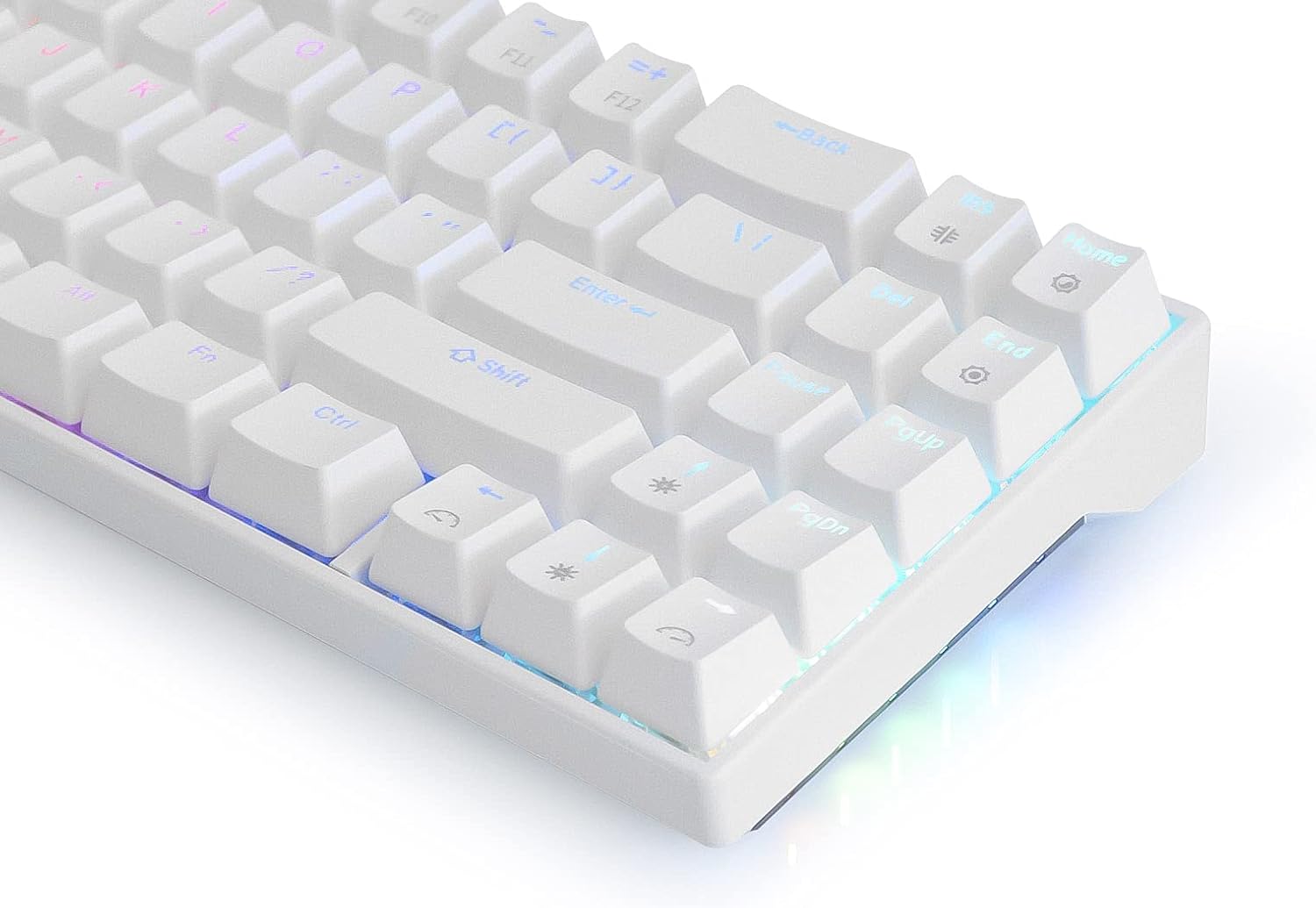
Image: Side view of the MEKO Push keyboard demonstrating its vibrant RGB lighting.
5.2 Hotswap Switch Replacement
The hotswap feature allows you to change mechanical switches without soldering.
- Remove Keycap: Use the keycap puller to gently remove the desired keycap.
- Remove Switch: Use the switch puller to carefully grip the top and bottom clips of the switch. Pull the switch straight up to remove it from the socket.
- Install New Switch: Align the pins of the new switch with the holes on the PCB. Ensure the switch is oriented correctly. Gently push the switch down until it clicks into place. Do not force it; if resistance is met, check pin alignment.
- Replace Keycap: Place the keycap back onto the new switch stem.
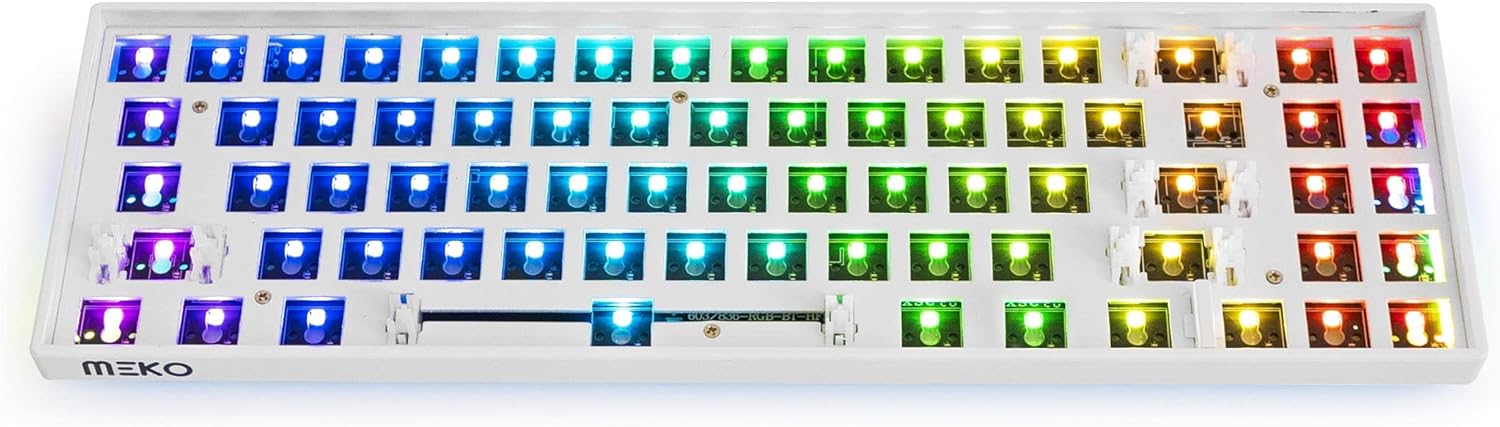
Image: Internal view of the MEKO Push keyboard, showing the hotswap sockets ready for switch installation.
5.3 FN Key Combinations
The Function (FN) key allows access to secondary functions printed on the keycaps.
- FN + Q/W/E/R/T: Switch between or pair Bluetooth devices.
- FN + A: Windows Mode (for Windows OS).
- FN + S: Mac Mode (for macOS).
- FN + F1-F12: Access multimedia controls (e.g., volume, play/pause) if indicated on keycaps.
- FN + Backspace: Delete (common on 65% layouts).
- FN + Enter: Right Ctrl (common on 65% layouts).
- FN + Right Shift: Cycle through RGB colors (may vary by firmware).
6. Maintenance
6.1 Cleaning the Keyboard
- Disconnect the keyboard from your computer before cleaning.
- Use a can of compressed air to blow away dust and debris from between the keycaps.
- For stubborn dirt, gently wipe the keycaps and keyboard surface with a soft, damp cloth. Avoid excessive moisture.
- Do not use harsh chemicals or abrasive cleaners.
6.2 Keycap and Switch Care
- When removing keycaps, use the provided keycap puller to avoid damaging the keycaps or switch stems.
- When removing switches, use the switch puller and pull straight up to prevent bending the switch pins.
- Store spare keycaps and switches in a safe, dry place.
7. Troubleshooting
7.1 Keyboard Not Responding (Wired)
- Ensure the USB-C cable is securely connected to both the keyboard and the computer.
- Try a different USB port on your computer.
- Test the keyboard with a different USB-C cable if available.
- Restart your computer.
7.2 Bluetooth Connection Issues
- Ensure the keyboard is charged and powered on.
- Verify the keyboard is in Bluetooth mode and pairing mode (FN + Q/W/E/R/T, flashing light).
- On your device, try forgetting the keyboard and re-pairing it.
- Ensure your device's Bluetooth is enabled and working correctly.
- Move the keyboard closer to your device to reduce interference.
7.3 RGB Backlighting Not Working
- Ensure the keyboard is powered on.
- Check brightness settings using FN + ↑.
- Cycle through lighting modes using FN + \|.
- If using wireless mode, ensure the battery has sufficient charge.
7.4 Keys Not Registering
- For hotswap keyboards, ensure the switch is fully seated in its socket. Gently press down on the switch or re-install it.
- Check for bent pins on the switch if it was recently installed. Straighten them carefully if necessary.
- Clean around the affected key to remove any debris.
8. Specifications
| Brand | MEKO |
| Model Name | Push |
| Model Number | ME20PB-WH71-PSH_ |
| Connectivity Technology | Bluetooth, USB-C Wired |
| Keyboard Description | Mechanical |
| Switch Type | Kailh BOX White (Tactile) |
| Number of Keys | 71 |
| Keyboard Layout | 65% (QWERTY) |
| Backlighting | RGB |
| Material | Acrylonitrile Butadiene Styrene (ABS) |
| Power Source | Battery Powered (Rechargeable Lithium Battery) |
| Cable Length | 6.0 feet |
9. Warranty and Support
For warranty information, technical support, or further assistance, please refer to the official MEKO website or contact their customer service directly. Keep your purchase receipt for warranty claims.
Manufacturer: Meko

