
1. Introduction
This manual provides essential information for setting up, operating, and maintaining your Amazon Fire 7 tablet (12th Generation). Please read this guide thoroughly to ensure optimal use of your device.

Image 1.1: The Amazon Fire 7 tablet, showcasing its display with various applications and content options.
2. Key Features
- Display: 7-inch touchscreen with 1024 x 600 resolution at 171 ppi, featuring IPS technology for wide viewing angles.
- Storage: Available in 16 GB or 32 GB internal storage options, expandable up to 1 TB via microSD card.
- Battery Life: Up to 10 hours for reading, web browsing, video playback, and music listening.
- Performance: Enhanced quad-core 2.0 GHz processor with 2 GB of RAM.
- Content Access: Access to Netflix, Facebook, Hulu, Instagram, TikTok, and more via Amazon’s Appstore.
- Communication: Supports Zoom and Alexa for video calls and voice commands.
- Parental Controls: Amazon Kids offers easy-to-use parental controls and access to curated content with Amazon Kids+.
3. Getting Started (Setup)
3.1 Unboxing and Initial Charge
Upon unboxing, locate the Fire 7 tablet, USB-C cable, and 5W power adapter. Connect the USB-C cable to the tablet and the power adapter, then plug it into a wall outlet. A full charge takes approximately 4 hours.
3.2 Powering On/Off
- To Power On: Press and hold the power button located on the side of the tablet until the Amazon logo appears.
- To Power Off: Press and hold the power button, then select 'Power Off' from the on-screen options.
3.3 Initial Setup Wizard
Follow the on-screen instructions to complete the initial setup, which includes:
- Language Selection: Choose your preferred language.
- Wi-Fi Connection: Select your Wi-Fi network and enter the password. The tablet supports dual-band 802.11a/b/g/n Wi-Fi.
- Amazon Account Registration: Sign in with your existing Amazon account or create a new one. This is necessary to access Amazon services and the Appstore.
- Time Zone and Date: Set your local time and date.
4. Operating Your Fire 7 Tablet
4.1 Navigating the Interface
The Fire 7 tablet uses a touch-based interface. Swipe, tap, and pinch gestures are used for navigation. The home screen displays your installed apps and content.
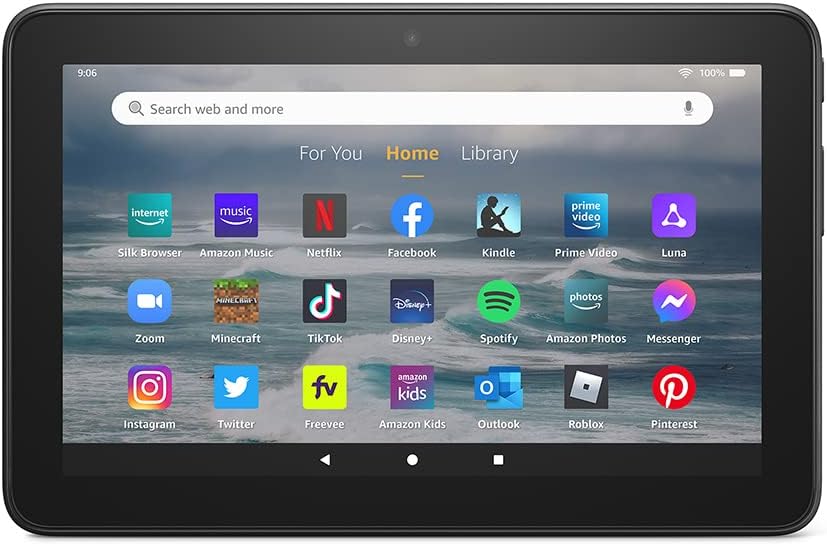
Image 4.1: The Fire 7 tablet's home screen, showing a grid of application icons for quick access.
4.2 Installing and Managing Apps
Applications can be downloaded from the Amazon Appstore. Google Play Store is not supported.
- To Install Apps: Open the 'Appstore' app, browse or search for desired applications, and tap 'Get' or the price to download and install.
- To Uninstall Apps: Go to Settings > Apps & Notifications > Manage All Applications, select the app, and tap 'Uninstall'.
4.3 Media Consumption
The Fire 7 tablet is designed for reading, watching videos, and listening to music.
- Reading: Use the Kindle app to access e-books.
- Videos: Stream content from Prime Video, Netflix, Hulu, Disney+, and other supported apps.
- Music: Listen to music via Amazon Music, Spotify, or other music streaming services.

Image 4.2: A user engaging with video content on the Fire 7 tablet, demonstrating its media playback capabilities.

Image 4.3: The Fire 7 tablet showcasing an e-book cover, highlighting its function as a reading device.
4.4 Using Alexa
Your Fire 7 tablet includes Alexa. You can activate Alexa by saying "Alexa" or by tapping the Alexa icon.
- Voice Commands: Ask Alexa to play music, check the weather, set reminders, or update shopping lists.
- Video Calls: Use Alexa to make video calls to friends and family via Zoom or other compatible services.

Image 4.4: A user engaged in a video call on the Fire 7 tablet, demonstrating its communication features.
4.5 Parental Controls with Amazon Kids
Amazon Kids provides parental controls to manage content access and screen time for children.
- Setup: Access Amazon Kids settings to create child profiles, set age filters, and manage app permissions.
- Amazon Kids+: Subscribe to Amazon Kids+ for access to a curated library of books, apps, games, videos, and Audible books suitable for children.

Image 4.5: The Fire 7 tablet displaying the Amazon Kids interface, illustrating its parental control features.
5. Storage and Connectivity
5.1 Internal and Expandable Storage
The Fire 7 tablet comes with either 16 GB or 32 GB of internal storage. You can expand this storage by up to 1 TB using a microSD card. Insert the microSD card into the designated slot on the tablet.
5.2 Wi-Fi Connectivity
The device supports single-antenna dual-band Wi-Fi (802.11a, 802.11b, 802.11g, 802.11n) with WEP, WPA, and WPA2 security. Wi-Fi 6 (802.11ax) is not supported.
5.3 Ports and Audio
- USB-C Port: Used for charging and connecting to a computer.
- microSD Slot: For external storage expansion.
- 3.5 mm Stereo Jack: For connecting headphones or external speakers.
- Integrated Speaker: For audio output.
6. Maintenance
6.1 Battery Care
To maximize battery life, avoid extreme temperatures and fully discharge the battery occasionally before recharging. Battery life varies based on usage and settings.
6.2 Software Updates
Ensure your tablet is connected to Wi-Fi to receive automatic software security updates. You can check for updates manually in Settings > Device Options > System Updates.
7. Troubleshooting
If you encounter issues with your Fire 7 tablet, consider the following steps:
- Device Unresponsive: Press and hold the power button for 20 seconds to force a restart.
- Wi-Fi Connection Issues: Verify your Wi-Fi password, restart your router, or try connecting to a different network.
- App Not Working: Try clearing the app's cache (Settings > Apps & Notifications > Manage All Applications > [App Name] > Storage > Clear Cache) or reinstalling the app.
- Slow Performance: Close unused apps, clear cache, or consider adding a microSD card for more storage.
- Battery Draining Quickly: Reduce screen brightness, disable Wi-Fi when not in use, or close background apps.
8. Specifications
| Feature | Description |
|---|---|
| Display | 7’’ touchscreen, 1024 x 600 resolution at 171 ppi, SD video playback, IPS technology. |
| Size | 7.11’’ x 4.63’’ x 0.38’’ (180.68 mm x 117.59 mm x 9.67 mm). |
| Weight | 9.9 ounces (282 grams). |
| CPU & RAM | Quad-Core 2.0 GHz with 2 GB of RAM. |
| Storage | 16 GB or 32 GB internal storage, expandable up to 1 TB via microSD card. |
| Battery Life | Up to 10 hours. |
| Charge Time | Approximately 4 hours with included 5W power adapter. |
| Wi-Fi Connectivity | Single-antenna dual-band Wi-Fi (802.11a/b/g/n). Wi-Fi 6 (802.11ax) not supported. |
| Ports | USB-C, microSD slot, 3.5 mm stereo jack. |
| Audio | 3.5 mm stereo jack and integrated speaker. |
| Sensors | Accelerometer. |
| Camera Specs | 2 MP front and rear-facing cameras with 720p HD video recording. |
| Location Services | Location-based services via Wi-Fi. |
| Additional Features | External volume controls, built-in Bluetooth with A2DP support. |
| Generation | 12th generation - 2022 release. |
9. Warranty and Support
The Amazon Fire 7 tablet (12th Generation) includes a 1-year limited warranty and service. For detailed warranty information and support, please refer to the official Amazon support website or the documentation included with your device.
This device receives the same limited warranty as a new device, even if purchased as a 'Like-New' Amazon device.


