
1. Introduction
The Orbit 6-zone indoor sprinkler controller is designed to provide convenient and flexible control over your lawn or garden watering schedule. Its user-friendly interface simplifies setup and customization, offering features such as rain delay, water budgeting, and dual watering programs to meet specific irrigation needs.
This manual provides detailed instructions for the installation, operation, and maintenance of your Orbit Easy Dial Sprinkler Controller.
Key Features:
- Flexible Watering Options: Set water duration for each station between 1-240 minutes.
- Efficient Watering Schedule: Up to 8 start times per day to reduce water runoff.
- Rain Delay Feature: Pause watering for 24, 48, or 72 hours.
- Water Budgeting: Adjust run times based on seasonal changes.
- Dual Watering Programs: Independent programs for customized intervals, days of the week, or even/odd watering days.

Figure 1.1: Front view of the Orbit Easy Dial 6-Station Indoor Sprinkler Controller, showing the LCD display, control buttons, and rotary dial.
2. Safety Information
Please read all safety information before installing or operating the controller. Failure to follow these instructions could result in injury or property damage.
- This controller is designed for indoor use only. Do not install outdoors or in areas exposed to water.
- Ensure the power supply is disconnected before performing any wiring or maintenance.
- All electrical connections should be made in accordance with local electrical codes.
- Do not attempt to repair the unit yourself. Refer all servicing to qualified personnel.
3. Setup and Installation
3.1 Mounting the Controller
Choose a suitable indoor location near a standard 120V AC electrical outlet. Avoid areas with extreme temperatures or direct sunlight.
- Mark the desired mounting location on the wall.
- Install two mounting screws (not included) into the wall, leaving approximately 1/8 inch (3 mm) of the screw head exposed. The screws should be spaced vertically to align with the keyhole slots on the back of the controller.
- Hang the controller on the screws.

Figure 3.1: Example of the controller mounted on a wall in an indoor setting.
3.2 Wiring the Controller
Before wiring, ensure the power adapter is unplugged from the electrical outlet.
- Common Wire (COM): Connect the common wire from your sprinkler valves to the terminal labeled 'COM' on the controller. This is typically a white wire.
- Zone Wires (1-6): Connect each individual zone wire from your sprinkler valves to the corresponding numbered terminals (1 through 6) on the controller.
- Rain Sensor (Optional): If using a rain sensor (sold separately), connect its wires to the 'SENSOR' terminals. Ensure the rain sensor switch inside the controller is set to 'ON' if a sensor is connected. If no sensor is used, keep the switch 'OFF' and ensure the jumper wire is in place between the sensor terminals.
- Power Connection: Plug the included 24V AC transformer into the '24VAC' terminals on the controller. Then, plug the transformer into a standard 120V AC electrical outlet.
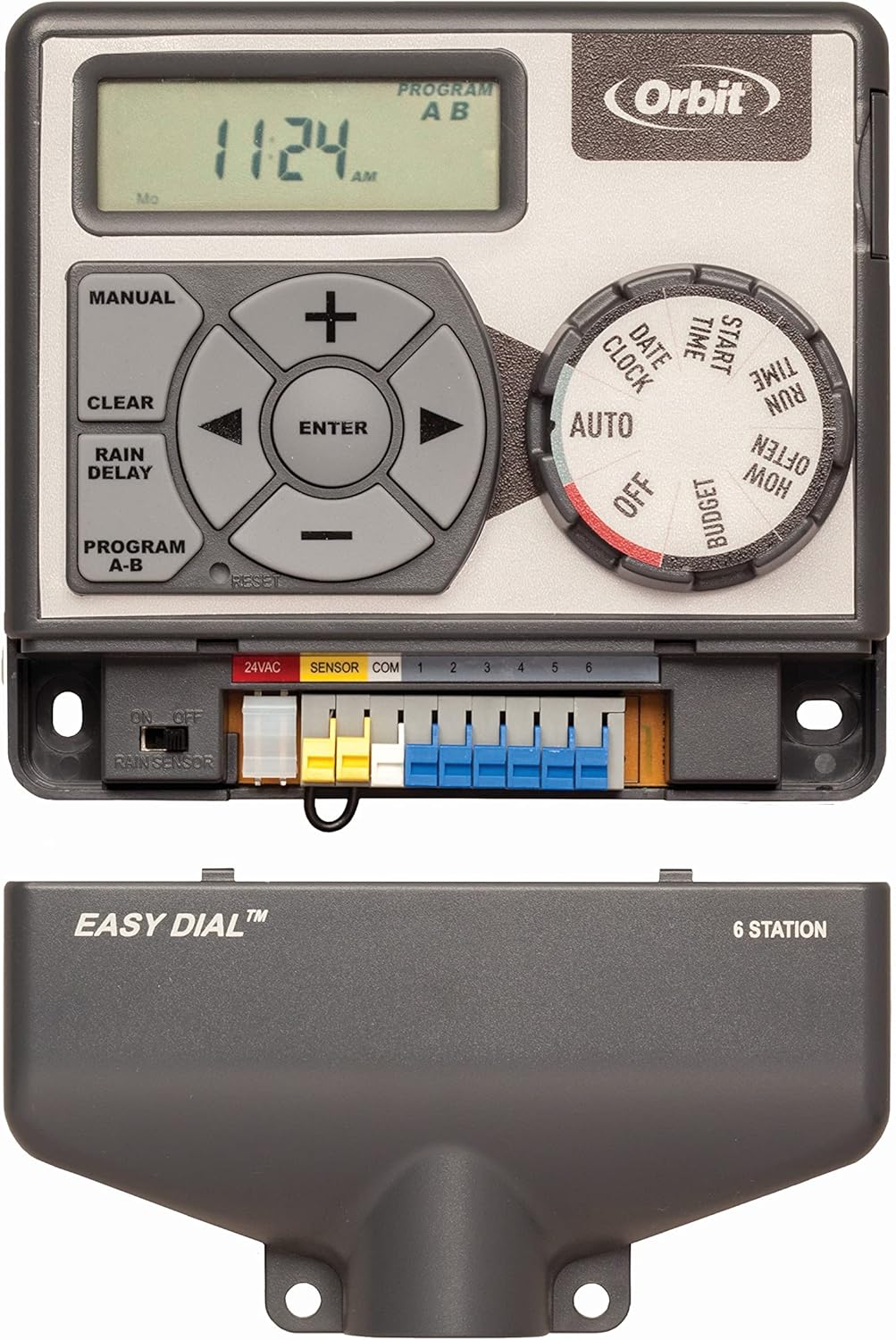
Figure 3.2: Detailed view of the wiring terminals, showing connections for 24VAC, SENSOR, COM, and zones 1-6.
4. Operating Instructions
The Orbit Easy Dial controller features a rotary dial for selecting functions and a set of buttons for adjusting settings.

Figure 4.1: Control panel overview, highlighting the LCD display, directional buttons, and function dial.
4.1 Setting Current Time and Date
- Turn the dial to DATE/CLOCK.
- Use the + and - buttons to set the current year, then press ENTER.
- Repeat for month, day, hour, and minute.
4.2 Programming Watering Schedules (Programs A & B)
The controller supports two independent programs (A and B) for different watering needs.
4.2.1 Setting Start Times
- Turn the dial to START TIME.
- The display will show '1'. Use + and - to set the first start time, then press ENTER.
- Continue setting up to 8 start times for the current program. To skip a start time, press ENTER without setting a time.
- To switch between Program A and B, press the PROGRAM A-B button.
4.2.2 Setting Run Times (How Long)
- Turn the dial to HOW LONG.
- The display will show 'STATION 1'. Use + and - to set the watering duration (1-240 minutes) for Station 1, then press ENTER.
- Repeat for each station (1-6).
- To switch between Program A and B, press the PROGRAM A-B button.
4.2.3 Setting Watering Days (How Often)
- Turn the dial to HOW OFTEN.
- You can choose from three options:
- Days of the Week: Use the RIGHT ARROW button to move to the desired day, then press ENTER to select/deselect.
- Intervals: Use + and - to set the interval (e.g., every 2 days).
- Even/Odd Days: Select 'EVEN' or 'ODD' for watering on even or odd calendar days.
- To switch between Program A and B, press the PROGRAM A-B button.
4.3 Rain Delay Feature
The rain delay feature allows you to temporarily suspend your watering schedule for a set period.
- Turn the dial to AUTO.
- Press the RAIN DELAY button.
- Use the + and - buttons to select a delay of 24, 48, or 72 hours.
- The controller will automatically resume the schedule after the delay period. To cancel, press CLEAR.
4.4 Water Budgeting
The water budgeting feature allows you to adjust all programmed run times by a percentage, useful for seasonal adjustments without reprogramming each station.
- Turn the dial to BUDGET.
- Use the + and - buttons to adjust the percentage (e.g., 50% to reduce watering by half, 150% to increase by 50%).
- The change applies to all active programs and stations.
4.5 Manual Operation
To manually water a specific station or all stations:
- Turn the dial to AUTO.
- Press the MANUAL button.
- Use the RIGHT ARROW or LEFT ARROW buttons to select the desired station or 'ALL' for all stations.
- Press ENTER.
- Use + and - to set the manual run time.
- Press ENTER to start manual watering.
- To stop manual watering, press CLEAR.
4.6 Turning Off the Controller
To stop all automatic watering, turn the dial to OFF. The controller will retain its programming.
5. Maintenance
- Keep the controller clean and free from dust and debris. Use a soft, dry cloth for cleaning.
- Ensure the controller is not exposed to moisture or direct water spray.
- Periodically check wiring connections to ensure they are secure.
- During winter months in cold climates, it is recommended to disconnect the controller and store it indoors to prevent damage from freezing temperatures.
6. Troubleshooting
| Problem | Possible Cause | Solution |
|---|---|---|
| Display is blank or no power. | No power to the outlet; faulty transformer; loose wiring. | Check outlet with another device. Ensure transformer is securely plugged into controller and outlet. Verify 24VAC wiring. |
| Sprinklers do not turn on. | Controller is OFF; rain delay active; wiring issue; valve problem. | Turn dial to AUTO. Check if rain delay is active. Verify common and zone wiring. Manually test valves at the valve box. |
| Only some zones water. | Loose zone wire; faulty valve for specific zone. | Check wiring for the non-working zones. Test the specific valve manually. |
| Controller waters at wrong times. | Incorrect time/date; incorrect program settings. | Verify current time and date. Review start times, run times, and watering days for all programs (A and B). |
| Watering duration is too short/long. | Incorrect run times; water budgeting active. | Check run times for each station. Verify water budgeting percentage. |
7. Specifications
| Feature | Detail |
|---|---|
| Model Number | 28966 |
| Number of Zones | 6 |
| Power Input | 120V AC, 60Hz |
| Power Output | 24V AC |
| Operating Temperature | 68 Degrees Fahrenheit (20 Degrees Celsius) |
| Product Dimensions | 8 x 6.75 x 2 inches (20.3 x 17.1 x 5.1 cm) |
| Item Weight | 1.3 pounds (0.59 kg) |
| Display Type | LCD |
| UPC | 046878289666 |
8. Warranty and Support
For specific warranty information and detailed support, please refer to the official Orbit website or contact Orbit customer service directly. Keep your purchase receipt as proof of purchase for any warranty claims.
Orbit is a leading provider of watering solutions, committed to delivering quality products and customer satisfaction.
You can visit the official Orbit store for more information and product support: Orbit Store on Amazon


