
Introduction
Thank you for purchasing the Ewin Foldable Bluetooth Keyboard, Model EW-ZR050BR. This wireless keyboard features a Japanese Industrial Standard (JIS) layout, allowing for both Japanese and English input. Its foldable design makes it highly portable, and it supports simultaneous connection to up to three devices across multiple operating systems. This manual provides detailed instructions for setup, operation, maintenance, and troubleshooting to ensure optimal performance.
Important Note: This product is not compatible with devices updated to Android 12. Please verify your device's operating system version before use.
Package Contents
- Ewin Foldable Bluetooth Keyboard (EW-ZR050BR)
- USB Charging Cable
- User Manual (this document)
Setup
1. Powering On/Off
The keyboard is designed for convenience. Simply unfold the keyboard to automatically power it on. Fold the keyboard to automatically power it off. No manual switch operation is required for basic power control.
2. Bluetooth Pairing
- Unfold the keyboard to power it on.
- Press and hold the Fn + C keys simultaneously for 3 seconds. The Bluetooth indicator LED will flash blue, indicating it is in pairing mode.
- On your device (smartphone, tablet, PC), enable Bluetooth and search for available devices.
- Select "Ewin Keyboard" or a similar name from the list of found devices.
- If prompted, enter the pairing code displayed on your device using the Ewin keyboard and press Enter.
- Once paired, the Bluetooth indicator LED will stop flashing and remain solid blue for a few seconds before turning off.
3. Connecting to Multiple Devices (Up to 3)
The keyboard supports pairing with up to three devices simultaneously. Use the following key combinations to assign and switch between devices:
- Fn + Q: Assigns/switches to Device 1
- Fn + W: Assigns/switches to Device 2
- Fn + E: Assigns/switches to Device 3
To pair a new device, select one of the Fn+Q/W/E channels, then follow the Bluetooth pairing steps (Step 2) for that channel.

Image: The Ewin keyboard demonstrating Bluetooth connectivity and the ability to connect to three devices simultaneously using Fn+Q, Fn+W, and Fn+E. It also highlights compatibility with iOS, Windows, Android, and Mac operating systems.
4. Switching Operating Systems
To optimize keyboard functionality for your specific operating system, use the following key combinations:
- Fn + A: For iOS devices
- Fn + S: For Android devices
- Fn + D: For Windows devices
- Fn + F: For Mac devices
After switching, the keyboard will adjust its layout and function keys to better suit the selected OS.
Operating Instructions
1. Typing and Layout
The keyboard features a JIS (Japanese Industrial Standard) layout, which includes specific keys for Japanese input such as "full-angle/half-angle" and "conversion." It also fully supports standard English input.
2. Multi-Function Keys
The keyboard is equipped with 13 types of shortcut keys that provide quick access to various functions, such as media control (play/pause, volume up/down), home screen, search, and more. These functions are typically accessed by pressing the Fn key in combination with the corresponding function key (e.g., F1-F12).
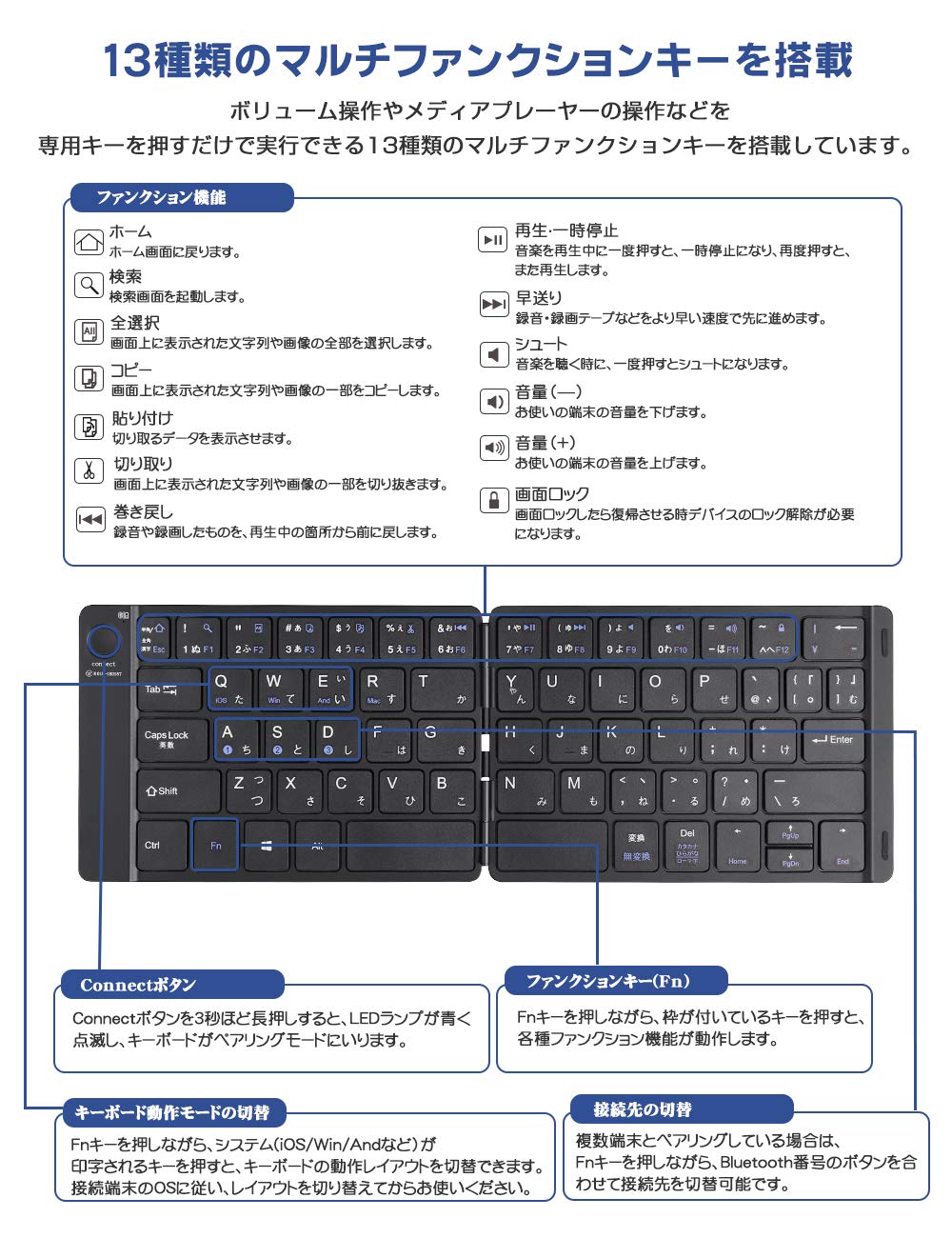
Image: A detailed view of the Ewin keyboard highlighting the 13 multi-function keys and their respective shortcuts for media control, system navigation, and other common tasks. Instructions for using the 'Connect' button and 'Fn' key are also shown.
3. Pantograph Key Structure
The keyboard utilizes a pantograph key structure, providing a light and responsive typing experience. This design also contributes to quieter keystrokes, making it suitable for use in quiet environments.
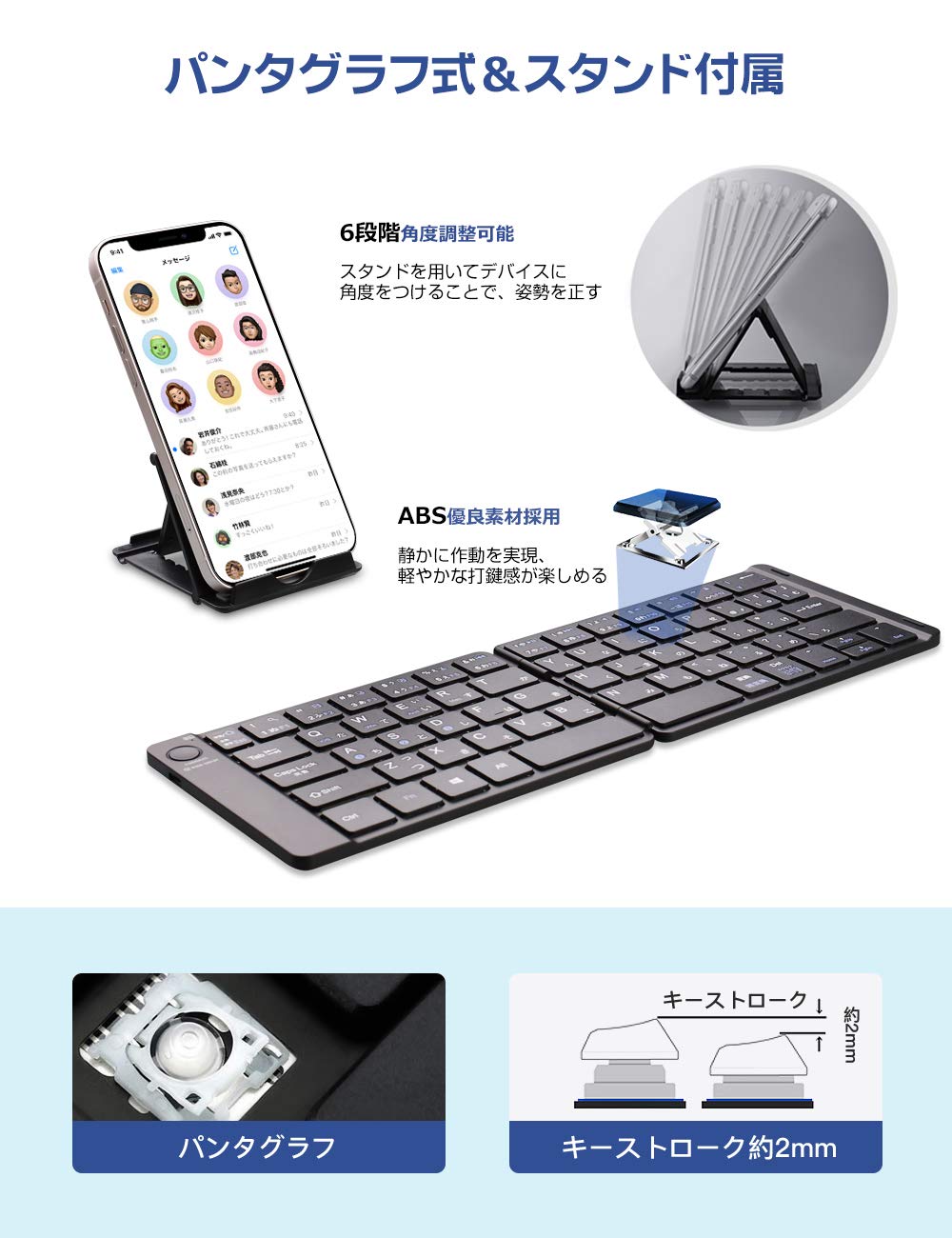
Image: The Ewin keyboard unfolded, showcasing its pantograph key mechanism and an included adjustable stand for devices. The image illustrates the thin profile and key travel distance of approximately 2mm.
Maintenance
1. Charging the Battery
The keyboard has a built-in rechargeable Lithium-Ion battery. When the battery is low, the indicator light will signal. Connect the included USB cable to the keyboard's charging port and to a USB power source (e.g., computer, USB wall adapter).
- Full charge time: Approximately 2-3 hours.
- Continuous use time: Up to 60 hours.
- Standby time: Over 90 days.
The keyboard features an auto-sleep function to conserve battery power when not in use.

Image: An illustration showing the Ewin keyboard connected via a USB cable for charging, with battery level indicators. It details the charging time (2 hours), continuous usage (60 hours), and standby time (90 days).
2. Cleaning
The keyboard features an elegant leather-like cover that is waterproof and dustproof. To clean, gently wipe the surface with a soft, damp cloth. Avoid using harsh chemicals or abrasive materials.
Troubleshooting
- Keyboard not connecting via Bluetooth:
Ensure the keyboard is charged. Press Fn + C to enter pairing mode. Make sure Bluetooth is enabled on your device and it is within range. Try forgetting the device on your host system and re-pairing. - Keys are unresponsive or input is delayed:
Check the battery level and charge the keyboard if necessary. Low battery can affect performance. Ensure the keyboard is not too far from your device. If the issue persists, try re-pairing the keyboard. - Keyboard not working with Android 12:
This product is known to be incompatible with devices running Android 12. There is no workaround for this specific issue. - Incorrect characters or layout:
Ensure you have selected the correct operating system mode using Fn + A (iOS), Fn + S (Android), Fn + D (Windows), or Fn + F (Mac).
Specifications
| Feature | Detail |
|---|---|
| Brand | EWIN |
| Model Number | EW-ZR050BR |
| Connectivity Technology | Bluetooth |
| Keyboard Layout | JIS (Japanese Industrial Standard) |
| Compatible Operating Systems | iOS, Android (not Android 12), Windows, Mac |
| Compatible Devices | Smartphones, Tablets, Laptops, PCs |
| Special Features | Foldable, Rechargeable, Multi-device pairing (3 devices), Multi-function keys |
| Battery Type | Lithium Ion (1 included) |
| Charging Time | 2-3 hours |
| Continuous Use Time | Up to 60 hours |
| Standby Time | Over 90 days |
| Product Dimensions (Folded) | 14.5 x 9.9 x 1.2 cm |
| Item Weight | 580 g |
Warranty Information
This product is covered by a standard manufacturer's warranty. Please refer to the warranty card included with your purchase or contact Ewin customer support for specific details regarding warranty duration and terms. Keep your proof of purchase for warranty claims.
Customer Support
For further assistance, technical support, or inquiries regarding your Ewin Foldable Bluetooth Keyboard, please visit the official Ewin website or contact their customer service department. Contact information can typically be found on the product packaging or the manufacturer's website.
