
SRJTEK HZ0010
SRJTEK Touch Screen Replacement User Manual
For HOOZO HZ0010 10.1" Digitizer Panel Glass (Black)
1. Product Overview
This document provides essential information for the installation and care of the SRJTEK Touch Screen Replacement for the HOOZO HZ0010 10.1" tablet. This product is a digitizer panel glass designed to restore touch functionality to your device.
Important Note: Professional technical assistance is highly recommended for the installation of this product. Incorrect installation can damage your device.
2. Compatibility
This touch screen replacement is specifically designed for the HOOZO HZ0010 10.1-inch tablet. Please verify your tablet's model number before proceeding with installation to ensure compatibility. Using this product with an incompatible model may result in damage to your device.
3. Package Contents
Upon opening the package, please ensure all the following items are present and in good condition:
- 1x Touch Screen Replacement for HOOZO HZ0010 (Black)
- 1x Repair Tool Kit (basic tools)
- 1x Adhesive
Note: The included repair tools are basic and may not be suitable for all aspects of the installation process. Additional specialized tools may be required and should be acquired separately if needed.
4. Installation Guide
The installation of a touch screen digitizer requires precision and technical knowledge. It is strongly advised to seek professional assistance for this procedure to prevent damage to the new screen or your tablet.
4.1 Pre-Installation Steps
- Power Off Device: Ensure your HOOZO HZ0010 tablet is completely powered off before beginning any work.
- Backup Data: It is recommended to back up any important data on your tablet before attempting repairs.
- Discharge Static Electricity: Wear an anti-static wrist strap or frequently touch a grounded metal object to discharge static electricity, which can damage electronic components.
- Inspect New Screen: Carefully inspect the new touch screen for any visible damage, scratches, or defects before installation. Do not remove any protective films until testing is complete.
4.2 Installation Procedure (Professional Recommended)
Due to the complexity and delicate nature of tablet repair, detailed step-by-step instructions are not provided here. This process typically involves:
- Carefully heating the edges of the old screen to loosen adhesive.
- Gently prying off the damaged screen.
- Disconnecting the old digitizer flex cable from the tablet's motherboard.
- Cleaning the frame of any old adhesive residue.
- Connecting the new digitizer flex cable.
- Testing the new screen's functionality before fully adhering it.
- Applying new adhesive and securely attaching the new screen.
Warning: Attempting installation without proper knowledge and tools can lead to irreversible damage to your tablet or the new screen.

Image: Front view of the SRJTEK Touch Screen Replacement for HOOZO HZ0010, showing both black and white versions of the digitizer panel glass with their flex cables.
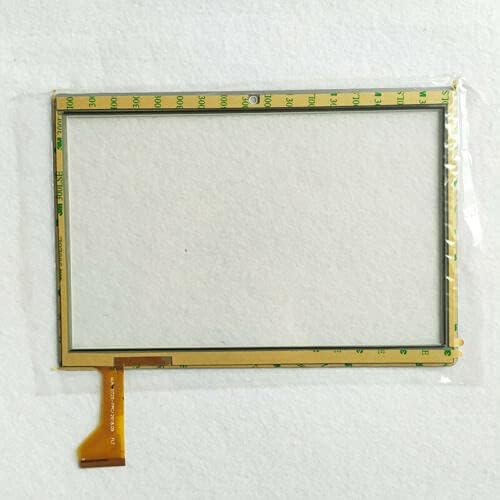
Image: Rear view of the SRJTEK Touch Screen Replacement, highlighting the adhesive strips around the perimeter for secure attachment to the tablet frame.
5. Post-Installation Checks
After the new touch screen has been installed, perform the following checks to ensure proper functionality:
- Power On: Turn on your tablet.
- Touch Responsiveness: Test the entire surface of the screen for touch responsiveness. Drag an icon across the screen to check for dead spots or unresponsive areas.
- Multi-Touch: Test multi-touch gestures, such as pinch-to-zoom.
- Display Quality: Check for any display issues, such as discoloration, lines, or dead pixels (though this product is a digitizer, not the LCD, it's good to confirm overall display integrity).
6. Maintenance and Care
To ensure the longevity and optimal performance of your new touch screen, follow these maintenance guidelines:
- Cleaning: Use a soft, lint-free cloth (e.g., microfiber) to clean the screen. For stubborn smudges, slightly dampen the cloth with water or a screen-specific cleaning solution. Avoid harsh chemicals, abrasive materials, or excessive moisture.
- Protection: Consider using a screen protector to guard against scratches and minor impacts.
- Handling: Avoid placing heavy objects on the screen or applying excessive pressure, which can cause damage to the digitizer.
- Temperature: Do not expose the tablet to extreme temperatures, as this can affect the screen's adhesive and electronic components.
7. Troubleshooting
If you encounter issues after installation, consider the following troubleshooting steps:
| Problem | Possible Cause | Solution |
|---|---|---|
| Touch screen unresponsive or erratic |
|
|
| Screen not adhering properly |
|
|
If these steps do not resolve the issue, please refer to the "Warranty and Support" section for further assistance.
8. Specifications
- Product Type: Touch Screen Digitizer Panel Glass
- Compatibility: HOOZO HZ0010 10.1" Tablet
- Size: 10.1 inches
- Color: Black
- Manufacturer: SRJTEK
- ASIN: B099F4D3L5
9. Warranty and Support
SRJTEK stands behind the quality of its products. All touch screen replacements undergo strict QC double testing to ensure they are in good condition before shipment, free from scratches or dead areas.
For any questions, concerns, or assistance with installation or troubleshooting, please contact SRJTEK customer support via Amazon message. We are committed to providing prompt replies and support.
Contact Information:
- Method: Amazon Message
- Seller: srjtek
Our screens are securely packed in strong boxes to prevent damage during shipping, ensuring your product arrives in optimal condition.
Ask a question about this manual
Ask about setup, troubleshooting, compatibility, parts, safety, or missing instructions. Manuals+ will review the question and use this page’s manual context to help answer it.