
1. Introduction
Thank you for choosing the PURSHE AK60 5G WiFi Bluetooth Projector. This projector is designed to provide a high-quality viewing experience with its native 1080P resolution, advanced 5G WiFi connectivity, and Bluetooth 5.1 audio capabilities. This manual will guide you through the setup, operation, and maintenance of your new projector to ensure optimal performance and enjoyment.
2. What's in the Box
- PURSHE AK60 Projector
- Power Cable
- HDMI Cable
- AV Cable
- Remote Control
- Lens Cap
- Cleaning Kit
- User Manual
- 100-inch Projector Screen
3. Product Features
- Native 1080P Resolution: Experience crisp and clear images with a true 1920x1080 resolution and a 10000:1 contrast ratio.
- Upgraded 5G WiFi Connectivity: Seamlessly connect your iOS and Android devices for wireless screen mirroring, ensuring a stable and smooth viewing experience.
- Bluetooth 5.1 & HiFi Dual Stereo Speakers: Connect external Bluetooth speakers or headphones wirelessly for enhanced audio. Built-in 5W stereo speakers provide immersive sound.
- Large Display Size: Project images from 50 inches up to 250 inches by adjusting the projection distance.
- Multimedia Compatibility: Equipped with HDMI, USB, VGA, and AV ports for connection to TV Stick, Chromecast, smartphones, laptops, PCs, DVD players, and USB drives.
- Included 100-inch Projector Screen: A portable screen is provided for convenient indoor and outdoor use.
4. Setup Guide
4.1 Physical Setup
1. Placement: Place the projector on a stable, flat surface or mount it on a ceiling or wall. Ensure adequate ventilation around the unit.
2. Power Connection: Connect the power cable to the projector and then to a power outlet.
3. Focus Adjustment: Rotate the focus ring on the projector lens until the image appears sharp and clear on the screen.
4. Keystone Correction: Use the keystone correction feature (manual or digital, depending on model) to adjust the image shape if it appears trapezoidal.

Figure 1: Front view of the PURSHE AK60 Projector, showing the lens and ventilation.
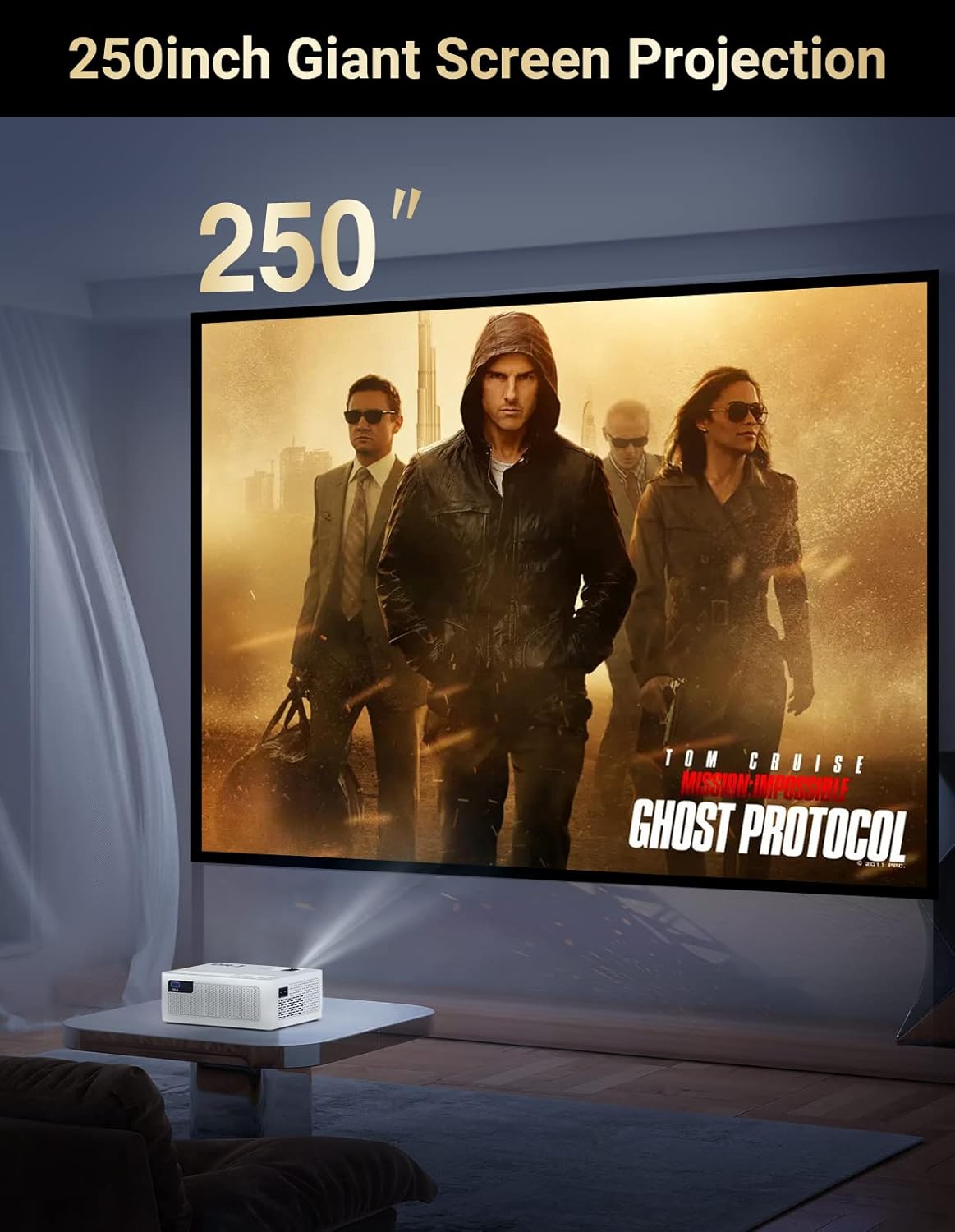
Figure 2: The projector displaying a large 250-inch movie screen, illustrating potential projection size.
4.2 Connectivity
The PURSHE AK60 offers multiple connectivity options:
- 5G WiFi Connection:
- Navigate to the projector's settings menu and select 'Network' or 'WiFi'.
- Select your home WiFi network (preferably 5G for faster speeds) and enter the password.
- Once connected, you can use the screen mirroring function from your iOS or Android device.

Figure 3: Illustration of 5G WiFi connection for stable and smoother streaming.
- Bluetooth 5.1 Audio:
- Go to the projector's settings and enable Bluetooth.
- Search for available Bluetooth devices.
- Select your Bluetooth speaker or headphones from the list to pair.

Figure 4: Steps for connecting Bluetooth audio devices to the projector.
- Wired Connections: Use the provided HDMI, USB, VGA, or AV ports to connect various devices such as TV sticks, gaming consoles, laptops, or DVD players.
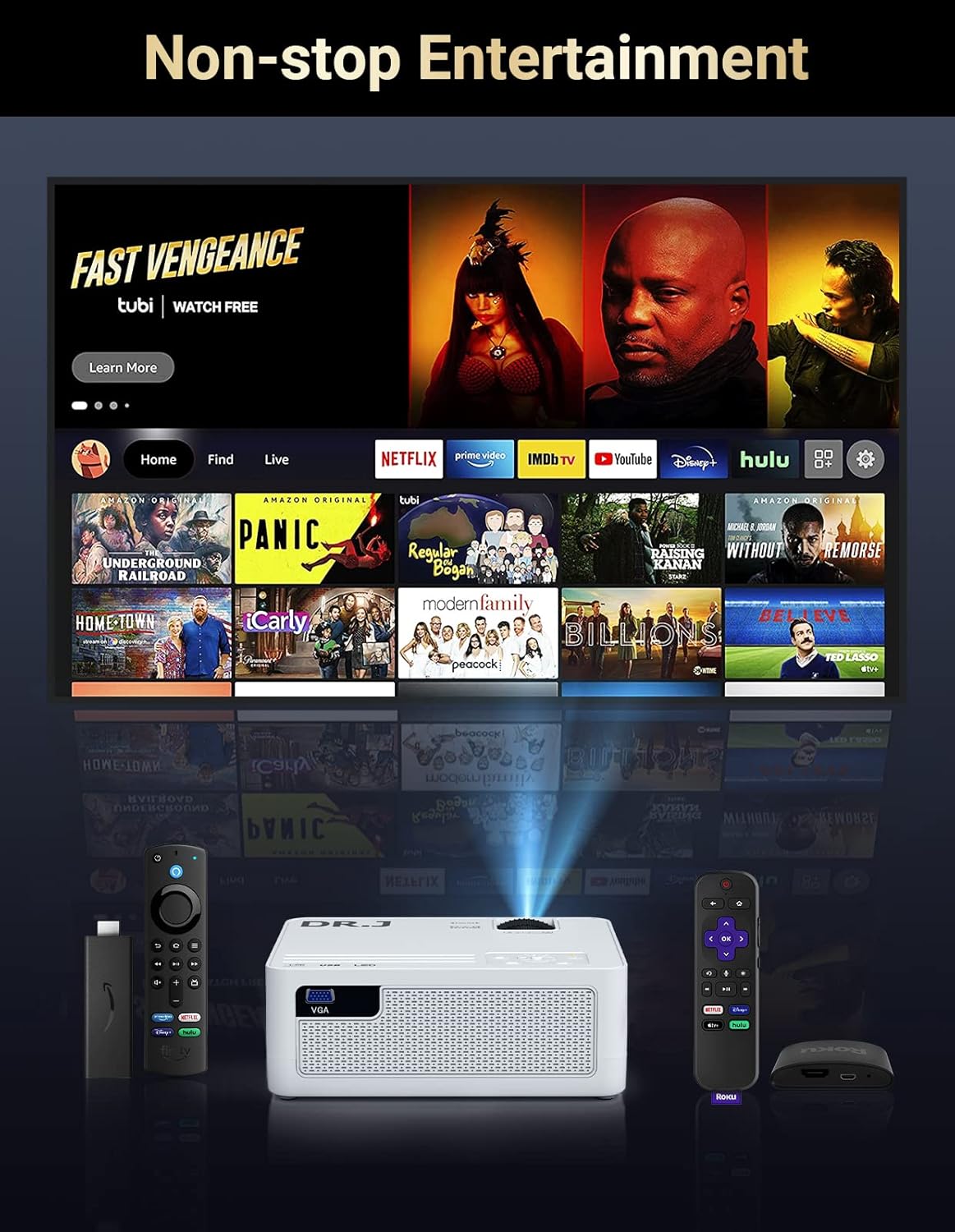
Figure 5: Overview of the projector's multimedia input ports.
5. Operating Instructions
5.1 Basic Operation
1. Power On/Off: Press the power button on the projector or remote control to turn the unit on or off.
2. Source Selection: Use the 'Source' button on the remote or projector to select the desired input source (HDMI, USB, AV, VGA, or Screen Mirroring).
3. Volume Control: Adjust the volume using the '+' and '-' buttons on the remote control.
5.2 Screen Mirroring (Wireless)
To mirror your smartphone or tablet screen:
- Ensure your projector and mobile device are connected to the same WiFi network.
- On the projector, select the 'Screen Mirroring' or 'Miracast' option.
- On your iOS device, open Control Center and tap 'Screen Mirroring'. Select the projector from the list.
- On your Android device, navigate to the screen mirroring function (often called 'Smart View', 'Wireless Display', or 'Cast') in your settings or quick panel and select the projector.

Figure 6: Detailed steps for wireless screen mirroring from mobile devices.
5.3 Adjustments
Focus: Turn the focus ring on the lens to sharpen the image.
Keystone: Use the keystone correction dial or menu option to correct distorted image shapes.
6. Maintenance
- Lens Cleaning: Use the provided cleaning kit or a soft, lint-free cloth to gently wipe the projector lens. Avoid abrasive materials.
- Ventilation: Ensure the projector's ventilation ports are clear of obstructions to prevent overheating.
- Storage: When not in use, store the projector in a cool, dry place, ideally in its original packaging or a protective case.
7. Troubleshooting
- No Image/Poor Image Quality:
- Check all cable connections (HDMI, AV, etc.).
- Adjust the focus and keystone correction.
- Ensure the correct input source is selected.
- Verify the projection distance is within the recommended range for optimal image size and clarity.
- No Sound:
- Check the volume settings on both the projector and the connected device.
- Ensure external speakers are properly connected or paired via Bluetooth.
- If using an AV cable, ensure all audio connections are correct.
- WiFi Connection Issues:
- Ensure the projector and your device are within range of your WiFi router.
- Verify the WiFi password is correct.
- Restart both the projector and your router.
- Brown Spot on Screen: This can indicate a burned polarized glass inside the optical assembly. If this occurs, contact customer support for warranty service.
- Loud Fan Noise: Ensure the projector has adequate ventilation and is not placed in an enclosed space. If the noise persists and is excessive, contact customer support.
- Aux Output is Mono Only: The projector's aux output is designed for mono audio. For stereo or surround sound, use Bluetooth with compatible external audio systems.
8. Specifications
| Feature | Specification |
|---|---|
| Brand | PURSHE |
| Model Number | AK60 |
| Native Resolution | 1920 x 1080 (Full HD) |
| Display Resolution Maximum | 1920 x 1080 Pixels |
| Connectivity Technology | Bluetooth 5.1, 5G Wi-Fi, HDMI, USB, AV, 3.5mm Audio |
| Brightness | 13000 Lumens |
| Contrast Ratio | 20000:1 |
| Light Source Operating Life | 50000 Hours |
| Maximum Image Size | 300 Inches |
| Minimum Image Size | 50 Inches |
| Display Type | LCD |
| Item Dimensions L x W x H | 12.13"L x 8.9"W x 6.46"H |
| Included Accessories | 100-inch Projector Screen |
9. Warranty & Support
The PURSHE AK60 Projector comes with a 3-year warranty from the date of purchase. We also offer lifetime after-sale service and support. For any technical assistance, troubleshooting, or warranty claims, please contact our customer support team.
Contact Information: Refer to your warranty card or visit the official PURSHE website for the most up-to-date support contact details.

Figure 7: Warranty and support information.
10. Product Videos
Video 1: Overview of the PURSHE 8500 Lumens 5G WiFi Projector, demonstrating its features and capabilities. (Source: Run Run Deals)
Video 2: Unboxing and initial look at the DR J Projector, showcasing included accessories. (Source: Marielou Mandl)