
PURSHE HI04
PURSHE Mini Projector User Manual
Model: HI04
1. Introduction
The PURSHE Mini Projector (Model HI04) is a versatile and portable device designed to deliver a high-quality viewing experience for home entertainment. With 9500 lumens brightness and support for Full HD 1080P resolution, it transforms any space into a cinematic environment. This manual provides essential information for setting up, operating, and maintaining your projector.

Figure 1.1: The PURSHE Mini Projector with its included tripod, showcasing its compact and portable design.
2. Safety Information
- Do not look directly into the projector lens when the lamp is on.
- Ensure proper ventilation around the projector to prevent overheating.
- Keep the projector away from water, moisture, and extreme temperatures.
- Use only the original power adapter provided with the device.
- Not recommended for PPT, Word, Excel, or business presentations due to specific resolution requirements for text clarity.
3. Package Contents
Upon opening the package, verify that all the following items are included:
- PURSHE Mini Projector (Model HI04)
- Power Adapter
- Remote Control (requires 2 AAA batteries, not included)
- HDMI Cable
- AV Cable
- Tripod
- 100-inch Portable Projector Screen
- User Manual (this document)
4. Product Overview
4.1. Components and Ports
Familiarize yourself with the various components and connection ports of your projector:
- Front: Projection Lens, Focus Adjustment Wheel, Keystone Correction Wheel.

Figure 4.1: Front view of the projector, highlighting the lens, focus, and keystone adjustment controls.
- Top: Control Panel (Power, Navigation, OK, Menu, Source buttons).

Figure 4.2: Top view of the projector, illustrating the intuitive control panel for easy navigation.
- Rear/Sides: HDMI Port, USB Port, TF Card Slot, AV Port, 3.5mm Audio Out (Headphone Jack), Power Input, Ventilation Grilles.
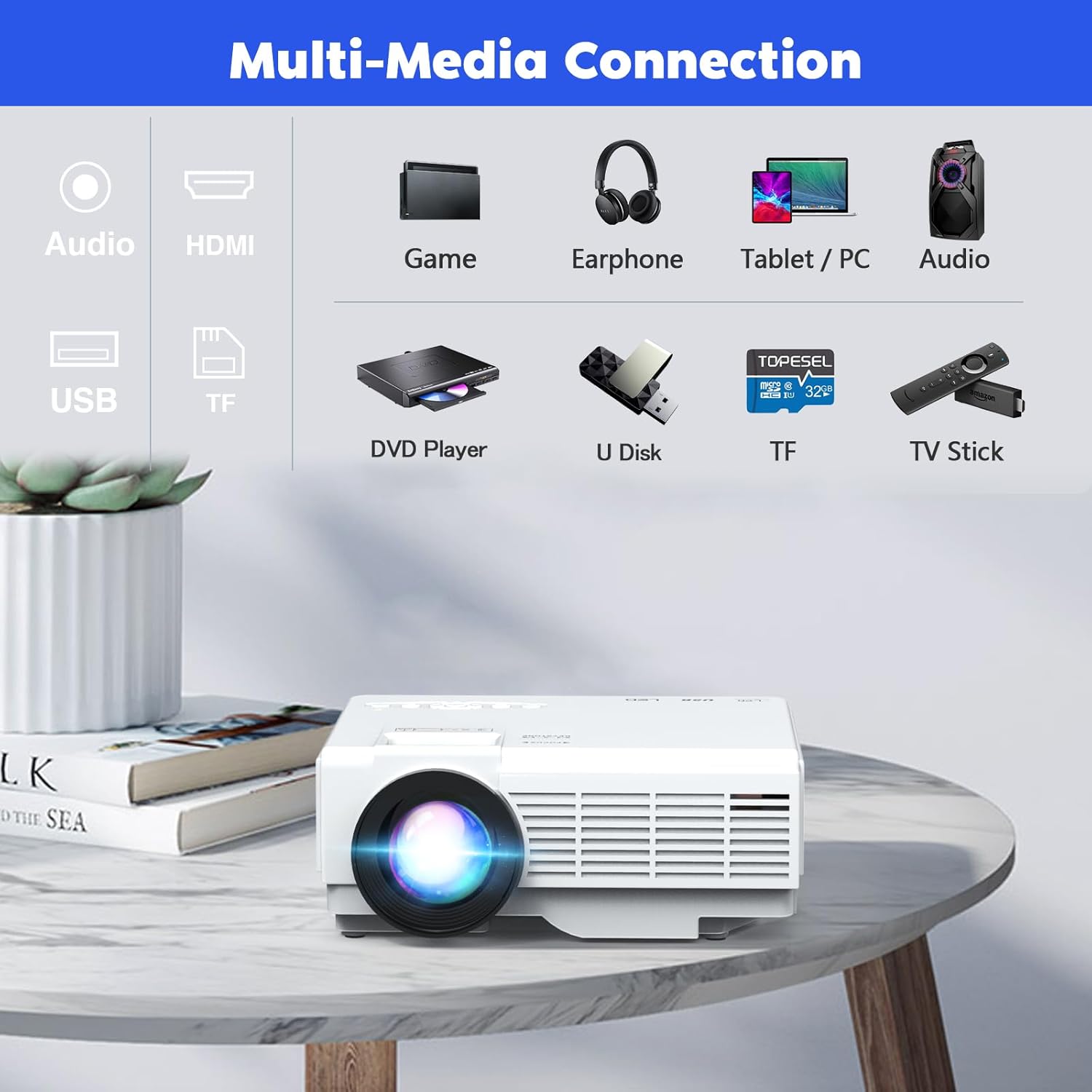
Figure 4.3: Side view of the projector, detailing the HDMI, USB, TF, AV, and audio output ports.
- Bottom: Tripod Mount, Anti-slip Pads.

Figure 4.4: Bottom view of the projector, showing the tripod mounting point for stable placement.
5. Setup
5.1. Placement
Place the projector on a stable, flat surface or mount it using the tripod. Ensure the projection surface (wall or screen) is clean and smooth. The optimal viewing size ranges from 32 inches to 176 inches, with a recommended projection distance of 1.5m to 5m (approximately 5 to 16.4 feet).

Figure 5.1: Projection distance guide, illustrating recommended distances for various screen sizes.
5.2. Power Connection
Connect the provided power adapter to the projector's power input port, then plug the adapter into a power outlet.
5.3. Focus and Keystone Adjustment
After powering on, adjust the Focus Wheel (located near the lens) until the image is clear. If the image appears trapezoidal, use the Keystone Correction Wheel to correct the shape, ensuring a rectangular projection.
6. Operating Instructions
6.1. Power On/Off
Press the Power button on the projector's control panel or the remote control to turn the unit on or off.
6.2. Input Source Selection
Press the 'Source' button on the projector or remote control to cycle through available input options: HDMI, USB, AV, and TF Card.
6.3. Connecting Devices
- HDMI: Connect your TV Stick, laptop, gaming console, or Blu-ray DVD player using an HDMI cable.

Figure 6.1: Connecting a TV Stick to the projector via HDMI for streaming content.
- USB/TF Card: Insert a USB flash drive or TF (Micro SD) card into the respective slot to play media files (Music, Pictures, Video, TXT).
- AV: Use the provided AV cable to connect older devices like DVD players.
- Smartphones: For iOS devices, use a Lightning to HDMI/USB adapter (not included). For Android devices, use a Micro USB/Type C to HDMI adapter (not included).
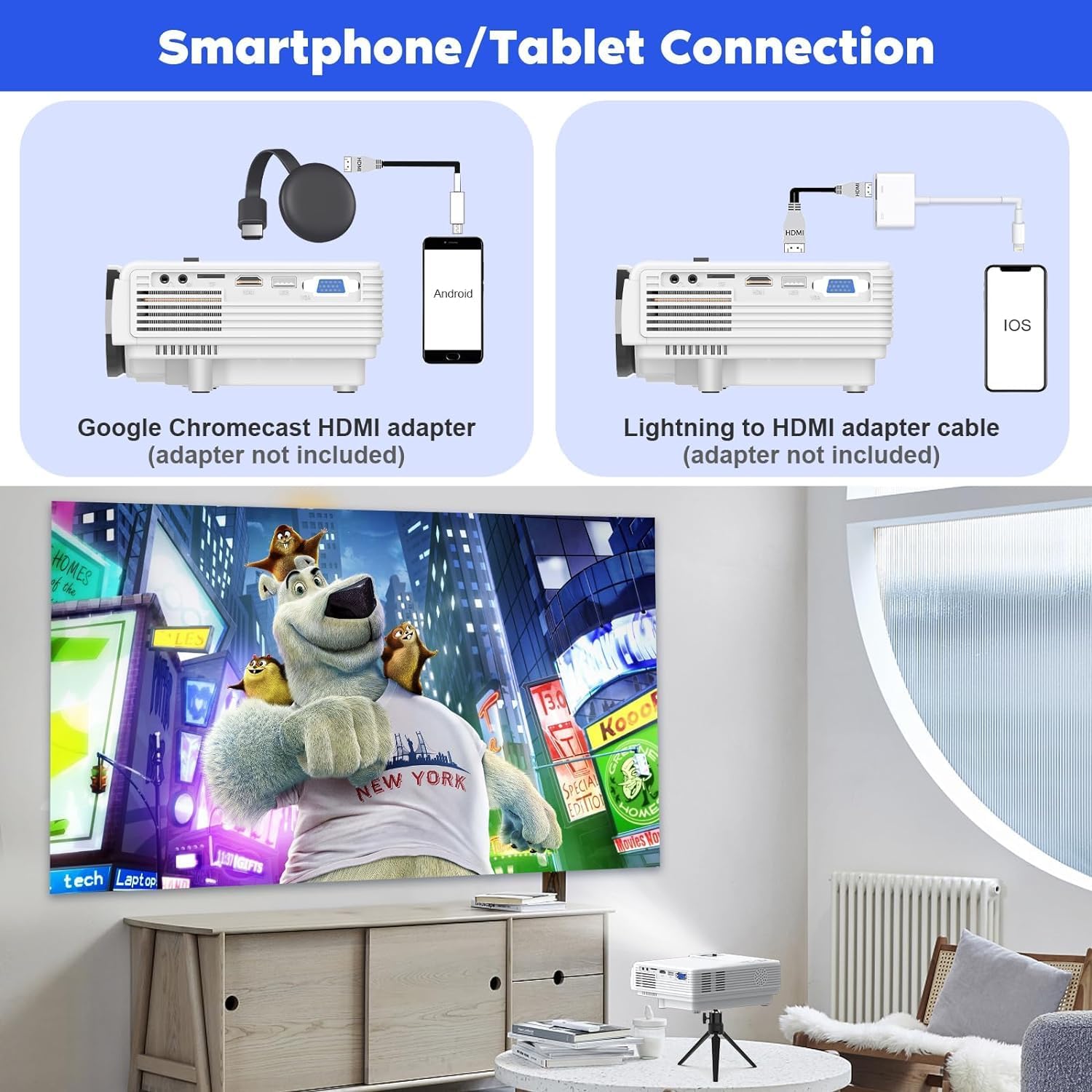
Figure 6.2: Illustrates connecting a smartphone to the projector using a compatible adapter.
6.4. Audio Output
The projector has a built-in HiFi stereo speaker. For enhanced audio, connect external speakers or headphones to the 3.5mm Audio Out (Headphone Jack) port.

Figure 6.3: Diagram highlighting the projector's built-in HiFi Stereo Speaker for clear audio.
6.5. Menu Navigation
Use the navigation buttons (Up, Down, Left, Right) and the OK button on the projector or remote control to navigate through the on-screen menu. Access settings for picture mode, contrast, brightness, color, tint, sharpness, color temperature, and noise reduction.
7. Maintenance
- Lens Cleaning: Use a soft, lint-free cloth specifically designed for optical lenses to gently wipe the projector lens. Avoid abrasive materials or harsh chemicals.
- Heat Dissipation: The projector features an advanced heat dissipation system. Ensure the ventilation grilles are not blocked to maintain optimal performance and prevent automatic shutdown due to excessive temperature.

Figure 7.1: Illustration of the projector's heat dissipation function, crucial for longevity.
- Storage: When not in use, store the projector in a cool, dry place, away from dust and direct sunlight.
8. Troubleshooting
| Problem | Possible Cause | Solution |
|---|---|---|
| No sound when playing videos from Netflix, Hulu, etc. | Due to copyright reasons (Dolby Audio). | Turn off Dolby Audio in the source device's audio settings. Alternatively, connect a laptop, Fire TV Stick, Roku, or Chromecast for streaming. |
| Blurry image. | Incorrect focus or keystone adjustment. | Adjust the Focus Wheel and Keystone Correction Wheel until the image is clear and rectangular. |
| Projector overheats and shuts down. | Blocked ventilation grilles. | Ensure the projector's ventilation grilles are clear and unobstructed. Operate in a well-ventilated area. |
| No signal. | Incorrect input source selected or loose cable connection. | Verify the correct input source is selected. Check all cable connections (HDMI, USB, AV) are secure. |
9. Specifications
| Feature | Detail |
|---|---|
| Display Technology | LCD |
| Supported Resolution | 1920 x 1080 (Full HD 1080P) |
| Aspect Ratio | 4:3 / 16:9 |
| Contrast Ratio | 2000:1 |
| Lamp Lifetime | 40,000 hours |
| Watching Size | 32 - 176 inches |
| Projector Distance | 1.5m - 5m |
| Connectivity Technology | VGA, USB, HDMI |
| Product Dimensions | 6.1 x 4.5 x 2.2 inches |
| Item Weight | 1.54 pounds |
| Model Number | HI04 |
10. Warranty & Support
PURSHE is committed to providing excellent customer service and product support:
- Lifetime Support: We offer lifetime support and aim to provide satisfactory solutions for any issues you may encounter.
- Quick Service: Expect quick service via phone or email for your inquiries.
- 30-Day Return Policy: Enjoy a 30-day no-reason return policy for your peace of mind.
- 3-Year Free Replacement: Benefit from a 3-year free replacement policy for eligible product defects.
For further assistance, please refer to the contact information provided on your warranty card or visit the official PURSHE website.
Ask a question about this manual
Ask about setup, troubleshooting, compatibility, parts, safety, or missing instructions. Manuals+ will review the question and use this page’s manual context to help answer it.