
Introduction
Thank you for choosing the realme Techlife Robot 2-in-1 Vacuum Cleaner with Mopping. This device is designed to provide efficient and convenient floor cleaning with advanced features. This manual provides essential information for safe operation, setup, maintenance, and troubleshooting to ensure optimal performance of your robot vacuum cleaner.

The realme Techlife Robot 2-in-1 Vacuum Cleaner, showcasing its sleek design and compact form factor.
Safety Information
Before using the appliance, please read this user manual carefully and keep it for future reference. This device is intended for indoor use only. Do not use it in commercial or industrial environments. Ensure the charging dock is placed on a flat surface against a wall, with no obstacles within 1 meter in front and 0.5 meters on either side. Keep the device away from water and moisture. Do not allow children or pets to play with the device. Always supervise children when the device is in operation. Do not use the device to clean liquids, burning objects, or sharp objects. Regularly check the brushes and wheels for tangled hair or debris.
Package Contents
Verify that all items are present and in good condition upon unpacking.
- realme Techlife Robot Vacuum Cleaner
- Charging Dock
- Power Adapter
- Water Tank
- Remote Control
- Side Brushes (2 pairs)
- Main Brush
- Cleaning Tool
- User Manual
Product Overview
Top View
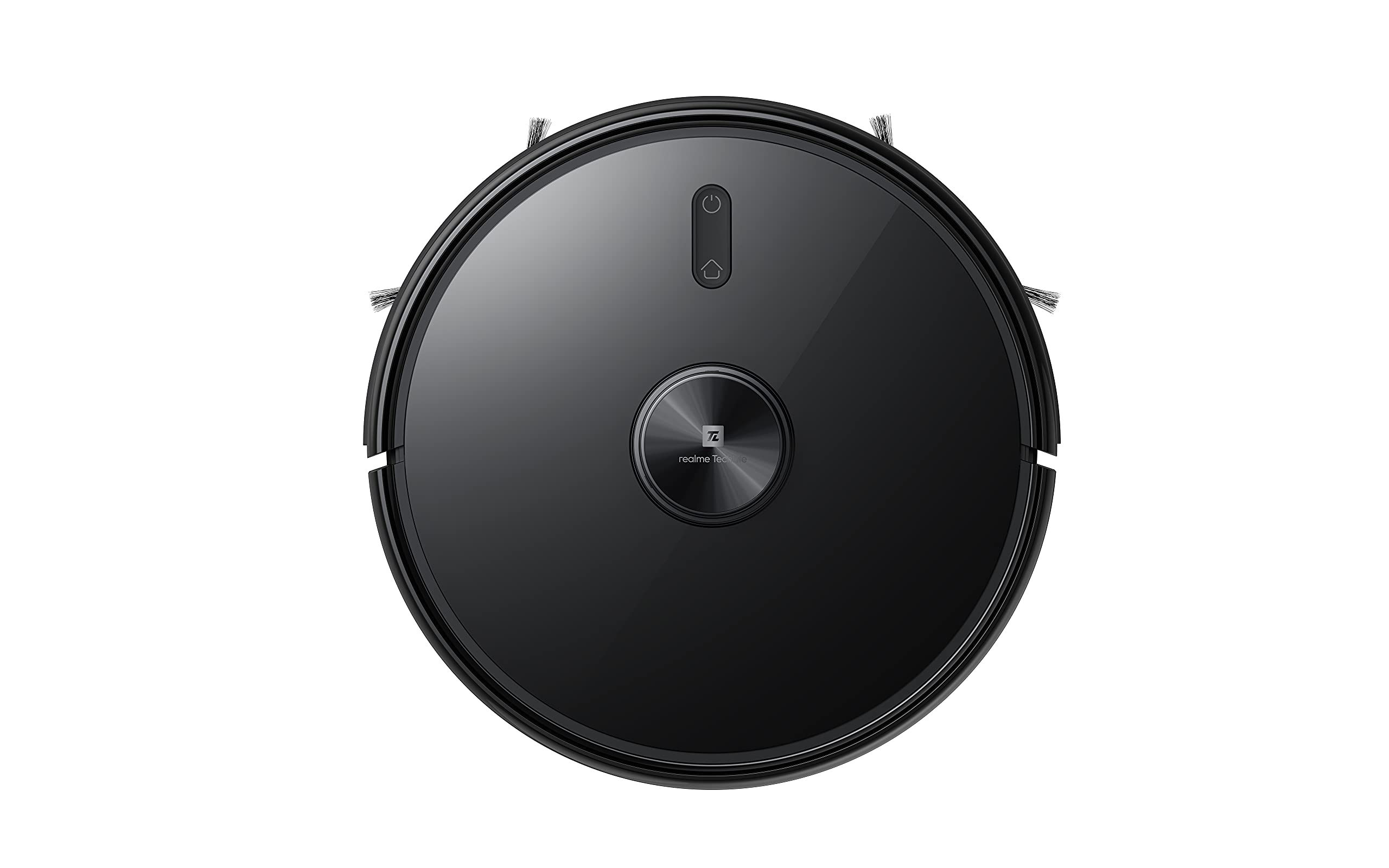
The top view of the robot vacuum, showing the power button and LiDAR sensor housing.
The top of the robot features the LiDAR navigation sensor for accurate mapping and navigation, along with control buttons for starting/pausing cleaning and returning to the charging dock.
Bottom View
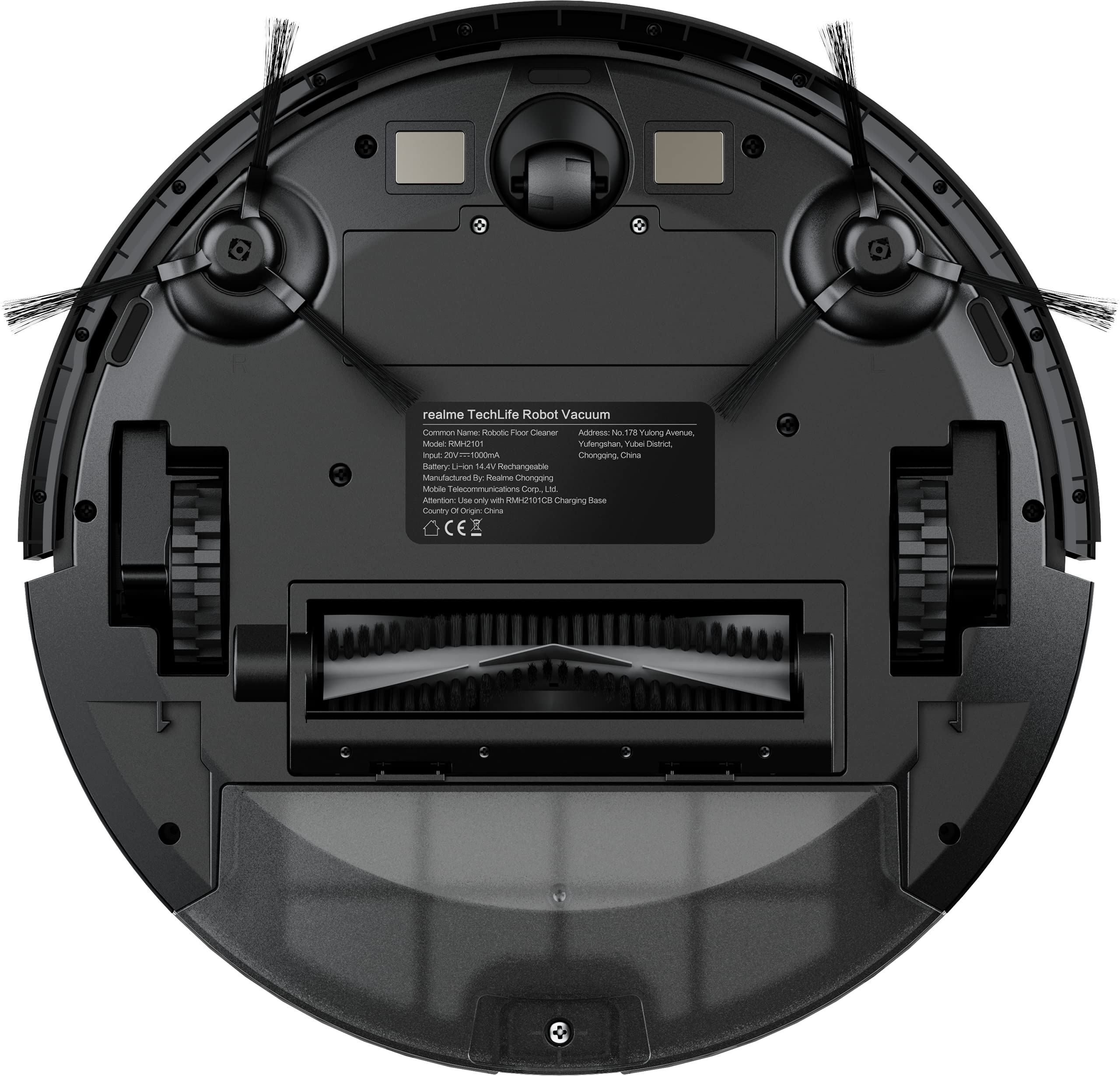
The underside of the robot vacuum, displaying the main brush, side brushes, and wheels.
The bottom of the robot includes the main rolling brush, two side brushes for edge cleaning, driving wheels, and cliff sensors to prevent falls.
Setup
1. Charging Dock Placement
Place the charging dock against a wall on a hard, level surface. Ensure there are no obstacles within 1 meter (3 feet) in front of the dock and 0.5 meters (1.5 feet) on either side to allow the robot to easily dock and undock.
2. Initial Charging
Connect the power adapter to the charging dock and plug it into a wall outlet. Place the robot onto the charging dock. The robot will automatically begin charging. For first-time use, ensure the robot is fully charged (approximately 6 hours) before its initial cleaning cycle. The 5200mAh battery provides up to 300 minutes of cleaning time on a full charge.
3. App Connection (realme Link App)
- Download the realme Link app from your smartphone's app store.
- Create an account or log in.
- Follow the in-app instructions to add your realme Techlife Robot Vacuum Cleaner. This typically involves turning on the robot, resetting its Wi-Fi, and connecting to your home Wi-Fi network.
- Once connected, you can control the robot, view cleaning maps, set schedules, and adjust cleaning modes remotely.
Operating Instructions
1. Starting a Cleaning Cycle
Press the power button on the robot or use the realme Link app to start a cleaning cycle. The robot will use its advanced LiDAR navigation technology to map your home and plan an efficient cleaning path.
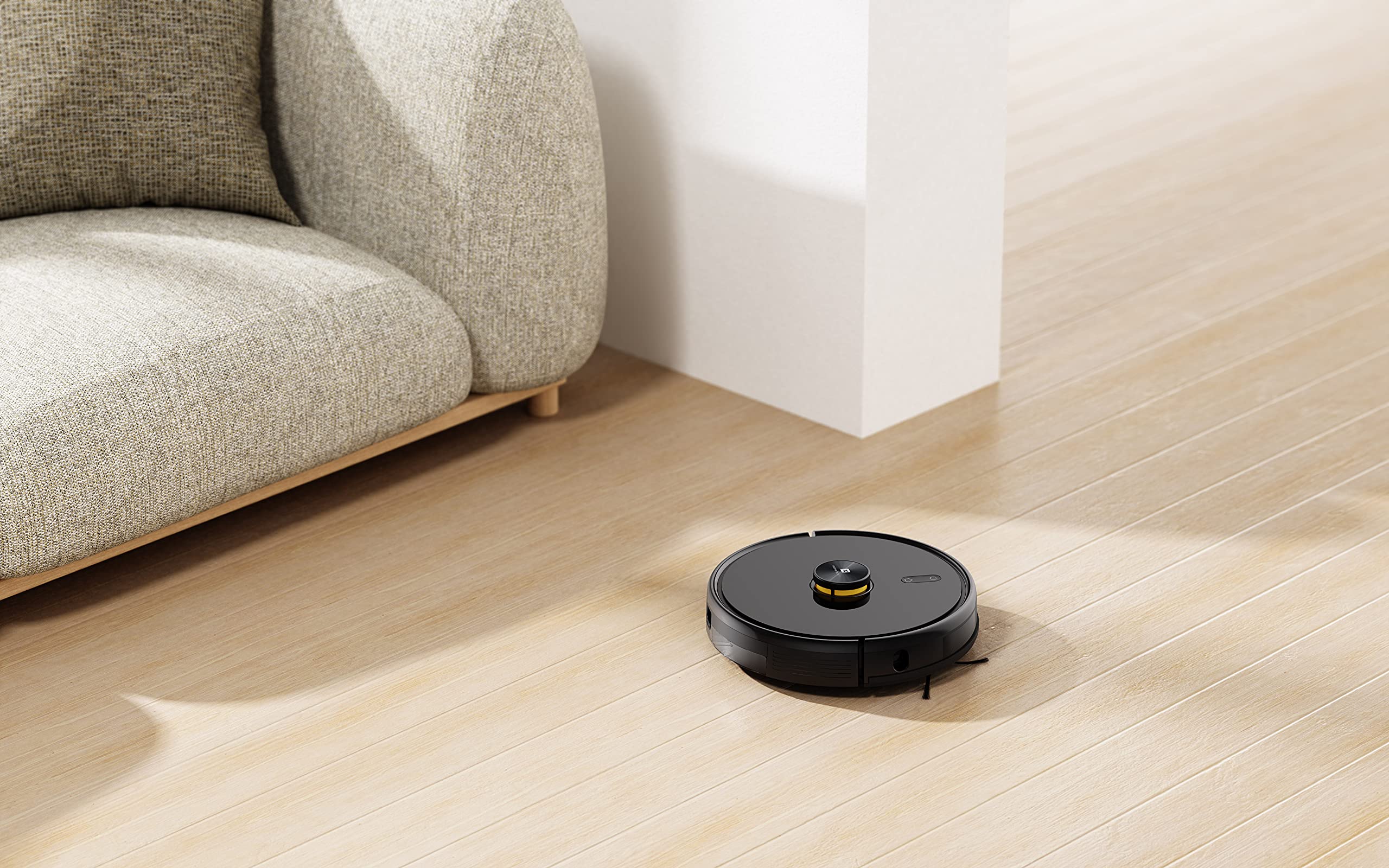
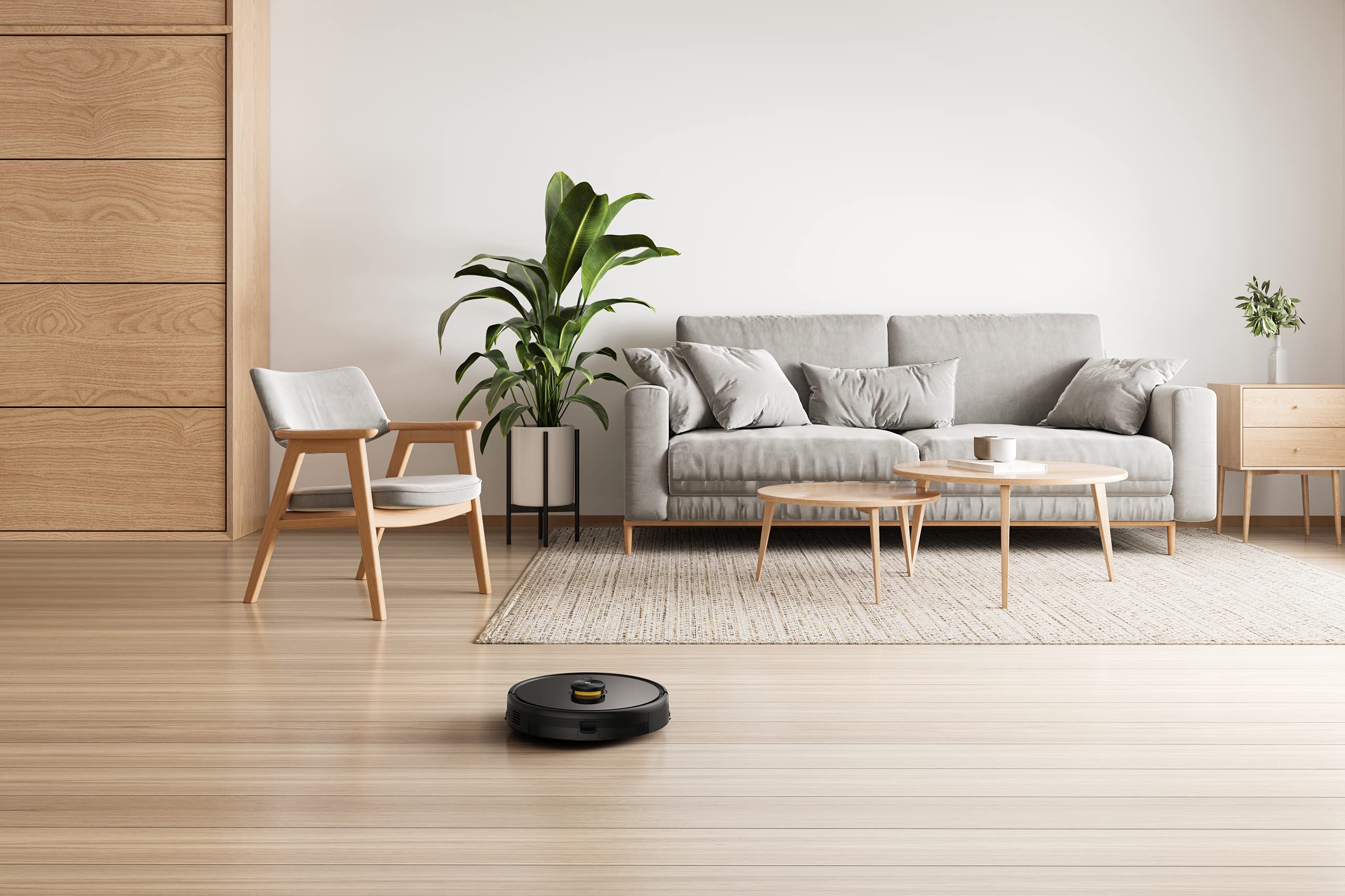
The robot vacuum actively cleaning a hard floor surface in a modern living space.
2. Cleaning Modes
The robot offers 4 cleaning modes, which can be selected via the app or remote control:
- Auto Clean: The robot intelligently cleans the entire area.
- Spot Clean: Cleans a specific area more intensely.
- Edge Clean: Focuses on cleaning along walls and furniture edges.
- Scheduled Clean: Set specific times for the robot to clean automatically.
The 3000Pa strong suction power ensures effective removal of dust and debris across various floor types.
3. Mopping Function
To use the mopping function, fill the intelligent water tank with clean water and attach it to the robot. The robot features 4 water output modes, allowing you to adjust water flow based on floor surface and cleaning requirements. The Y-shape cleaning path is specifically designed for effective mopping.
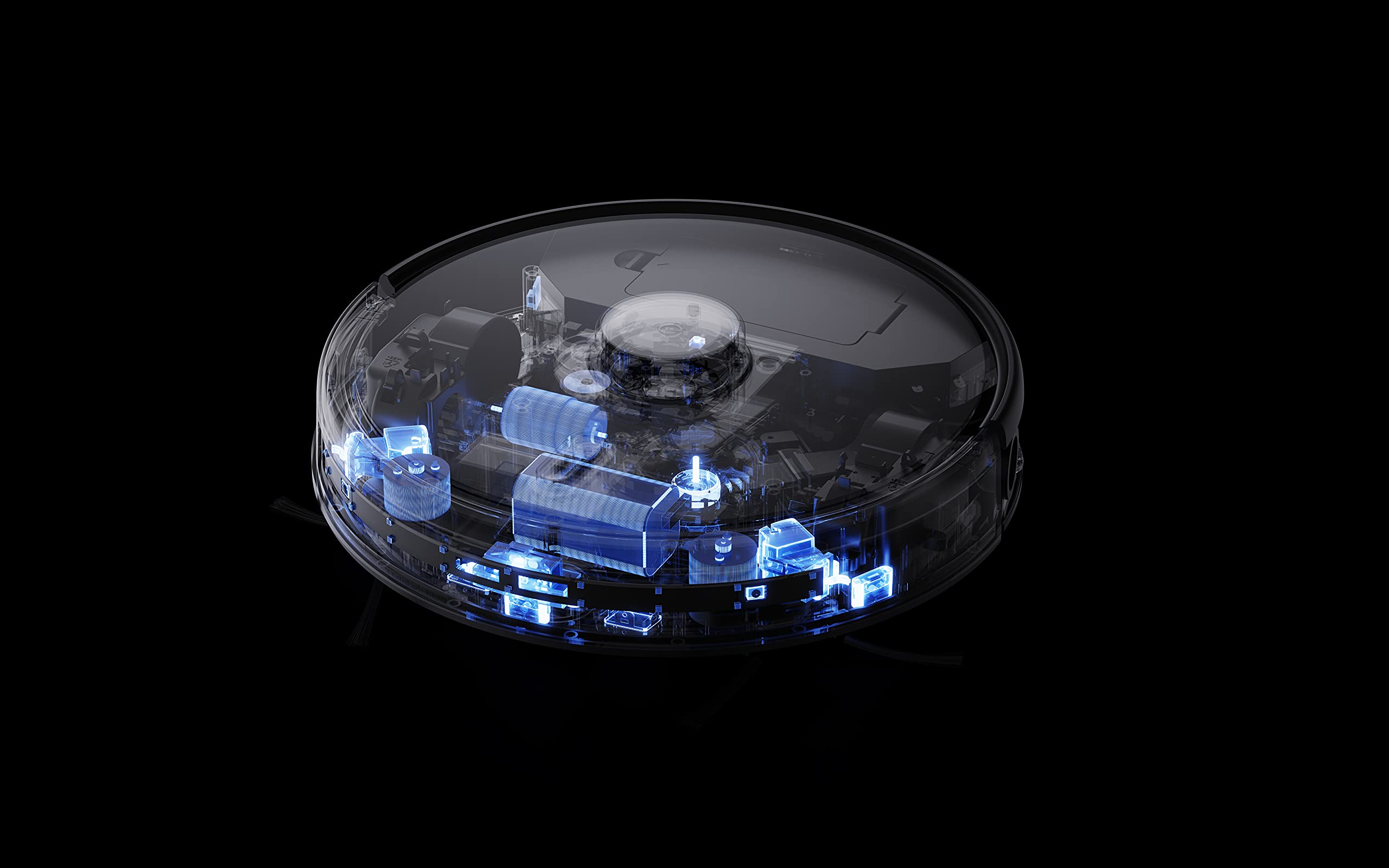
The robot vacuum performing its mopping function on a hard floor, demonstrating its 2-in-1 capability.
4. Smart Features
- realme Link App Control: Control cleaning force, schedule tasks, and monitor progress in real-time.
- Multi-floor Mapping: The robot can build and memorize maps for multiple floors, improving cleaning efficiency.
- Voice Assistant Compatibility: Supports Google Assistant and Alexa for convenient voice control.
The robot vacuum navigating and cleaning under furniture, highlighting its low-profile design.
Maintenance
Regular maintenance ensures the longevity and optimal performance of your robot vacuum cleaner.
1. Emptying the Dust Box
Open the top cover of the robot and remove the dust box. Empty its contents into a trash bin. Clean the filter regularly by tapping it gently to remove dust. Rinse the dust box with water if necessary, ensuring it is completely dry before reinserting.
2. Cleaning the Main Brush
Remove the main brush cover and lift out the main brush. Use the provided cleaning tool to cut and remove any tangled hair or debris. Reinstall the main brush and cover.
3. Cleaning Side Brushes
Periodically check the side brushes for wear or entanglement. Remove any hair or debris. If brushes are damaged, replace them with new ones.
4. Cleaning the Water Tank and Mopping Pad
After each mopping session, empty any remaining water from the tank. Remove and clean the mopping pad. Wash the mopping pad thoroughly and allow it to air dry completely before reuse.
5. Cleaning Sensors and Charging Contacts
Wipe the cliff sensors, wall sensors, and charging contacts on both the robot and the charging dock with a clean, dry cloth to ensure proper function.
Troubleshooting
If you encounter issues with your robot vacuum, refer to the following common solutions:
- Robot not charging: Ensure the charging dock is powered on and the robot's charging contacts are clean and properly aligned with the dock.
- Robot stuck or navigating erratically: Clear any obstacles, loose cables, or rugs that may be impeding movement. Clean the sensors.
- Poor suction: Empty the dust box, clean the filter, and check the main brush for blockages.
- Mopping not working: Ensure the water tank is filled, properly installed, and the mopping pad is attached. Check water output settings in the app.
- App connectivity issues: Ensure your robot and smartphone are connected to the same 2.4GHz Wi-Fi network. Restart the robot and your router if necessary.
- Unusual noise: Check the main brush, side brushes, and wheels for any foreign objects or debris.
For persistent issues, consult the realme Link app for further diagnostics or contact customer support.
Specifications
| Feature | Specification |
|---|---|
| Brand | realme |
| Model Name | 6941399050860 |
| Special Feature | LiDAR Navigation, Smart |
| Colour | Black |
| Product Dimensions | 33L x 33W x 7H Centimeters |
| Battery Life | 100 Minutes (Mopping), 300+ Minutes (Vacuuming) |
| Battery Capacity | 5200mAh |
| Suction Power | 3000Pa |
| Dust Box Capacity | 0.3 litres |
| Control Method | Remote, App (realme Link), Voice (Google Home, Alexa) |
| Noise Level | As low as 55dB |
| Manufacturer | Realme |
Warranty and Support
Your realme Techlife Robot 2-in-1 Vacuum Cleaner is covered by a limited warranty. Please refer to the warranty card included in your package for specific terms and conditions. For technical support, service, or inquiries, please visit the official realme support website or contact their customer service hotline. Keep your purchase receipt as proof of purchase for warranty claims.