
1. Introduction
Thank you for choosing the EGate L9 Pro-Max Android 9.0 Projector. This manual provides essential information for the safe and efficient use of your projector. Please read it thoroughly before operation and retain it for future reference.
2. Safety Information
- Power Supply: Use only the provided power cord and connect to a grounded outlet. Ensure the voltage matches the projector's requirements.
- Ventilation: Do not block ventilation openings. Ensure adequate space around the projector for proper airflow to prevent overheating.
- Liquid Exposure: Keep the projector away from water or other liquids. Do not operate in high humidity environments.
- Cleaning: Disconnect power before cleaning. Use a soft, dry cloth. Avoid liquid or aerosol cleaners.
- Handling: Avoid dropping or subjecting the projector to strong impacts.
- Eye Safety: Do not look directly into the projector lens when the lamp is on, as the bright light can cause eye damage.
3. Package Contents
Verify that all items are present in your package:
- EGate L9 Pro-Max Projector
- User Manual
- Power Cord
- AV Cable
- Remote Control
4. Product Overview
The EGate L9 Pro-Max projector features a comprehensive set of ports and controls for versatile connectivity and ease of use.

Image: Rear and side view of the EGate L9 Pro-Max projector, highlighting its various connection ports including USB, HDMI, VGA, LAN, AV, and AUX.
Key Features:
- Operating System: Android 9.0 for access to streaming applications.
- Display: Native 1080p Full HD resolution, capable of decoding 4K content.
- Brightness: 840 ANSI Lumens (7500 L source brightness).
- Connectivity: Built-in WiFi and Bluetooth.
- Image Adjustment: 4D 45° Digital Keystone correction and 100% Digital Zoom.
- Audio: Integrated 5W Harmonized Speakers.
- Processor: Arm Quad Core CA53 on MTK9255 chipset.
5. Setup
5.1 Placement
Position the projector on a stable, flat surface or mount it to the ceiling. Ensure the lens is perpendicular to the projection surface for optimal image quality. The projector has a 1.2:1 throw ratio, meaning it can project a 120-inch screen from approximately 10 feet away.

Image: Illustration of throw ratio, demonstrating how screen size increases with distance from the projector.
5.2 Power Connection
- Connect the provided power cord to the projector's power input.
- Plug the other end of the power cord into a suitable electrical outlet.
- Press the power button on the projector or remote control to turn it on.
5.3 Focus and Keystone Adjustment
After powering on, adjust the image for clarity and shape:
- Focus: Use the manual focus ring near the lens to sharpen the image.
- 4D Digital Keystone: If the projected image appears trapezoidal, use the 4D Digital Keystone correction feature via the remote control or on-screen menu to adjust the image corners digitally. This allows for projection from various angles, including off-center positions. Note that significant digital keystone correction may slightly reduce image sharpness at the edges.
- Digital Zoom: Adjust the image size without moving the projector using the digital zoom function.

Image: The projector positioned at an angle, demonstrating the 4D Digital Keystone feature to correct image distortion.
6. Operating Instructions
6.1 Android 9.0 Interface
The projector runs on Android 9.0, providing access to a variety of streaming applications and smart features.
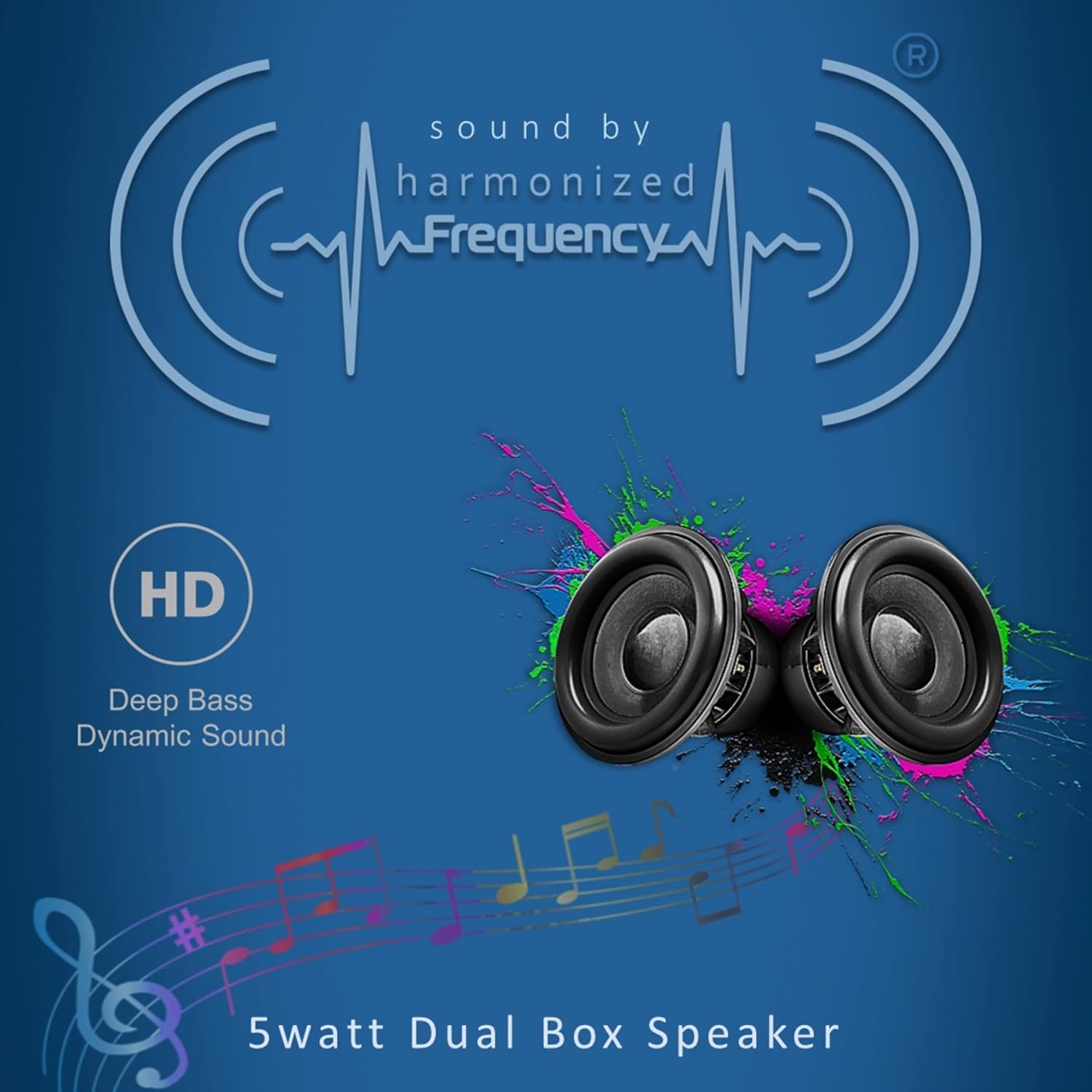
Image: The projector's Android 9.0 home screen displaying popular streaming applications and content.
- Network Connection: Connect to your home WiFi network via the settings menu to access online content.
- App Access: Navigate the interface using the remote control to launch pre-installed apps like Netflix, Disney Hotstar, YouTube, and SonyLiv.
6.2 Connecting External Devices
The L9 Pro-Max offers multiple connectivity options:
- HDMI: Connect Blu-ray players, gaming consoles, laptops, or set-top boxes using an HDMI cable.
- USB: Insert USB drives into the two USB ports to play media files directly.
- LAN: Connect an Ethernet cable for a stable wired internet connection.
- AV: Use the AV cable for older devices with composite video and stereo audio outputs.
6.3 Wireless Screen Mirroring
Mirror content from your mobile devices or laptops wirelessly to the projector.

Image: A smartphone screen being mirrored onto a large projected display, illustrating wireless screen mirroring capability for iOS, Android, and Windows devices.
- Ensure your device (iOS, Android, or Windows 10) and the projector are connected to the same WiFi network.
- Select the screen mirroring function on the projector's interface.
- On your mobile device or laptop, initiate screen mirroring (e.g., AirPlay for iOS, Cast for Android, Project to a wireless display for Windows).
- Select the projector from the list of available devices.
6.4 Audio Output
The projector includes built-in speakers and supports external audio connections.
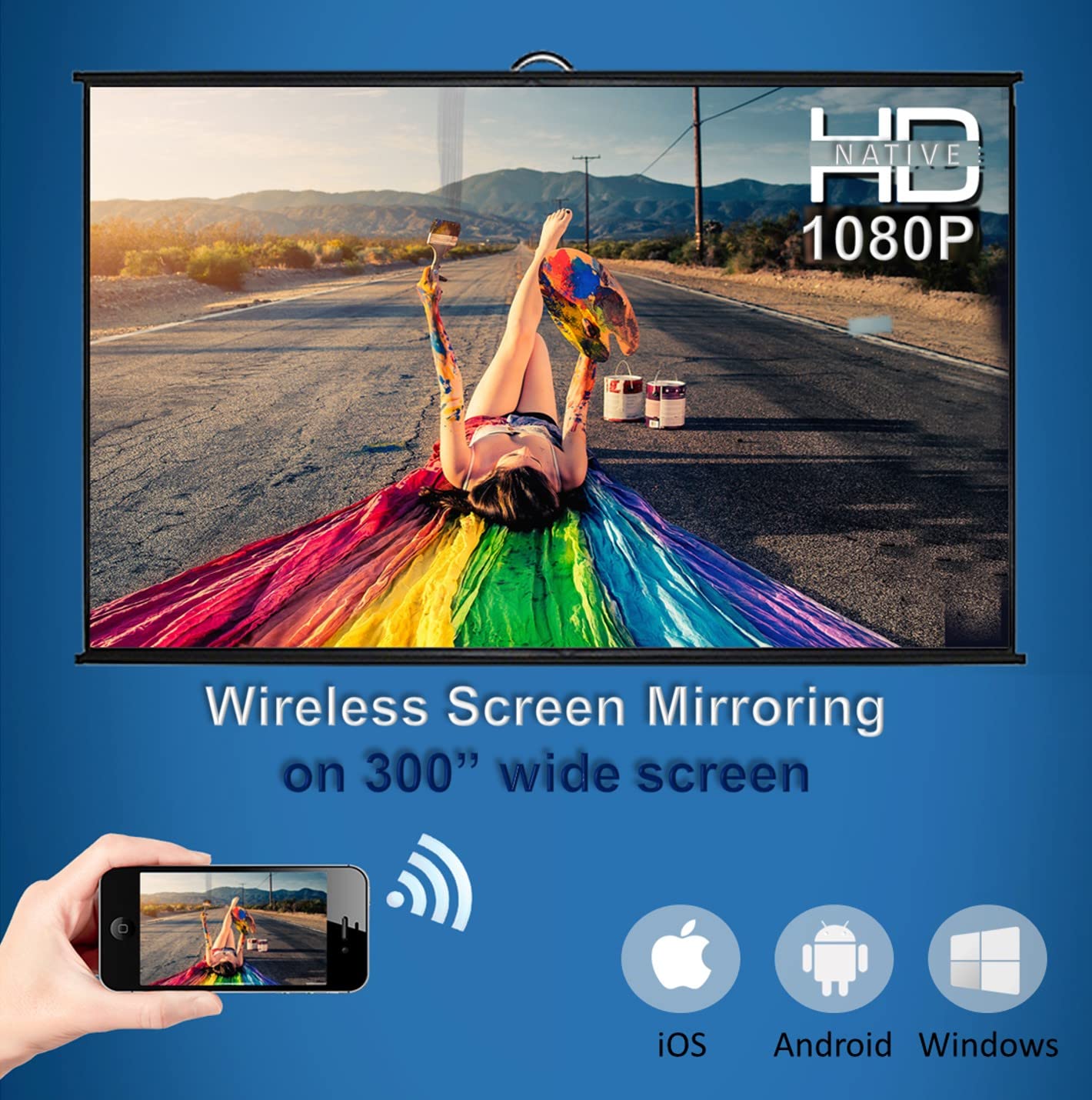
Image: Visual representation of the projector's integrated 5-watt dual box speakers and sound quality.
- Built-in Speakers: Enjoy audio directly from the integrated 5W speakers.
- Bluetooth Audio: Connect external Bluetooth speakers or headphones for an enhanced audio experience. Pair your Bluetooth device through the projector's settings menu.
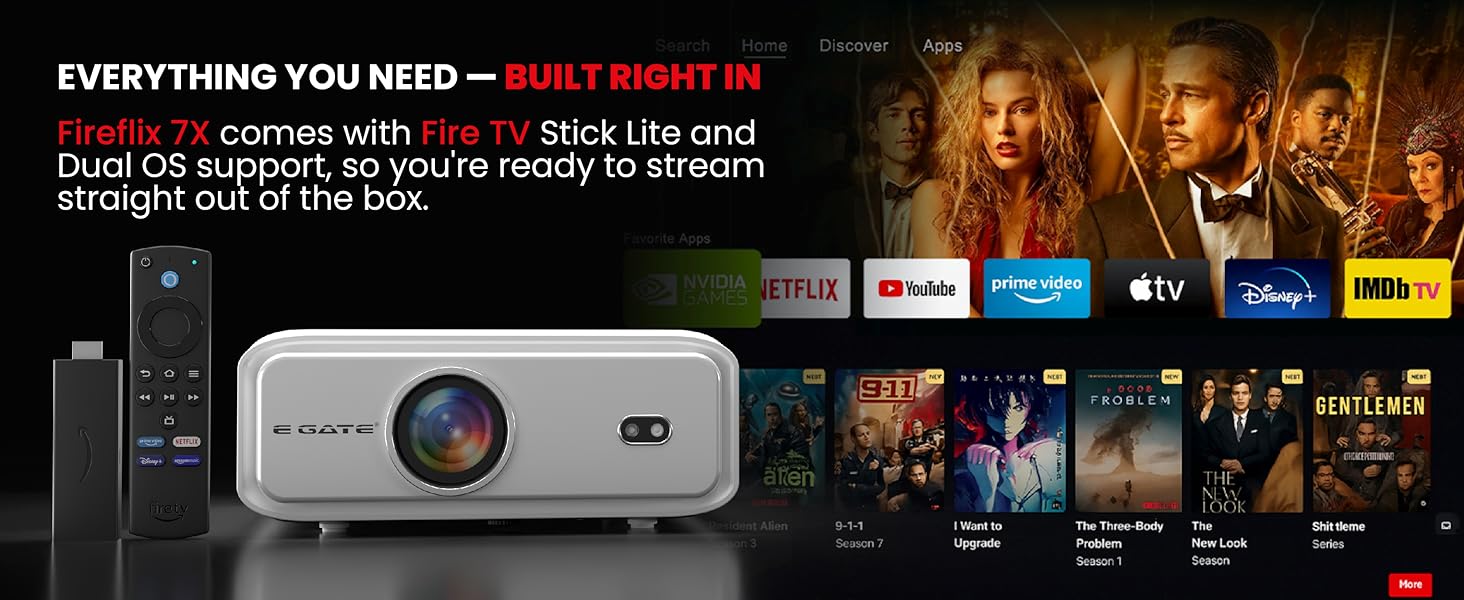
Image: A scene depicting users enjoying projected content with external Bluetooth speakers connected for cinema-quality sound.
7. Maintenance
7.1 Cleaning
- Lens: Use a soft, lint-free cloth specifically designed for optical lenses. Avoid harsh chemicals.
- Casing: Wipe the projector's exterior with a soft, dry cloth. Do not use abrasive cleaners.
- Ventilation: Periodically check and clean the ventilation openings to prevent dust buildup, which can affect performance and longevity.
7.2 Lamp Life
The EGate L9 Pro-Max projector is designed for extended usage with a lamp life of up to 60,000 hours, minimizing the need for frequent lamp replacement.

Image: Visual emphasizing the long lamp life of the projector, promoting extended, hassle-free usage.
7.3 Storage
When not in use for extended periods, store the projector in a cool, dry place, protected from dust and direct sunlight. Use the original packaging or a protective case if available.
8. Troubleshooting
If you encounter issues with your projector, refer to the following common problems and solutions:
| Problem | Possible Cause | Solution |
|---|---|---|
| No power/Projector does not turn on | Power cord not connected properly; Power outlet issue | Ensure power cord is securely connected. Try a different power outlet. |
| No image projected | Input source not selected; Cable connection issue; Lens cap on | Select the correct input source. Check HDMI/AV cable connections. Remove lens cap. |
| Image is blurry | Focus not adjusted; Projector too far/close to screen | Adjust the manual focus ring. Ensure projector is within optimal throw distance. |
| Image is distorted (trapezoidal) | Keystone not adjusted | Use the 4D Digital Keystone correction feature to adjust the image shape. |
| Blurry edges with keystone correction | Excessive digital keystone correction | Minimize keystone correction by positioning the projector as perpendicular to the screen as possible. |
| No sound | Volume too low; Muted; External audio device not connected/selected | Increase volume. Check mute status. Ensure external speakers are connected and selected as output. |
| Android apps malfunctioning/slow | Network issues; App cache full; Software glitch | Check WiFi connection stability. Clear app cache/data in Android settings. Restart the projector. Ensure firmware is updated. |
9. Specifications

Image: A visual summary of the EGate L9 Pro-Max projector's core technical specifications.
| Feature | Specification |
|---|---|
| Brand | E GATE |
| Model | E10k62 |
| Operating System | Android 9.0 |
| Native Resolution | 1920 x 1080 (Full HD) |
| Supported Resolution | Up to 4K decoding |
| Image Brightness | 840 ANSI Lumens (7500 L source) |
| Image Contrast Ratio | 5000:1 |
| Display Technology | LCD |
| Aspect Ratio | 16:9 |
| Processor | Arm Quad Core CA53 on MTK9255 chipset |
| Connectivity | WiFi, Bluetooth |
| Hardware Interface | HDMI, 2 x USB, LAN, AV |
| Audio Output | 5W Inbuilt Speaker, Audio Out |
| Keystone Correction | 4D Digital Keystone |
| Zoom Capability | 100% Digital Zoom |
| Lamp Life | Up to 60,000 hours |
| Product Dimensions | 23.8 x 20.5 x 9 cm |
| Item Weight | 2 kg |
| Power Source | AC |
| Refresh Rate | 60 Hz |

Image: Explanation of lumen measurement standards, clarifying ISO Lumens versus LED ANSI Lumens for projector brightness.
10. Warranty and Support
10.1 Warranty Information
The EGate L9 Pro-Max Projector comes with a 1-Year Warranty. Please retain your purchase receipt for warranty claims. The warranty covers manufacturing defects under normal use conditions.
10.2 Customer Support
For technical assistance, troubleshooting, or warranty service, please contact EGate customer support. Refer to the contact information provided with your product packaging or visit the official EGate website.
Importer: EG India, 501, SG Alpha Tower-II, Sector-9, Vasundhara, Ghaziabad, Uttar Pradesh 201012
Packer: Egate Infotel Pvt Ltd. 503, SG Alpha Tower-II, Sector-9, Vasundhara, Ghaziabad, Uttar Pradesh -201012