
1. Introduction
This manual provides detailed instructions for the setup, operation, maintenance, and troubleshooting of your UPERFECT 15.6" Portable Monitor. This monitor is designed to offer a high-quality visual experience with its 1080P Full HD resolution and 100% sRGB color gamut. Its ultra-slim and lightweight design, combined with versatile connectivity options, makes it suitable for various applications, including remote work, presentations, and entertainment.

Image: The UPERFECT 15.6" Portable Monitor, showcasing its sleek design and vibrant display.
2. Package Contents
Please verify that all items are present and in good condition upon unpacking:
- 1 x UPERFECT 15.6" Portable Monitor
- 1 x Mini HDMI Cable
- 2 x Type-C to Type-C Cables
- 1 x PD 18W Power Charger
3. Product Features
- Stunning Full HD Clarity: Enjoy crisp visuals with a 15.6-inch 1080P FHD screen, delivering sharp text, vivid images, and lifelike colors.
- Accurate Color Reproduction: 100% sRGB color gamut ensures vibrant and true-to-life hues, suitable for various visual tasks.
- Ultra Slim & Lightweight Design: Measuring only 5mm at its thinnest point and weighing approximately 1.8lb, this monitor is highly portable.
- Premium Aluminum Build: Durable aluminum alloy housing provides a sleek aesthetic, improved heat dissipation, and enhanced protection.
- Flexible Mounting Options: Features VESA 75x75mm M4*4mm mounting holes for compatibility with desktop stands and wall mounts.
- Integrated Kickstand: The monitor includes an upgraded integrated kickstand for independent support.
- Matte Anti-Glare Display: Designed to reduce reflections and eye strain compared to glossy screens.
- Low Blue Light Technology: Filters harmful blue light to protect eyes during extended use.

Image: The monitor featuring its integrated kickstand design, allowing for stable positioning without external accessories.

Image: A side view of the monitor emphasizing its ultra-slim profile, narrow bezels, and lightweight construction.

Image: A visual comparison demonstrating the anti-glare properties of the monitor's matte display compared to a glossy screen.
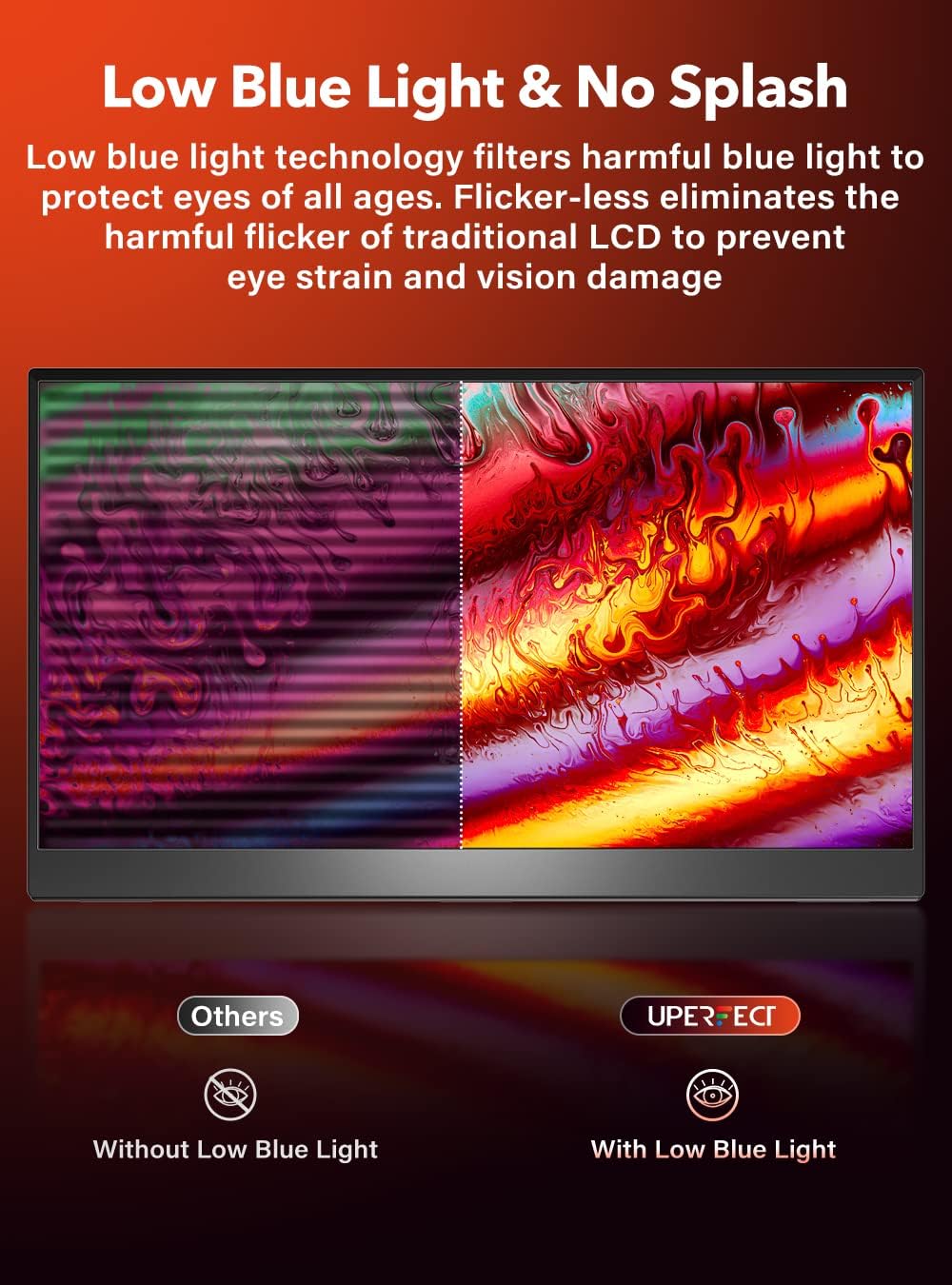
Image: An illustration showing the effect of low blue light technology and flicker-less display for eye protection.
4. Setup Guide
4.1. Connecting to a Laptop or PC
The monitor supports connectivity via USB-C and HDMI. Ensure your device has the necessary ports.
- USB-C Connection (Full-featured USB-C port required):
- Connect one end of a Type-C to Type-C cable to the monitor's USB-C port.
- Connect the other end to a full-featured USB-C port on your laptop or PC. This single cable can transmit video, audio, and power.
- If your device's USB-C port does not supply sufficient power, connect the provided PD 18W power charger to the monitor's second USB-C port for external power.
- HDMI Connection:
- Connect one end of the Mini HDMI cable to the monitor's Mini HDMI port.
- Connect the other end to the HDMI port on your laptop or PC.
- For power, connect one of the Type-C to Type-C cables from the monitor's USB-C port to a USB-A port on your laptop/PC (using a USB-A to USB-C adapter, not included) or to the provided PD 18W power charger.
4.2. Connecting to Mobile Devices
The monitor can extend the display of compatible mobile phones (e.g., those supporting DisplayPort Alternate Mode over USB-C).
- Connect a Type-C to Type-C cable from your mobile phone's USB-C port to the monitor's USB-C port.
- Ensure your phone supports video output over USB-C. External power may be required for the monitor via the second USB-C port if the phone cannot supply enough power.
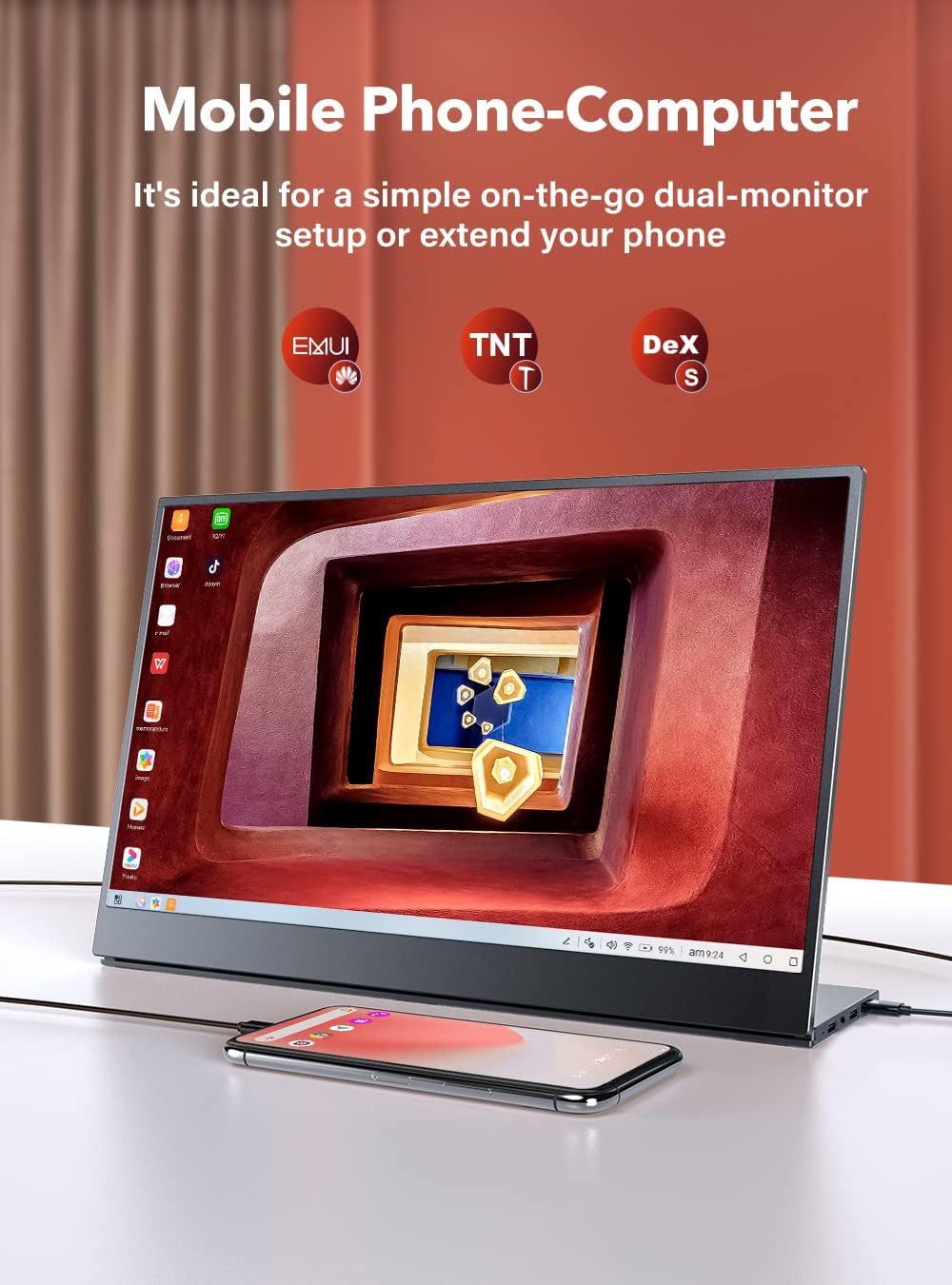
Image: The portable monitor displaying content from a connected smartphone, illustrating its mobile phone-computer functionality.
4.3. Using the Integrated Kickstand
The monitor features an integrated kickstand for easy positioning. Gently adjust the kickstand to your desired viewing angle. The sturdy design ensures stability on flat surfaces.
4.4. VESA Mounting
For alternative mounting solutions, the monitor is equipped with VESA 75x75mm M4*4mm mounting holes.
- Locate the VESA mounting holes on the back of the monitor.
- Attach a compatible VESA mount (not included) using M4*4mm screws.
- Ensure the mount is securely fastened before placing the monitor.
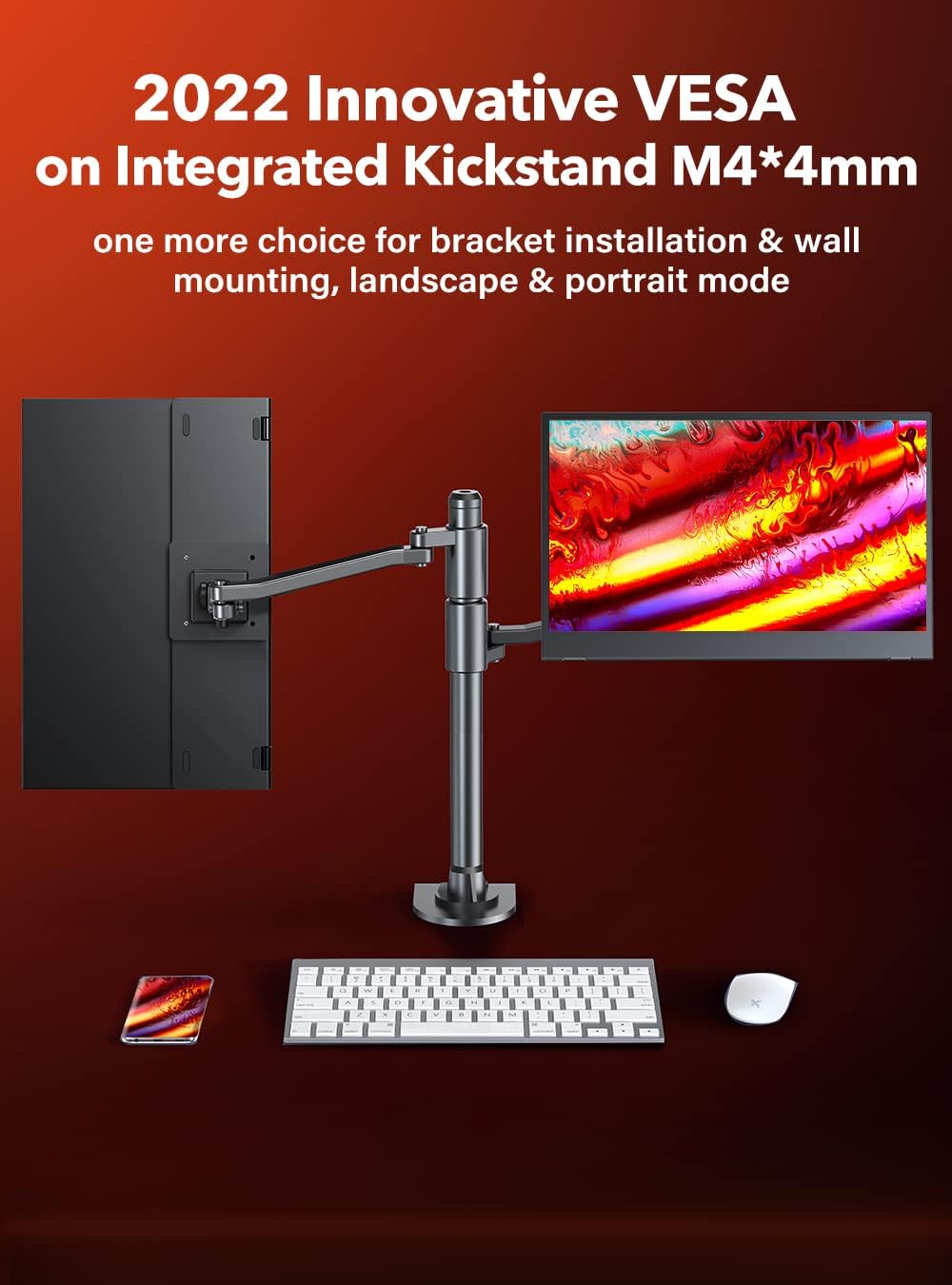
Image: The portable monitor mounted on a VESA-compatible arm, demonstrating its flexible installation options for both landscape and portrait modes.
5. Operating Instructions
5.1. Power On/Off
To power on the monitor, ensure it is connected to a power source (either via a full-featured USB-C cable or the PD 18W power charger). The monitor should automatically power on when a signal is detected. To power off, disconnect the power source or use the monitor's control buttons to access the power menu if available.
5.2. On-Screen Display (OSD) Menu
The monitor features control buttons, typically located on the side or back, to access the OSD menu. These buttons allow you to navigate and adjust various display settings.
- Menu Button: Press to open the OSD menu.
- Navigation Buttons: Use to move through menu options.
- Enter/Select Button: Confirm selections or enter sub-menus.
- Exit Button: Exit the current menu or OSD.
5.3. Adjusting Display Settings
Within the OSD menu, you can typically adjust the following settings:
- Brightness/Contrast: Adjust the overall luminance and contrast ratio of the display.
- Color Settings: Modify color temperature, hue, and saturation.
- Input Source: Manually select between USB-C and HDMI input if auto-detection is not desired.
- Audio Settings: Adjust volume for the integrated speakers.
- Low Blue Light Mode: Enable or disable the blue light filter for eye comfort.
- Aspect Ratio: Adjust the display aspect ratio (e.g., 16:9, 4:3).
6. Maintenance
6.1. Cleaning the Monitor
- Always power off the monitor and disconnect it from the power source before cleaning.
- Use a soft, lint-free cloth slightly dampened with water or a non-abrasive screen cleaner.
- Do not spray cleaner directly onto the screen. Apply it to the cloth first.
- Avoid using harsh chemicals, alcohol, or abrasive materials, as these can damage the screen or casing.
6.2. Storage
When not in use for extended periods, store the monitor in a cool, dry place, preferably in its original packaging or a protective sleeve to prevent dust accumulation and physical damage.
7. Troubleshooting
If you encounter issues with your monitor, please refer to the following common problems and solutions:
- No Signal / Black Screen:
- Ensure all cables (USB-C, HDMI, power) are securely connected.
- Verify that your source device (laptop, PC, phone) is powered on and outputting a signal.
- Try a different cable or port on both the monitor and the source device.
- Check the monitor's OSD menu to ensure the correct input source is selected.
- If using USB-C, confirm your device's USB-C port supports video output (DisplayPort Alternate Mode).
- No Power / Monitor Not Turning On:
- Ensure the monitor is receiving adequate power. If using a single USB-C cable, your source device must provide sufficient power. Otherwise, connect the PD 18W power charger.
- Test the power charger with another device if possible, or try a different power outlet.
- Flickering Screen / Unstable Display:
- Check cable connections for looseness.
- Ensure the monitor is receiving stable power.
- Reduce the refresh rate or resolution on your source device if it's set too high for the cable or monitor capabilities.
- No Audio:
- Check the volume settings on both the monitor's OSD menu and your source device.
- Ensure the audio output on your source device is directed to the monitor.
- Image Quality Issues (e.g., blurry, incorrect colors):
- Adjust brightness, contrast, and color settings in the OSD menu.
- Ensure the display resolution on your source device matches the monitor's native resolution (1920x1080).
8. Specifications
| Feature | Specification |
|---|---|
| Model Number | 156KICKSTAND |
| Screen Size | 15.6 Inches |
| Resolution | 1920 x 1080 (FHD 1080p) |
| Aspect Ratio | 16:10 |
| Refresh Rate | 60Hz |
| Image Brightness | 300 Candela per Square Meter |
| Color Gamut | 100% sRGB |
| Screen Surface Description | Matte |
| Product Dimensions | 7 x 12 x 0.39 inches |
| Item Weight | 3.92 pounds |
| Total USB Ports | 1 (USB-C for data/power, additional USB-C for power only) |
| Connectivity | USB-C, Mini HDMI |
| VESA Mount | 75x75mm M4*4mm |
| Voltage | 240 Volts (Input for power adapter) |
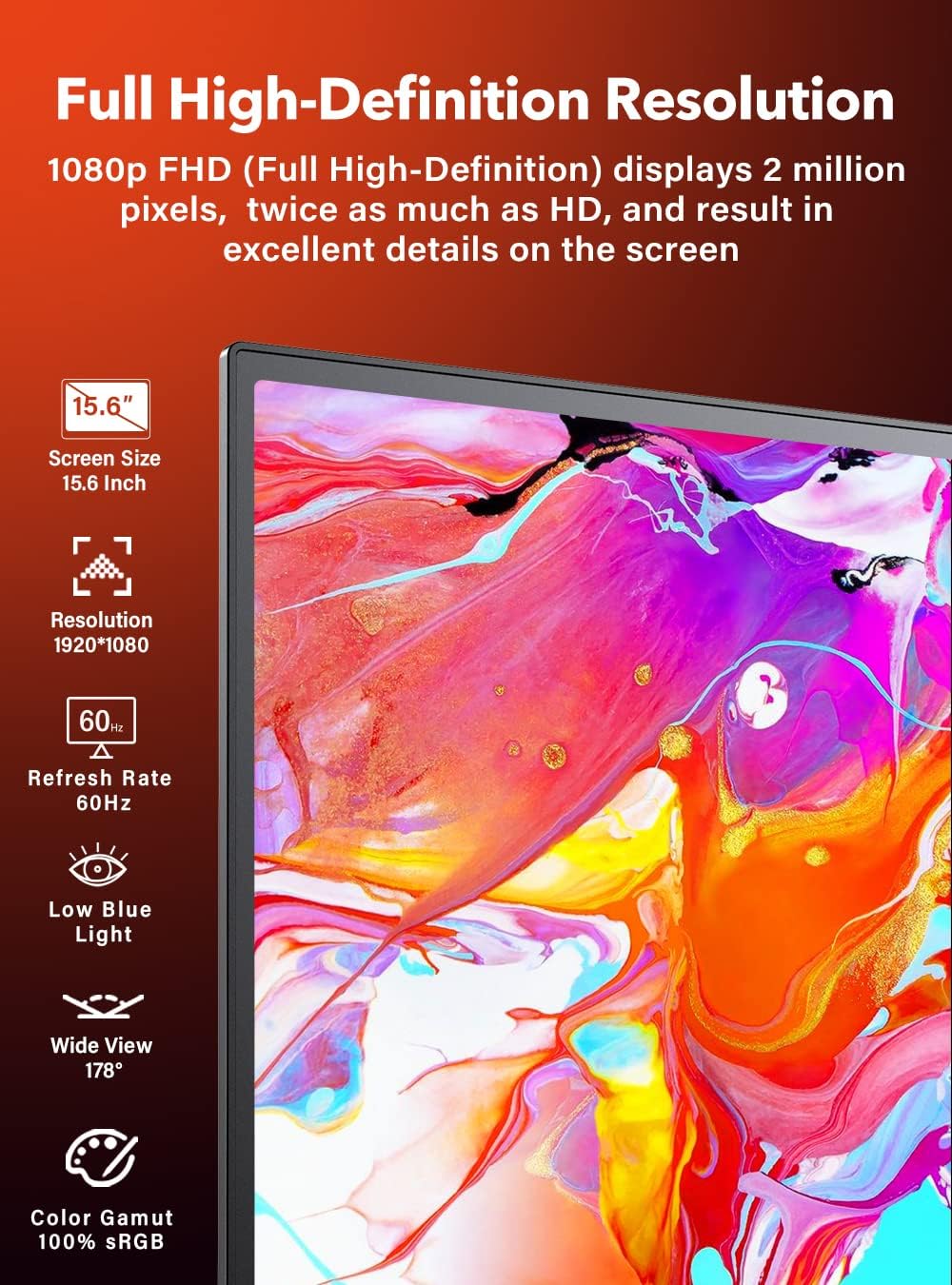
Image: The monitor screen displaying its key specifications including 15.6 inch screen size, 1920x1080 resolution, 60Hz refresh rate, low blue light, wide 178° view, and 100% sRGB color gamut.
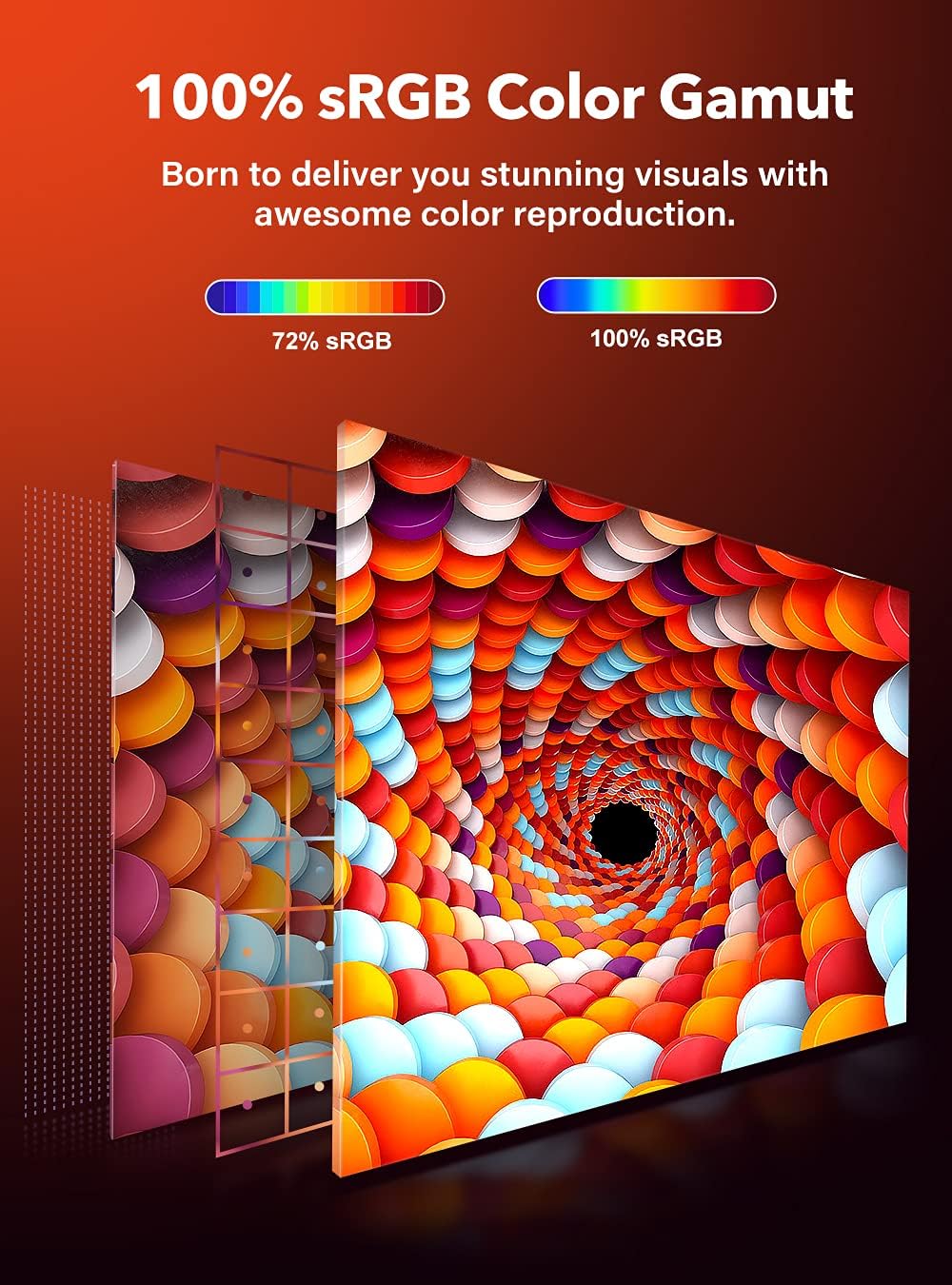
Image: An illustration comparing 72% sRGB with 100% sRGB, highlighting the monitor's capability for stunning color reproduction.

Image: A diagram illustrating the physical dimensions of the UPERFECT 15.6" Portable Monitor, including its height (8.9"), width (14"), and thickness (0.43").
9. Warranty and Support
For warranty information and customer support, please refer to the documentation included with your purchase or visit the official UPERFECT website. You may also contact UPERFECT customer service directly for assistance with product issues or inquiries.
Manufacturer: UPERFECT
Date First Available: July 12, 2021


